
On this page
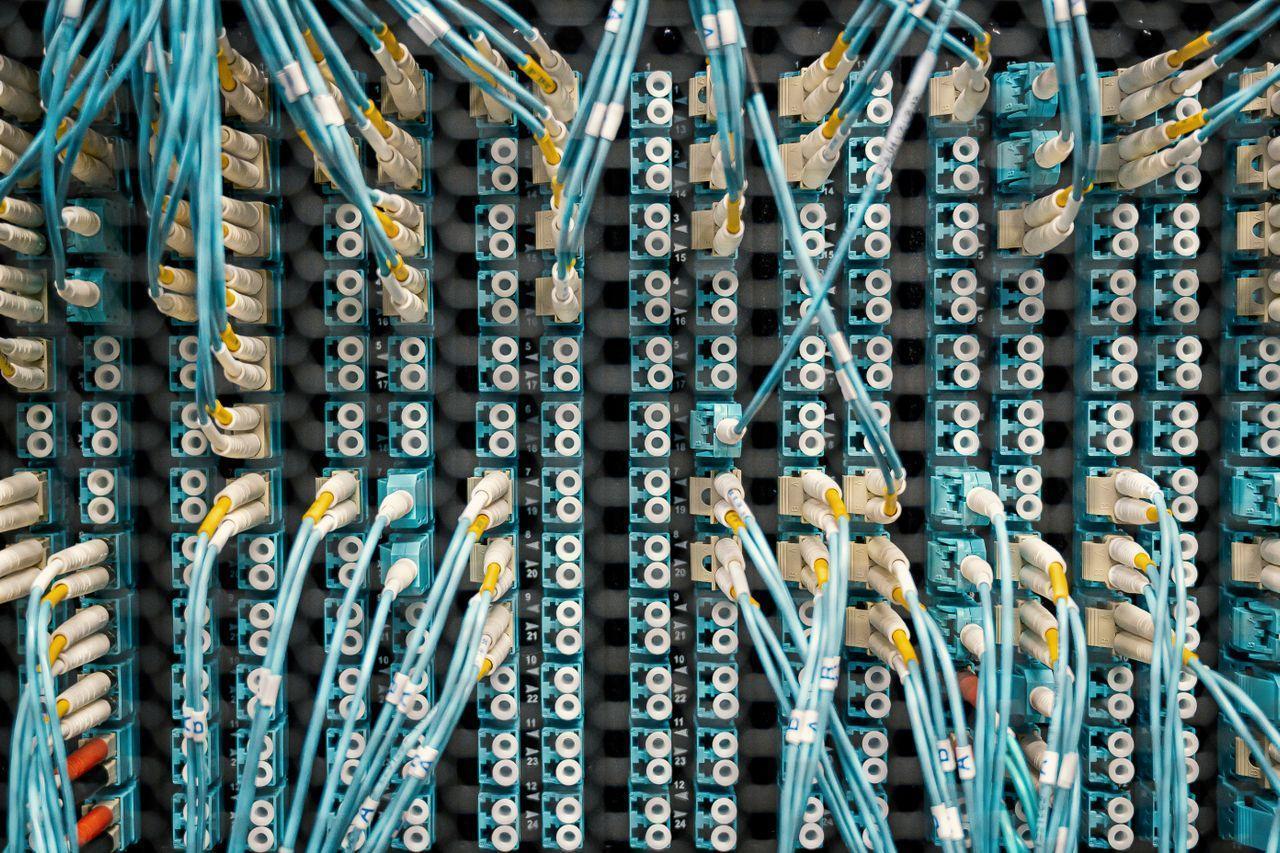
Usually the simplest aspect of getting a website up and running is buying a domain. You search for the name, check to see if it’s available, then make the payment. Connecting that domain to a server takes a little extra work, especially if you have your own hosting set up. If your website is hosted on CyberPanel, you need to make sure the domain is pointing to the correct server before making your website publicly available.
Domain registration services are available through Hostinger, and CyberPanel is a control panel for managing websites, databases, and server configurations. You don’t have to buy every service from the same firm; you can use both. Compare domain registration prices before you buy, and see Hostinger domain deals at HostAdvice. The main task after registration is to connect it to CyberPanel, configure DNS records, and prepare the server for guests.
How Domain Registration and Hosting Work in Tandem
A domain name is the URL that users enter in their browsers. The hosting server stores the content of the website and processes the incoming requests. These are services that can support each other. For example, you can purchase a domain from Hostinger and connect it to a virtual private server with CyberPanel installed. The Domain Name System (DNS) records make that connection by translating the website address into the server’s IP address. And knowing who controls those records keeps you from making configuration mistakes later.
Choose a Website-Friendly Domain
Consider how your domain name will look on business cards, social media, and search results before registering. Shorter names with simple spelling and punctuation are easier to recall. The .com domain extension is popular; however, country-specific extensions may be appropriate for regional sites. If your desired domain name is taken, you can use Hostinger’s domain search tool to check availability and find suitable extensions.
Compare Registration Offers and Renewal Prices
Only qualifying extensions or first-time registrants can benefit from domain promotions. Hosting packages may include a domain for the first year, although CyberPanel may be enough. Compare domain-only and package costs. Check renewal rate, registration period, and optional services before paying. A lower starting price is worthless if renewal prices grow much more than predicted.
Domain Registration With Hostinger
Enter the website URL into Hostinger’s domain search page. Add the name to your cart and choose the registration term if available. Extension, renewal, and extra service periods should be carefully reviewed. Correct contact details and payment are required for registration. You might want to check some domain extensions. Once registered, the domain will appear in your Hostinger account and can be managed right away.
Prepare Your CyberPanel Server
Install CyberPanel on your server and run it before changing the DNS records. The admin interface should be reachable at the server IP address, port 8090. Make a note of your server’s public IPv4 address for domain configuration. Make sure your web server is running, and that ports 80 and 443 are open. Generally, these ports are used for HTTP and HTTPS connections. If the server is unavailable or its firewall blocks visitors, a properly registered domain cannot display your website.
Pointing Your Domain to Your Server’s IP Address
Log into Hostinger and go to your domain’s DNS control settings. Find the A record that points to the root domain (often marked with the @ sign). Replace any conflicting address with the public IPv4 address of your CyberPanel server. For the www version, you are able to create another A record pointing to the same IP address or a CNAME record linking to the root domain. Delete any contradictory records, such as stale AAAA records, if appropriate. Save adjustments, and leave the time-to-live setting at the default level unless you have a need to change it.
Choose Where to Manage DNS Records
You may manage DNS from Hostinger without using CyberPanel. Users who just need their website to point to another server find this process easier. Custom nameservers and remote DNS zone management may be used by more experienced admins. Once you’ve changed your nameservers, your new DNS provider will be the one managing your domain records, so you’ll need to configure a few additional things. If you’re using email, check your MX and related records before making any changes. Changing your nameservers without retaining them may break your email.
Set Up Your Website in CyberPanel
After pointing the domain to your server, log in to CyberPanel and find the Create website option. Choose an appropriate hosting plan and account owner. Add your registered domain without the HTTP/HTTPS prefix. Choose a PHP version that will support the app you want, and give an admin email address. CyberPanel will create the website’s directory and virtual host setup. You can then upload your website files, set up databases, or install an application that is supported. Don’t turn on a mail domain you don’t need if your email is hosted somewhere else.
Enable HTTPS With SSL Certificate
Visitors should be able to view your website using a secure HTTPS connection. CyberPanel offers the option to generate Let’s Encrypt SSL certificates for configured websites. Open Security section > Manage SSL > Select your domain. Before you get a certificate, make sure your DNS records point to the right server, and that ports 80 and 443 are reachable. Certificate validation may fail if the domain is still resolving to an old IP. After you have installed the certificate, check the HTTPS version of your website to make sure that browsers are showing a secure connection.
Check Your Connection and DNS
DNS updates propagate slowly. Sometimes propagation takes 24 hours. DNS resolvers and ISPs may cache old records. One online DNS lookup tool can verify that your domain points to the right IP address. Check the A record, firewall, and CyberPanel website configuration if the site is still down. Check the server’s response by visiting the domain. These checks can detect issues without changing settings.
Security for Domain and Server
Connecting a domain is just the beginning of maintaining a website. Update CyberPanel and server software. Use strong admin credentials. Limit network access. Regular backups are essential for sites with databases or content that changes frequently. We have some work to do on domain security. Check your registration contact information. Watch for renewal notices. Set up account authentication. The domain registration has expired, and therefore a server backup cannot restore it. Each service has different maintenance arrangements.
Make Your Website Accessible
When the website is up and running, be sure to record the DNS entries, server IP address, and relevant account details. This is handy when switching VPSes or fixing an outage. Check your domain renewal dates and auto-payments. If set up properly, CyberPanel can host Hostinger domains. It gives you hosting options. Once the initial connection is achieved, you may focus on website construction and maintenance instead of domain issues.
Image attributed to Pexels.com