On this page
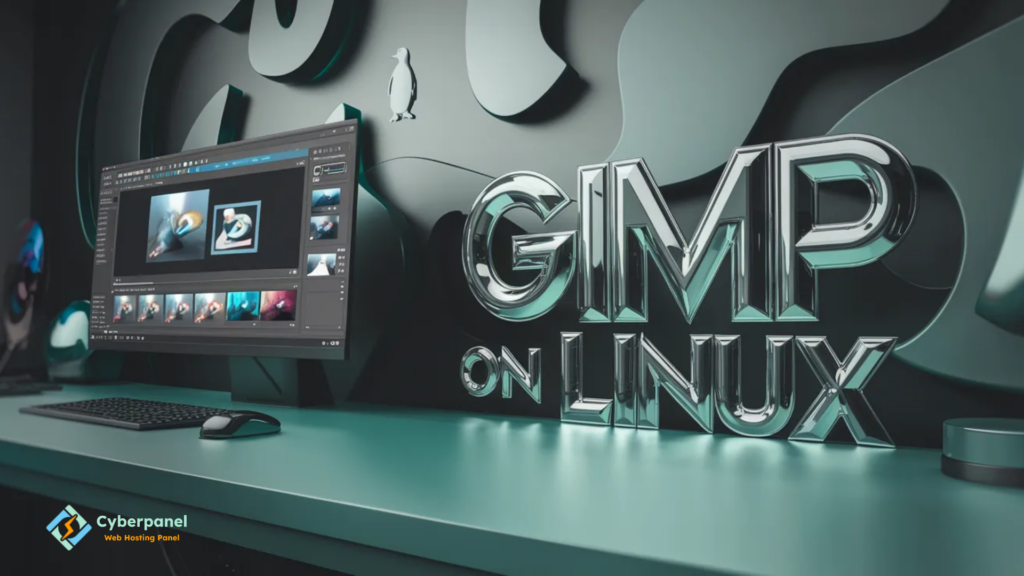
Earlier, it felt like image editing on Linux was highly limited. A lot of users believed that doing professional design work was only feasible by using high, priced softwares that is only available on Windows or macOS. That notion changed when GIMP was made available to the general public. Nowadays, GIMP on Linux is among the most potent and reliable image editing solutions for designers, creators, bloggers, and developers who prefer open-source tools.
GIMP, which stands for GNU Image Manipulation Program, is a powerful image editor that features advanced editing capabilities without charging licensing fees. You can do photo retouching, graphic creation, designing web assets, and also perform professional-level editing right on Linux.
What is more amazing is that it is compatible with a wide array of distributions, including Ubuntu, Debian, Arch, and Kali Linux.
However, many users still pose questions that are practical: how to download GIMP on Linux, how to correctly install it, and especially how to install GIMP on Kali Linux, where repositories and package options can be quite puzzling for beginners.
This article completely spells out the details. You will understand how to get GIMP installed in a secure way, how to operate it after the installation, and handy tips for Linux users. Besides that, we will discuss how CyberPanel is an integral part of Linux and server graphics workflows.
Let’s start with the basics.
What Is GIMP on Linux?
GIMP on Linux is an image editing program that comes with great features, and it is free as well as open source. You can use it to retouch photos, do graphic designs, and create digital paintings right on a Linux computer.
It supports:
- layers and masks
- advanced color editing
- plugins and extensions
- drawing tools
- photo retouching
- export to multiple formats
GIMP is the number one substitute for expensive photo editing programs for a lot of users.
Why People Use GIMP on Linux?
Linux users choose GIMP for their work because it is a light program, at the same time powerful, and it really works great with open-source work methods.
Main reasons are:
- free from any cost
- no subscription cost
- good community support
- plugin system
- works on almost all distros
- can run smoothly even on older hardware
If the creators are working on Linux, it’s a natural choice.
How to Download GIMP on Linux?
The answer to how you can download and install GIMP on your Linux machine depends largely on which Linux distribution you are using, but the most reliable way is to use official repositories via your package manager.
Using repositories for installations means that the packages are verified, you get automatic updates, the software is more stable, and removal is simpler later on.
Only consider downloading random third-party builds if there is no other way.
How to Install GIMP on Linux: General Method
How to install GIMP on Linux is simple and usually takes one command.
Ubuntu / Debian
sudo apt update
sudo apt install gimp
Arch Linux
sudo pacman -S gimpFedora
sudo dnf install gimp
Verify Installation
gimp --version
Output:
GNU Image Manipulation Program version X.X
Once installed, open it from your application menu.
How to Install GIMP on Kali Linux?
Many users specifically search for this because Kali is security-focused and sometimes lacks creative tools by default.
How to install GIMP on Kali Linux is almost the same as Debian, since Kali is Debian-based.
Step-by-step
sudo apt update
sudo apt install gimp
That’s it.
After installation:
gimp
The interface launches normally.
GIMP on Linux vs Other Editors
| Tool | Cost | Best For | Difficulty | Linux Friendly |
|---|---|---|---|---|
| GIMP | Free | Photo editing, graphics | Medium | Excellent |
| Krita | Free | Digital painting | Easy | Excellent |
| Inkscape | Free | Vector design | Medium | Excellent |
| Darktable | Free | RAW photo editing | Medium | High |
| Web editors | Free | Quick edits | Very Easy | Browser-based |
Install GIMP on Kali Linux: Tips for Smooth Setup
When you install GIMP on Kali Linux, keep these small recommendations in mind:
- update repositories before installing
- avoid mixing testing repos unnecessarily
- install fonts and plugins separately if needed
- use a non-root user for everyday editing
This keeps the system stable.
Basic First Steps After Installing GIMP
After the installation procedure, once GIMP opens:
- Choose the theme (dark or light) that you prefer
- Rearrange the toolbox as per your preference
- Use single, window mode for easier handling
- Add more brushes if you feel the need for them
- Set up autosave for your comfort
Just a few minor adjustments like these will help you work more productively right off the bat.
Performance Tips for GIMP on Linux
In order to keep the process of editing smooth and without interruptions:
- enable GPU acceleration if your GPU compatibility allows it
- allocate more memory through your preferences
- save your large work files on the SSD
- turn off other apps when you are doing intensive editing
Generally, Linux will make GIMP operate really efficiently when compared with older operating systems.
Integrating CyberPanel with GIMP Workflows
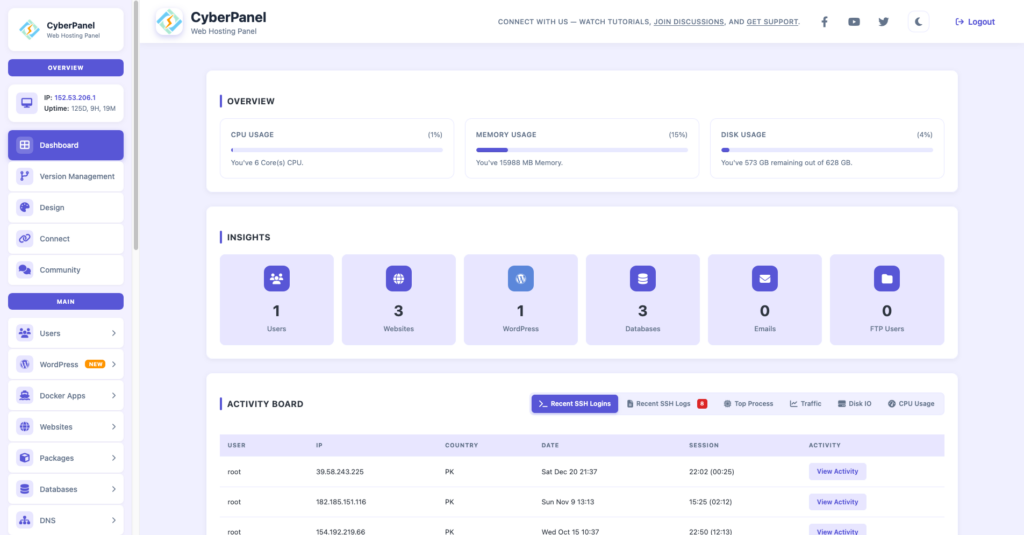
CyberPanel is an open-source and free web hosting control panel powered by OpenLiteSpeed. While GIMP is great for creating images, Linux users who also have websites or content platforms usually prefer to manage their online presence with CyberPanel. So here, CyberPanel comes in handy.
The normal procedure would be:
- design the graphics in GIMP
- compress pictures
- post them on the website through CyberPanel hosting
- govern media and web performance from a single point
CyberPanel is a tool that can help you in various ways:
- hosting the websites
- handling the media-rich websites
- regulating storage and resetting the data
- backup
- speeding up the loading time by server optimization
Hence, for bloggers, marketers, and designers working with Linux, this set of tools offers great versatility and usability.
Common Mistakes to Avoid
Many beginners:
- run GIMP as root user
- install from unknown sources
- ignore updates
- overload with too many plugins early
Start simple. Add extensions gradually.
Final Thoughts!
The GIMP on Linux offers a powerful image editing tool without the hassle of licensing costs, and it is undoubtedly among the top choices. It is a stable, feature-packed, and straightforward application to install, even on Kali Linux.
In short, GIMP with CyberPanel gives you professional-grade editing tools and a fully open-source workflow, which makes it an excellent Linux-based creative environment for designers, bloggers, and developers alike.
Easy to get up and running. Exciting to use. Totally free.
People Also Ask
Can GIMP on Linux open Photoshop PSD files?
Yes. GIMP can open PSD files, though very complex files may lose some layer effects.
Can I install plugins in GIMP on Linux?
Yes. Plugins can be added manually to the GIMP plugin directory.
Is GIMP good enough for professional work?
Yes. Many professionals use GIMP for web graphics, photo editing, and publishing.