On this page
If you manage a Linux server, you may have already encountered a scenario where users log out at the worst possible time. You are about to reboot or apply patches and take the system down for maintenance, but someone is right now in the middle of a task and has no idea what is going to happen.
This is a situation the wall command was built to solve.
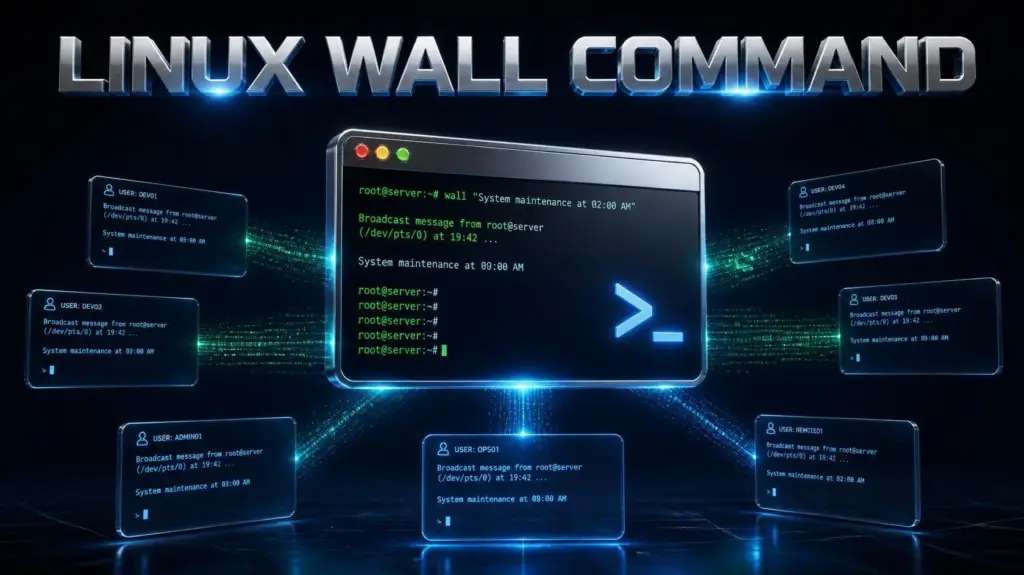
The Linux command wall sends a message to all currently logged-in Linux users by printing it directly into their open terminals. This guide will teach you what the wall command does, how to use it properly, all of its options, and where it fits into your server administration workflow. It will also cover common errors, permission issues, and how tools for modern hosting environments can make your life easier.
What Is the Wall Command in Linux?
The wall command is a built-in messaging utility of Linux, which means it works out of the box on most of the OS distributions like Ubuntu, Debian, CentOS, RHEL, AlmaLinux, etc. The main purpose of the tool is to send a message to every user that has an open terminal session. You can think of it as an intercom system for your Linux server.
Although the Linux wall command has been around for decades, it still proves its usefulness in the modern infrastructure. The reason behind this is simple – it works when everything else fails. It does not rely on the internet; it does not require any additional configuration or software. It connects users directly over their terminal sessions, which can be critical in certain operational scenarios. The wall utility is usually shipped as part of util-linux packages, so you will most likely find it installed by default on your system.
Why Sysadmins Still Use Wall in 2026
As the modern workplace trends towards more remote and distributed work, you may wonder how and why teams continue to rely on such an old utility as wall.
The answer is simple – it works when everything else fails.
• wall does not rely on the internet, as it runs locally on a machine.
• It also requires no additional configuration or software.
• Furthermore, it reaches its target faster, being delivered in the moment when the user actively uses the system
• And finally, it can be used in situations when other communication channels are unavailable.
This makes wall especially useful in shared or academic environments, when the same server is used by more than one individual. It may also be useful for you when you need to notify all of your users prior to any maintenance work.
Basic Syntax of the Linux Command Wall
Typing the wall command is straightforward. The syntax follows a simple pattern:
wall [options] [message]Messages can be sent in a few ways, but the most common ones are listed below.
Method 1: Type the Message Directly
wall "Server will restart in 10 minutes. Please save your work."After hitting the Enter key and typing the message, press Ctrl+D to send it. This will print your message to all of the open sessions of the server.
Method 2: Use Echo and a Pipe
echo "Scheduled maintenance starts at 2 AM UTC" | wallThis method is used the most often, as it does not require additional input from the user.
Method 3: Send the Contents of a File
wall /home/admin/maintenance-notice.txtThis method is particularly useful when the message that needs to be delivered is large or needs to be sent more than once.
Wall Command Options and Flags
The wall command utilizes common options and flags. Below is a list of the most used ones.
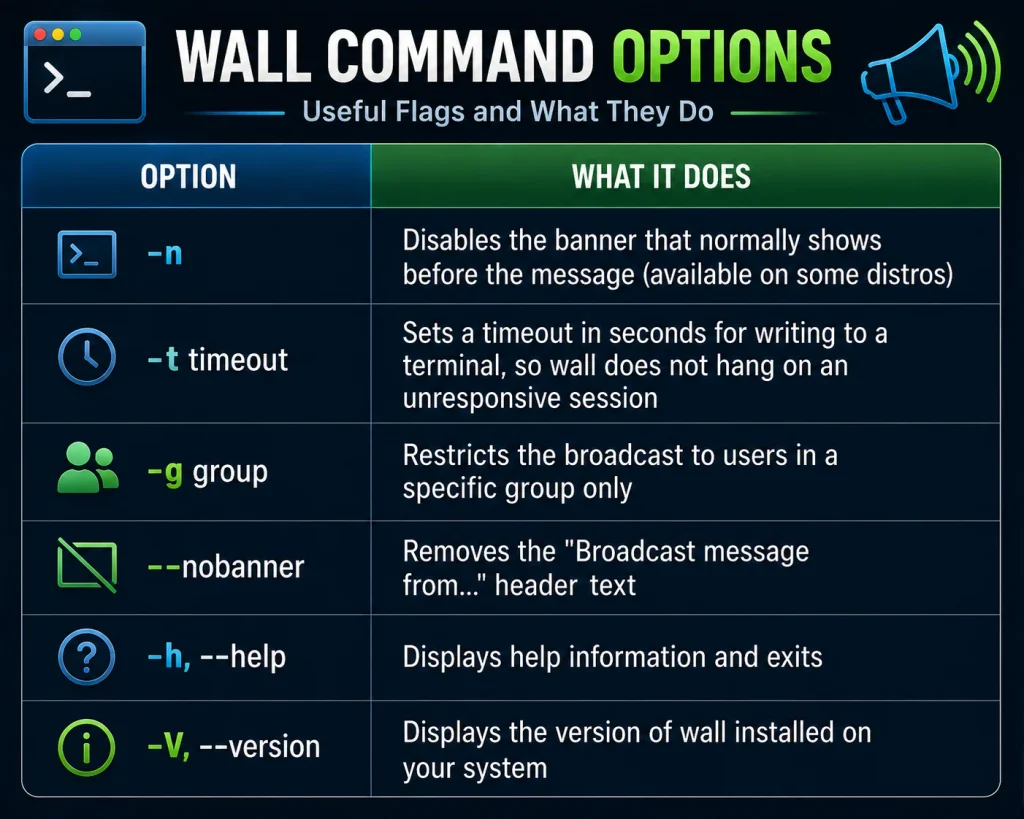
Some of these options may not be available in your distro, as the wall utility is known to have inconsistencies between versions of util-linux.
Who Can Use the Wall Command?
As stated, the wall command is a built-in utility of the Linux system that allows you to send a message to every logged-in user. While this may sound surprising to some, any user can broadcast a message with the wall command, so it is important to understand how terminal messaging works.
It all hinges on the mesg command. Terminals have the ability to allow or deny incoming messages. You can think of it as a firewall for the terminal messaging system. By default, it is set to yes, which means that messages can come through.
mesg y allows incoming messages from the terminal, and mesg n denies incoming messages from the terminal.
The status of the mesg command is what ultimately decides whether the wall command will successfully deliver the message or not. However, keep in mind that certain users may not have the capability to change the status, depending on their level of privileges. It is also worth noting that the root account will typically be able to send the message regardless of the target terminal’s mesg value, due to having greater privileges.
Real-World Use Cases for the Wall Command
Now that we have covered some of the basics of what the wall command is and how it works, let us take a look at the most practical use cases for the command. You may be wondering, where does the wall utility actually fit into modern Linux administration? Below are several examples of the ways in which the wall command can be used in a practical scenario.
Scheduled maintenance warnings. Before the maintenance or reboot of the server, system administrators can send a wall message to all of the logged-in users. It provides them with the much-needed advance warning before system resources are taken down.
Emergency shutdown alerts. In some cases, the system administrator may need to take sudden action. This can be due to running out of storage space or a security threat that requires the system to be powered off immediately.
Shared university or lab servers. In educational environments, servers are often shared between multiple students, either as part of a course or research program. The wall command allows the system administrators or instructors to send out maintenance notices or updates to all of the current users at once.
Automated cron jobs. Some automated jobs can be programmed to send wall messages as well.
Multi-admin coordination. In some cases, an individual server can be managed by more than one system administrator. The wall command can be used to send a notice to all of the current users of the system.
Wall Command Example With a Countdown Script
A common example of using the wall command is seen in the following script:
#!/bin/bash wall "Server reboot in 5 minutes. Save your work now." sleep 240 wall "Server reboot in 1 minute." sleep 60 wall "Rebooting now." reboot
As seen in the example above, this particular script is used to notify the server users of the impending reboot of the system. It gives them a brief window to save their work. This script can be very useful for Linux users, as it ensures that users are not caught off guard by a sudden system power down.
Wall vs Other Linux Messaging Commands
It is easy to confuse the wall command with some of the other terminal messaging utilities. While similar in purpose, the commands have different use cases and target different audiences. Below is a comparison of some of the similar Linux messaging commands.
| Command | Sends To | Common Use |
| wall | All logged-in users at once | Server-wide announcements and warnings |
| write | One specific user | Private one-on-one terminal messages |
| mesg | No one; it configures permission | Controls whether a terminal accepts wall/write messages |
| notify-send | Desktop notification popup | Local desktop alerts on GUI-based Linux systems |
| motd (message of the day) | Users at login time only | Static welcome message shown once, not real-time |
If you need to communicate with a group of users at once, the wall command is the go-to utility. You should use the write command to send a private message to a specific user.
Common Wall Command Errors and Fixes
"wall: cannot get tty name: Inappropriate ioctl for device"This error generally occurs when you attempt to run the wall command in a non-interactive shell or script. To resolve this issue, try invoking the wall command in an interactive shell or session.
Message not received by another user
It is possible that the message is not received by a user because they have disabled receiving messages. You can check whether this is the case by running the mesg command. If the terminal session has mesg n, the message is denied. You can ask your target user to change it to mesg y , or you can send the message with elevated privileges if you have them.
Permission denied
In some cases, the wall command may be restricted to specific groups of users, based on the -g option or other privilege settings. If you encounter this error, please consult with your system administrator.
Command not found
This error message rarely appears, as the wall command is generally available in most Linux distributions. However, some containerized environments or minimal OS installations may not have the command available. You can try installing the util-linux package if this is the case.
The Role of a Web Hosting Control Panel Like CyberPanel

As mentioned, the wall command is perfect for reaching out to every user currently logged in to your system. However, businesses often operate on multiple servers at the same time, managing various client accounts. It is impractical to communicate with each user on every server individually, which is why a web hosting control panel is an invaluable asset. By having a centralized interface, you can view the activity of your users across multiple platforms and manage your operations more efficiently.
Instead of having to manually type out a wall message for every user before any system maintenance, you can use a utility like CyberPanel to keep track of your users and their activity. This will help you keep track of your operations, save you time and effort, and minimize the chances of a mistake occurring.
While the command line utility is great for performing specific maintenance tasks, the combination of the two will greatly increase your productivity as a system administrator or web host.
Security Considerations Before You Broadcast
Keep in mind that wall messages are generally plain text, which makes them insecure. Below is a list of the things to consider before sending a wall message.
- Do not put any sensitive information such as passwords, API keys, or other credentials in a wall message.
- Avoid using the wall as your chat utility, as it can interrupt users’ work.
- On shared or public-facing servers, you may want to consider limiting wall access on a per-group basis, so that users cannot spam each other.
- Always test any scripts that you are going to use for sending wall messages in a development environment before deploying them in production.
Quick Reference Checklist
Before you use the wall command in production, make sure that you follow this short reference guide.
- Messages should always have a time estimate included.
- Make sure that critical users have messages.
- Do not type the command in a production shell if you are not sure of the outcome.
- If you only need to notify a group of users, try using the -g option.
- Always send a second warning shortly before any downtime event.
Frequently Asked Questions
Does the wall command work over SSH sessions?
Yes. As long as a user is logged in through SSH and their terminal has mesg y enabled, they will receive the broadcast just like a local terminal session would.
Can I schedule a wall message to run automatically?
Yes. You can pair wall with cron or at to send timed messages before scheduled maintenance, without needing to be logged in yourself when it fires.
Does wall work on macOS or only Linux?
A version of wall exists on macOS and other BSD-based systems too, though the available flags and exact behavior can differ slightly from the Linux util-linux version.
Is there a character limit for wall messages?
There is no strict character limit built into the command itself, but very long messages can wrap awkwardly across different terminal widths, so shorter, direct messages tend to work best.
Can a regular user block all incoming wall messages permanently?
Yes, by running mesg n in their session. This setting typically applies per terminal session and needs to be set again in new sessions unless configured in a shell profile file.
Final Thoughts
The wall Linux command is small, but it solves a real problem that modern tools often overcomplicate. When you need every logged-in user to know something right now, nothing beats a direct terminal broadcast.
Learn the syntax, respect the mesg permissions, and combine it with scripts for routine maintenance windows. And when your infrastructure grows beyond a single server, lean on a proper web hosting control panel to keep communication, monitoring, and administration organized across your entire environment.