On this page
If you manage apps or websites, you need an effective hosting environment. CyberPanel is an easy-to-use control panel that helps you manage servers. It is a perfect option with a virtual server. For BlueVPS users, CyberPanel is a convenient option as it has a streamlined interface and built-in LiteSpeed support.
In this tutorial, we will show you how to install CyberPanel on your virtual server and how to set it up. It is common to opt for a WordPress VPS hosting because it is optimized to enhance the loading speeds of the websites.
What Makes CyberPanel a Preferred Option?
Before you think of how to install the control panel, it is worth explaining some of the features that make CyberPanel favored by many of its users.
Key Benefits
- LiteSpeed Integration: Built-in OpenLiteSpeed web server for superior performance.
- User-Friendly Interface: Easy management for domains, emails, and databases.
- One-Click Installations: Install WordPress and other applications with a click.
- Free SSL Certificates: Integrated Let’s Encrypt support.
- Efficient Resource Usage: Ideal for VPS environments.
Requirements for Installation
Before you install CyberPanel on your BlueVPS server, consider the following.
System Requirements
- A brand-new VPS with either CentOS 7/8, AlmaLinux, or Ubuntu
- At least 1 GB RAM (2 GB recommended)
- Root access via SSH
- Stable internet connection
Initial Setup
1. Connect to your server using SSH:
ssh root@your-server-ip2. Update your system packages:
# For CentOS / AlmaLinux
yum update -y

# For Ubuntu
apt update && apt upgrade -y
Installing CyberPanel
For the most part, CyberPanel gives you an installation script that makes the installation easy.
Step-by-Step Installation
1. Download the installation script:
sh <(curl https://cyberpanel.net/install.sh)2. Choose your installation type:
- Select 1 for CyberPanel with OpenLiteSpeed (the free version)
- Select 2 for CyberPanel with LiteSpeed Enterprise (the paid version)
3. Follow the prompts:
- Set admin password (or choose auto-generate)
- Choose whether to install additional components like Memcached, Redis, or Watchdog
4. Wait for installation to complete. This may take 10–15 minutes depending on server speed.
Accessing the CyberPanel Dashboard
Once installation is complete, you’ll receive a login URL like:
https://your-server-ip:8090Login Details:
- Username:
admin - Password: the one you set during installation
Make sure port 8090 is open in your firewall.
Initial Configuration
After logging in, it’s important to configure your panel properly for optimal performance.
1. Set Up a Domain
- Go to Websites → Create Website
- Enter your domain name, email, and PHP version
- Click Create Website
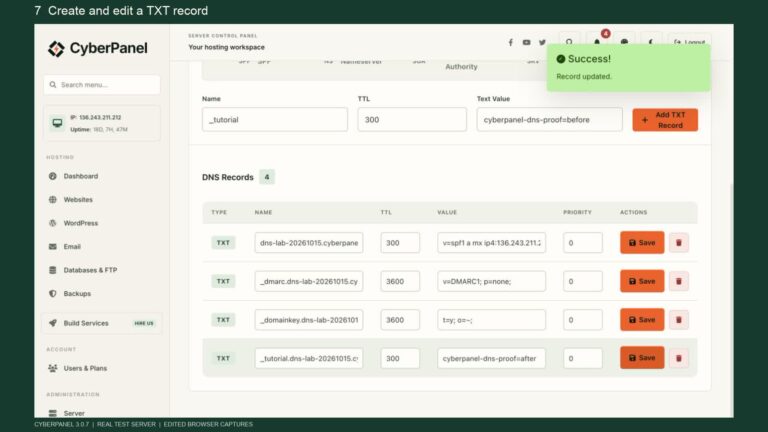
2. Configure DNS
Point your domain to your VPS IP by updating:
- A Record → Your server IP
You can manage DNS either through your domain registrar or CyberPanel’s DNS manager.
Installing WordPress on CyberPanel
CyberPanel makes WordPress installation incredibly simple.
- Navigate to Websites → List Websites
- Click Manage next to your domain
- Select Install WordPress
- Fill in your site title, username, and password
- Click Install Now
Within seconds, your WordPress site will be live.
Security and Optimization
After setup, securing your server is crucial.
Essential Security Steps
Enable the firewall:
systemctl start firewalld
systemctl enable firewalld
Install SSL:
- Go to SSL → Manage SSL
- Select your domain and issue SSL
Performance Optimization
- Enable LiteSpeed Cache
- Use Redis or Memcached
- Regularly update system packages
Backup Configuration
Backing up your data ensures you don’t lose important files.
Setup Backups
- Navigate to Backup → Create Backup
- Choose between full or incremental backup
- Schedule automated backups for convenience
Troubleshooting Tips
Even though CyberPanel simplifies management, you may encounter minor issues.
Common Fixes
Panel not loading: Check that port 8090 is open in your firewall.
Website not working: Restart LiteSpeed:
systemctl restart lswsPermission issues: Fix ownership:
chown -R nobody:nobody /home/yourdomain/public_htmlWhy Choose BlueVPS for Your Server Needs?
Choosing the right control panel is just as critical as finding a dependable VPS provider. A solid platform guarantees uptime, rapid loading times, and the capacity to expand as your project evolves. Many users have selected BlueVPS because they provide a wide variety of offers, strong infrastructure, and a seamless synergy of contemporary tools, including CyberPanel. It grants users the ability to control their websites in a way that ensures the maximum safety and efficiency of their hosting environments.
Conclusion
The combination of a BlueVPS virtual server and CyberPanel for installation and configuration allows the user to access advanced capabilities of server management. CyberPanel proves to be user-friendly for beginners due to the features built for LiteSpeed and ease of use for WordPress.
With this knowledge, users can quickly configure their virtual server to accommodate high traffic while ensuring all the security measures for every single site. When choosing a VPS provider, the desire for speed, scaling, and stability is certainly achievable.