On this page
Colima Docker is a lightweight way to run Docker containers on macOS without using Docker Desktop. It creates a lightweight Linux virtual machine and provides a Docker-compatible environment that developers can control from the terminal.
Colima is especially useful for developers who prefer a lightweight, command-line-focused workflow.
Let’s dive in together!
What Is Colima Docker?
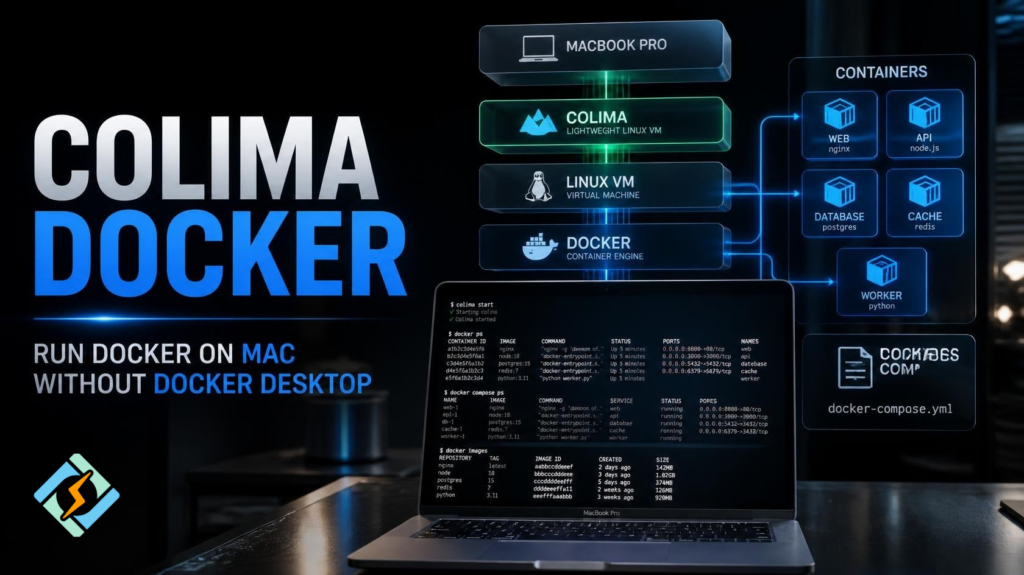
Colima is a tool that provides container runtimes on macOS and Linux. On macOS, it creates a Linux virtual machine because Linux containers need a Linux kernel to run.
With Docker, the setup looks like this:
MacBook
↓
Colima
↓
Linux Virtual Machine
↓
Docker Engine
↓
Containers
Colima is not a replacement for Docker itself. Instead, it provides the environment where Docker can run.
Once Colima is running, you can use familiar commands such as:
docker psdocker run nginxThis makes switching to Colima relatively easy for developers who already know Docker.
Why Use Colima Docker on a MacBook?
Docker Desktop provides an easy graphical experience, but it may be more than some developers need.
Colima focuses on the underlying container environment and lets you work primarily from the command line.
Common reasons to use it include:
- Lightweight Docker environment
- Terminal-first workflow
- Docker CLI support
- Docker Compose support
- Configurable CPU and memory
- Linux VM management
- Useful Apple Silicon support
- No need for the Docker Desktop interface
Colima can be particularly appealing if you already work comfortably with the terminal and want more direct control over your development environment.
How Do You Install Colima on macOS?
The easiest way to install Colima Docker in macbook is using Homebrew.
Install Colima with:
brew install colimaInstall the Docker CLI if necessary:
brew install dockerThen start Colima:
colima startCheck that Docker is working:
docker infoYou can also check Colima itself:
colima statusIf Docker responds correctly, your MacBook is ready to run containers through Colima.
How Do You Run Docker With Colima?
Once Colima is running, normal Docker commands can be used.
For example:
docker run -d -p 8080:80 nginxCheck the running container:
docker psThen open the application in your browser through the configured local port.
To stop the container:
docker stop container_nameColima manages the Linux environment, while Docker manages the container.
This separation is what makes the setup useful.
Can Colima Run Docker Compose?
Yes. Colima works with Docker Compose, which makes it suitable for multi-container development projects.
Suppose your project contains a web application and a database. A simple Compose file could look like:
services:

 web:

   image: nginx

   ports:

     - "8080:80"

 database:

   image: postgres

   environment:

POSTGRES_PASSWORD: exampleStart the services with:
docker compose up -dCheck them with:
docker compose psStop the complete stack with:
docker compose downIf you already use Docker Compose with Docker Desktop, the commands remain familiar when moving to Colima.
How Do You Configure Colima Resources?
Colima lets you configure resources assigned to its Linux virtual machine.
For example:
colima start --cpu 4 --memory 8 --disk 60This requests:
| Resource | Example allocation |
| CPU | 4 cores |
| Memory | 8 GB |
| Disk | 60 GB |
You do not necessarily need these values.
A small development project may work perfectly with fewer resources. A project running several databases, application servers, and other containers may require more.
The best approach is to start small and increase resources when your workload requires them.
Colima vs Docker Desktop
The more useful comparison is actually Colima vs Docker Desktop, because Colima and Docker itself perform different roles.
| Feature | Colima | Docker Desktop |
| Runs Docker containers | Yes | Yes |
| Docker CLI | Yes | Yes |
| Docker Compose | Yes | Yes |
| Linux VM | Yes | Yes |
| Graphical interface | No full desktop GUI | Yes |
| Resource configuration | Yes | Yes |
| Terminal-focused | Strong | Moderate |
| Beginner friendly | Moderate | High |
| Integrated desktop experience | Limited | Extensive |
Docker Desktop is designed as an all-in-one application.
Colima is more minimal. It gives developers the container environment while leaving more of the workflow in their hands.
Which One Should You Choose?
Choose Colima if you:
- Prefer the terminal
- Want a lightweight environment
- Already understand Docker
- Want configurable VM resources
- Do not need Docker Desktop’s graphical interface
Choose Docker Desktop if you:
- Prefer graphical management
- Are new to Docker
- Want integrated desktop features
- Need a more polished out-of-the-box experience
Neither option is automatically better.
Colima vs Docker: What Is the Difference?
The phrase Colima vs Docker can be confusing because they are not really competing products.
Docker is the container platform.
Colima provides the environment in which Docker can run on systems such as macOS.
Think of it this way:
macOS
↓
Colima
↓
Linux Environment
↓
Docker
↓
Containers
So installing Colima does not mean you have replaced Docker. You are using Colima to provide the environment required by Docker.
This distinction is important when troubleshooting.
If a container fails, the problem could involve Docker, the container image, networking, storage, or the Colima virtual machine.
Does Colima Work on Apple Silicon MacBooks?
Yes. Colima can be used on modern Apple Silicon MacBooks.
However, architecture matters when running containers.
Apple Silicon systems use ARM64 architecture, while many older container images were originally built for AMD64.
Modern container images often support multiple architectures, but some older images may not.
You can check your Mac’s architecture with:
uname -mYou may see:
arm64for an Apple Silicon Mac.
When a container image does not support your architecture, you may need an appropriate alternative or architecture emulation.
What Can You Run With Colima Docker?
Colima is useful for many local development workloads.
You can run containers for:
- Nginx
- Apache
- Node.js
- Python
- PHP
- PostgreSQL
- MySQL
- Redis
- MongoDB
- WordPress
- Laravel
- Django
A typical development environment might look like:
MacBook
↓
Colima
├── Web Server
├── Application
├── PostgreSQL
└── Redis
This keeps project dependencies inside containers instead of installing every service directly on macOS.
Can CyberPanel Work With Colima Docker?

Colima is mainly useful for local container development. CyberPanel is a web hosting control panel. For example, a developer could build and test an application locally:
MacBook
↓
Colima
↓
Docker
↓
Local Testing
After testing, the application can be deployed to an appropriate production server.
CyberPanel can then handle supported hosting and server-management tasks on that production environment.
The advantage is a clean separation between local development and production hosting.
Common Colima Docker Commands
These commands cover most basic tasks:
# Start Colima

colima start

# Check status

colima status

# Stop Colima

colima stop

# Start with custom resources

colima start --cpu 4 --memory 8 --disk 60

# Check Docker

docker info

# List containers

docker ps

# Run a container

docker run nginx

# Start a Compose project

docker compose up -d

# Stop a Compose project

docker compose downOnce you understand these commands, you can handle most basic Colima Docker workflows.
Frequently Asked Questions
Is Colima completely free?
Colima itself is open-source software. Your normal costs, such as your MacBook, Internet connection, or cloud services used by your containers, are separate.
Is Colima better than Docker Desktop?
It depends on your needs. Colima is attractive for developers who want a lightweight, terminal-focused environment. Docker Desktop is better suited to users who want a complete graphical Docker experience.
Is Colima suitable for professional development?
Yes, provided it supports your project’s requirements. Many developers can use it for local application development, testing, databases, and multi-container workflows.
Final Verdict
Colima Docker is a practical solution for running Docker containers on macOS without Docker Desktop. It provides a Linux virtual machine, connects Docker to that environment, and lets developers continue using familiar Docker and Docker Compose commands.
For a MacBook developer, the basic setup is simple:
brew install colima

brew install docker

colima start

docker psColima is particularly useful when you want more control over CPU, memory, and disk resources or simply prefer working from the terminal.
When comparing Colima vs Docker Desktop, the choice comes down to workflow. Colima favors a lightweight, command-line-oriented setup, while Docker Desktop provides a more integrated graphical experience.
And when comparing Colima vs Docker, remember that they serve different roles. Colima provides the environment, while Docker provides the container platform.
For developers already working with Docker Compose, the transition can be especially smooth.
Start with a small Colima configuration, test your existing Docker and Compose projects, and increase resources only when your workloads require them. If your goal is a clean, lightweight Docker environment on your MacBook, Colima is well worth trying.