On this page
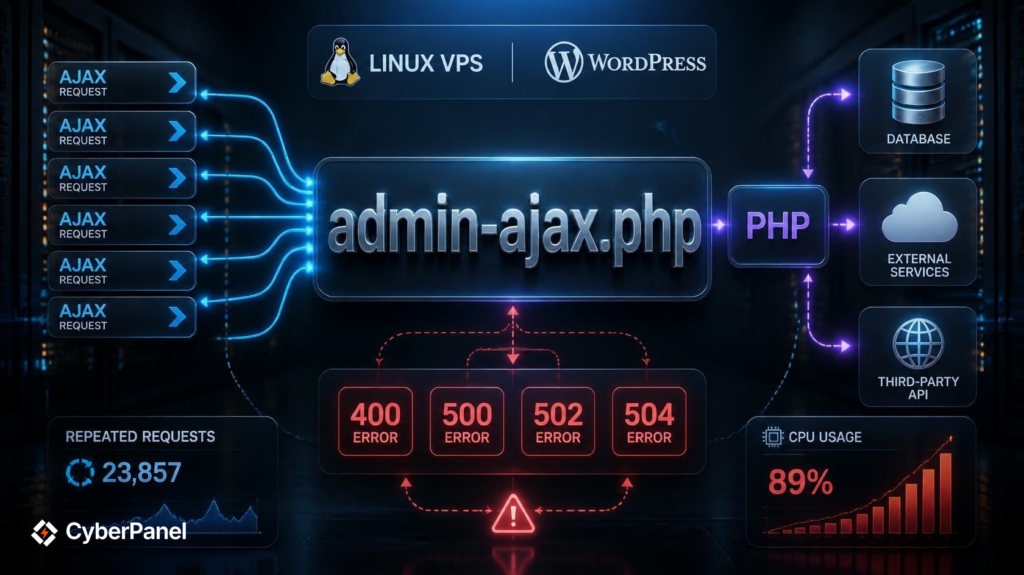
You may see admin-ajax.php in your logs when a WordPress site is using a large amount of CPU. It may also appear alongside 400, 500, 502, or 504 errors.
The issue is rarely with the file itself, as it acts as the endpoint for an AJAX request. The more interesting questions are what is being sent to it, how often it is being called, and what WordPress does with it.
What Is admin-ajax.php
WordPress uses wp-admin/admin-ajax.php to process AJAX requests. Plugins and themes can use this file to exchange data with the browser without having to reload an entire page.
For example, a plugin could use AJAX to submit a form, fetch a set of results, update a setting, or do some other action from the dashboard.
Most requests include an action value, which is often the starting point when you’re looking to see what is happening.
Why Is admin ajax php WordPress Causing High CPU?
There are a few reasons why an AJAX request could become expensive.
A plugin could be sending the same request over and over. A query within the request could be particularly slow. JavaScript could be triggering the request repeatedly after an error. Or, a request could be waiting for an external API to respond before returning data to the browser.
WordPress Heartbeat could be adding additional AJAX traffic. It runs at intervals between 15 and 120 seconds depending on the context.
While seeing a large spike of admin-ajax.php traffic doesn’t necessarily mean WordPress is broken, you’ll need to identify the request it is processing to narrow down the issue.
Find the AJAX Request First
Open up your browser’s developer tools and view the Network tab.
Then, reproduce the action that has you searching for these logs. Search through the requests for:
admin-ajax.phpThen, click on the request to examine the request data.
You’ll want to find the action value, response code, request duration, and how often the request is repeating.
For example, you may see:
action=load_productsIf the request is made once when you click a button, the frequency is unlikely to be the problem.
But, if it appears dozens of times without user input, you’ll want to investigate the JavaScript or plugin responsible for it.
The browser can tell you what is slow, while your WordPress and server logs can help tell why.
Find the Plugin Behind the Request
Once you’ve identified the AJAX request, look for it in your active plugins and the code of your theme.
If you have shell access to the server, WP CLI can show you active plugins:
wp plugin list --status=activeIf you suspect a plugin and want to test it, you can temporarily deactivate it:
wp plugin deactivate example-pluginReplace example-plugin with the actual plugin slug.
Then, try the same page again to see if your AJAX requests stop or the CPU usage drops significantly.
You’ll have a much better idea of what is happening than you might by simply increasing PHP limits. Of course, for a live site, you want to be careful when making these changes and may want to test on a staging copy when possible.
When Repeated AJAX Requests Are the Problem
Repeated AJAX requests are common with dashboards, live search, filters, notifications, and analytics tools among others.
A request that runs every few seconds may be fine on a small site, but with many visitors and several expensive requests, this can keep PHP busy for extended periods.
Watch the Network tab while the page is open.
If the same request keeps showing up, look into the script that is generating it. Are there polling intervals set? Are there failed requests that retry immediately? Are there multiple event handlers attached to the same action?
Fixing how often the request is sent is often better than throwing more PHP workers at the issue.
Check WordPress Heartbeat
Heartbeat is another culprit behind requests to admin-ajax.php.
It is used by WordPress for things like autosaving, and if the CPU issue is primarily occurring while administrators are working inside WordPress, it is worth investigating.
But, don’t disable it right away just because you see Heartbeat requests. First, make sure it is actually responsible for the load. There are some features in WordPress that rely on it.
Look at Database Queries
An AJAX request can spend most of its execution time waiting for the database to respond.
This can happen if queries are poorly optimized, a lot of data needs to be loaded, indexes are missing, or a plugin makes several queries for each request.
If you’re using Query Monitor to test, make sure to view the queries generated by the AJAX action and see how they compare to the request time.
If one query is taking the majority of the time, throwing more CPU at the problem will only give you a more expensive way to run the same slow query.
Check External Requests
Some WordPress plugins contact another service while processing an AJAX request.
For example, an action may contact an API, wait for its response, and then use that result before returning a response to the browser.
If that service starts taking too long, the PHP process can be kept occupied while waiting for a response.
Check whether the plugin makes external HTTP requests during the failing action. Take a look at its timeout settings and logs if available.
This is especially worth investigating when the AJAX request takes a long time but your database isn’t showing any unusual activity.
Fix wordpress admin-ajax.php 400 Bad Request Nonce Errors
Nonce issues require a little more care, since a 400 response is not the typical result of WordPress nonce verification.
WordPress AJAX code is often written using:
check_ajax_referer( 'my_action', 'security' );When this check fails using its default behavior, WordPress typically returns a 403 response.
So, if you’re seeing:
400 Bad Requestand suspect a nonce problem, take a look at the request before assuming that WordPress itself generated the 400.
Look at the request data to see whether the expected nonce is present.
A stale cached page could have JavaScript using an old nonce. Plugin code, security software, a proxy, or the web server could also be generating a 400 response. Clear the relevant cache and try the request again. If the problem persists, look into the plugin code and server response.
Fix wordpress admin ajax php 500 Errors
A 500 response means something failed while the request was being processed.
WordPress debugging can help expose PHP errors that aren’t visible in the browser.
In your wp-config.php, you can temporarily use:
define( 'WP_DEBUG', true );
define( 'WP_DEBUG_LOG', true );
define( 'WP_DEBUG_DISPLAY', false );
@ini_set( 'display_errors', 0 );WordPress typically writes the resulting log to:
wp-content/debug.logAgain, trigger the AJAX request and look at the newest entries in the log. A fatal PHP error, memory issue, plugin conflict, or custom code error could be there.
For production websites, don’t leave debugging enabled for too long. Review the log and fix the problem once you’ve found it.
What About 502 and 504 Errors?
A 502 or 504 usually means the request is failing somewhere between the web server and the PHP application.
The browser makes the AJAX request. The web server passes it to PHP. PHP runs the WordPress code, which may query the database or contact another service.
A problem in that chain can prevent a response from getting back to the browser.
For a 502, look at PHP processes, upstream communication, and server logs. For a 504, pay particular attention to requests that are taking too long. Slow database queries, external API calls, overloaded PHP workers, or long running plugin operation can all contribute.

If you’re using CyberPanel, the PHP Workers guide explains how PHP workers affect request processing. You can also check the 502 troubleshooting guide and 504 troubleshooting guide.
Don’t increase timeouts before finding out why the request is taking so long.
Could LiteSpeed Cache Be Involved?
It can.
AJAX requests often deal with data that shouldn’t be treated like a normal cached page. Cache or optimization changes can also interfere with JavaScript and the data sent with an AJAX request.
If the problem started after changing LiteSpeed Cache settings, test the request with the relevant optimization or caching feature disabled.
Pay particular attention to stale JavaScript and nonce values. Clear the affected cache and test again.
You can also review LiteSpeed Cache’s AJAX Cache TTL and optimization settings before making broader changes to the site’s caching configuration.
What If Bots Are Requesting admin-ajax.php?
Check your access logs if the number of requests isn’t matching normal visitor activity.
You may find repeated requests coming from a handful of IP addresses, or requests that keep targeting the same AJAX action.
Look at:
- IP address
- Request frequency
- User agent
- AJAX action
- Response status
If the unusual traffic is responsible for the CPU usage, deal with the traffic source rather than changing PHP settings for the entire server.
Security rules can help when there is confirmed abusive traffic, but make sure legitimate requests from your site aren’t blocked.
A Quick Way to Narrow It Down
You don’t need to change five server settings at once. Check the problem in this order:
| What you see | What to investigate |
|---|---|
| Requests keep repeating | JavaScript, plugin, Heartbeat |
| Request is slow | PHP code, database, external API |
| 400 response | Request data, plugin code, security layer |
| 403 response | Nonce or permission checks |
| 500 response | PHP and WordPress logs |
| 502 response | PHP process and upstream connection |
| 504 response | Long running request and PHP workers |
| CPU rises with unusual traffic | Access logs and abusive requests |
Once you know which category you are dealing with, the fix becomes much more specific.
Common Mistakes
The most common mistake is treating admin-ajax.php as the cause simply because it appears in monitoring software.
Another is increasing PHP workers immediately. More workers can help a server handle legitimate concurrent work, but they don’t repair a plugin making hundreds of unnecessary requests.
Clearing every cache is also not a diagnosis. It may temporarily change the behavior without telling you what caused it.
Find the request first. Then, find what runs behind that request.
FAQs
Can I disable admin-ajax.php?
Not safely as a general fix. WordPress and many plugins use it for AJAX functionality. The better approach is to identify the action generating excessive or failed requests.
Why does admin-ajax.php use high CPU when nobody is clicking anything?
Background JavaScript, Heartbeat, scheduled frontend activity, plugin polling, or unwanted traffic can trigger requests without a visible click.
Is a nonce error always a 400 error?
No. A failed check_ajax_referer() check normally produces a 403 response with its default behavior. A 400 response can come from other code or another layer in the request path.
Should I increase PHP workers for admin-ajax.php?
Only after checking whether PHP workers are actually exhausted. If one plugin is creating expensive requests, increasing workers can increase the amount of work your server tries to process without fixing the source.
How do I know which plugin is causing the AJAX request?
Start with the action value in the browser’s Network panel. Search that action through your plugins and theme code, then test the suspected plugin carefully.
Final Takeaway
admin-ajax.php is usually the messenger, not the problem.
Find the AJAX action, trace it to the code or plugin behind it, and then use request timing and logs to find what is making it slow or fail.
Start with the Network panel and identify the failing AJAX action before changing your server limits.