On this page
We backed up a real test website, changed its files and database, removed the disposable site, and recovered the original through CyberPanel. Here is what we checked.
The restored PHP file has the same SHA-256 hash as the original. The database rows and the live HTTP response also match the baseline.
A completed backup is useful. A successful recovery tells you more. An archive can exist while missing the content you need, and an application can still fail after its files return. The way to find out is to restore a known backup and compare the result with a known starting point.
For this walkthrough, we used a dedicated CyberPanel test website with a PHP page and a small MariaDB database. Every customer name, order and record in the demonstration is synthetic. We used CyberPanel’s actual browser interface to create the backup and start restoration.
Watch the recovery test
Edited live browser captures, timed captions and synthetic English narration. Waiting time is omitted. The reel is not a measurement of restore speed.
Know which restore workflow you are using
CyberPanel has several backup tools. This demonstration uses Backups → Create Backup and Backups → Restore Backup, the manual full-site archive workflow on our installed 3.0.7 build. It is separate from WordPress Manager backups, incremental snapshots and managed cloud-backup jobs.
1. Establish a starting point you can verify
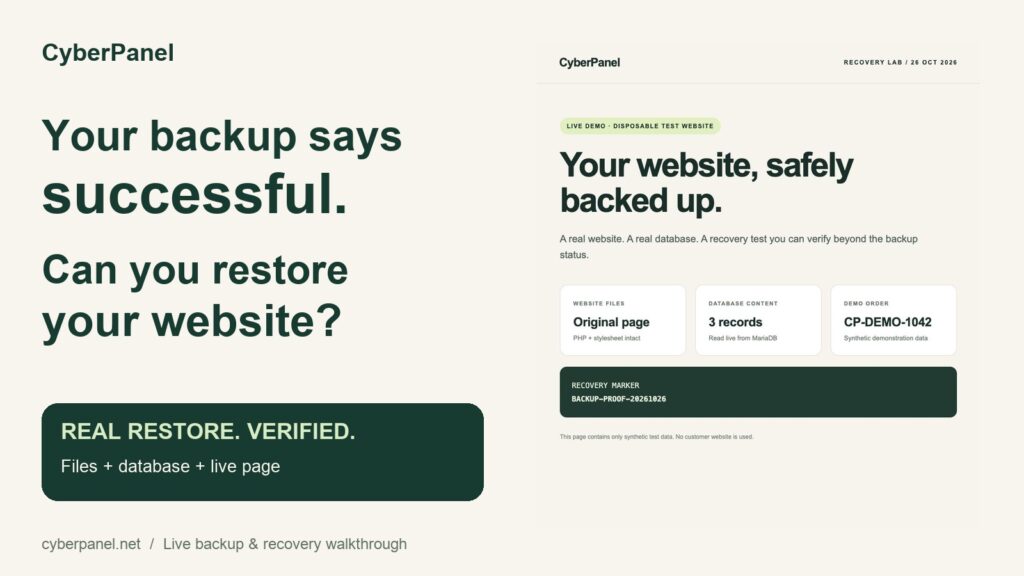
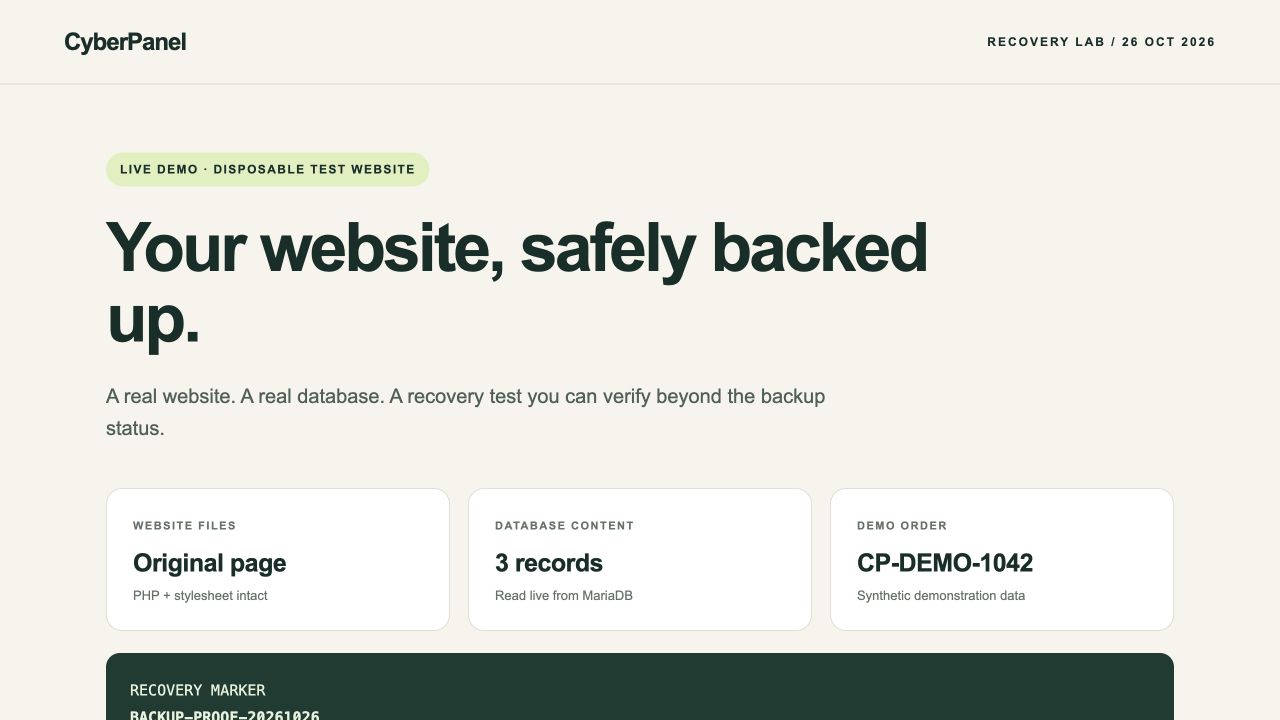
Our demo runs at backup-lab-20261026.cyberpanel.net. Before backing it up, we checked the page in a browser and recorded three kinds of evidence: the SHA-256 hash of index.php, every row in the demo database table, and a fresh HTTP response from the running application.
The database contained three records: a welcome headline, the synthetic order CP-DEMO-1042, and the marker BACKUP-PROOF-20261026. The page reads them from MariaDB on each request. Seeing those values after recovery therefore checks more than a static screenshot.
2. Create the full backup in CyberPanel
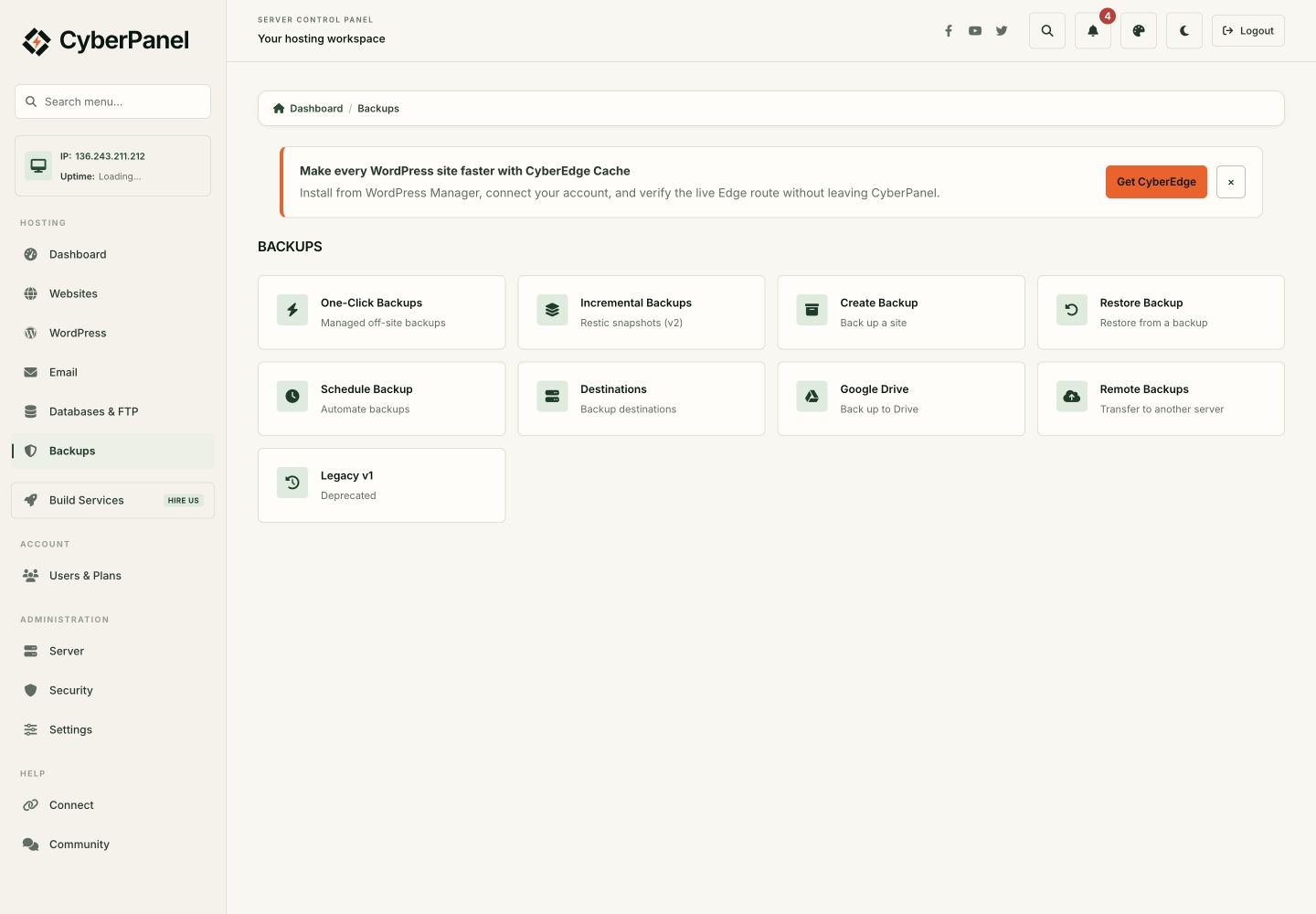
Open Backups from the sidebar, then choose Create Backup. Select the intended website and choose Home as the destination for this manual test. Check the domain carefully before starting.
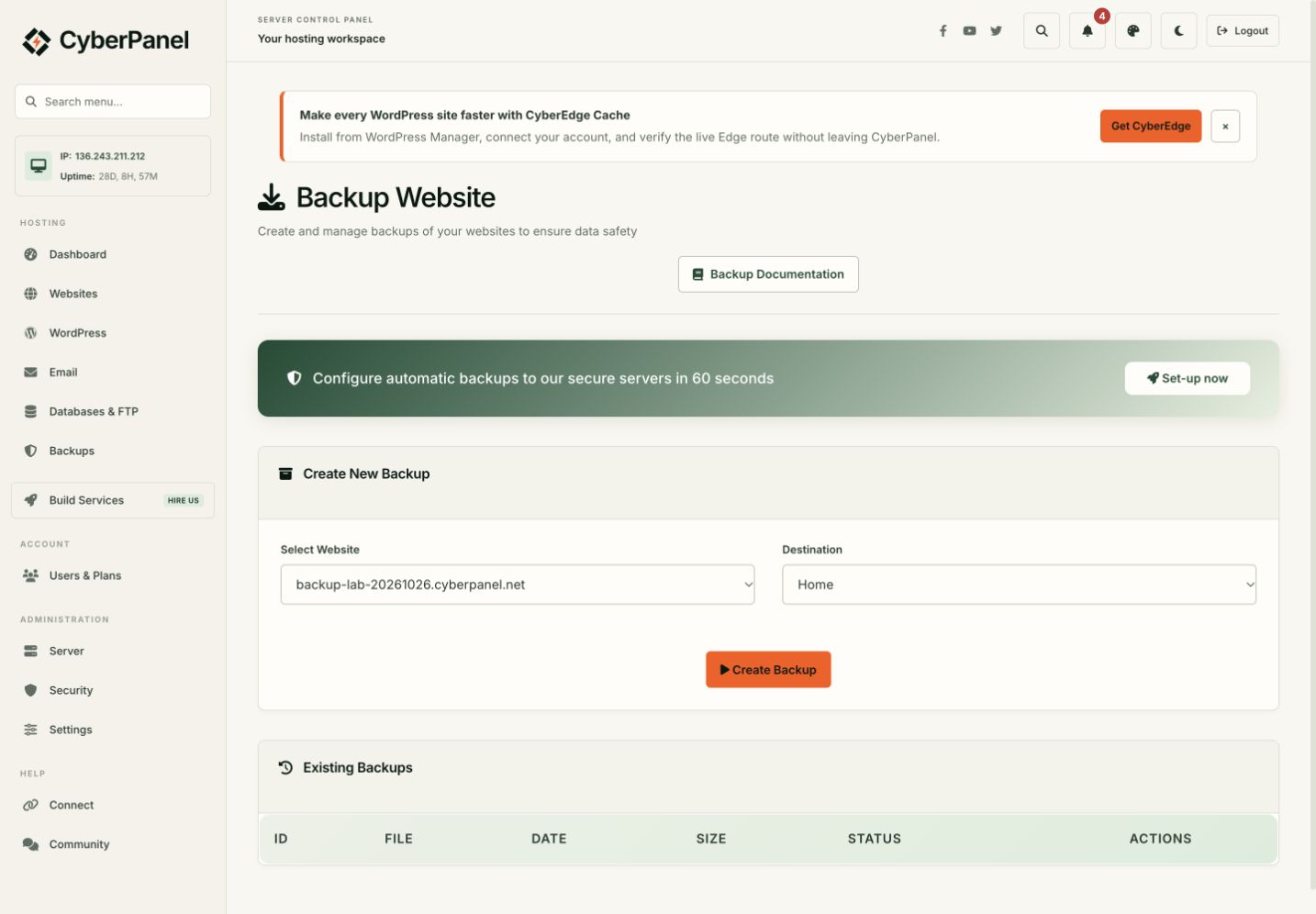
Click Create Backup and wait for completion. On this run, CyberPanel created a .tar.gz archive beneath the website’s backup directory. We inspected the archive: it contained the website files, the SQL database dump, virtual-host configuration and backup metadata.
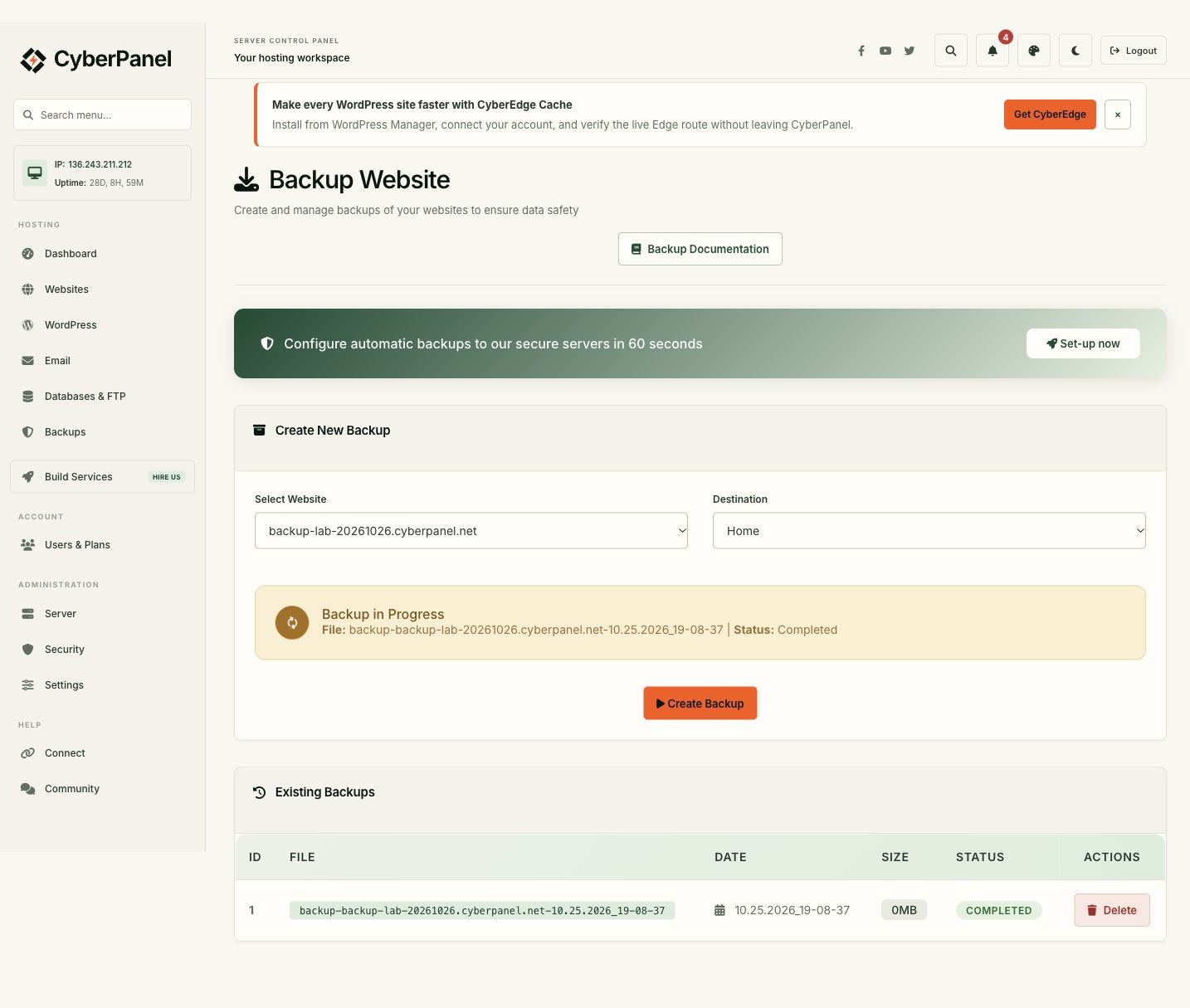
The actual archive was 4,395 bytes. The interface displayed 0MB, so we checked the file itself rather than treating the rounded display as an empty backup. For a larger site, allow enough local disk space and site quota for both backup creation and restore staging.
3. Preserve a copy outside the website
We copied the completed archive to /home/backup, where this Restore Backup tool discovers it. We also downloaded a second copy to a separate laptop and compared the SHA-256 checksums. Both copies matched.
459a8a3669419e39c7a52059ce017518808a20c5d8bfc1ce15fbe6f395ed687eThe distinction matters: moving an archive into another directory on the same server does not protect it from losing that server. Our laptop copy established a separate copy for this exercise. It did not configure or test automatic SFTP uploads, Google Drive, retention or scheduled backups.
A backup can contain application credentials and account metadata. Store it privately, restrict access and protect the device or storage holding it. The supporting files contain screenshots and verification results; the backup archive itself is excluded.
4. Make the test detect a real rollback
After the backup completed, we changed the PHP page’s appearance and updated two database values. The headline became “This content changed after backup,” and the recovery marker became CHANGED-AFTER-BACKUP. We verified that both the file hash and database contents now differed from the baseline.
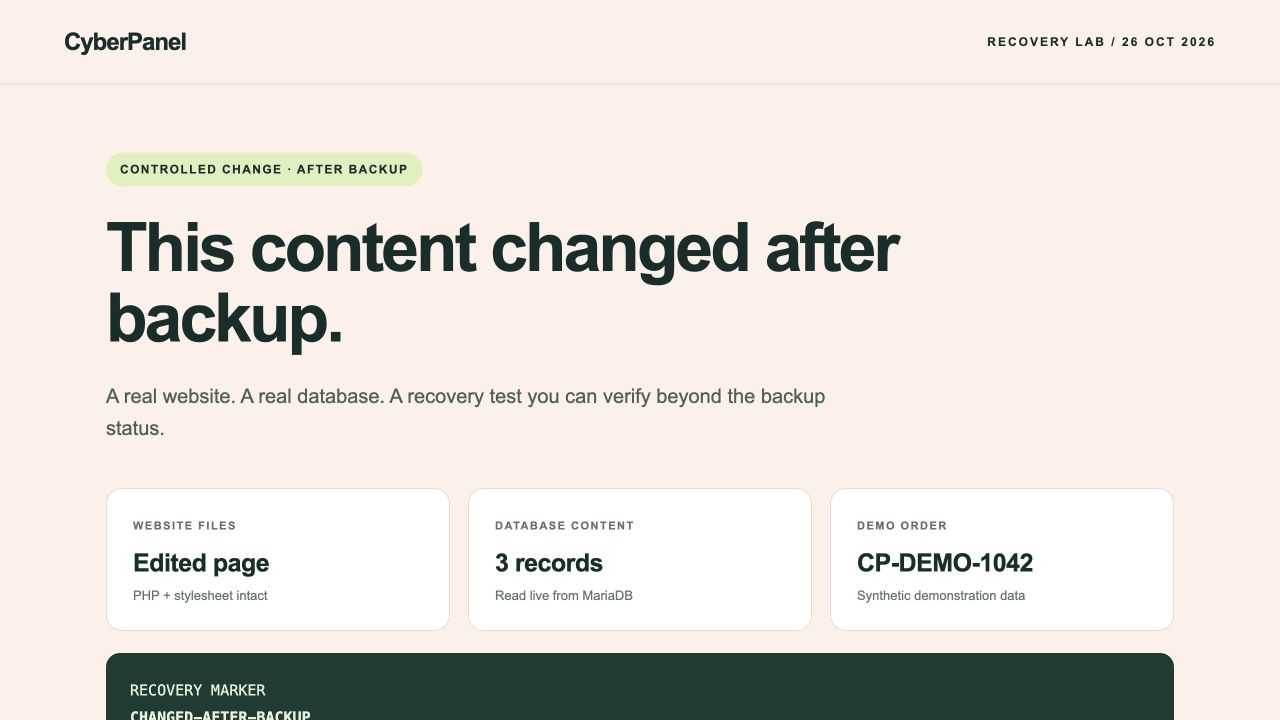
We then removed only the disposable website through CyberPanel’s CLI to exercise the full account-recreation restore path. The browser returned a real 404. The saved archive in /home/backup and its separate laptop copy remained available. This deletion was a deliberate test step on an isolated site, not a step to copy onto a live customer website.

5. Restore the saved CyberPanel archive
Return to Backups → Restore Backup. The page explains that it detects CyberPanel-generated archives in /home/backup. Choose the original archive, check its filename and domain, then click Start Restoration.
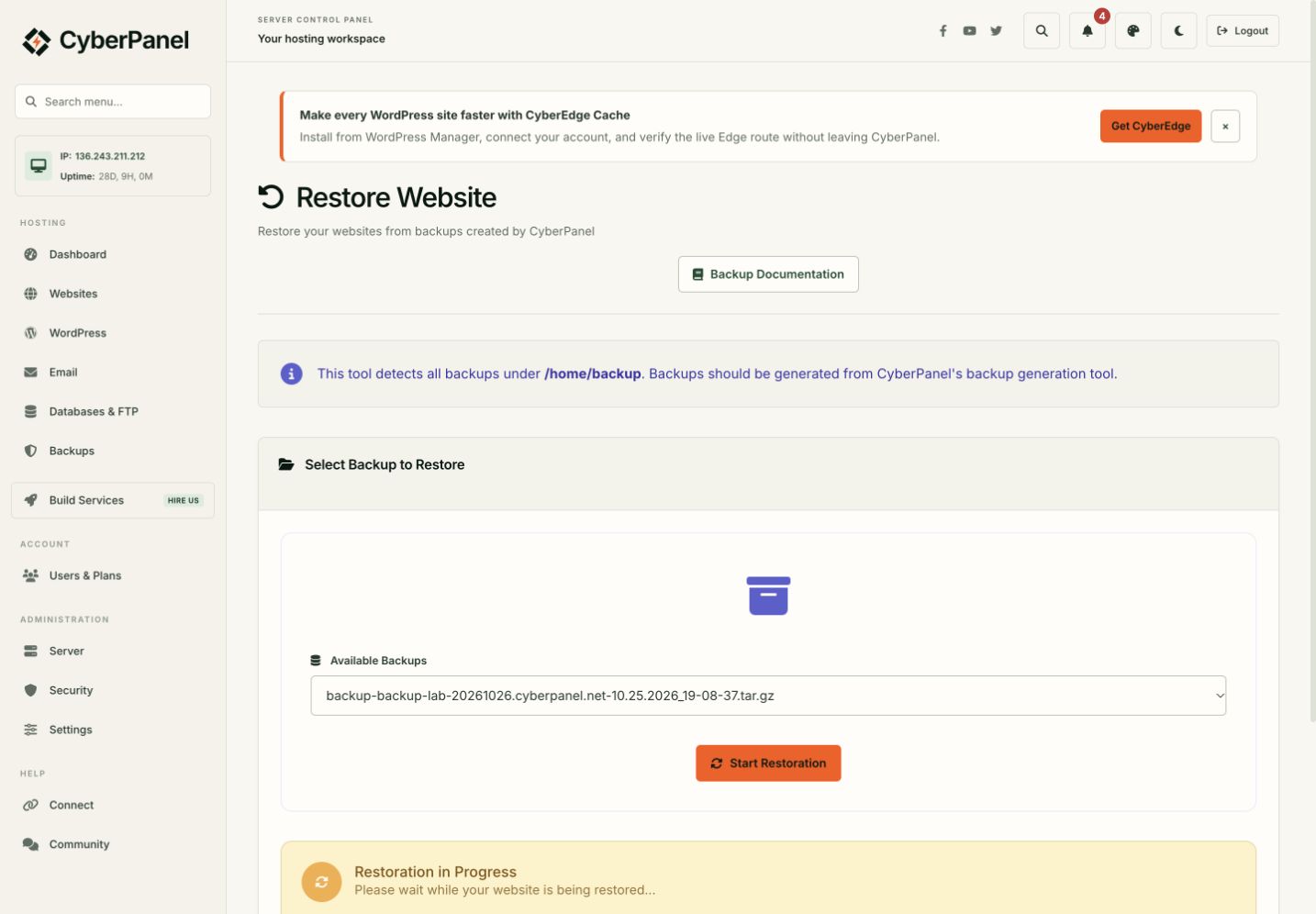
Keep the archive until the recovered application has been checked. In our test, the restoration table reached Completed with status Done. That was the signal to begin checking the result.
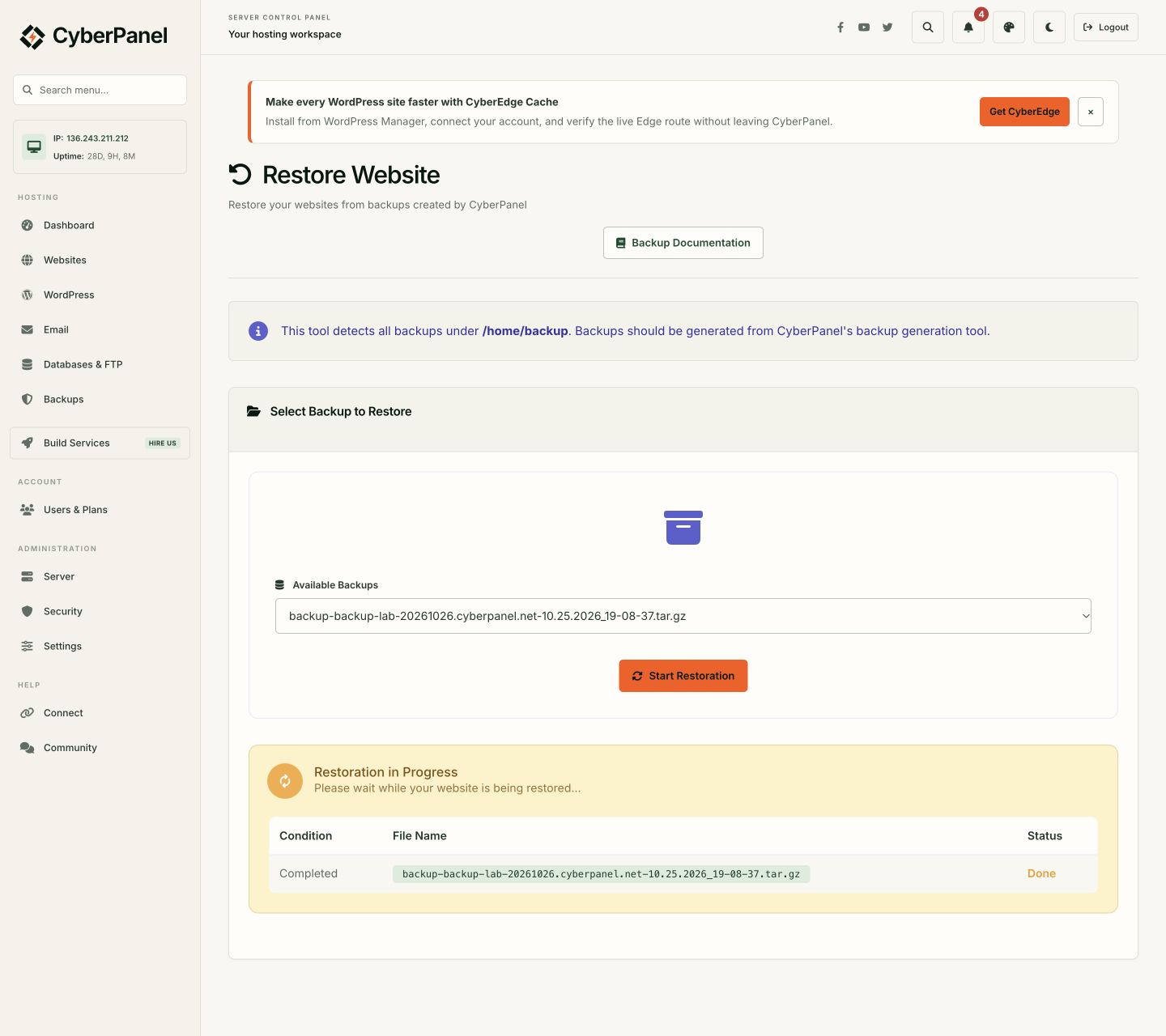
6. Verify the recovered files, database and page
We loaded the site again with a fresh request. The original green design and headline returned, the synthetic order was present, and the recovery marker was back to BACKUP-PROOF-20261026. We then compared the underlying evidence.
| Check | Observed result |
|---|---|
| PHP file SHA-256 | Identical to the pre-backup file |
| All three database records | Identical IDs, labels and values |
| Application HTTP proof response | Matches the baseline |
| HTTP request | Completed successfully |
| Controlled file change | Confirmed before restoration |
| Controlled database change | Confirmed before restoration |
| Separate archive copy | Checksum matches the server archive |
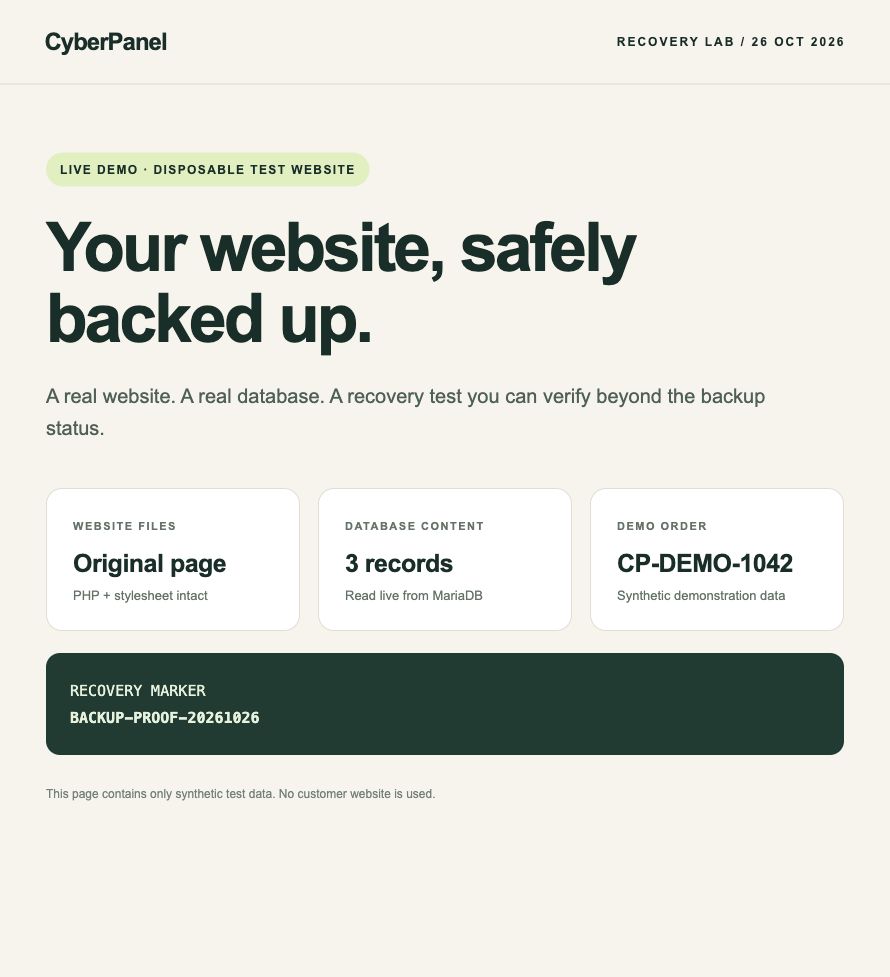
All seven checks passed. These results support a specific conclusion: this backup recovered this small PHP/MariaDB test site on the same server. They do not establish recovery of every application, service or server configuration.
What to check on your own website
Use an isolated destination that fits your chosen backup tool. For a real application, check important pages, media, database content, application login, forms, scheduled tasks and integrations. Confirm DNS and HTTPS separately. A recovered homepage cannot establish that checkout, email delivery or a third-party API connection still works.
Choose the backup frequency and retention around how much recent data your business can afford to lose. Keep an independently accessible copy, test the recovery process after meaningful changes, and document who can perform it. A repeatable recovery procedure is much more useful than an archive nobody has tried.
Make recovery part of your backup routine.
Create the backup. Keep a separate copy. Restore it somewhere safe. Check the data that matters.
Test notes and sources
This demonstration used an existing owner-controlled Ubuntu 24.04 test VPS with CyberPanel 3.0.7, OpenLiteSpeed, PHP 8.3 and MariaDB. It used no customer data. The demo webpage uses plain HTTP with synthetic content; HTTPS and certificate recovery were not tested.
The server logged UTC timestamps on 25 October; the local date in Pakistan was 26 October. The server’s deletion utility retained the disposable Unix account after its PHP-worker timeout, and account creation during restore emitted status-writer diagnostics. The browser still reached Completed / Done, and the independent checks above passed. These observations are recorded in the accompanying lab notes rather than treated as a clean-log claim.
We did not test another server, whole-VPS recovery, WordPress-specific workflows, mailboxes, automated off-site jobs or recovery-time targets. The screenshots are genuine captures from this run. The reel adds graphics and synthetic narration, with idle periods removed.
Evidence: verification results, baseline, controlled changes, restored state and lab notes. Navigation and archive-discovery guidance were cross-checked against the official CyberPanel backup guide. Version-specific behavior and recovery results above come from this live test.