On this page
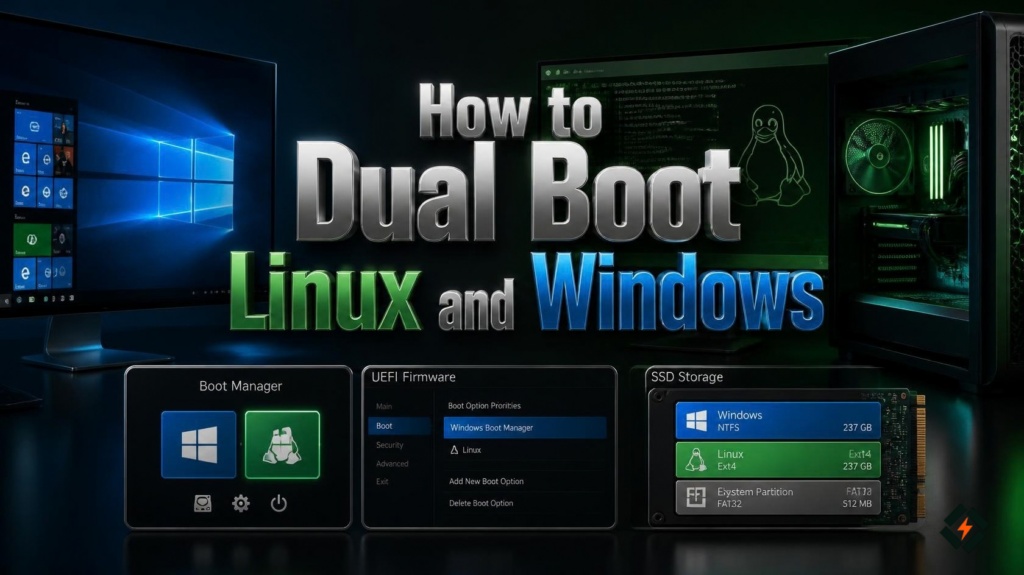
Learning how to dual boot Linux and Windows lets you keep both operating systems on the same computer and choose which one to use when the PC starts. You can keep Windows for software, games, or work and use Linux for development, system administration, learning, or everyday computing.
The process is straightforward when the disk is prepared correctly. The most important parts are backing up your files, checking Windows encryption, making room for Linux, and installing Linux in the same UEFI boot mode that Windows uses.
This guide explains how to dual boot Linux and Windows using Ubuntu as the example.
What Is Dual Booting Linux and Windows?
Dual booting means installing two operating systems on the same computer so you can select one when the machine starts.
For example, after installing Ubuntu alongside Windows 11, the boot menu can allow you to choose between:
- Ubuntu Linux
- Windows 11
Only one operating system runs at a time. You are not running Windows and Linux simultaneously. Instead, the computer loads the operating system you select during startup.
This is different from a virtual machine, where Linux or Windows runs inside another operating system.
Can You Dual Boot Windows 11 and Linux?
Yes. You can dual boot Windows 11 and a compatible Linux distribution on the same computer.
Modern Windows systems generally use UEFI, so the Linux installation should normally use UEFI as well. Ubuntu’s documentation recommends matching the boot mode of the existing operating system when setting up a dual boot.
Before starting, check these things:
| Check | Why it matters |
|---|---|
| Windows 11 is working | You need a stable existing system |
| Free disk space | Linux needs its own space |
| UEFI mode | Both systems should use a compatible boot mode |
| Backup | Protects your files if something goes wrong |
| BitLocker or Device Encryption | Boot or partition changes can trigger recovery |
| USB drive | Needed to create Linux installation media |
| Linux ISO | Required for the installation |
Do not start by deleting Windows partitions. The goal is to create free space for Linux while leaving your existing Windows installation intact.
What Should You Do Before Dual Booting?
The preparation stage is the most important part of the installation.
1. Back Up Your Important Files
Back up documents, photos, videos, project files, browser data, and anything else you cannot afford to lose.
A dual boot installation can be completed without deleting Windows, but partitioning always carries some risk. A backup gives you a way back if something goes wrong.
Do not keep your only backup on the same drive you are about to repartition.
2. Check BitLocker or Device Encryption
Windows 11 may use BitLocker or Device Encryption to protect data on the drive. Microsoft recommends keeping your BitLocker recovery key available because changes to hardware or the boot environment can cause Windows to request it.
Before changing partitions or boot settings, make sure you know where your recovery key is stored.
You can check Windows encryption settings from:
Settings → Privacy & security → Device encryption
On systems using BitLocker Drive Encryption, check the BitLocker settings in Windows.
Do not continue until you have access to the recovery key if encryption is enabled.
3. Check Whether Windows Uses UEFI
Press:
Windows + RThen enter:
msinfo32In System Information, find:
BIOS Mode
If it shows:
UEFIyour Windows installation is using UEFI.
This is the mode you should normally use when booting the Linux installer.
4. Check Your Available Storage
Linux needs unallocated disk space.
Open:
Windows Disk Management
You can find it by searching for:
Create and format hard disk partitionsLook at your Windows partition and determine how much space can reasonably be allocated to Linux.
Do not shrink the partition blindly. Leave enough room for Windows, installed applications, updates, and your personal files.
How to Prepare Windows for Linux
Before creating Linux space, make a few Windows changes.
Disable Fast Startup
Fast Startup can leave Windows in a partially hibernated state rather than performing a completely clean shutdown. That can cause problems when accessing Windows partitions from Linux.
Open:
Control Panel → Hardware and Sound → Power Options → Choose what the power buttons do
Select:
Change settings that are currently unavailable
Then disable:
Turn on fast startup
Save the change.
Check Your Windows Updates
Install pending Windows updates before beginning the Linux installation.
It is better to start with a stable Windows installation than to introduce an operating system change while Windows is already waiting for a major update or restart.
Make Sure You Have Enough Free Space
You do not need to create Linux partitions manually inside Windows.
Instead, use Windows Disk Management to shrink the existing Windows partition and leave the resulting space unallocated.
For example, if your Windows partition has plenty of unused storage, you can shrink it to create space for Linux.
The exact amount depends on what you plan to do with Linux. A system used for basic browsing needs less space than one used for development, virtual machines, or large applications.
How to Create a Bootable Linux USB
You need a Linux ISO file and a USB flash drive.
For this guide, use Ubuntu Desktop. The current Ubuntu Desktop download page provides the ISO and installation requirements, and Ubuntu supports installing the desktop system alongside Windows.
Download Ubuntu Desktop from the official Ubuntu website
You can then use a tool such as Rufus on Windows to write the ISO to a USB drive. Rufus is designed to create bootable USB drives from ISO images, including Linux and UEFI installation media.
What You Need
| Item | Purpose |
|---|---|
| Linux ISO | Operating system installer |
| USB flash drive | Installation media |
| Windows PC | Existing operating system |
| Internet connection | Downloading the ISO and updates |
Creating the USB will normally erase its existing contents, so copy anything important from the USB before using it.
After creating the USB, safely eject it from Windows.
How to Create Space for Linux
This is where Windows and Linux will share the same physical drive.
Open Disk Management in Windows.
Find the main Windows partition, usually the large NTFS partition associated with the C: drive.
Right click it and select:
Shrink Volume
Windows will calculate the available shrink space.
Enter the amount of space you want to free and continue.
The result should look roughly like this:
Windows partition | Unallocated spaceLeave the new space as unallocated.
Do not format it as NTFS just because Windows asks you to create a new volume. The Linux installer can use the unallocated space during installation.
How to Dual Boot Linux and Windows
Now you can start the Linux installation.
Step 1: Insert the Linux USB
Insert the bootable USB into your computer.
Restart Windows.
Step 2: Open the Boot Menu
During startup, press the key used by your computer manufacturer to open the boot menu.
Common keys include:
F12
F11
F9
EscThe exact key varies by manufacturer.
Choose the USB device that is listed as a UEFI boot option when available.
Do not deliberately boot the installer in Legacy or BIOS mode if Windows is installed in UEFI mode.
Ubuntu’s documentation specifically notes that when another operating system is installed in UEFI mode, Ubuntu should also be installed in UEFI mode for the dual boot setup.
Step 3: Start the Linux Installer
After booting from the USB, Ubuntu should load its installer environment.
Depending on the version, you may be able to try Ubuntu first or proceed directly with installation.
If you want to make sure the hardware works correctly, testing the live environment first is useful. Check your:
- Keyboard
- Touchpad or mouse
- Wi-Fi
- Display
- Sound
- External devices
Step 4: Choose the Installation Type Carefully
When Ubuntu asks how you want to install it, pay close attention to the disk options.
If the installer offers an option such as:
Install Ubuntu alongside Windows Boot Manager
that is the option intended for a normal dual boot installation.
Do not choose:
Erase disk and install Ubuntu
if you want to keep Windows.
That option is designed to replace the existing operating system on the selected drive.
If the installer does not provide an automatic alongside option, you can use manual partitioning, but this requires much more care. You should understand the existing EFI, Windows, and recovery partitions before changing anything.
Step 5: Complete the Installation
Continue through the installer and create your Linux user account.
The installer will copy Linux to the free space and configure the bootloader.
When the installation finishes, restart the computer and remove the USB drive when prompted.
How to Choose Windows or Linux at Startup
After installation, your computer should display a boot menu.
A typical menu may contain:
Ubuntu
Advanced options for Ubuntu
Windows Boot ManagerChoose Ubuntu to start Linux.
Choose Windows Boot Manager to start Windows.
The exact appearance depends on the Linux distribution, bootloader, firmware, and system configuration.
You can usually make one operating system the default while keeping the other available from the same menu.
Does Secure Boot Need to Be Disabled?
Not necessarily.
Secure Boot is a UEFI security feature designed to prevent untrusted software from running during the boot process. Current Ubuntu releases support Secure Boot through signed boot components.
So, if your Linux distribution supports your hardware and installation method with Secure Boot enabled, there is usually no need to disable it simply because you are dual booting.
If a particular Linux distribution, driver, or installation method has a Secure Boot compatibility problem, follow that distribution’s current documentation rather than disabling Secure Boot automatically.
What If Windows Asks for the BitLocker Recovery Key?
This can happen after changes to the boot environment or firmware configuration.
Do not panic.
Enter your legitimate BitLocker recovery key when Windows requests it.
Microsoft notes that BitLocker can require the recovery key when it detects changes that affect the trusted boot environment.
This is exactly why the recovery key should be available before you begin the dual boot installation.
If you cannot access the recovery key, stop and recover it before making further changes.
How to Fix Common Linux and Windows Dual Boot Problems
Windows Does Not Appear in the Boot Menu
First, check whether Windows Boot Manager still exists in your UEFI firmware’s boot options.
Also make sure Linux and Windows were installed using compatible boot modes.
Do not immediately start deleting or recreating EFI partitions.
The Computer Boots Directly Into Windows
Windows may have become the first boot option in the firmware.
Enter the UEFI firmware settings and check the boot order.
If an Ubuntu or Linux boot entry exists, move the appropriate Linux boot entry above Windows Boot Manager.
Windows Asks for a Recovery Key
Use the BitLocker recovery key associated with the Windows installation.
This is another reason to save the key before changing the boot configuration.
Linux Cannot Access the Windows Partition
One common reason is that Windows was not completely shut down.
Check that Fast Startup is disabled and perform a proper Windows shutdown.
If the Windows partition is encrypted, Linux access also depends on the encryption configuration and the tools available in your Linux distribution.
Linux Installation Does Not Show the Windows Option
Do not immediately select an option that erases the drive.
First verify:
- Windows is still installed
- The Windows partition exists
- The installer was booted in UEFI mode
- The disk uses the expected partition structure
- Windows Fast Startup is disabled
- The Linux installer can see the existing disk
If the situation is unclear, stop before modifying partitions.
How to Remove Linux From a Dual Boot System
Removing Linux is different from installing it.
Do not simply delete the Linux partitions and assume the job is finished.
The computer also needs a working Windows bootloader.
A safer general process is:
- Boot into Windows.
- Back up important Windows data.
- Identify the Linux partitions in Disk Management.
- Remove the Linux partitions only after confirming what they are.
- Extend the Windows partition into the resulting unallocated space if appropriate.
- Restore or verify the Windows boot configuration.
- Remove the Linux boot entry from UEFI if it remains.
If Windows fails to boot after boot configuration changes, Windows Recovery Environment includes Startup Repair, which can attempt to repair boot configuration and related startup problems. Microsoft documents Startup Repair under Troubleshoot → Advanced options → Startup Repair.
Do not delete EFI or recovery partitions simply because they are unfamiliar. Some are required by Windows.
Dual Boot Windows and Linux vs Virtual Machine
Dual booting is not the only way to use Linux on a Windows computer.
| Feature | Dual boot | Virtual machine |
|---|---|---|
| Performance | Near native | Depends on allocated resources |
| Run both systems together | No | Yes |
| Disk setup | More involved | Usually easier |
| Hardware access | Direct | Virtualized |
| Restart required | Yes, to change OS | No |
| Best for | Full Linux environment | Testing and occasional use |
If you need Linux to use the computer’s hardware directly, dual booting can make sense.
If you only want to test Linux or run a few Linux applications while staying in Windows, a virtual machine may be more convenient.
Best Practices for a Safe Dual Boot Setup
Before you finish, keep these points in mind:
- Back up important files first.
- Keep your Windows recovery options available.
- Save your BitLocker recovery key before changing the boot setup.
- Use UEFI consistently on modern Windows installations.
- Keep Windows and Linux on clearly identified partitions.
- Do not select Erase disk when Windows needs to remain installed.
- Do not delete EFI or recovery partitions unless you know exactly what they contain.
- Keep the Linux USB available in case you need to boot into the live environment.
- Test both operating systems after installation.
- Do not make several partition or bootloader changes at once.
The safest dual boot installation is the one where you know exactly which partition belongs to which operating system before you change anything.
FAQs
Can I dual boot Windows 11 and Linux on the same SSD?
Yes. You can create unallocated space on the SSD and install Linux alongside Windows, provided the hardware and Linux distribution support the setup.
Can I dual boot Windows and Linux without deleting Windows?
Yes. That is the normal approach when you want to keep both operating systems. Shrink the Windows partition to create unallocated space, then install Linux into that space.
How much space should I give Linux?
There is no universal number. The right amount depends on what you will do with Linux. A basic desktop installation needs less space than a development environment containing large applications, virtual machines, or projects.
Is a dual boot Linux window setup difficult?
A dual boot Linux window setup is not difficult if you prepare the Windows system, create enough unallocated disk space, and follow the Linux installation steps carefully. Always back up important files before changing your partitions.
Do I need to disable Secure Boot to install Linux?
Not necessarily. Current Ubuntu releases support UEFI Secure Boot. Whether you need to change the setting depends on the Linux distribution, hardware, and any third party drivers or modules you plan to use.
Final Thoughts
Learning how to dual boot Windows and Linux is mostly about preparing the Windows installation correctly before you start the Linux installer.
Back up your files, save your BitLocker recovery key, check UEFI, create unallocated space, and pay close attention to the installation options. The most important rule is simple: if Windows needs to remain on the computer, never choose an installation option that says it will erase the entire disk.
Once the installation is complete, you can use the boot menu to choose Windows or Linux whenever you start the computer.