
On this page
An SSH reverse tunnel lets you access a service on a machine that cannot accept direct incoming connections. It works by establishing an SSH connection from that machine to a reachable server and forwarding a port on the server back to a service on the original machine.
This technique is useful when a Linux server sits behind a firewall, a device uses a private IP address, or you need temporary access to a development service without exposing it directly to the internet. You can create a reverse SSH tunnel with the ssh -R command and control how the forwarded port is accessed.
In this guide, you will learn how reverse SSH tunneling works, how to configure it on Linux, how to test the connection, and how to troubleshoot common problems without creating unnecessary security risks.
What Is an SSH Reverse Tunnel?
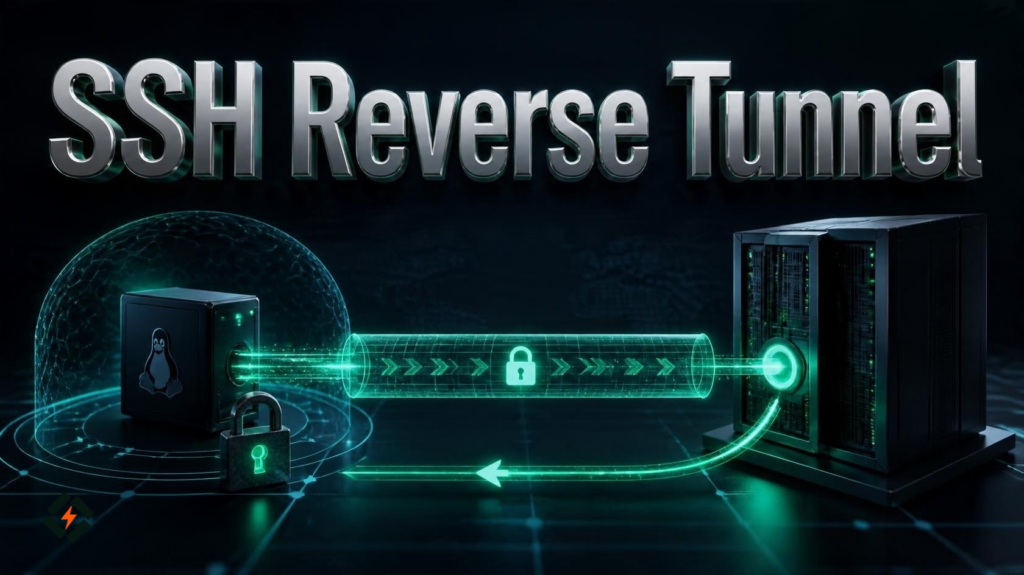
An SSH reverse tunnel is a form of remote port forwarding that carries network connections through an existing SSH session. It allows a machine to make a connection to a reachable SSH server and provide access to a service running on the machine that initiated the connection.
Consider a Linux computer running a development application on port 3000. The computer is behind a router or firewall, so another machine on the internet cannot connect directly to it.
If the Linux computer can connect to a public server over SSH, it can create a reverse tunnel. The public server listens on a selected port, and connections to that port travel through the SSH connection back to the application on the Linux computer.
This approach does not require you to open a direct incoming connection to the original computer. However, the public server must allow the required SSH forwarding, and its firewall must permit access to the listening port when needed.
Reverse tunneling SSH is also useful for temporary remote administration, testing, and accessing internal services through an approved gateway.
How Does Reverse SSH Tunneling Work?
A reverse SSH tunnel involves two main machines:
- Source machine: The computer running the service you want to access. It initiates the SSH connection.
- Remote server: A reachable SSH server that receives the connection and provides the remote forwarding port.
The connection works in the following order:
- The source machine establishes an SSH connection to the remote server.
- The SSH client requests a remote port forward using the
-Roption. - The remote SSH server opens a listening port, subject to its configuration and available ports.
- A client connects to that port on the remote server.
- SSH carries the connection through the established tunnel to the destination service on the source machine.
The important detail is that the SSH session starts from the source machine, but the forwarded port is created on the remote server.
For example, a reverse tunnel might map port 8080 on the remote server to port 3000 on the source machine. A client using the remote server’s loopback address can then reach the application through the tunnel.
By default, OpenSSH binds remote forwarded ports to loopback addresses. Other machines cannot automatically access the forwarded port just because the tunnel exists. Exposing it to other network interfaces requires additional configuration and careful access controls.
When Should You Use an SSH Reverse Tunnel?
A reverse SSH tunnel is useful when you need controlled access to a service but cannot or do not want to expose the source machine directly.
Common use cases include:
Accessing a Server Behind a Firewall
A machine may be able to make outgoing SSH connections while its firewall blocks incoming connections. If you have an authorized account on a reachable server, you can establish a tunnel from the restricted machine and access a selected service through the remote endpoint.
Remote Access to a Development Application
Developers often run applications on local ports that are not publicly accessible. A reverse tunnel can make a development service reachable through another server for testing, provided the port is protected and the application is safe to expose to the intended users.
Connecting to an Internal SSH Service
You can forward a port on a reachable server back to port 22 on a remote Linux machine. This can help with authorized administration when direct SSH access is unavailable.
Troubleshooting Private Infrastructure
System administrators can use reverse tunneling to reach a specific service during an investigation without making that service permanently public. This is particularly useful for temporary maintenance, testing, and diagnosing connectivity problems.
A reverse tunnel is not a replacement for a proper VPN or a complete network access policy. For regular production access, consider whether a VPN, managed access gateway, or other controlled remote access solution is more suitable.
How to Create an SSH Reverse Tunnel on Linux
Before creating a reverse tunnel, make sure you have:
- A Linux machine running the service you want to access.
- A reachable server with SSH access.
- An authorized SSH account on that server.
- Permission to use remote port forwarding.
- A port that is available on the remote server.
The following example assumes that an application is listening on port 3000 on the source machine and that you want to forward it through port 8080 on the remote server.
Step 1: Confirm That the Local Service Is Running
On the source machine, check whether the application is listening on port 3000:
ss -lntpReview the output for the expected port. You can also test the application directly if it serves HTTP:
curl http://127.0.0.1:3000This request should reach the application if it is running and listening on that address. If it fails, fix the local service first. An SSH tunnel cannot make an unavailable application work.
Step 2: Connect to the Remote Server With Remote Port Forwarding
Run this command on the source machine:
ssh -N -R 8080:127.0.0.1:3000 user@your-server-ipReplace user with your SSH username and your-server-ip with the actual address or hostname of your remote server.
Here is what each part means:
| Option or value | Purpose |
|---|---|
ssh | Starts an SSH connection |
-N | Does not execute a remote command; the connection is used for forwarding |
-R | Requests remote port forwarding |
8080 | Port opened on the remote server |
127.0.0.1:3000 | Destination address and port on the source machine |
user@your-server-ip | SSH account and remote server |
The command remains connected while the tunnel is active. Enter your password or complete SSH key authentication if prompted.
If the remote server rejects the forwarding request, check the server’s SSH configuration and the error message. The account must be allowed to request the required remote forward.
Step 3: Test the Tunnel From the Remote Server
Open another terminal and connect to the remote server normally:
ssh user@your-server-ipOnce connected, test the forwarded port:
curl http://127.0.0.1:8080If the application is an HTTP service, you should receive its response through the tunnel.
You can also check whether the remote port is listening:
ss -lntLook for port 8080 in the output. If it is missing, the forwarding request may have failed, the connection may have ended, or the port may not have been created as expected.
Step 4: Understand Where the Forwarded Port Is Accessible
In the example above, the remote listener normally binds to loopback. That means you can test it from the remote server itself using 127.0.0.1:8080, but another computer cannot automatically reach it using the remote server’s public IP address.
This default is useful because it limits exposure.
If your goal is to let other authorized machines connect to the forwarded service, you need to configure the remote bind address and server-side SSH forwarding policy appropriately. You must also review the server firewall and restrict access to trusted clients.
Do not change the listener to a public interface unless you understand the consequences and have protected the service.
How to Create a Reverse SSH Tunnel for Remote Administration
You can use the same method to forward an SSH connection back to the source machine.
Suppose the source machine runs an SSH server on port 22, but it does not accept direct incoming connections from your administration computer. You can forward port 2222 on the remote server back to port 22 on the source machine.
Run this command on the source machine:
ssh -N -R 2222:127.0.0.1:22 tunneluser@your-server-ipHere, tunneluser is the account on the remote server that establishes the tunnel. The SSH service on the source machine must also be running and configured to accept the intended login.
From the remote server, connect to the forwarded port:
ssh -p 2222 localuser@127.0.0.1Replace localuser with a valid account on the source machine.
The second SSH connection travels through the reverse tunnel and authenticates against the SSH service on the source machine. Use an authorized account and key, and avoid enabling unnecessary access for the tunnel user.
This configuration is useful for controlled administration, but the tunnel should be monitored and kept active only for as long as needed.
How to Keep an SSH Reverse Tunnel Running
An SSH reverse tunnel normally ends when the SSH session terminates. If the terminal closes, the network connection drops, or the source machine restarts, the tunnel may stop working.
For a temporary task, leaving the SSH session open is often enough. For a longer-running setup, use a method that can detect and recover from connection failures.
Use SSH Options to Detect Forwarding Failures
You can add ExitOnForwardFailure to make SSH exit if it cannot establish the requested forwarding:
ssh -N \
  -o ExitOnForwardFailure=yes \
  -R 8080:127.0.0.1:3000 \
user@your-server-ipThis helps detect cases where SSH authentication succeeds but the requested remote port forward cannot be established.
It does not guarantee that the tunnel will remain connected forever. A later network failure can still interrupt the session.
Use a Supervised Service for Long-Running Tunnels
For a persistent tunnel, a systemd service or a tool such as autossh can help monitor the connection and restart it when necessary. Configure the service to use SSH keys, appropriate permissions, and a deliberate restart policy.
Before deploying an automated tunnel, test the command manually. Confirm that it connects, forwards the intended port, and stops cleanly when required.
Avoid storing SSH passwords in scripts. Use key-based authentication and restrict the tunnel account to the minimum permissions needed.
SSH Reverse Tunnel vs. Local Port Forwarding
Both reverse and local SSH port forwarding carry traffic through an encrypted SSH connection, but they create listeners on different sides of the connection.
| Feature | SSH reverse tunnel (-R) | Local port forwarding (-L) |
|---|---|---|
| Listening port | Normally created on the remote server | Normally created on the local client |
| Main purpose | Make a source-side service reachable through a remote server | Access a remote-side service through a local port |
| Typical use case | Reach a machine behind a firewall | Access a private service through an SSH server |
| Connection direction | SSH starts from the source machine to the remote server | SSH starts from the client to the remote server |
| Common example | ssh -R 8080:127.0.0.1:3000 user@server | ssh -L 8080:127.0.0.1:3000 user@server |
With local forwarding, the 127.0.0.1:3000 destination is interpreted from the remote server’s perspective. With the reverse-forwarding example, the destination is interpreted from the source machine’s perspective.
Choosing the right option depends on which machine can initiate the SSH connection and where you need the listening port to appear.
Common SSH Reverse Tunnel Errors and Fixes
A reverse tunnel can fail because of SSH configuration, network restrictions, an occupied port, or an unavailable destination service. Check the error and verify each part of the connection before changing server settings.
| Error or symptom | Likely cause | What to do |
|---|---|---|
remote port forwarding failed | Port is occupied or forwarding is denied | Choose an available port and check server policy |
Connection refused | SSH server or destination service is not listening | Verify the relevant service and address |
Permission denied | SSH authentication failed | Check the username, key, and account permissions |
| Tunnel connects but application is unreachable | Wrong destination address or port | Test the destination locally on the source machine |
| Tunnel stops unexpectedly | Network interruption or process termination | Review SSH logs and use a supervised connection if needed |
| Remote port is not reachable externally | Listener is bound to loopback | Keep it private or configure controlled access deliberately |
Fix a Remote Port Forwarding Failure
If SSH reports that remote port forwarding failed, first check whether another process is using the requested port on the remote server:
ss -lntIf the port is already occupied, select another available port and retry.
If the port is free but forwarding still fails, inspect the SSH server configuration. The AllowTcpForwarding, DisableForwarding, PermitListen, and GatewayPorts settings can affect which forwarding requests are allowed and where listeners can bind.
Do not enable unrestricted forwarding just to make the error disappear. Apply the narrowest policy that supports the intended use case.
Fix a Connection Refused Error
A connection refused error often means that the destination service is not listening at the specified address and port.
On the source machine, test the application directly:
curl http://127.0.0.1:3000If that request fails, investigate the application or its listener configuration before troubleshooting SSH. If it works locally but fails through the tunnel, check the SSH session, remote listener, and forwarding request.
Investigate an Unexpected Disconnect
For more detail, run SSH in verbose mode:
ssh -v -N \
  -R 8080:127.0.0.1:3000 \
user@your-server-ipThe output can help identify authentication issues, forwarding failures, and connection interruptions.
Also review network stability, server logs, and any idle-connection policies that might affect the session. Use -vv or -vvv only when more detailed debugging is needed, and avoid sharing logs publicly without reviewing them for sensitive information.
How to Secure an SSH Reverse Tunneling
A reverse tunnel can provide useful remote access, but it also creates a path to a service that may otherwise be unreachable. Security should be part of the setup, not something added after the tunnel is working.
Use SSH Key Authentication
Use a dedicated SSH key for the tunnel where practical. Protect the private key, limit access to it, and remove credentials that are no longer needed.
Key-based authentication reduces reliance on passwords, but a key should not grant more access than the tunnel requires.
Keep the Listener Private by Default
OpenSSH normally binds remote forwarded ports to loopback addresses. Keep that default when you only need to access the service from the remote server itself.
If other systems need access, restrict the listening address and network access deliberately. Avoid opening a forwarded application port to the entire internet unless there is a clear requirement and appropriate protections are in place.
Restrict SSH Forwarding Permissions
Server administrators can control remote forwarding through SSH server configuration. Depending on the intended setup, settings such as AllowTcpForwarding, PermitListen, and GatewayPorts determine whether forwarding is allowed and which listening addresses or ports are available.
A dedicated tunnel account with limited permissions is safer than using a powerful administrator account for every tunnel.
Monitor Access and Disconnect Unused Tunnels
Review SSH logs and monitor long-running tunnel processes. If a tunnel is no longer needed, close the SSH session and remove any temporary access rules that were created for it.
For general SSH hardening practices, see CyberPanel’s Linux hardening guide.
For the full list of SSH client and server options, refer to the official OpenSSH manual and SSH server configuration manual.
Frequently Asked Questions
What does ssh -R do?
The -R option requests remote port forwarding. It creates a listening port on the remote SSH server and forwards connections through the SSH session to a destination reachable from the machine that initiated the connection.
Is a reverse SSH tunnel secure?
SSH encrypts the traffic carried through the tunnel, but the overall setup still depends on authentication, forwarding permissions, listener exposure, and the security of the destination service. Keep access restricted and use the least privilege necessary.
What is the difference between reverse tunneling SSH and a VPN?
A reverse SSH tunnel forwards selected TCP ports through an SSH connection. A VPN typically provides broader network connectivity between authorized devices or networks. A reverse tunnel may be sufficient for one service, while a VPN may be more appropriate for ongoing access to multiple internal resources.
Conclusion
An SSH reverse tunnel provides a practical way to access a service on a machine that cannot accept direct incoming connections. With the ssh -R option, you can forward a port through a reachable server without opening a direct incoming connection to the source machine.
Start by verifying that the local service works, create the tunnel, and test the remote listener. If the tunnel fails, check the port, SSH permissions, destination address, and network connection. For persistent use, configure supervised reconnection and limit access to the intended users.
A well-configured reverse tunnel can simplify remote administration and troubleshooting while keeping access controlled.