On this page
Video conferencing is now an integral part of how we work, learn, collaborate remotely, and conduct online businesses. Whether you are going to virtual classes, meeting clients, working with distributed teams, or hosting webinars, a dependable communication platform is indispensable. While Windows and macOS get the most spotlight, Linux users also require a stable conferencing tool with lots of features.
And that really is the case with Zoom for Linux.
Over time, Zoom has become synonymous with video conferencing and is used by millions across the globe. Linux users don’t miss out since they can enjoy tons of features available on other OSs, like high-definition meetings, sharing your screen, messaging, changing your background virtually, recording, and webinars.
But if you Google Zoom Linux, you will find that post-installation questions, distribution compatibility, performance discrepancies, and common issue troubleshooting pop up the most.
By following this article, you will be guided through all the aspects of using Zoom on a Linux platform, like installation steps, system specs, features, tweaking the performance, usual concerns, and how to make the most of professional video conferences in 2026.
Let’s zoom in!
What Is Zoom For Linux?
Zoom for Linux is simply the Linux edition of Zoom’s video conferencing software.
Some ofits features include:
- Joining meetings
- Hosting video conferences
- Sharing screens
- Participating in webinars
- Messaging
- Recording
- Remote collaboration
The Linux client aims at giving users the same experience as Windows and macOS while at the same time being compatible with the major Linux distributions.
Why Linux Users Choose Zoom?
There are other conferencing options available on Linux, but Zoom is still widely used because of its dependability and ability to work on different platforms.
Some of the reasons why organizations lean towards Zoom include:
- It is compatible with different operating systems
- Participants can use either browsers or applications to join
- It supports large groups for meetings
- It has rich collaboration functionalities
- It can be integrated with various productivity tools
For Linux users, this means that they can take part in meetings without any concerns about compatibility.
Key Features Of Zoom Linux
Now, let’s get into the features of Zoom for Linux:
High-Quality Video Meetings
You can have face-to-face communication and work together remotely with a professional-level camera support provided by Zoom.
Screen Sharing
You can perform these functions:
- Showing your entire workstation
- Allowing only one program to be shown
- Displaying presentation slides
- Making use of other documents
People find this very convenient in case of training classes, supporting clients via help desks, and conducting business meetings.
Meeting Recording
If you want to watch a meeting at a later time, have it for training, or keep a record of it, all these can be done with Zoom recordings.
Chat And Team Collaboration
Assists meeting participants in getting in touch, and the discourse can be extended before and after the meeting as well.
Virtual Backgrounds
Recently, many Linux versions have been able to open the Zoom virtual background feature, subject to the user’s computer’s capabilities.
Webinar Support
Large-scale webinars and online events normally hosted by organizations can be held through Zoom itself.
Supported Linux Distributions
One of the advantages of the Linux Zoom client is its wide availability across different distributions.
Here are some of the most frequently supported platforms:
- Ubuntu
- Linux Mint
- Debian
- Fedora
- Rocky Linux
- AlmaLinux
- OpenSUSE
- Arch Linux
How To Install Zoom For Linux
Installing Zoom on Linux is straightforward because Zoom provides official packages for several major distributions.
Install Zoom On Ubuntu And Linux Mint
Download the DEB package and install it using:
sudo dpkg -i zoom_amd64.deb
sudo apt --fix-broken installLaunch Zoom:
zoomInstall Zoom On Fedora, Rocky Linux, And AlmaLinux
Use the RPM package:
sudo rpm -ivh zoom_x86_64.rpmOr:
sudo dnf install zoom_x86_64.rpmInstall Zoom On Arch Linux
Many Arch users install Zoom through the AUR:
yay -S zoomThis simplifies updates and package management.
How To Join A Zoom Meeting On Linux
After installation, joining a meeting is simple.
Method 1: Join Using Meeting ID
- Open Zoom
- Click Join
- Enter Meeting ID
- Enter passcode if required
- Join meeting
Method 2: Join via the invitation link
When you click on a Zoom invitation link, it will open the Zoom client if you have it installed on your computer.
This is the method most widely used by organizations and educational institutions.
Most Important Zoom Video Linux Features
One of the common assumptions by Linux users is that they will get limited functionalities.
Thankfully, the latest versions of Zoom Video Linux come with almost all the features that one can find on Windows and macOS.
HD Audio And Video
Zoom is smart in deciding the quality according to the network quality.
Screen Sharing
With Zoom, users can share:
- Complete desktop
- Selected applications
- Browser windows
- Files
Meeting Recording
Recording can be used for:
- Employee training
- Academic purposes
- Getting organized
- Meeting any compliance criteria
Breakout Rooms
During meetings, hosts have the ability to segment participants into smaller teams for more focused discussions.
Whiteboard Collaboration
Using a shared whiteboard, teams can visually brainstorm at meetings.
Webinar Support
Businesses can conduct large-scale presentations and events.
Zoom Linux System Requirements
| Component | Recommended |
|---|---|
| CPU | Dual-Core 2GHz+ |
| RAM | 4 GB Minimum |
| Storage | 500 MB Available |
| Internet | Stable Broadband |
| Display | 720p Or Higher |
Common Zoom Linux Problems And Solutions
Now, let’s discuss some common problems and their solutions:
Zoom Not Opening On Linux
This issue often occurs because of missing dependencies.
Try:
sudo apt update
sudo apt upgradeThen reinstall Zoom.
No Audio During Meetings
Verify your microphone configuration:
pavucontrolCheck:
- Input device selection
- Audio permissions
- System sound settings
Camera Not Detected
Ensure no other application is using the camera.
Check device availability:
ls /dev/video*If the device appears, Zoom should be able to access it.
Screen Sharing Not Working
Screen sharing issues usually occur because of desktop environment permissions.
Verify:
- Display server compatibility
- Screen sharing permissions
- Wayland versus X11 configuration
High CPU Usage
Video conferencing can be resource-intensive.
To reduce CPU usage:
- Disable HD video
- Close unnecessary applications
- Reduce virtual background effects
- Use wired internet when possible
Zoom On Linux vs Browser Version
| Feature | Zoom App | Browser Version |
|---|---|---|
| Performance | Better | Good |
| Screen Sharing | Full Support | Limited |
| Recording | Supported | Limited |
| Virtual Backgrounds | Supported | Limited |
| Audio Controls | Advanced | Basic |
Zoom En Linux For Education And Remote Learning
Educational institutions continue to rely heavily on Zoom.
Students use Zoom for:
- Online lectures
- Virtual classrooms
- Group discussions
- Exam preparation
- Teacher consultations
The Linux version performs well for academic environments and supports most classroom workflows.
Zoom Linux For Remote Work And Business
Remote teams use Zoom daily for communication and collaboration.
Common business use cases include:
- Client meetings
- Team standups
- Project reviews
- Sales presentations
- Training sessions
Its cross-platform compatibility ensures Linux users can collaborate seamlessly with colleagues using Windows or macOS.
Security Features In Zoom Linux
Security continues to be a big worry when using online communication.
Zoom offers:
- Support for end-to-end encryption
- Setting meeting passwords
- Use of waiting rooms
- Host controls
- Managing participants
- Authenticating in a secure way
These capabilities allow organizations to hold secure virtual meetings.
Best Practices For Using Zoom On Linux
To make the most of your meeting:
- Update Zoom regularly
- Have a steady internet connection
- Check audio working properly before meetings
- Turn off unneeded apps
- Zoom headset better and gives good quality sound
- Soon after joining, look at camera settings
These little things make a big difference to the overall video-conferencing experience.
How CyberPanel Complements Remote Work Environments?
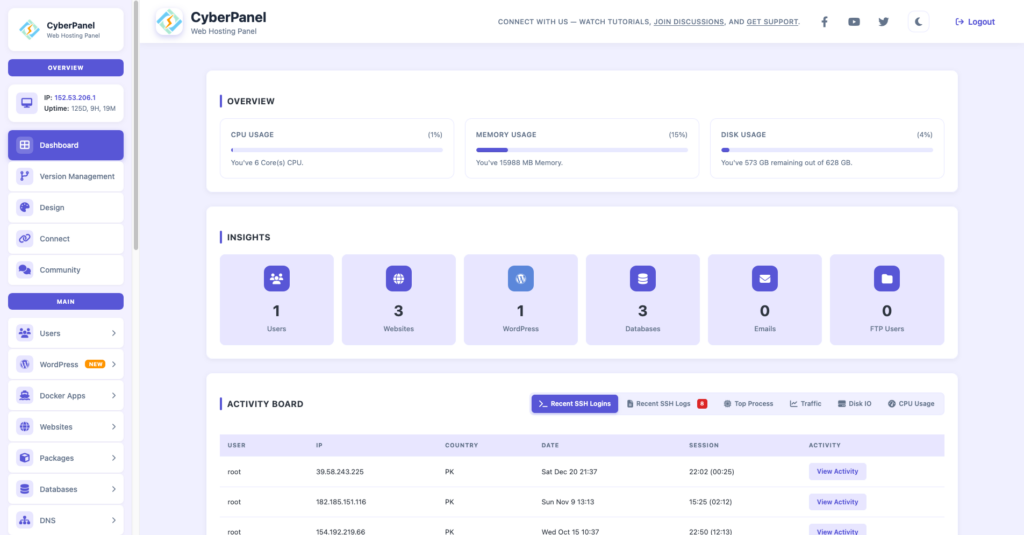
Besides using Zoom, most organizations also host their website, applications, and other business services on a Linux server.
CyberPanel is a free and open-source web hosting control panel powered by OpenLiteSpeed. It allows users to manage their websites, configure SSLs, take backups, administer databases, and deploy servers.
If a business uses Linux infrastructure and Zoom communication workflows, CyberPanel is a great help in managing servers efficiently and boosting productivity.
Conclusion
Zoom for Linux remains one of the most dependable video conferencing tools for the Linux community by a wide margin. No matter if you’re in live online classes, remote team management, client meetings, or even webinars, the video & audio quality, the diverse set of features, and the slew of other options allow the Linux version to closely match the Windows and macOS versions. Given its extensive distribution base, top-notch security features, and frequent updates, it’s still an effective tool for both personal and professional communication.
Are you looking to step up your virtual collaboration game? Get Zoom for Linux installed and start having secure, high-quality meetings directly from your favorite Linux distribution.
FAQs
Can I Record Meetings Using Zoom Linux?
Yes. Meeting recording is available depending on account permissions and plan features.
Does Zoom Support Screen Sharing On Linux?
Yes. Screen sharing is fully supported on most Linux desktop environments.
Does Zoom Work Well On Linux?
Yes. Modern Zoom releases provide stable performance and support most major conferencing features.