

A pinned container, persistent storage, public HTTPS, and a webhook checked before and after restart.
This walkthrough documents the actual 8 October 2026 demonstration: n8n version 2.42.4 configured manually in CyberPanel’s generic Docker Manager. It uses one container with SQLite and a web-server reverse proxy. Screenshots are genuine browser captures, cropped for readability and redacted for privacy.
The setup we tested
| Image | n8nio/n8n:2.42.4 |
|---|---|
| Container | n8n-manual-oct08 |
| Public demo hostname | n8n-demo-oct08.136.243.211.213.sslip.io |
| Host bind | 127.0.0.1:15678 |
| Container port | 5678/tcp |
| Persistent source | /home/docker/n8n-manual-oct08/data |
| Persistent destination | /home/node/.n8n |
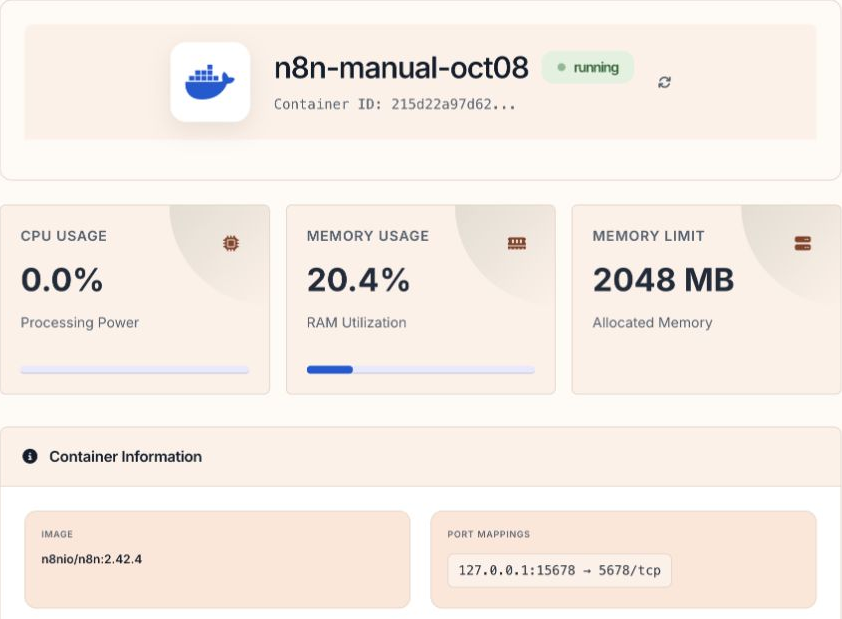
| Memory for this test | 2048 MB |
| Restart policy | always |
Use your own hostname, available port and storage directory when following the procedure. The memory allocation above is the demonstration’s value. The current n8n installation reference directs readers to Compose for its recommended setup; this article covers the manual Docker Manager workflow demonstrated here.
01 · WebsiteCreate the domain’s website entry
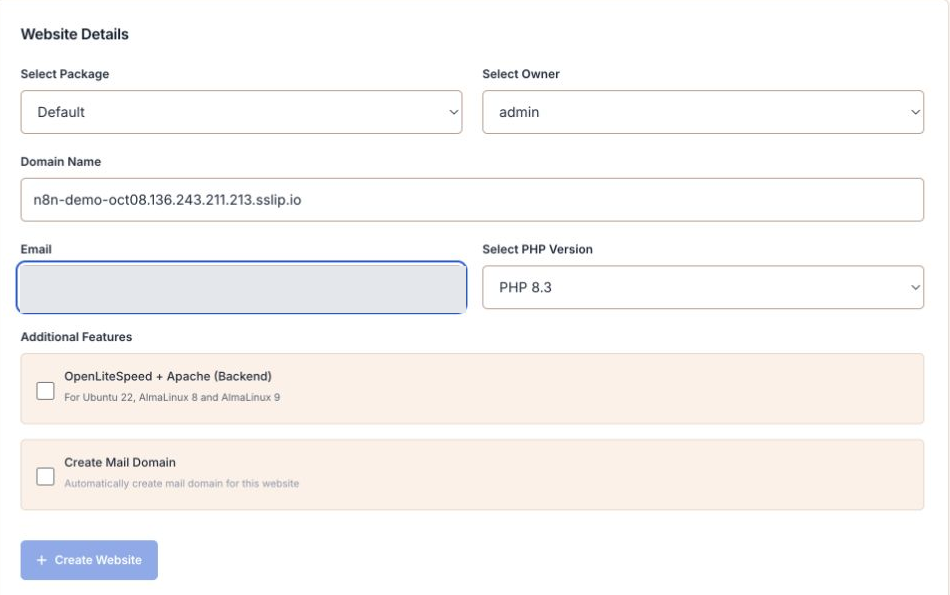
In Websites → Create Website, select the Default package and admin owner for this demonstration. Enter the hostname and your own contact email. The form used PHP 8.3, with Create Mail Domain left unchecked. n8n runs inside its Docker container; the website entry supplies the public domain, certificate and proxy configuration.
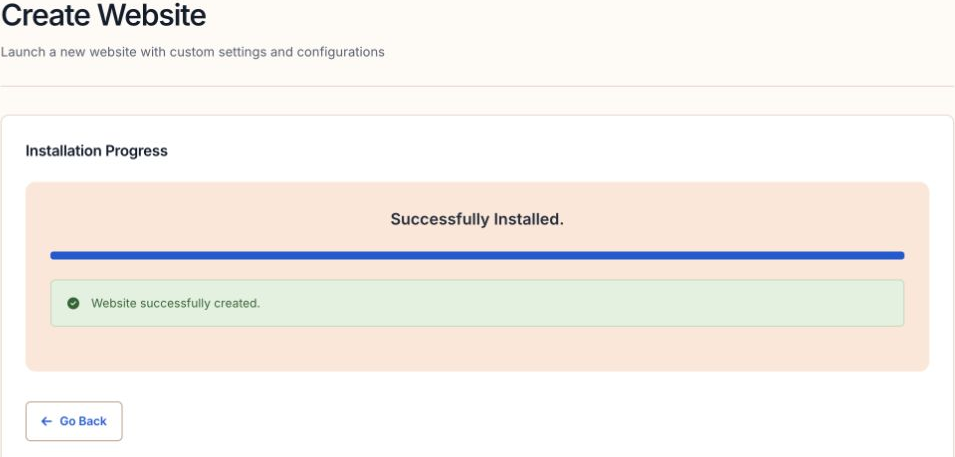
Choose Create Website and wait for completion. This run completed automatic SSL setup, and the website list subsequently showed a Let’s Encrypt certificate. The public n8n address opened without a certificate interstitial.
02 · ImagePull the exact n8n tag
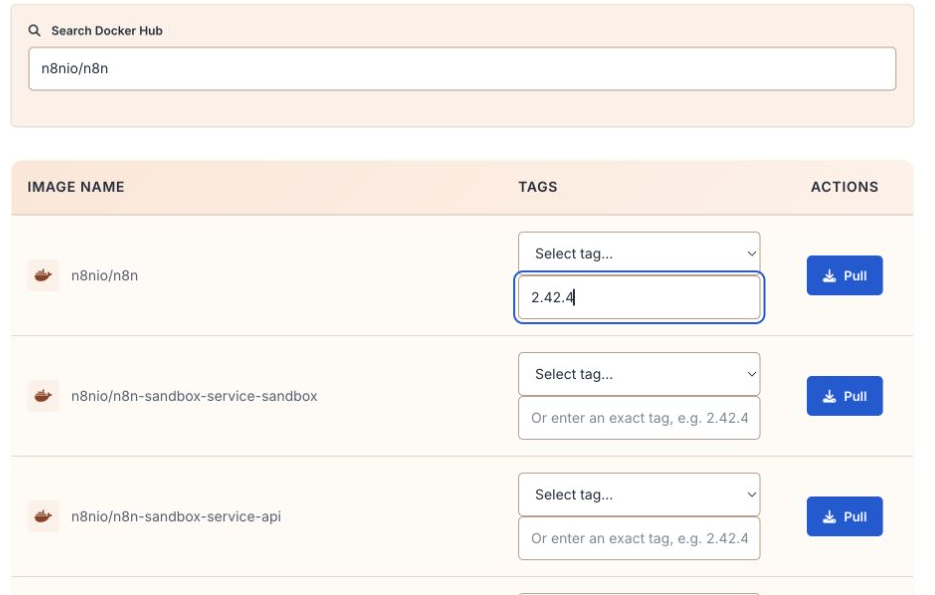
Open Docker Manager from the server tools, then Manage Docker Images. Search for n8nio/n8n, select tag 2.42.4, and pull it. Create the container from that image after the pull finishes. Confirm the container form still displays the selected tag.
03 · ContainerEnter the basic settings
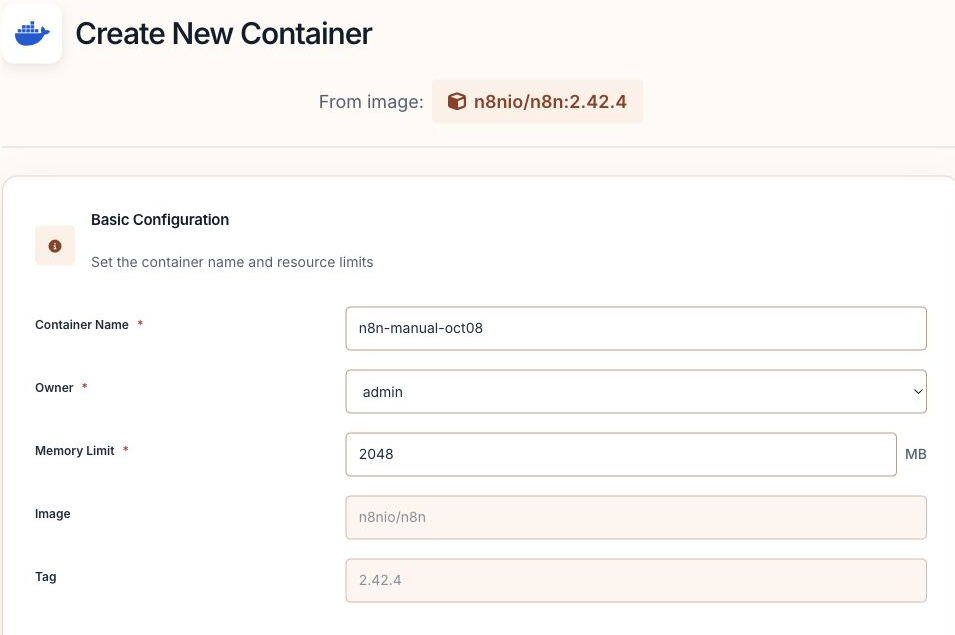
Name the container n8n-manual-oct08, select owner admin, and set the demonstration memory limit to 2048 MB. Verify that the form identifies n8nio/n8n:2.42.4.
04 · PortsBind the upstream to loopback
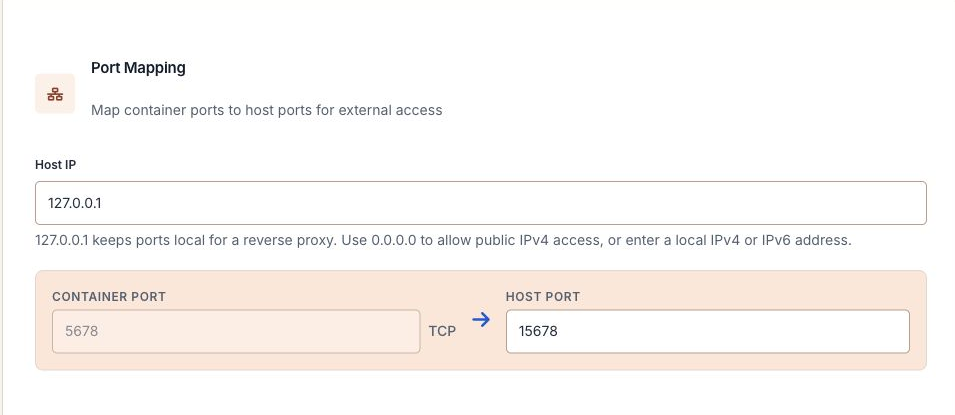
In Port Mapping, set Host IP to 127.0.0.1, Host Port to 15678, and Container Port to 5678. This same-server proxy uses the loopback address; the public entry point is the website’s HTTPS hostname.
05 · EnvironmentConfigure the public address and runtime
In Environment Variables, retain the image’s existing runtime entries and add or confirm the following. The example hostname below is the actual public demo address; replace it consistently with your own hostname. Do not change n8n’s internal port to 443 just because the public website uses HTTPS.
N8N_HOST=n8n-demo-oct08.136.243.211.213.sslip.io
N8N_PROTOCOL=https
N8N_PORT=5678
N8N_EDITOR_BASE_URL=https://n8n-demo-oct08.136.243.211.213.sslip.io/
N8N_WEBHOOK_URL=https://n8n-demo-oct08.136.243.211.213.sslip.io/
N8N_PROXY_HOPS=1
NODE_ENV=production
TZ=Asia/Karachi
GENERIC_TIMEZONE=Asia/Karachi
N8N_ENFORCE_SETTINGS_FILE_PERMISSIONS=true
The current variable is N8N_WEBHOOK_URL. WEBHOOK_URL is a deprecated alias from n8n 2.35.0. This base URL controls both test and production webhook addresses behind a reverse proxy. Official endpoint-variable reference.
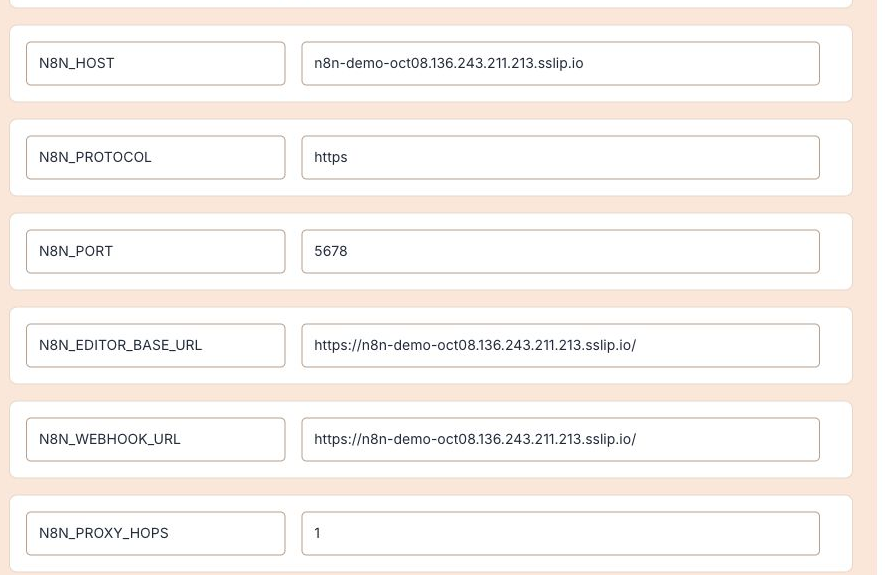
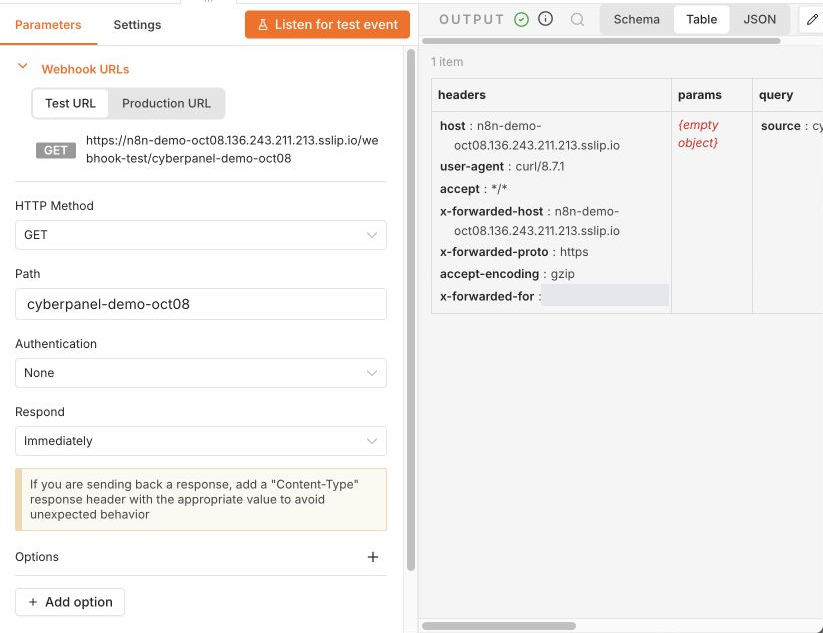
N8N_PROXY_HOPS=1 matches this single-proxy route. The proxy must forward the original request information; n8n documents X-Forwarded-For, X-Forwarded-Host and X-Forwarded-Proto. The captured webhook execution in this test showed the forwarded host and HTTPS protocol. n8n reverse-proxy guidance.
GENERIC_TIMEZONE controls schedule-node time, while TZ supplies the container’s system time zone. Both are Asia/Karachi here. Settings-file permissions are enabled. Docker configuration reference.
06 · StorageMap the application data
In Volume Mapping, map host directory /home/docker/n8n-manual-oct08/data to container directory /home/node/.n8n. The source field is horizontally clipped in the capture, so use the complete source path printed here.
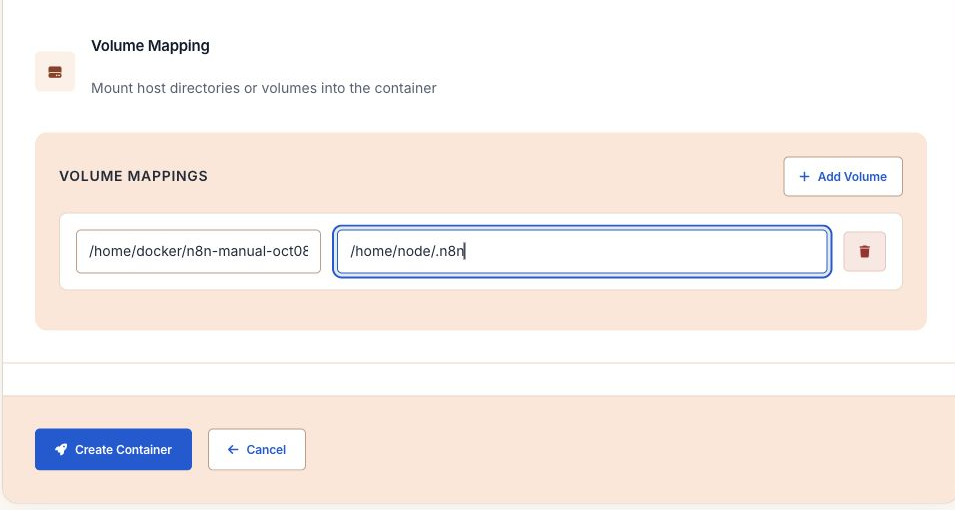
This demonstration uses n8n’s default SQLite database. The .n8n directory also holds important instance data, including encryption-related configuration. Preserve it when maintaining or replacing the container. n8n persistence reference.
Before creating the container, prepare this directory over SSH as root. This was a terminal preparation step in the actual run, not a Docker Manager UI action:
mkdir -p /home/docker/n8n-manual-oct08/data
chown 1000:1000 /home/docker/n8n-manual-oct08/data
chmod 750 /home/docker/n8n-manual-oct08/data
The mounted directory was owned by UID and GID 1000 with mode 750. Use the same host path in the volume mapping.

07 · LaunchCreate the container and enable startup
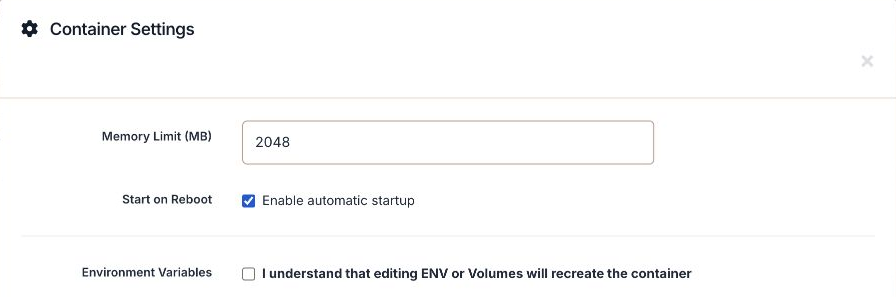
Review the image, container name, memory, port mapping, variables and storage. Choose Create Container, wait for startup, then open the container management page and confirm its running state. In Settings, select Enable automatic startup and save. The resulting restart policy for this container was always.
08 · Reverse proxyConnect the website to the local port
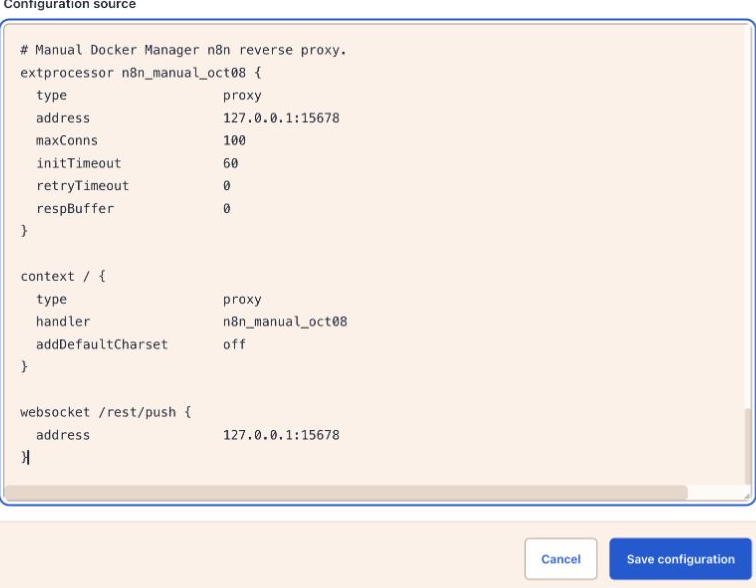
Open the website’s Manage page, then Config → vHost Conf. Preserve the existing virtual-host configuration, including certificate paths, the ACME challenge context and any original handlers. Add these blocks to that configuration; they are the actual additions used in this deployment:
extprocessor n8n_manual_oct08 {
  type                    proxy
  address                 127.0.0.1:15678
  maxConns                100
  initTimeout             60
  retryTimeout            0
  respBuffer              0
}

context / {
  type                    proxy
  handler                 n8n_manual_oct08
  addDefaultCharset       off
}

websocket /rest/push {
  address                 127.0.0.1:15678
}
The external processor defines the upstream. The root context sends website requests to it. The WebSocket mapping uses the same upstream for /rest/push. Save and wait for the configuration-saved confirmation. Do not replace a different website’s full configuration with this demonstration’s full file.
09 · OwnerOpen n8n over HTTPS
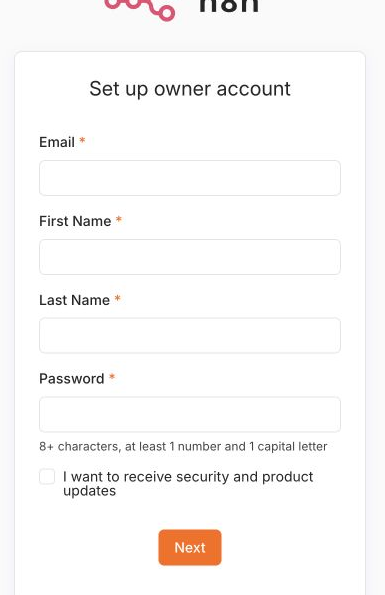
Open the public HTTPS address and complete the initial owner setup with your own email, name and password. Continue until the workflow workspace loads. The account belongs to n8n and is separate from the CyberPanel owner.
10 · WorkflowCreate a single Webhook trigger
Choose Build a workflow and add a Webhook trigger. This check uses one node, without external credentials, an AI assistant or a Python task runner. Set:
- HTTP Method:
GET - Path:
cyberpanel-demo-oct08 - Authentication:
Nonefor this harmless connectivity demonstration - Respond:
Immediately
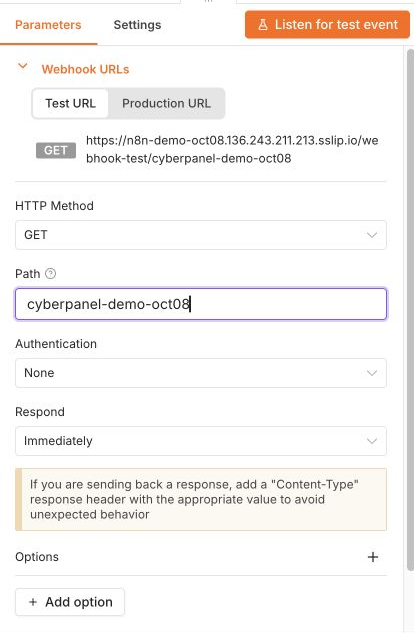
Choose Listen for test event, then send a GET request to the node’s test URL. The test listener and production webhook use different paths. Webhook node reference.
curl "https://n8n-demo-oct08.136.243.211.213.sslip.io/webhook-test/cyberpanel-demo-oct08?source=cyberpanel-tutorial"The actual test produced one incoming item. Its headers showed the forwarded HTTPS protocol, and the query contained the demonstration source value. The client response was Workflow was started. The client IP is covered in the screenshot.
11 · PublishUse the production webhook
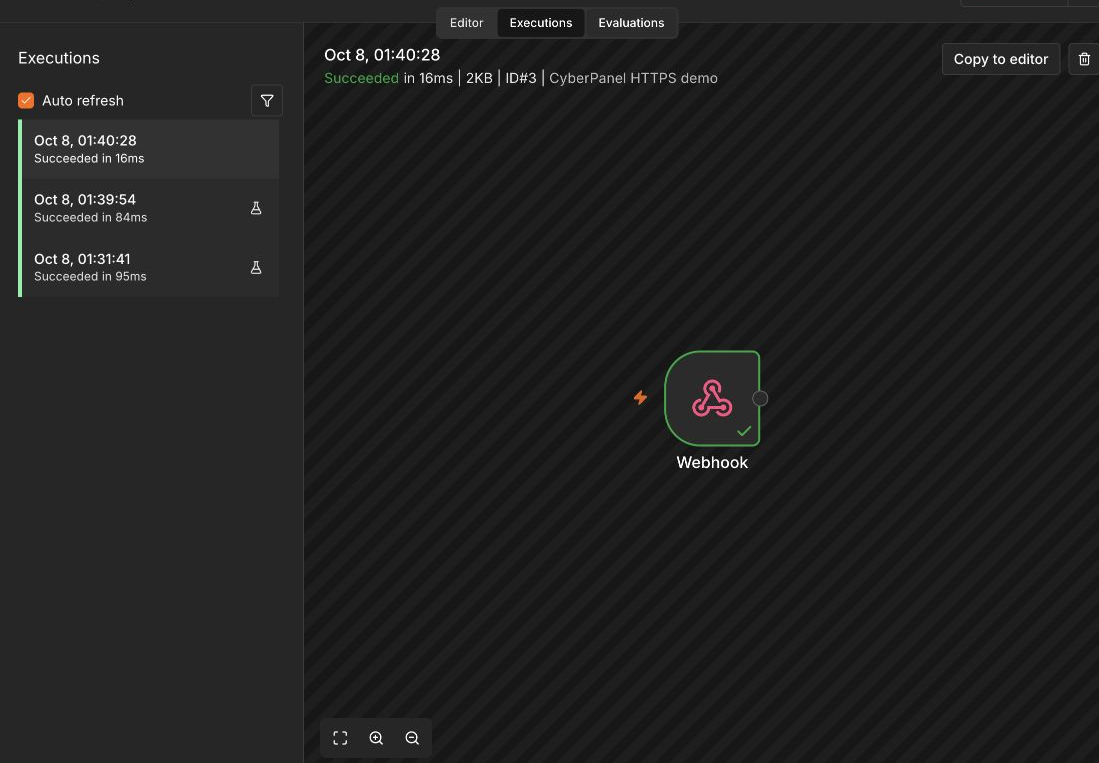
Publish the workflow with version name CyberPanel HTTPS demo. Select the Production URL in the Webhook node. Its path is /webhook/, without -test, and it does not require the test listener.
curl "https://n8n-demo-oct08.136.243.211.213.sslip.io/webhook/cyberpanel-demo-oct08?source=cyberpanel-tutorial"The production request returned Workflow was started, and the executions view showed succeeded runs. Authentication was intentionally absent for the harmless demonstration; configure appropriate authentication before connecting private data or consequential actions.
12 · Restart checkRepeat the request after restarting n8n
In Docker Manager, choose Restart for only the new n8n container. After startup, reopen n8n and its saved workflow, then repeat the production HTTPS request. The same saved workflow remained available, and the response was again Workflow was started.
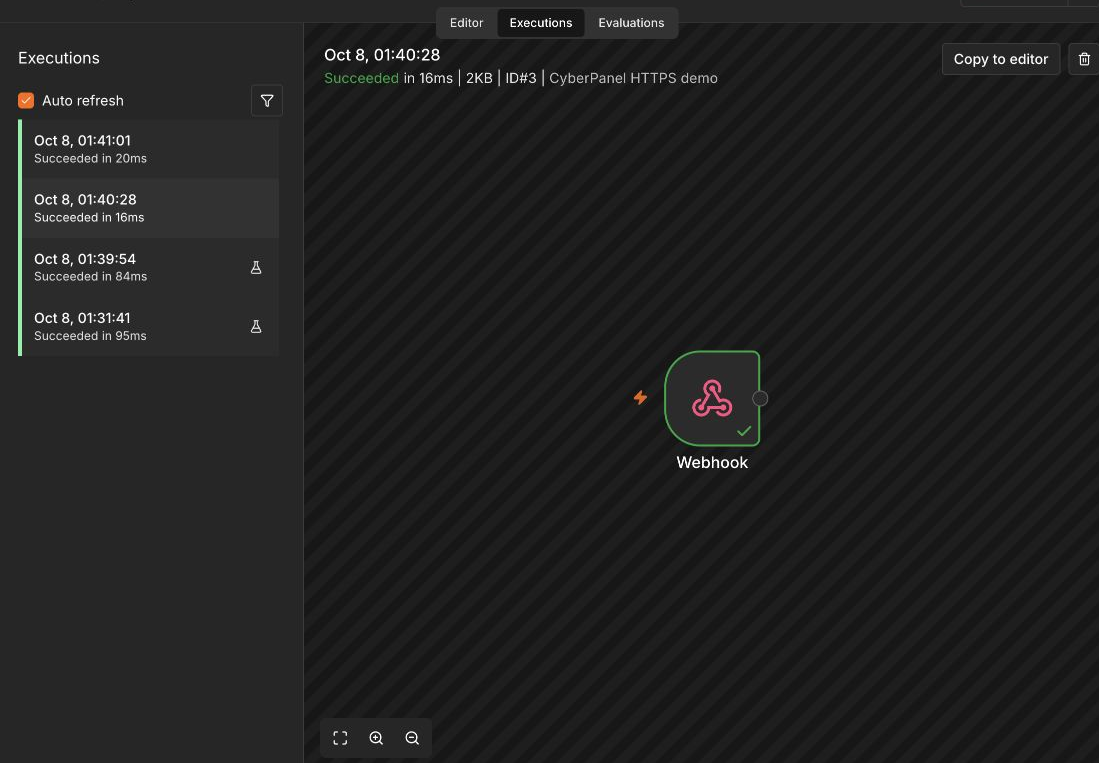
This result covers the specific application-container restart performed in this demonstration. It does not establish container-recreation behavior, host-reboot recovery, backup restoration or production availability.