
How to Create an FTP Account in CyberPanel
FTP accounts provide file access to a website. CyberPanel lets you limit an account to a specific path instead of exposing unrelated website files.
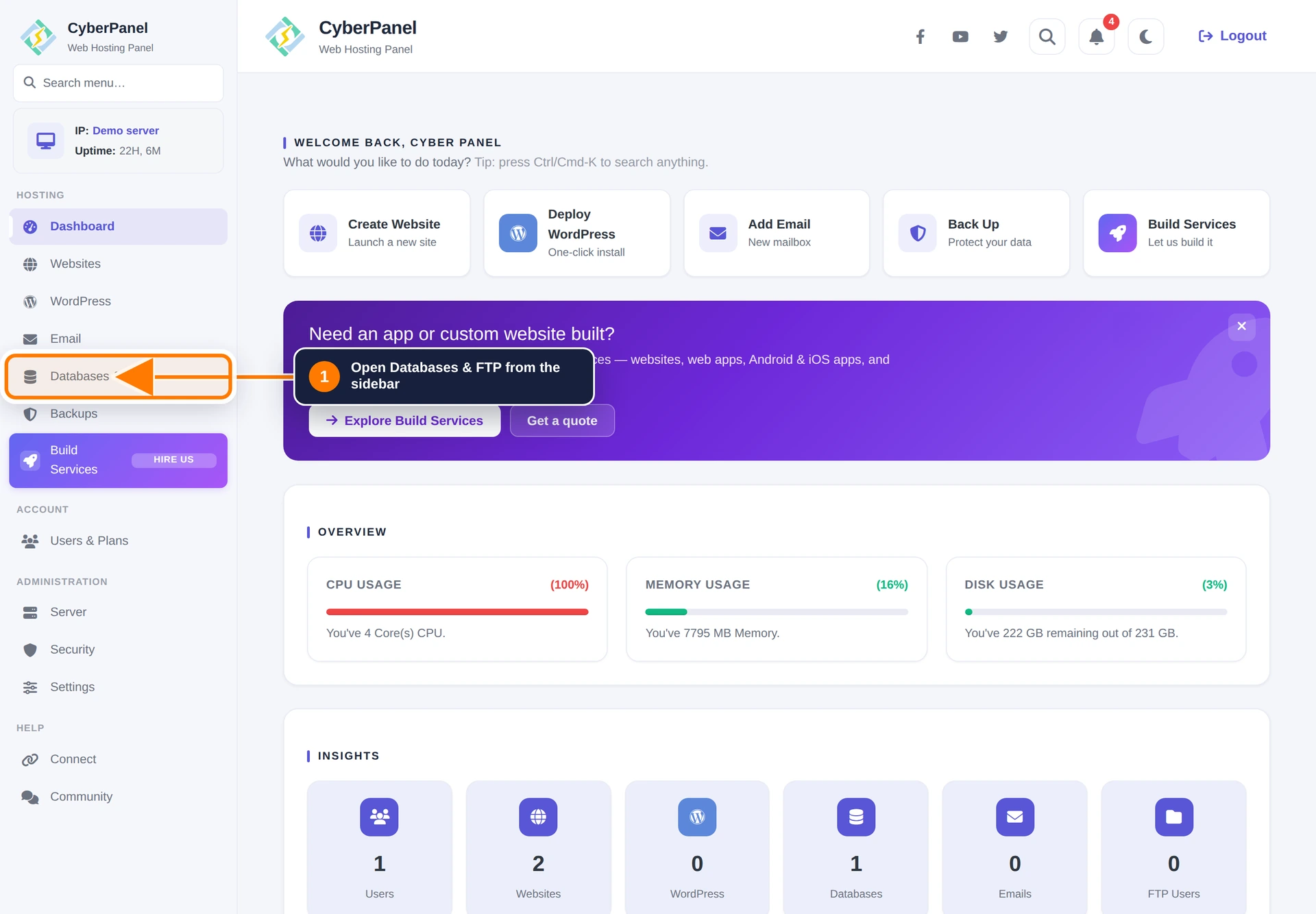
Step 1: Open Databases & FTP
Sign in to CyberPanel and select Databases & FTP in the left sidebar.
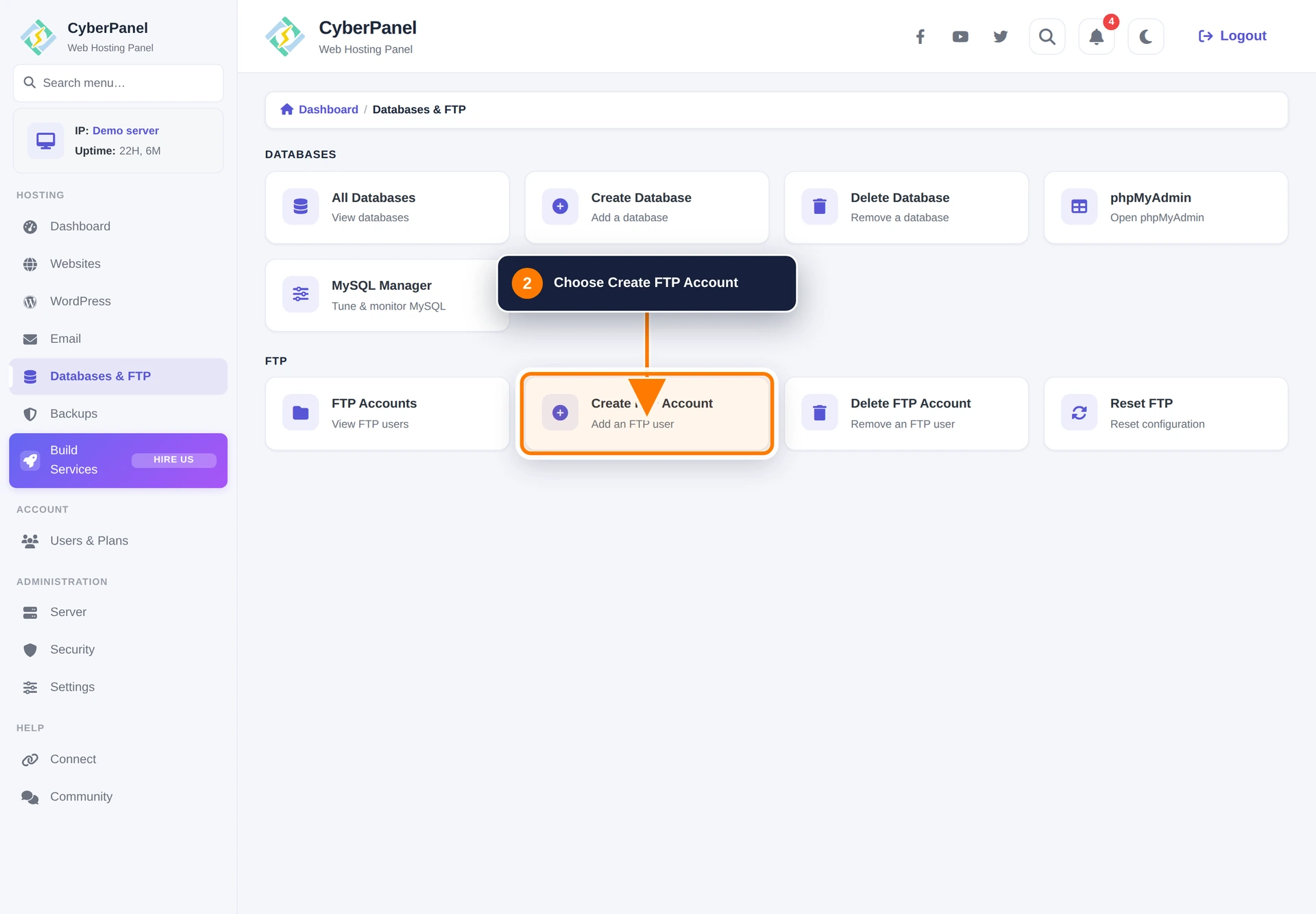
Step 2: Open Create/Delete FTP Account
Select Create/Delete FTP Account from the hub.
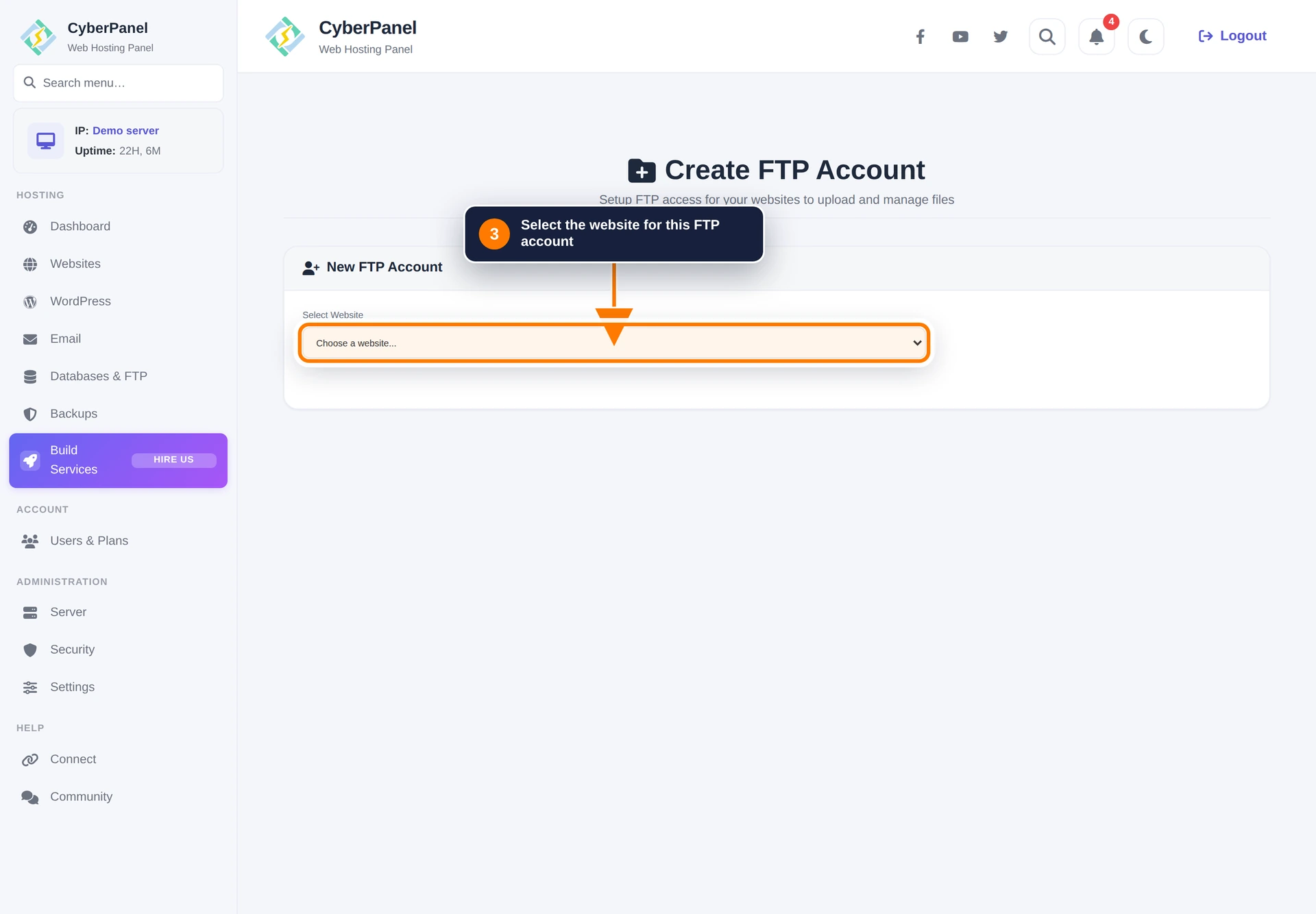
Step 3: Select the website
Choose the website that the FTP account should access.
Step 4: Enter the account details
Enter a username and strong password. Save the final account name shown by CyberPanel because the server may add a website-specific prefix.
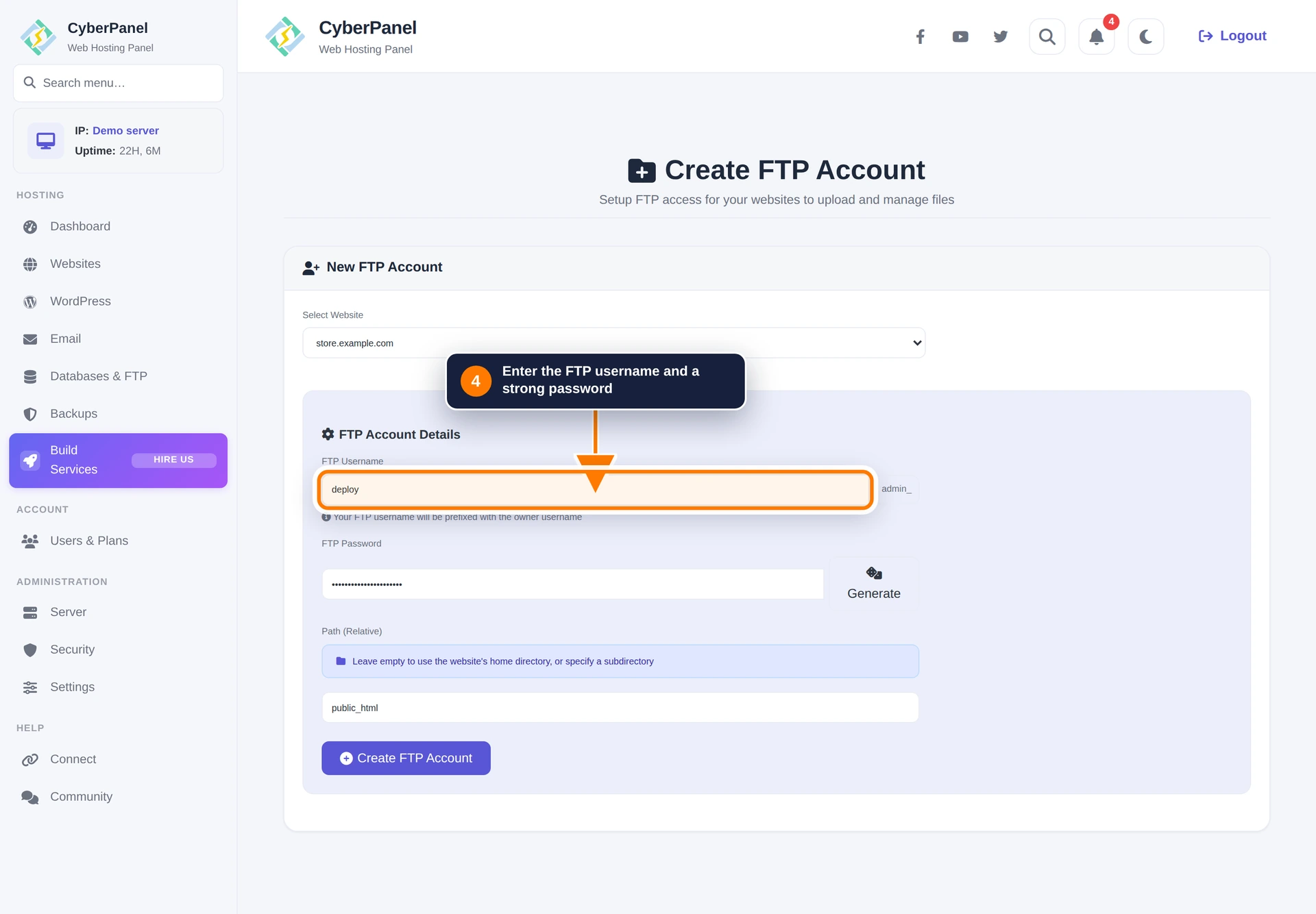
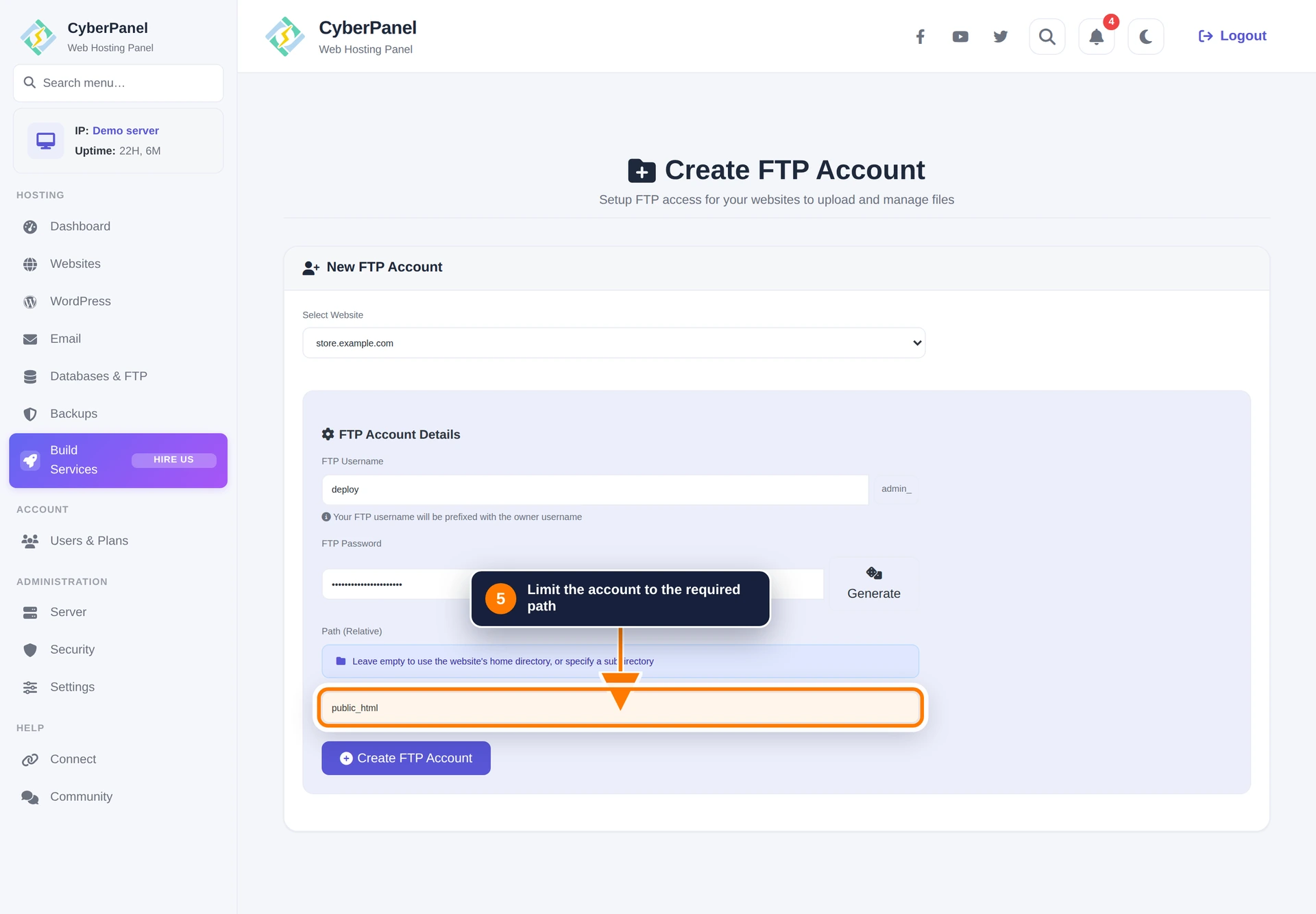
Step 5: Restrict the account path
Set the path the account may access. Use public_html for the website’s document root, or choose a narrower subdirectory when the user needs access to only part of the site.
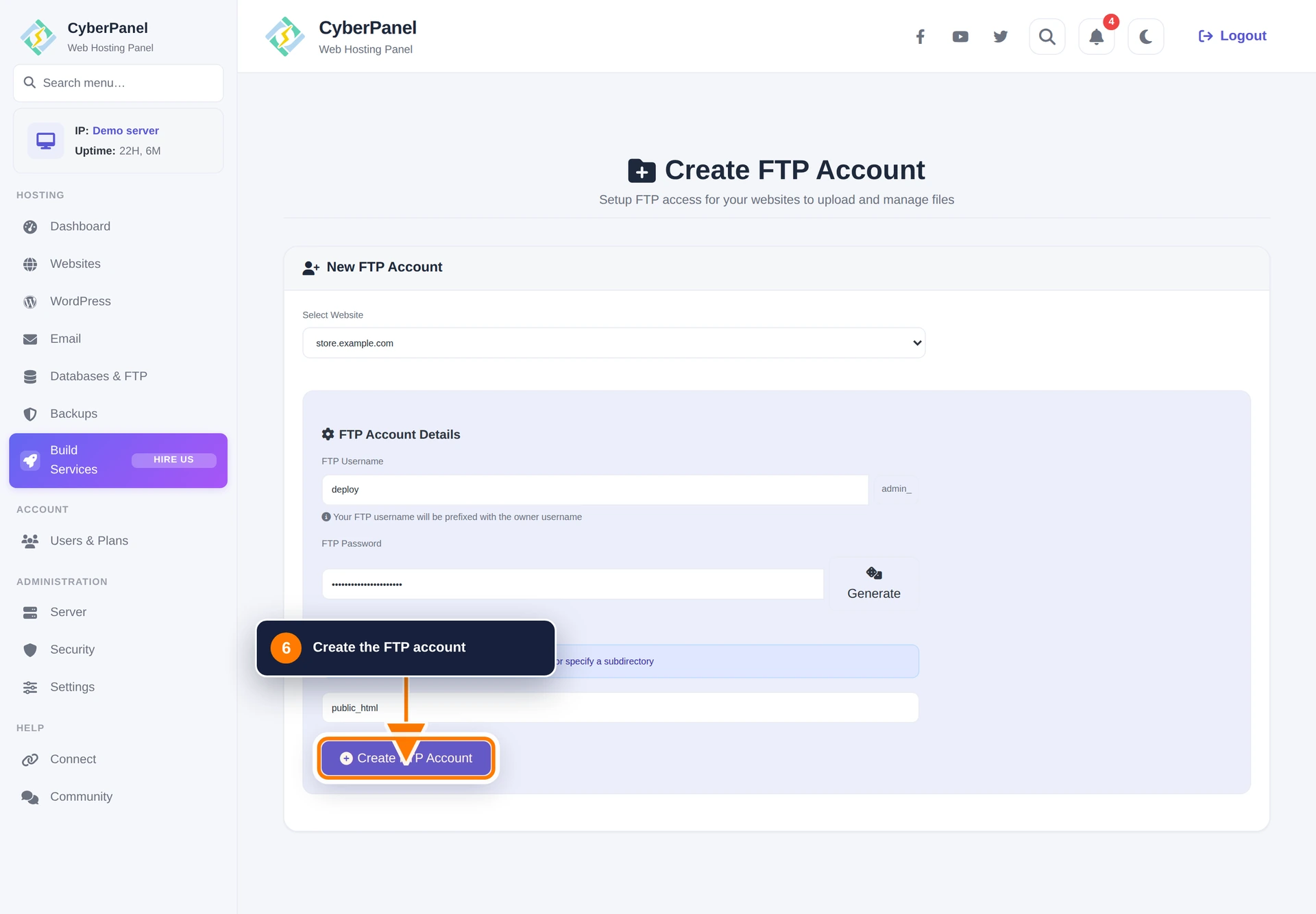
Step 6: Create the FTP account
Review the settings and select Create FTP Account.
Return to Databases & FTP to review accounts or reset an FTP password. If a client cannot connect, verify the hostname, username, password, FTP mode, firewall rules, and whether the hosting provider blocks the required ports.
You can return to FTP, SSH, and File Manager from Website Home → Files.