On this page
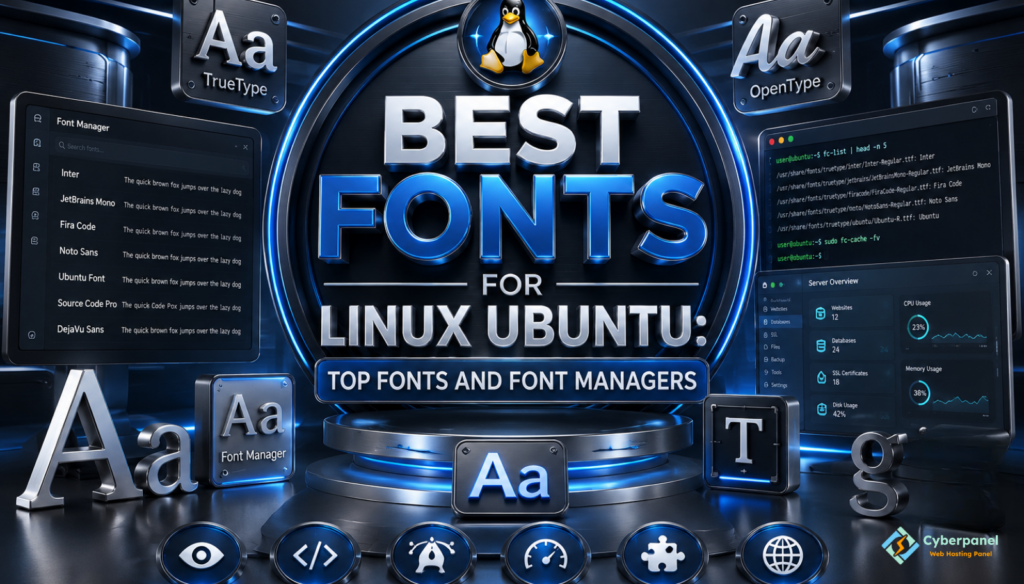
While the default font that comes with your Linux distro is perfectly okay for most daily tasks. You might want to consider switching to something else if you spend too much time working on your computer. Linux lets you choose what font to use in your desktop environment, and you can even install tens of thousands of different fonts and manage them with special applications. We are going to know fonts for Linux Ubuntu.
If you are having trouble finding the best Linux fonts or font manager for Ubuntu, you have come to the right place.
I have prepared a list of some of the best fonts available for Linux, as well as an explanation of why they are good and how to manage them on your system.
Fonts for Linux: Why Do They Even Matter?
Fonts are an essential part of any operating system.
A good font can make your computer easier to read, work on, and even look nicer overall.
Some fonts are generally better for specific activities, such as programming, writing, or graphic design.
Overall, good fonts can help:
- Make your computer nicer to look at
- Reduce eye strain
- Increase your productivity
- Make your code look nicer
- Improve your coding experience
- Make your coding projects look more professional
- Help your documents look more consistent
Best Fonts for Linux Ubuntu
There are many great fonts that work well with Linux.
While there are more than ten thousand free fonts to choose from, I have listed some of the most popular ones below.
Inter
One of the most popular fonts for Linux desktops is Inter – it has been specifically designed for screens and is very easy to read.
You can use it for almost everything, including desktop environments, documents, and browsing the web.
JetBrains Mono
If you spend a lot of time coding, you might want to consider JetBrains Mono – a font that has been specifically designed for programming.
It looks nice and is easy on the eyes, but its main advantage is being good for writing computer code.
It contains lots of ligatures that make programming easier.
Best for: Coding, the terminal, IDEs, writing code.
Fira Code
Another font specifically designed for programming is Fira Code .
It is similar to JetBrains Mono in many ways and also has programming ligatures.
It works well in most code editors, including Visual Studio Code and other Linux IDEs.
Noto Sans
If you need a font that supports most languages and special characters, you should go with Noto Sans.
This Google font is great for people who need to work with foreign languages and need a good Unicode font.
It is very popular among fonts for Linux Ubuntu.
DejaVu Sans
DejaVu Sans has been around for many years and is one of the most popular and reliable fonts in the Linux universe.
It has great Unicode coverage and looks nice on most Linux distributions.
It can be used in most common applications and is generally easy on the eyes.
Ubuntu Font Family
The default font for Ubuntu Linux is also one of the best Ubuntu fonts you can use.
The Ubuntu Font Family has been specifically designed for the Ubuntu OS, but it looks great on other Linux distributions as well. The font is easy to read, looks good, and generally has a modern aesthetic.
Source Code Pro
Another great font for coding is Source Code Pro, designed specifically for programmers by Adobe.
It has been optimized for code readability and is generally easy on the eyes, even when used for long hours.
Which Font Is Best for Coding?
This table will help you get the best font for Linux:
| Font | Best For |
|---|---|
| JetBrains Mono | Software development |
| Fira Code | Programming with ligatures |
| Source Code Pro | Long coding sessions |
| Cascadia Code | Modern development |
| IBM Plex Mono | Terminal work |
Best Font Managers for Linux
Installing fonts manually is a good idea occasionally or when you’re only using several. However, if you’re frequently installing or organizing fonts, you might find it easier if you use a font manager. Here are some of the best font managers to get fonts for Linux Ubuntu:
GNOME Font Viewer
Many GNOME-based distros will have a utility called GNOME Font Viewer preinstalled. What this does is allow you to easily view and install new fonts in just a few easy steps.
This is well suited for those who only install fonts occasionally.
Font Manager
Font Manager is one of the most popular and best font manager for Linux.
With Font Manager, you can:
- install new fonts
- remove fonts
- preview fonts
- manage font collections
- enable and disable fonts
The interface is extremely user-friendly, making font management far easier than trying to do it manually with your system’s default folders.
KDE Font Management
The KDE desktop environment comes with its own built-in font management solution via the System Settings utility. KDE Font Management makes installing, previewing, and managing fonts a breeze.
How to Install Fonts on Linux
Installing fonts is straightforward on most Linux distributions.
Method 1: Install Through the Desktop
Many desktop environments allow you to open a font file and click Install.
The font becomes available to supported applications immediately after installation
Method 2: Install Fonts Manually
Copy font files into your local fonts directory.
mkdir -p ~/.local/share/fonts
cp *.ttf ~/.local/share/fonts/
fc-cache -fvThe fc-cache command refreshes the system font cache so newly installed fonts become available
Method 3: Install Fonts Using the Package Manager
Many popular fonts are available directly from Linux repositories.
For Ubuntu:
sudo apt update
sudo apt install fonts-inter fonts-firacodeAlways check your distribution’s repositories because package names may vary.
Tips for Choosing the Right Linux Font
It’s all about what you do on a computer.
Here are some tips I recommend.
- Use a sans serif font for reading and a monospaced font for writing code
- Test out different font sizes
- See if you can get font anti-aliasing to work on your desktop
- Avoid using fancy fonts for regular work
- Use fonts with good Unicode support if you work with many languages.
- Testing out different fonts is usually the best way to find the perfect one for you.
How Does CyberPanel Go With Your Linux System?

Fonts won’t make much of a difference on a server, but they can improve your daily experience when using Linux. Having a readable and easy-to-see font will make reading code, the terminal, and other things you do on a computer easier after working with them for hours at a time
If you are running websites or other services on Linux servers, CyberPanel is your free and open-source web hosting control panel. It is a great addition to your setup, as it makes working with a server much easier. With a good coding font and a better Linux desktop experience thanks to CyberPanel’s web interface, everything becomes much easier for a developer.
Final Words
I hope I was able to convince you that the right font can make all the difference when working on a computer. Fonts are important to how we work, and having a readable and easy to see font will definitely improve your day-to-day experience on your Linux desktop. Try out some of the fonts I recommended and see what fits you the best.
If you are running websites or services on Linux, be sure to install a good coding font and use Cyberpanel to make deployment, server management, and maintenance easier. A few little changes to your work environment can make everything you do with Linux much easier.
Start experimenting with these fonts today and build a Linux workspace that’s faster, cleaner, and easier to use every day!
People Also Ask
Can I install Windows fonts on Linux?
Yes. Most TrueType (.ttf) and OpenType (.otf) fonts designed for Windows also work on Linux. After installing them, refresh the font cache if necessary so applications can detect the new fonts.
Why do some websites look different on Linux?
Websites often rely on fonts installed on your computer. If a required font is missing, Linux substitutes a similar one, which can slightly change the appearance of text.
Do Linux fonts affect system performance?
In most cases, no. Fonts use very little storage and memory. Performance differences are generally negligible on modern systems.
Can different Linux users have different font collections?
Yes. Fonts can be installed only for the current user or system wide, allowing each user account to maintain its own font library.
How do I remove fonts I no longer need?
You can delete user installed fonts from your local font directory or use a font manager application to uninstall them safely and refresh the font cache.