On this page
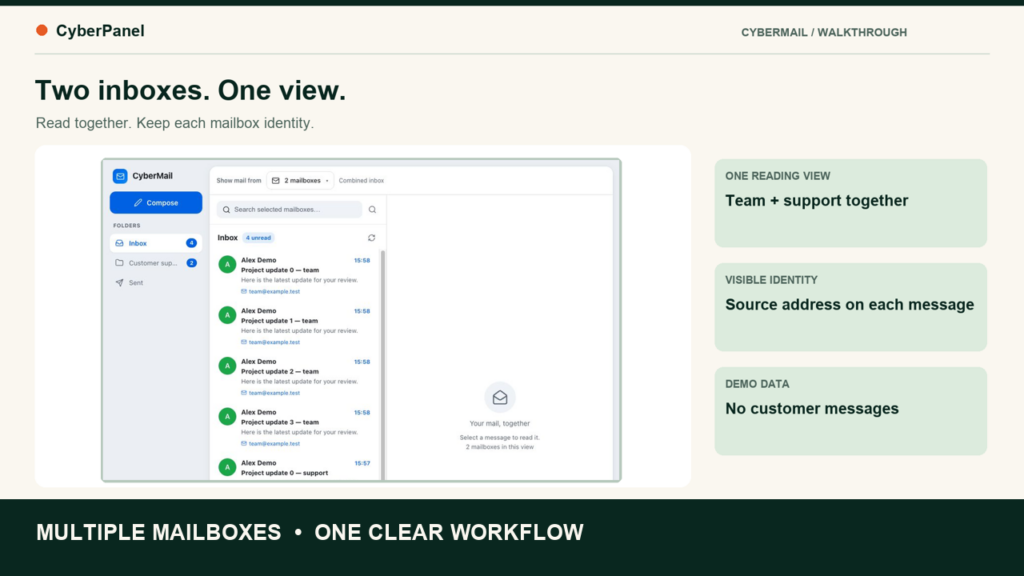
Checking a team inbox and a support inbox should not mean switching back and forth all day. CyberMail’s new mailbox selection lets you choose the mailboxes you want to read together, see their messages in a combined view, and keep the receiving address attached to each conversation.
The distinction matters when you send mail, too. A reply should follow the mailbox that received the conversation. A new message should use the sender you deliberately chose. This walkthrough explains both, along with remembered selections and where to find the saved Sent copy.
This guide uses synthetic demonstration addresses and messages in the actual CyberMail interface. The iPhone screenshots show a tested simulator preview. Web is deployed; the Android 1.4.0 and iPhone 1.1.0 updates were submitted for store review. As of 16 October 2026, mobile availability depends on approval and rollout.
Choose the mailboxes you want to read together
Start in CyberMail webmail from your signed-in platform account. With no saved selection, the current mailbox is selected. The Show mail from control above the message list opens the mailbox picker.
- Open Show mail from.
- Use Find mailbox to search for an address.
- Select the mailboxes you want in this view. For example, choose
[email protected]and[email protected], leaving[email protected]out. - Check the selected count and choose Show 2 mailboxes.
Select all includes every available mailbox. Cancel closes the picker without applying your draft changes. At least one mailbox must remain selected before you can apply a view.
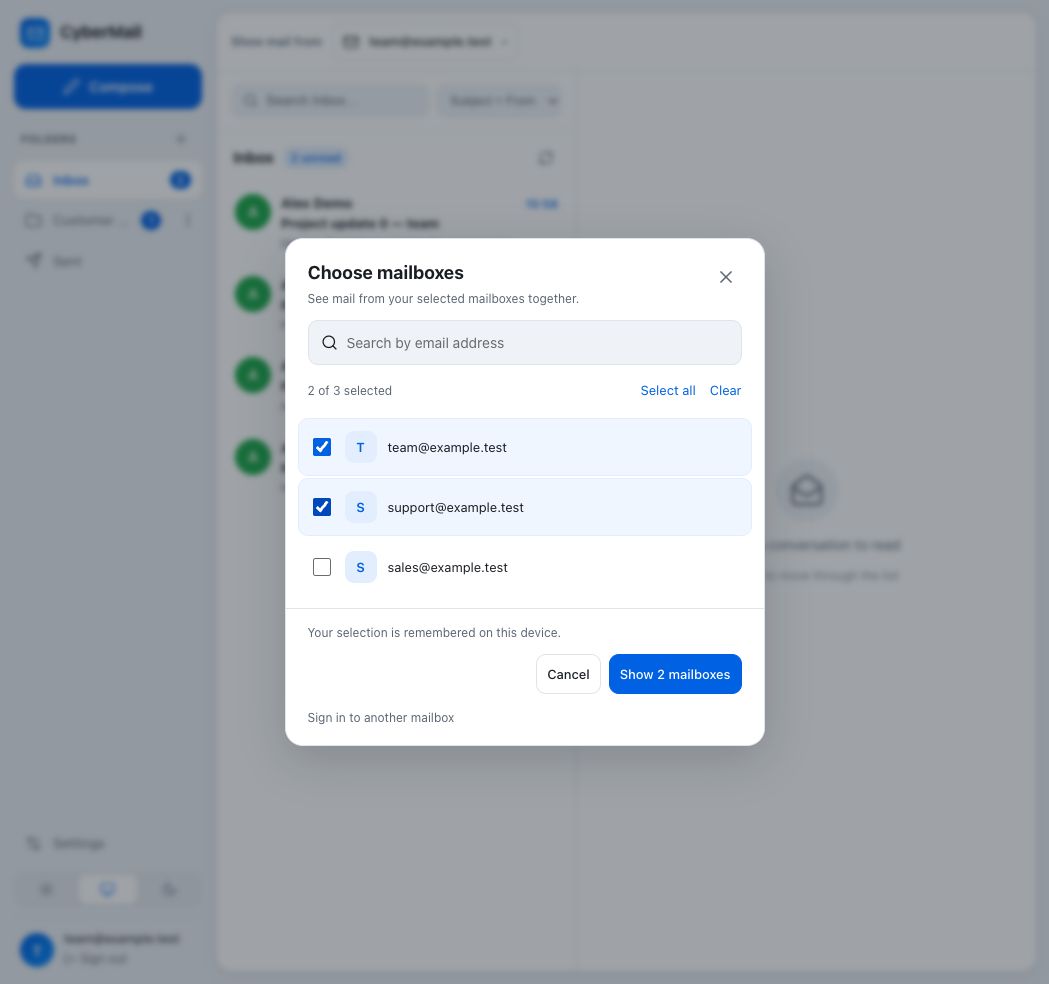
This choice changes what you see. Removing sales from the view does not delete its messages or move them into another mailbox. You can bring it back by opening the picker and selecting it again.
Read together without losing the source address
After applying more than one mailbox, CyberMail displays a combined inbox. Each message row includes its source mailbox, and the message detail retains that identity. That helps you distinguish a conversation received by your team address from one received by support, even when the sender or subject is similar.
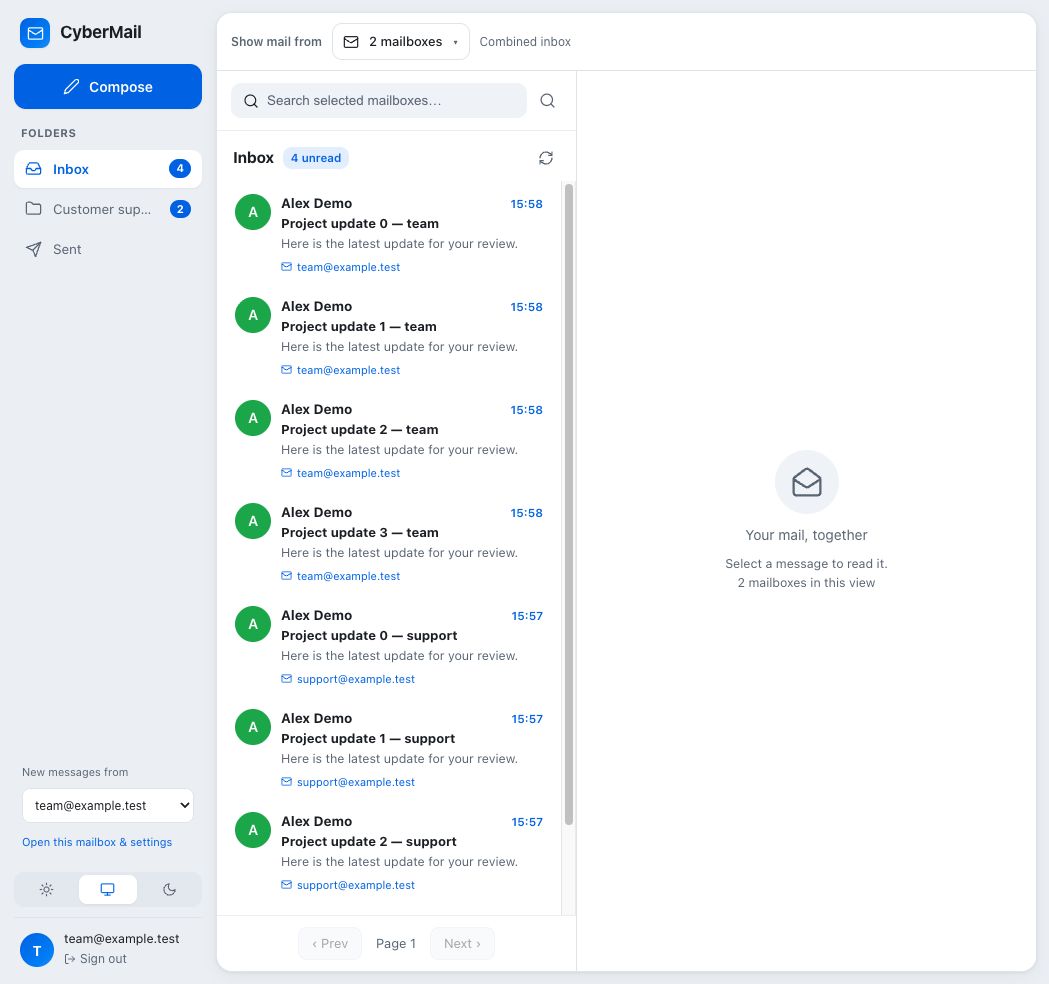
Reading messages together does not merge the stored mailboxes. Message actions remain associated with the source mailbox. Before replying or taking an action, check that source label.
Keep the selection you use every day
CyberMail remembers the applied mailbox selection for the account on the same browser or device. In our browser demonstration, reloading preserved the two-mailbox selection.
Choose your view separately on each device. This is not a promise of automatic selection synchronization between a browser, an iPhone and an Android phone. To return to a single inbox, reopen the picker, leave only that mailbox selected and apply the change.
A reply uses the mailbox that received the message
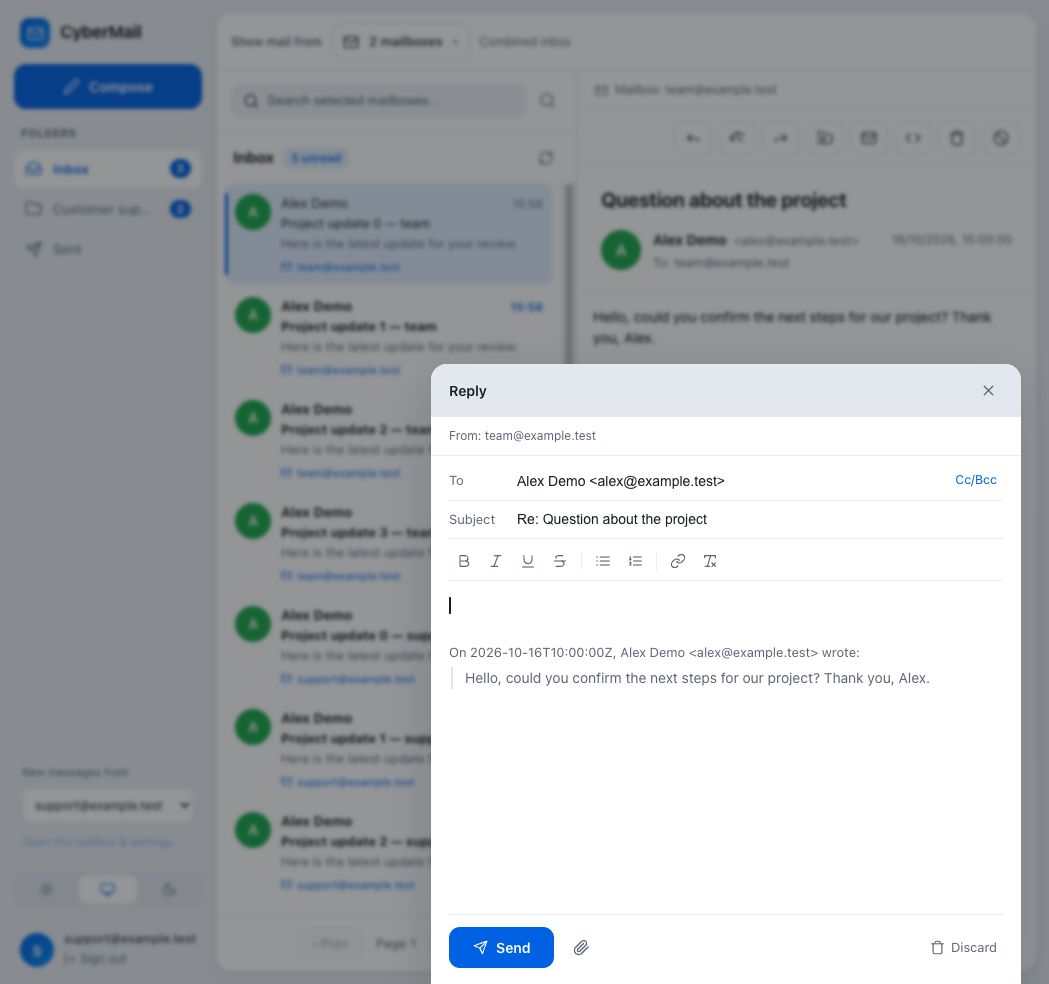
Suppose you have selected team and support, and your default sender for new messages is support. Now open a conversation received by team and choose Reply. The reply’s From line uses team.
We checked this exact sequence in the web interface: the selected new-message sender was support, the opened conversation belonged to team, and the reply showed team in From. An unrelated new-message preference should not silently change the identity used to answer an existing conversation.
Choose a sender for a new email
In the combined web view, use New messages from in the sidebar to choose the address for a fresh email. Then select Compose and verify the From line.
For the demonstration, we selected support, opened a new message, and confirmed that From showed [email protected]. Opening and discarding the earlier reply did not switch that new-message sender to team.
The reading selection and sending identity serve different purposes. Selecting two inboxes gives you a combined reading view; it does not send one message from both addresses.
Find the saved copy in Sent
After sending, check Sent for the mailbox you sent from. If you are using a combined view, make sure the sending mailbox is included in the selection.
The saved Sent copy can arrive after the send action completes because saving it happens separately. The updated web client refreshes Sent to pick up that delayed copy. Our walkthrough demonstrates this with a synthetic send and a delayed saved copy; it does not transmit an email.
If the message seems missing:
- Confirm the From address used for that send.
- Include that mailbox in your current view.
- Open its Sent folder and clear any unrelated search.
- Check the folder name. An older folder named “Sent Messages” can be separate from “Sent.”
- Use Refresh if necessary, then search by the subject or recipient.
A saved Sent copy establishes that a copy exists in the sending mailbox. It does not, by itself, establish delivery to the recipient or inbox placement at another provider.
Use mailbox selection on iPhone and Android
The iPhone update provides a dedicated mailbox picker accessible from the inbox mailbox control. Search for the addresses you need, select them, and apply your choice. The combined message list keeps the source mailbox visible.
On Android, open Mailboxes, use Search mailboxes, select the addresses, and choose Show selected mailboxes. Check the source address in the conversation and the From identity before sending.
The release candidates are Android 1.4.0 and iPhone 1.1.0. Both were submitted to their respective stores. The video’s iPhone section uses simulator captures; its Android section is an instruction card based on the release implementation. It is not a physical-device recording. If your installed version lacks the picker, check whether the approved update is available in your store.
Which mailboxes can I select?
The selector respects the mailboxes available to the signed-in account. An individual mailbox-password login does not gain permission to sibling mailboxes simply because their addresses belong to the same platform owner.
If an expected address is missing, first confirm which account you signed in with and whether that mailbox is active. Combining inboxes does not grant additional access.
A quick check before sending
- Reading: Are the mailboxes you need included in the current selection?
- Replying: Which mailbox received this conversation?
- Composing: Is the From line the address you intended?
- Checking Sent: Are you looking in the sending mailbox’s Sent folder?
Which two mailboxes would you combine first?
Explore CyberMail and the CyberPanel platform at CyberPanel.