On this page
The Okta Terraform Provider lets you manage an Okta organization with Terraform code instead of making every change manually in the Admin Console. You can use it to create and manage groups, applications, users, policies, domains, and other supported Okta resources through repeatable configuration files.
The provider connects Terraform to your Okta organization through the Okta API. Terraform reads your configuration, compares it with the current state, creates a plan, and applies the required changes.
This approach can make identity management easier to review, automate, and reproduce. It also gives teams a way to keep Okta configuration in source control and include identity changes in CI/CD workflows.
What Is the Okta Terraform Provider?
The Okta Terraform Provider is a Terraform plugin that allows Terraform to communicate with Okta and manage supported resources in an Okta organization.
Terraform itself does not know how to create an Okta group or configure an Okta application. The provider supplies that connection.
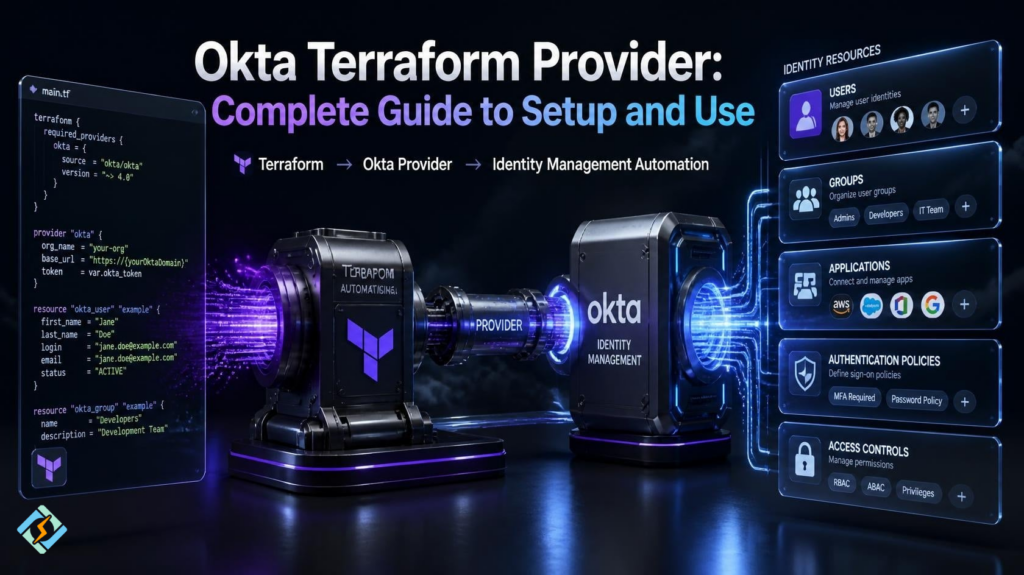
The basic relationship looks like this:
Terraform Configuration
↓
Okta Terraform Provider
↓
Okta API
↓
Okta Organization
You describe the desired configuration in .tf files. Terraform then uses the provider to make the corresponding changes in Okta. Okta’s documentation describes this as managing an Okta organization with code and using Terraform to preview and apply configuration changes.
The current provider is published under:
okta/oktaThe older oktadeveloper/okta source is no longer supported. If an existing configuration still uses the old source, Okta’s provider documentation provides a state migration command for moving to okta/okta.
Why Use Terraform With Okta?
Managing identity settings manually can become difficult as an organization grows.
A change made through the Admin Console can also be harder to review later. With Terraform, the desired configuration lives in code.
This gives teams several useful benefits:
- Repeatable Okta configuration
- Reviewable changes through version control
- Terraform plans before changes are applied
- Easier environment replication
- Automated deployments
- Better visibility into configuration changes
- Less dependence on manual console work
Okta specifically highlights previewing changes, repeatable changes, CI/CD integration, sharing configuration with administrators, and auditing changes as benefits of managing an Okta organization with Terraform.
There is one important rule, though.
If Terraform manages a resource, avoid changing that same resource manually through the Okta Admin Console or another API. Doing so can create configuration drift, where the real Okta state no longer matches the Terraform configuration and state.
What Do You Need Before Using the Provider?
You need a few things before creating your first configuration.
Terraform
Install Terraform on the system where you will run your configuration.
You should also understand basic Terraform concepts such as:
- Providers
- Resources
- Data sources
- Variables
- State
- terraform init
- terraform plan
- terraform apply
An Okta Organization
You need an Okta organization that Terraform can access.
Okta’s current guide for enabling Terraform access uses an Okta Integrator Free Plan organization or an Identity Engine organization and requires appropriate administrative permissions for setup.
Terraform Access Credentials
Terraform needs permission to communicate with your Okta organization.
For new setups, Okta recommends using OAuth 2.0. The provider supports OAuth-based authentication using a client ID, private key, private key ID, and scopes. API tokens are also supported, but Okta identifies that method as a legacy SSWS authorization scheme.
How Do You Configure the Terraform Okta Provider?
Start with a Terraform configuration file such as main.tf.
A basic provider declaration looks like this:
terraform {

  required_providers {

    okta = {

      source = "okta/okta"

    }

  }

}

provider "okta" {

  org_name      = var.okta_org_name

  base_url      = var.okta_base_url

  client_id     = var.okta_client_id

  private_key   = var.okta_private_key

  private_key_id = var.okta_private_key_id

  scopes        = var.okta_scopes

}

The important part is the provider source:

okta/oktaThe Terraform Registry currently lists version 7.0.0 as the latest release. For production configurations, it is better to define a version constraint rather than allowing an unexpected provider upgrade.
For example:
terraform {

  required_providers {

    okta = {

      source  = "okta/okta"

      version = "~> 7.0"

    }

  }

}Choose a version policy that fits your upgrade process rather than copying a version number without checking the current provider documentation.
How Do You Install the Okta Terraform Provider?
After creating your Terraform configuration, run:
terraform initTerraform reads the required_providers block and downloads the required provider.
You can then verify the configuration with:
terraform validateAnd create a plan with:
terraform planterraform plan is useful because it shows the changes Terraform intends to make before you apply them.
Do not skip this step on production identity infrastructure.
A plan gives you a chance to catch an incorrect group, application, policy, or configuration change before it reaches your Okta organization.
How Does Authentication Work?
Authentication is one of the most important parts of an Okta Terraform setup.
The current provider supports several credential methods, including environment variables and provider configuration. It supports OAuth 2.0 credentials as well as API tokens.
For OAuth 2.0, the provider can use values such as:
OKTA_ORG_NAME

OKTA_BASE_URL

OKTA_API_CLIENT_ID

OKTA_API_PRIVATE_KEY_ID

OKTA_API_PRIVATE_KEY

OKTA_API_SCOPESThis allows the provider block to remain free of hardcoded credentials:
provider "okta" {}The credentials can then be supplied through the environment.
This is usually a better approach than putting private keys directly into a Terraform configuration file.
Okta recommends storing private keys separately and using a secure secrets or encryption management system. It also recommends limiting Terraform permissions to only the Okta objects it needs to manage.
Why Is OAuth 2.0 Preferred?
OAuth 2.0 gives you more control over how Terraform accesses Okta.
Instead of giving Terraform broad access by default, you can define scopes for the operations it needs.
Okta describes OAuth 2.0 as offering granular access control, time-limited access, and the ability to revoke access. For Terraform, Okta recommends using an API service app with the Client Credentials flow for machine-to-machine communication.
A simplified flow looks like this:
Terraform
↓
OAuth 2.0 credentials
↓
Okta service application
↓
Authorized API access
↓
Okta organization
The exact scopes depend on what your Terraform configuration needs to manage.
Do not give Terraform every permission simply because it is easier.
Use the least privilege required for the resources and operations in your project.
What Can You Manage With the Provider?
The provider supports many Okta resources and data sources.
Common examples include:
- Users
- Groups
- Applications
- OAuth applications
- Policies
- Domains
- Organization settings
- Group memberships
- Application assignments
- Authentication-related configuration
The exact resources available depend on the current provider version.
For example, the current provider includes the okta_app_oauth resource for creating and configuring OIDC applications.
It also includes data sources such as okta_app and okta_group, which can retrieve existing Okta objects instead of creating new ones.
How Do You Create an Okta Group With Terraform?
A simple group resource can look like this:
resource "okta_group" "developers" {

  name        = "Developers"

  description = "Development team"

}After adding it to your configuration, run:
terraform planIf the plan looks correct:
terraform applyTerraform then creates the group in Okta and records the resource in its state.
The important idea is that the Terraform file becomes the desired configuration.
If you later change the group description:
resource "okta_group" "developers" {

  name        = "Developers"

  description = "Engineering development team"

}Terraform can detect the difference and propose the required update.
How Do You Use Existing Okta Resources?
Not every resource needs to be created by Terraform.
Sometimes an Okta application or group already exists, and Terraform only needs information about it.
This is where a data source can help.
For example:
data "okta_group" "developers" {

  name = "Developers"

}You can then reference information returned by that data source elsewhere in your configuration.
The current provider documentation supports retrieving groups through okta_group and applications through okta_app.
This distinction is useful:
| Terraform object | Purpose |
| Resource | Creates or manages an object |
| Data source | Reads an existing object |
| Provider | Connects Terraform to Okta |
Understanding these three pieces makes larger configurations much easier to manage.
How Do You Manage Okta Applications With Terraform?
Applications are one of the common reasons teams use the provider.
For example, the current provider includes resources for OAuth and OIDC applications.
A simplified example is:
resource "okta_app_oauth" "example" {

  label         = "Example Application"

  type          = "web"

  grant_types   = ["authorization_code"]

  redirect_uris = ["https://example.com/"]

  response_types = ["code"]

}The actual configuration depends on your application’s authentication flow and Okta requirements.
Do not copy application settings from one environment into another without checking URLs, credentials, scopes, certificates, and other environment-specific values. The current provider documentation provides the supported arguments for OAuth application resources.
How Should You Organize an Okta Terraform Project?
A small project can start with one main.tf file. For larger teams, you can also split reusable configuration into Terraform modules.
As it grows, separate the configuration into logical files:
okta-terraform/

├── main.tf

├── variables.tf

├── outputs.tf

├── groups.tf

├── applications.tf

├── policies.tf

└── terraform.tfvarsThe file names themselves are not special to Terraform. Terraform loads the .tf files in the configuration directory together.
Keeping related resources in separate files makes the project easier to review.
Okta recommends using one Terraform configuration per Okta organization to reduce conflicts and errors between different configurations.
For larger teams, you can also split reusable configuration into modules.
How Do You Handle Terraform State With Okta?
Terraform state records what Terraform knows about the resources it manages.
This makes state a critical part of an Okta automation project. For team environments, use an appropriate Terraform backend with access controls and locking where supported.
A simplified workflow is:
Write configuration
↓
terraform plan
↓
Review changes
↓
terraform apply
↓
Terraform state updated
Protect the state file just as you would protect other infrastructure state.
Do not casually place it in a public repository.
Your state may contain sensitive information or references to resources that should not be exposed.
For team environments, use an appropriate remote state solution with access controls and locking where supported.
What Is Configuration Drift in Okta?
Configuration drift happens when the real Okta environment changes outside Terraform.
For example:
Terraform configuration
≠
Okta organization
This can happen if someone changes a Terraform-managed application through the Admin Console.
Okta recommends avoiding manual changes to resources managed through Terraform because multiple management methods can cause the configuration and Terraform state to become out of sync.
A clean workflow is:
Change Terraform code
↓
Review
↓
terraform plan
↓
Approval
↓
terraform apply
This gives your team a clear record of who changed the configuration and why.
How Can You Secure an Okta Terraform Setup?
Identity infrastructure deserves extra care because a configuration mistake can affect user access.
Follow these practices:
Use OAuth 2.0 where appropriate
Okta recommends OAuth 2.0 for authorizing Terraform.
Use least privilege
Terraform should only have access to the Okta objects it needs.
Protect private keys
Do not commit private keys to Git repositories.
Review every plan
Run:
terraform planbefore applying important changes.
Keep Terraform configuration in version control
This gives you a history of configuration changes and makes peer review easier.
Avoid manual changes
Do not manage the same Okta resource through Terraform and the Admin Console at the same time.
Pin provider versions
Use an intentional provider version constraint and upgrade it through a controlled process. Okta’s own configuration guidance recommends explicit provider versions to avoid unexpected upgrades.
What Is the Difference Between Okta Terraform Provider and Terraform?
These names are easy to confuse.
| Terraform | Okta Terraform Provider |
| Infrastructure as code tool | Terraform plugin |
| Reads .tf configuration | Connects Terraform to Okta |
| Creates plans and manages state | Provides Okta resources and data sources |
| Works with many providers | Focuses on Okta |
| Runs commands such as terraform plan | Defines how Okta objects are managed |
You need Terraform to run the configuration, while the Okta provider gives Terraform the ability to work with your Okta organization.
What Is the Difference Between the Okta Provider and Okta PAM Provider?
Okta also publishes other Terraform providers.
For example, the Okta PAM Terraform Provider is designed for Okta Privileged Access use cases such as resource groups, projects, enrollment tokens, secret folders, and security policies.
That is different from the main:
okta/okta
provider.
Choose the provider based on the Okta product and resources you actually need to manage.
Do not install a specialized provider simply because its name contains “Okta.”
What Should You Do If the Provider Stops Working?
Start with the error message.
Then check these areas:
| Check | What to verify |
| Provider source | Use okta/okta |
| Provider version | Check the installed and latest supported version |
| Credentials | Confirm they are available to Terraform |
| OAuth scopes | Make sure required permissions exist |
| Organization | Check the Okta org name and base URL |
| Resource syntax | Compare it with current provider documentation |
| Terraform state | Check for drift or state problems |
| API access | Verify that the required Okta API operation is available |
If the provider configuration still uses the old oktadeveloper/okta source, migrate it to okta/okta rather than continuing with the unsupported source. Okta documents the state provider replacement process.
Where Does CyberPanel Fit?

The Okta Terraform Provider and CyberPanel operate at different layers.
CyberPanel is a web hosting control panel. It helps administrators manage websites, domains, SSL, DNS, databases, email, and related hosting services through a web interface.
Terraform can sit above infrastructure and service configuration as an automation layer. In a broader DevOps environment, a team could use Terraform for infrastructure and identity automation while using CyberPanel to manage supported web hosting environments.
The two tools should not be treated as replacements for each other.
Terraform automates infrastructure and configuration.
The Okta provider automates Okta resources.
CyberPanel manages web hosting services.
Keeping those responsibilities separate makes the overall stack easier to understand and maintain.
Is the Okta Terraform Provider Worth Using?
For teams managing more than a small number of Okta objects, the provider can make identity configuration much easier to reproduce and review.
The strongest reason to use it is not simply that you can replace a few clicks in the Admin Console.
The bigger benefit is controlled configuration through code.
You can review changes, keep them in version control, automate deployments, and build repeatable Okta environments. Okta specifically supports this model for managing organizations with Terraform.
There is still some responsibility on the team.
Terraform will follow the configuration you give it. A bad configuration can still create a bad result.
That is why provider permissions, state protection, plan reviews, and controlled changes matter as much as the Terraform code itself.
Frequently Asked Questions
Can Terraform manage multiple Okta environments?
Yes. You can use separate Terraform configurations or workspaces for different Okta environments, depending on how your team structures its infrastructure. Keeping environments separated helps prevent changes intended for one organization from being applied to another.
Can you import an existing Okta resource into Terraform?
Yes. Existing Okta resources can be brought under Terraform management through resource import. This is useful when your organization already has groups, applications, or other supported objects that were created manually and you want to manage them as code going forward.
Can you use the Okta Terraform Provider in CI/CD?
Yes. The provider can be used in automated CI/CD workflows. A typical process can run validation and planning first, followed by an approved apply step. This allows identity configuration changes to follow a similar review process to other infrastructure code.
Should every Okta administrator use Terraform?
Not necessarily. Terraform is most useful when Okta configuration needs repeatability, version control, review, or automation. For a very small environment with occasional manual changes, the Okta Admin Console may still be simpler for some tasks.
Does Terraform delete Okta resources automatically?
Terraform only removes a managed resource when the configuration and Terraform state indicate that the resource should be removed, or when you explicitly destroy it. This is why reviewing the Terraform plan before applying changes is especially important for identity resources.
Build Okta Configuration You Can Trust
The Okta Terraform Provider turns Okta administration into a code-based workflow. Instead of relying only on manual console changes, you can define groups, applications, policies, and other supported resources in Terraform and review the changes before applying them.
The safest approach is simple: use the current okta/okta provider, choose a deliberate version constraint, use OAuth 2.0 with least privilege where appropriate, protect your credentials and state, and review every important Terraform plan before applying it.
If you are building a larger DevOps workflow, keep each tool in its proper role. Use Terraform for infrastructure and configuration automation, the Okta provider for identity management, and CyberPanel for web hosting management.
Ready to automate Okta? Start with a small non-production organization, configure the okta/okta provider, test authentication, create one simple resource, and review the Terraform plan before expanding the setup.