On this page
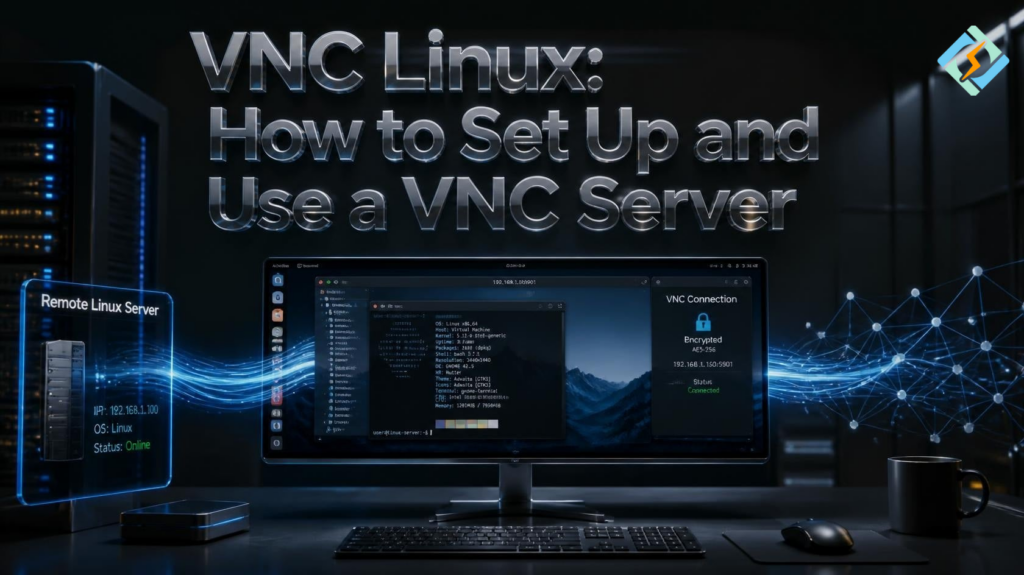
A graphical desktop is useful when you need to manage a Linux computer from another location. But what if the computer is sitting in a different room, office, or data center? VNC Linux makes this possible by letting you view and control a Linux desktop through a network connection.
VNC, short for Virtual Network Computing, sends the desktop display from one computer to another. You can then use your mouse and keyboard as if you were sitting in front of the remote machine.
A Linux VNC server can be useful for remote administration, technical support, development, testing, and accessing a graphical Linux environment. The setup is also flexible because several VNC implementations are available for Linux.
This guide explains how VNC works, how to install a VNC server on Linux, how to connect with a VNC viewer, and what you should do to keep a remote desktop secure.
What Is VNC in Linux?
VNC is a remote desktop technology that allows one computer to display and control the graphical interface of another computer.
A typical VNC setup has two main parts:
- VNC server: Runs on the remote Linux computer.
- VNC viewer: Runs on the computer you use to connect.
- Network connection: Carries the desktop data between them.
For example, suppose Ubuntu is running on a computer in your office. You are working from home and need access to its graphical desktop. You can install a VNC server on the office computer and use a VNC viewer on your home computer.
The viewer connects to the server and displays the remote desktop.
Unlike SSH, which mainly provides command-line access, VNC gives you a graphical session.
How Does Linux VNC Work?
The basic process is fairly simple.
When you start a VNC server Linux session, the server creates or exposes a graphical desktop environment. It listens for incoming connections on a network port.
The VNC viewer then connects to that server.
Once connected, the server sends screen information to the viewer. When you move your mouse, click something, or type on the keyboard, those actions are sent back to the remote computer.
The result feels similar to sitting directly in front of the machine, although performance depends on your network connection and the desktop environment.
A simplified flow looks like this:
Your computer → VNC Viewer → Network → VNC Server → Linux Desktop
VNC normally uses the Remote Frame Buffer (RFB) protocol for communication.
What Do You Need for a Linux VNC Server?
Before installing VNC, make sure the remote Linux machine has a graphical desktop environment.
A server installation without a desktop may not have anything useful for VNC to display.
You generally need:
| Requirement | Purpose |
| Linux computer | Hosts the remote session |
| Desktop environment | Provides the graphical interface |
| VNC server software | Creates the remote desktop session |
| VNC viewer | Connects to the server |
| Network connection | Transfers the session |
| User account | Runs the graphical session |
You should also have administrative access to install packages and configure services.
How Do You Install a VNC Server on Linux?
The exact commands depend on your Linux distribution and the VNC software you choose.
For example, on Ubuntu or Debian, you can search the available VNC packages with:
apt search vncYou may see several options, including packages for different VNC implementations.
One popular choice is TigerVNC.
On systems where the package is available, you can install it with:
sudo apt updatesudo apt install tigervnc-standalone-serverAfter installation, you need to configure the desktop session and authentication.
The important point is that installing the package is only the first step. A working setup also requires a desktop environment, user configuration, and a secure connection method.
How Do You Start a VNC Server?
TigerVNC and other implementations provide commands for creating a remote session.
A typical TigerVNC command looks like:
vncserverThe first time you run it, the software may ask you to create a password.
You can then check active sessions with:
vncserver -listA display number such as :1 may appear.
This display number is important because VNC commonly maps display numbers to ports.
For example:
Display :1

Port 5901

Display :2 would commonly use port 5902.The exact behavior can vary between implementations, so check the documentation for the VNC software you install.
How Do You Connect With VNC Viewer Linux?
After setting up the server, you need a VNC viewer on your local computer.
A VNC viewer Linux application acts as the client. You enter the address of the remote VNC server and authenticate.
The address may look like:
192.168.1.50:1or, depending on the viewer:
192.168.1.50:5901You then enter the VNC password when prompted.
Some viewers provide additional options for screen scaling, image quality, clipboard sharing, and other features.
Do not assume every VNC viewer uses the same address format. Check the viewer’s instructions if a connection fails.
Which VNC Server Is Best for Linux?
There is no single VNC server that is best for every Linux user.
TigerVNC is a common choice for Linux because it is open source and works with several Linux environments.
Other VNC implementations may provide different features, performance characteristics, or integration options.
Your choice should depend on what you need.
For example:
- TigerVNC: A popular option for Linux desktop sessions.
- x11vnc: Useful when you want to share an existing X11 desktop.
- RealVNC: Provides VNC software for various platforms and use cases.
The important distinction is between sharing an existing desktop and creating a separate virtual desktop session.
Some VNC servers connect you to the desktop already running on the machine. Others create an independent session.
What Is the Difference Between VNC and SSH?
VNC and SSH solve different problems.
SSH provides secure command-line access to a Linux system. VNC provides graphical remote access.
| Feature | VNC | SSH |
| Interface | Graphical | Command line |
| Mouse support | Yes | No |
| Desktop applications | Yes | Usually no |
| File management | Graphical | Terminal based |
| Resource usage | Higher | Lower |
| Best for | Remote GUI work | Administration and commands |
If you only need to restart a service or edit a configuration file, SSH is usually simpler.
If you need to use a graphical application, VNC can be more convenient.
Is VNC Linux Secure?
VNC can be secure, but you should not expose a VNC port directly to the public internet without proper protection.
This is especially important for servers.
A safer approach is to use an SSH tunnel.
For example:
ssh -L 5901:localhost:5901 user@server-ipYou can then connect your VNC viewer to:
localhost:5901The VNC traffic travels through the SSH connection rather than being exposed directly.
A VPN is another option for remote access.
You should also:
- Use a strong password.
- Keep Linux and VNC software updated.
- Restrict access with a firewall.
- Avoid unnecessary public exposure.
- Use SSH tunneling or a VPN for remote connections.
- Disable unused VNC sessions.
- Use separate user accounts where appropriate.
Security matters even more when the machine contains sensitive business or personal information.
Can You Use VNC on a Linux Server?
Yes.
This is one of the common uses of Linux VNC server software.
A remote Linux server may be located in a data center where you cannot physically access it. VNC can provide graphical access when you need to use a desktop application.
However, VNC is not always necessary.
For many server administration tasks, SSH is faster and consumes fewer resources. A graphical desktop also requires additional memory and CPU resources.
If the server is primarily hosting websites or applications, a control panel may be a better option for routine management.
What Role Does CyberPanel Play With VNC Linux?

CyberPanel and VNC solve different problems, so they should not be treated as replacements for each other.
VNC gives you remote graphical access to a Linux desktop.
CyberPanel, being a web hosting control panel, provides a web-based interface for managing web hosting servers.
For example, if you run websites on a Linux VPS, CyberPanel can help you manage hosting-related tasks through a browser instead of opening a VNC desktop session for every task.
You can use a combination of tools when appropriate:
Browser → CyberPanel → Hosting management
VNC → Linux graphical desktop
SSH → Command-line administration
This approach can reduce unnecessary VNC usage. If a task can be handled through a hosting panel or SSH, there may be little reason to maintain a full graphical remote session.
How Can You Troubleshoot VNC Linux Problems?
A VNC connection can fail for several reasons.
Start by checking whether the server is actually running:
vncserver -listThen check whether the expected port is listening:
ss -tulpn | grep 5901If nothing appears, the VNC service may not be running or may be using another display number.
Next, check your firewall.
For systems using UFW:
sudo ufw statusIf you are connecting through an SSH tunnel, make sure the SSH connection itself works first.
You should also check the VNC logs. They often contain useful information about authentication failures, desktop startup problems, and configuration errors.
What Are Common VNC Linux Mistakes?
Several problems appear repeatedly during VNC setup.
Exposing Port 5900 Directly
Opening VNC ports to everyone on the internet creates unnecessary risk.
Use a VPN, firewall restrictions, or an SSH tunnel instead.
Forgetting the Desktop Environment
A VNC server needs a graphical session to display. A minimal server installation may not have one.
Using the Wrong Display Number
If your session is running on :1, the corresponding port is commonly 5901, not 5900.
Starting the Wrong Desktop Session
Your VNC configuration needs to launch a desktop environment that is installed on the system.
Ignoring Logs
When a session immediately closes, logs are often the fastest way to find the problem.
Is VNC Still Useful Today?
Yes, although it is no longer the only option for remote desktop access.
Modern Linux systems offer several approaches, including RDP, browser-based remote access, SSH, and other remote desktop technologies.
VNC remains useful because it is cross-platform, flexible, and well-established.
It is particularly helpful when you need access to a graphical Linux environment and want a solution that works across different operating systems.
The right choice depends on your environment and what you are trying to accomplish.
Frequently Asked Questions
1. Can VNC access a Linux computer from Windows?
Yes. A VNC viewer running on Windows can connect to a VNC server running on Linux, provided the server is reachable and properly configured.
2. Can multiple users connect to the same Linux VNC server?
That depends on the VNC implementation and how sessions are configured. Some setups provide separate sessions for different users, while others share an existing desktop.
3. Does VNC work without an internet connection?
Yes. VNC only requires network connectivity between the viewer and server. It can work entirely inside a local network without internet access.
Conclusion: Is VNC Linux Right for You?
VNC Linux remains a practical way to access a graphical Linux computer remotely. It can be useful for desktop applications, remote troubleshooting, development environments, and systems that require a GUI.
The key is to choose the right setup. A VNC server provides the remote desktop, while a VNC viewer gives you access to it. SSH and VPNs can add a safer layer around the connection, while a hosting panel such as CyberPanel can handle many server tasks without requiring a graphical desktop at all.
If you manage websites on a Linux VPS, start with the simplest tool for each task. Use CyberPanel for hosting management, SSH for command-line administration, and VNC when you genuinely need a remote graphical desktop.
Ready to manage your Linux hosting environment more easily? Explore CyberPanel and simplify your server and website management from a web-based interface.