On this page
Imagine that you have found the perfect Linux distribution, but then one major Windows application is the one thing that stands between you and a full migration to Linux. It could be a productivity tool, a game launcher, or specialized software for your work. Application compatibility is still one of the biggest issues for Linux users.
Wine is the traditional solution for running Windows software on Linux. But setting up Wine by yourself may be a problem, especially if you are a beginner. Different applications usually need different settings, libraries, and runtime environments. When you are managing these configurations, things will get more and more complicated.
Bottles Linux offers a refreshing experience here. It adds a user-friendly graphical interface to make Wine management easier, and lets users create separate environments, called bottles, for each app. Instead of manually changing Wine configurations, users can install ready-made environments for different uses like gaming, software development, and productivity applications.
During recent years, Bottles has been one of the most popular compatibility tools that has gained the most traction in the Linux ecosystem.
Here, you will get to know what Bottles is, how it functions, how you can install and run it, the common ways to troubleshoot it, and its reasons for being preferred over other Wine management solutions by the Linux users of today.
What Is Bottles Linux?
Bottles Linux is a program that allows you to easily run Windows software on your Linux system. It is an open-source project that manages Wine environments using a simple graphical user interface.
Instead of having one Wine setup for all your apps, Bottles will make different environments called “bottles” for each app. Each bottle is like a little world with its own settings, dependencies, libraries, and runtime configurations.
This separation has many advantages:
- It keeps applications from interfering with each other
- It makes software installation easier
- It enhances compatibility
- It also helps in troubleshooting
Besides that, you can make different settings for different types of work.
You may understand a bottle as a personalized workspace that is tailored only to a specific Windows application.
How Bottles Work?
Bottles is a front-end that wraps Wine and other compatibility technologies to make running Windows applications on Linux easier.
Creating a bottle with Bottles means an isolated environment is set up automatically, which will have,
- Wine runner
- Windows libraries
- Registry
- Runtime dependencies
The package includes application-specific optimizations as well.
Bottles really take care of most of your configuration process by automating it.
For instance, a gaming bottle might come with settings tuned for performance, whereas a software bottle might emphasize application compatibility.
Reasons Why Linux Users Love Bottles More Than Traditional Wine
Wine itself is a very capable tool, but most users find the manual configuration somewhat daunting.
Traditional Wine setup usually means:
- Installing dependencies manually
- Configuring prefixes
- Editing registry settings
- Troubleshooting DLL issues
- Managing different Wine versions
Bottles Vs Traditional Wine
| Feature | Bottles | Traditional Wine |
|---|---|---|
| GUI Management | Yes | Limited |
| Isolated Environments | Yes | Manual Setup |
| Dependency Management | Automated | Manual |
| Multiple Wine Versions | Easy | Complex |
| Beginner Friendly | High | Moderate |
Key Features Of Bottles Linux
Bottles was one of the reasons for its gaining popularity is its comprehensive feature set.
Environment Presets
Bottles have predefined environments for:
- Gaming
- Applications
- Development
These presets set automatically recommended settings.
Multiple Runners
Based on the needs of the application, users can choose between the different Wine runners.
Dependency Management
The installation of common libraries using the command line is a thing of the past. Example:
- .NET Structure
- Visual C++ Redistributables
- DirectX Components
- Snapshot Support
With Bottles, users can save their progress by creating restore points before making changes that can have a big impact.
If something goes wrong, going back to a previous setting is quite easy.
Performance Tweaks
Gaming bottles can apply optimizations that improve compatibility and performance.
How To Install Bottles On Linux
The recommended installation method depends on your distribution.
Flatpak Installation
Many Linux users install Bottles through Flatpak.
flatpak install flathub com.usebottles.bottlesLaunch Bottles:
flatpak run com.usebottles.bottlesFlatpak is generally recommended because it provides access to the latest releases.
Ubuntu And Debian-Based Systems
Ensure Flatpak support is installed first.
sudo apt update
sudo apt install flatpakThen install Bottles from Flathub.
Fedora
Fedora users typically have Flatpak support available by default.
Creating Your First Bottle
After launching Bottles:
- Click Create A New Bottle
- Choose an environment type
- Enter a bottle name
- Allow Bottles to configure dependencies
Once created, the bottle becomes an isolated Windows environment.
You can then install Windows applications directly inside it.
Installing Windows Applications In Bottles
It’s really simple to install Windows apps in Bottles.
- Open the bottle you wish to use
- Click on Run Executable
- Pick the setup file
- Proceed with the installation wizard
Most of the time, Bottles configure compatibility options automatically.
Besides that, this way of installing is quite often more successful than launching installers directly with Wine.
Typical Scenarios Using Bottles
Use Of Productivity Software
Nearly all the windows productivity software users are that one segment that not only require but also run tons of Windows applications that do not have Linux counterparts.
These are some examples:
- Accounting software
- Business applications
- Legacy enterprise tools
Gaming
One of the top reasons for using Bottles is gaming.
A good number of Windows games, even only for Windows, can be run via Bottles with the help of optimized runners and additional libraries.
Software Testing
Developers frequently use Bottles to test Windows applications without leaving Linux.
Bottles Won’t Open Linux: Common Causes And Fixes
One of the most searched issues is that Bottles won’t open Linux.
Several factors can cause startup failures.
Corrupted Configuration Files
Sometimes configuration files become corrupted.
Resetting Bottles may resolve the issue.
Flatpak Runtime Problems
Update Flatpak packages:
flatpak updateOutdated runtimes can prevent Bottles from launching properly.
Missing Dependencies
Verify that all required Flatpak components are installed.
Graphics Driver Issues
In some cases, outdated graphics drivers may interfere with application startup.
Ensure GPU drivers are updated.
Reinstall Bottles
If problems persist:
flatpak uninstall com.usebottles.bottlesThen reinstall it.
A clean installation often resolves launch-related issues.
Best Practices For Using Bottles Linux
To ensure stability and compatibility:
Create Separate Bottles
Avoid installing unrelated applications in the same bottle.
Use Snapshots
Create restore points before major changes.
Keep Runners Updated
New Wine runners often improve compatibility.
Install Only Required Dependencies
Avoid unnecessary components that may create conflicts.
Test Applications Individually
Application-specific testing helps identify compatibility issues more quickly.
How CyberPanel Supports Linux Environments?
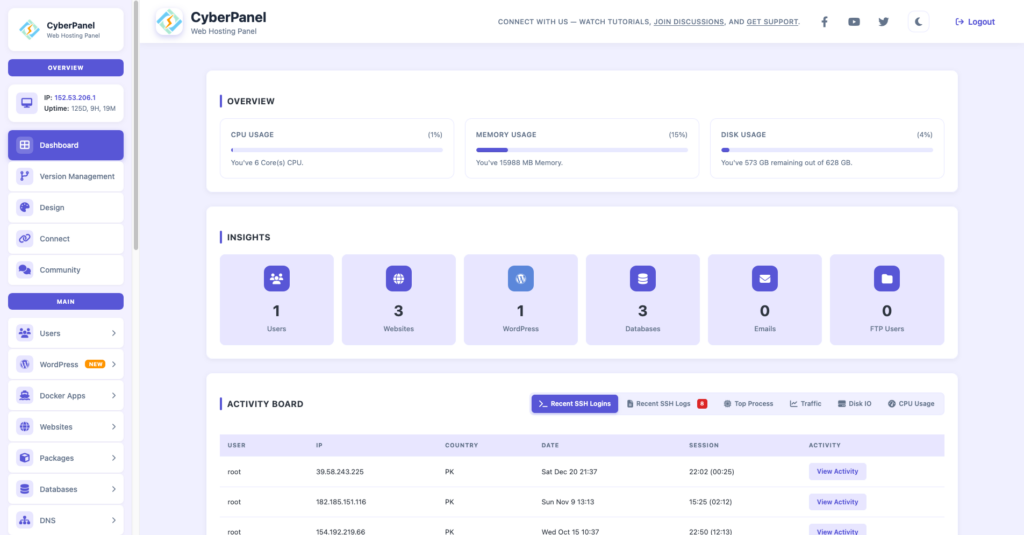
Besides making Windows apps usable on Linux, with Bottles, Linux users can manage servers and web infrastructure, too.
CyberPanel is a free and open-source web hosting control panel based on OpenLiteSpeed.
It makes website hosting, server management, backups, SSL deployment, and database administration easier.
If you are a user moving between desktop and server Linux environments, you will find that Bottles and CyberPanel are very helpful.
Bottles allows you to run Windows apps on Linux, whereas CyberPanel helps you efficiently handle Linux hosting and infrastructure management.
Conclusion
Among several choices, Bottles Linux is arguably the simplest and most efficient method to run Windows programs on a Linux system. The tool streamlines Wine operation, offers support for multiple environment creations, and implements automatic compatibility setting features – all these contribute to eliminating issues that users usually encounter when running Windows applications through Linux.
If your goal is to have a productivity suite at your disposal, deploy some software, or even play your favorite Windows games, all without having to dual-boot or restart your machine, then Bottles is definitely a viable option for you. In case you have been finding manual Wine tuning quite challenging, then going for Bottles as the compatibility layer for a Linux desktop today is Yes something you should consider.
Frequently Asked Questions
Can Bottles Run Every Windows Application?
No. Compatibility depends on the application and Wine support, although Bottles improves the setup experience significantly.
Do Bottles Work For Gaming?
Yes. Many users rely on Bottles for running Windows games on Linux systems.
Is Bottles Better Than Wine?
Bottles uses Wine internally but provides a more user-friendly interface and easier environment management.