
On this page
Printing is a vital feature that many Linux users still rely on, whether they are using PCs at home, in offices, schools, or large companies. Despite Linux being very compatible with various hardware, without the knowledge of Common UNIX Printing System (CUPS), printer management would be quite a challenge.
CUPS Linux sets up a unified printing system on your Linux machine, whereby it can easily interface with printers and shares over the network. The system can accommodate thousands of printer models and is capable of managing them graphically or by the command line.
This handbook takes you through the usage of Linux CUPS, which starts with how to install one, set it up, add and delete printers, fix problems, and provides the most effective ways to have a Linux printing environment.
What Is CUPS Linux?
CUPS (Common UNIX Printing System) is the primary print system that most modern Linux distributions have by default.
It gives the services of a print server, which include managing:
- printer communication
- print queues
- print jobs
- network printing
- driver management
- printer sharing
CUPS on Linux communicates with the printers and handles printing tasks and requests mainly using the Internet Printing Protocol (IPP).
This setup enables users to print from any Linux program without the necessity to have each program To be exact support the printer.
Why Is Linux CUPS Important?
Linux CUPS is the communication channel through which applications and printers can exchange information.
Some of the advantages are:
- centralized printer management
- network printer capability
- scheduling print jobs
- web-based administration
- platform-independent printer support
- driver handling
Trying to control printers on Linux systems without CUPS would be a considerable challenge.
How Linux Printing Works?
Generally, the Linux printing workflow goes through this:
- First, the user decides to print a document.
- Application passes the print job to CUPS.
- CUPS takes care of the print request.
- Filters that are needed perform the conversion of the document format.
- Printer drivers get the output ready.
- Eventually, the printer gets and prints the job.
Thanks to this design, Linux distributions can provide support for thousands of printers through a single interface.
Installing CUPS on Linux
Most Linux distributions provide CUPS through their package repositories.
Ubuntu and Debian
Install CUPS using:
sudo apt update
sudo apt install cupsStart and enable the service:
sudo systemctl enable cups
sudo systemctl start cupsVerify status:
systemctl status cupsCentOS, AlmaLinux, and Rocky Linux
Install CUPS:
sudo dnf install cupsEnable the service:
sudo systemctl enable cups
sudo systemctl start cupsArch Linux CUPS Installation
Installing Arch Linux CUPS is straightforward:
sudo pacman -S cupsEnable and start the service:
sudo systemctl enable cups.service
sudo systemctl start cups.serviceCheck the service status:
systemctl status cupsArch Linux users may also need additional printer drivers depending on their hardware.
Accessing CUPS Web Interface
What makes CUPS Linux stand out is its very feature-rich web management interface, which you can take advantage of.
Launch a web browser and go to:
http://localhost:631
Using the web dashboard, an admin can:
- Add printers
- Handle print jobs
- Set up different printer options
- Keep track of printer queues
- Make printers available to others
- Check system logs
This visual interface makes managing printers a lot easier.
How to Add a Printer via Linux CUPS?
Once you have CUPS installed, you can add printers either through the web interface or using the command line.
Using Web Interface
Access the CUPS dashboard.
Go to Administration.
- Hit the Add Printer button.
- Provide your admin username and password.
- Pick the identified printer.
- Tweak printer parameters.
- Get the capable driver installed.
Using the Command Line
List available devices:
lpinfo -vAdd a printer:
sudo lpadmin -p OfficePrinter \
-E \
-v ipp://printer-ip-address/ipp/print \
-m everywhereSet the default printer:
sudo lpoptions -d OfficePrinterManaging Printers with Linux CUPS
Several command-line tools are available for printer administration.
View Installed Printers
lpstat -pView Default Printer
lpstat -dList Print Jobs
lpqCancel a Print Job
cancel JOB_IDRemove a Printer
sudo lpadmin -x PrinterNameThese commands provide complete control over Linux CUPS printing operations.
Linux CUPS Printing for Network Printers
Many organizations use network-connected printers.
CUPS supports:
- IPP printers
- JetDirect printers
- SMB printers
- LPD printers
- Wireless printers
Common printer discovery methods include:
lpinfo -vand
avahi-browse -aNetwork printer support makes CUPS ideal for office and enterprise environments.
Configuring Printer Sharing
CUPS allows printers to be shared across the network.
Edit the configuration file:
sudo nano /etc/cups/cupsd.confEnable printer sharing:
Browsing On
BrowseLocalProtocols dnssd
DefaultShared YesRestart CUPS:
sudo systemctl restart cupsOther Linux systems can now discover and use the shared printer.
Important CUPS Configuration Files
Linux CUPS stores its settings in several configuration files.
Main Configuration
/etc/cups/cupsd.confControls:
- Access permissions
- Remote administration
- Printer sharing
- Security policies
Printer Definitions
/etc/cups/printers.confContains installed printer information.
Log Files
/var/log/cups/error_logUseful for troubleshooting printing issues.
Troubleshooting Linux CUPS Printing Issues
Even well-configured printers occasionally experience problems.
Check Service Status
systemctl status cupsRestart CUPS
sudo systemctl restart cupsView Error Logs
tail -f /var/log/cups/error_logVerify Printer Detection
lpstat -tCheck Connected Devices
lpinfo -vMost Linux CUPS printing issues can be identified through logs and service diagnostics.
Security Best Practices for CUPS on Linux
Printing systems should not be forgotten when it comes to security considerations.
Such good practice examples are:
- Restrict remote administration access
- Keep CUPS updated
- Use firewall protection
- Limit printer sharing when unnecessary
- Enable authentication for administrative tasks
- Monitor print logs regularly
Such safeguards can be implemented to ensure printers are protected against unauthorized use.
CUPS and Enterprise Linux Environments
In big infrastructures, CUPS is usually combined with:
- LDAP directories
- Active Directory
- Network print servers
- Centralized monitoring tools
- Configuration management platforms
Many administrators use CUPS together with other server management tools for their administration needs, making the overall infrastructure easier to manage.
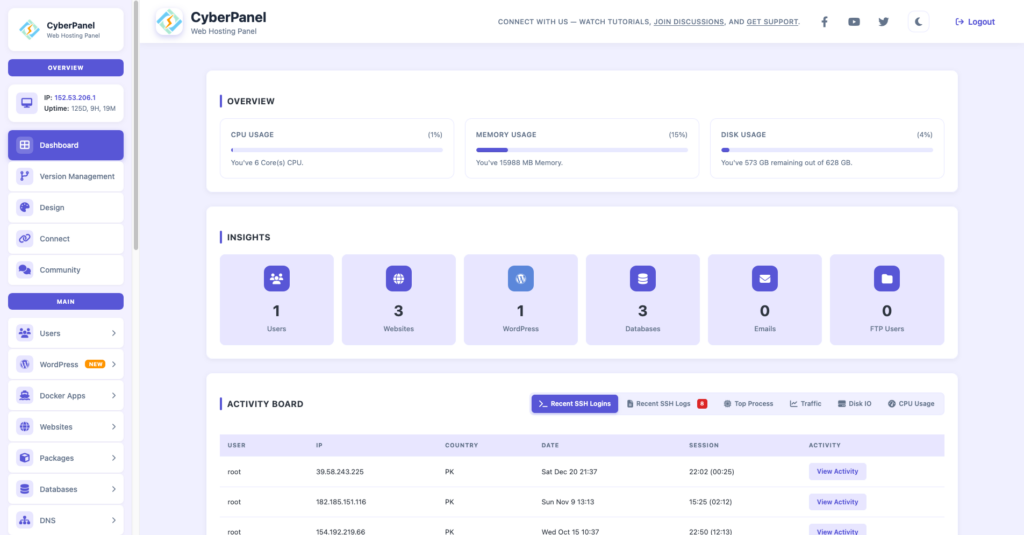
Companies running web hosting control panels such as CyberPanel may manage their servers in separate locations, but they will still depend on Linux CUPS for their local and network printing requirements in the wider Linux ecosystem.
The Reasons Behind Using Linux CUPS
Some of the main factors that make a system desirable include:
- Open-source architecture
- Compatibility with a large number of printers
- Printing over a network
- Management through a web interface
- Configurability
- Ability to scale
- Command line control
- Community support
This collection of features is why CUPS has been chosen as the default printing system in contemporary Linux distributions.
Conclusion
Linux CUPS serves as an efficient and dependable printing platform for Linux operating systems. If your requirement is limited to basic printing from a desktop, sharing network printers, or managing print activities at an enterprise level, Linux CUPS encompasses all the necessary features for efficient printing.
Acquiring skills like installing, setting up, managing, and troubleshooting Linux CUPS print environments enables administrators to maintain uninterrupted printer functioning on different Linux distros. Be it Ubuntu, Debian, or Arch Linux, acquiring proficiency in CUPS on Linux is an indispensable skill for both Linux users and system administrators.
Want to Make Linux Administration Easier?
Handling printers is just one aspect of taking care of a Linux system. If you want an easier route to managing several Linux server websites, applications, databases, and system services from a single interface, CyberPanel comes to your aid to make your work much easier.
- Launch and handle websites in a jiffy
- Keep track of server resources at the very moment
- Make your life easier with backups, security, and administration
- Slash manual Linux management chores
Get CyberPanel now and be at the helm of your Linux infrastructure with a robust, easy-to-use management platform. Discover more and start your journey on the official CyberPanel site.
FAQs
Does Linux CUPS support wireless printers?
Yes. Linux CUPS printing supports wireless printers through IPP, AirPrint, mDNS, and manufacturer-specific drivers.
Can CUPS Linux help reduce printing costs in organizations?
Yes. By centralizing print management, Linux CUPS printing allows administrators to monitor usage patterns, restrict color printing, enforce quotas, and identify inefficient printer usage. These controls can significantly reduce operational printing expenses.
What is the difference between IPP Everywhere and traditional printer drivers?
Traditional drivers rely on manufacturer-provided software to translate print jobs. IPP Everywhere allows printers to advertise their capabilities directly to CUPS Linux, reducing dependency on vendor drivers and improving compatibility across Linux distributions.