
How to Create a Website in CyberPanel
This guide shows how to create a website in the current CyberPanel interface. A website created here receives its own document root, virtual host, PHP configuration, and optional mail domain.
http://, https://, or a path.Step 1: Open Create Website
Sign in to CyberPanel. On the Dashboard, select Create Website. You can also open Websites from the sidebar and choose the create option there.
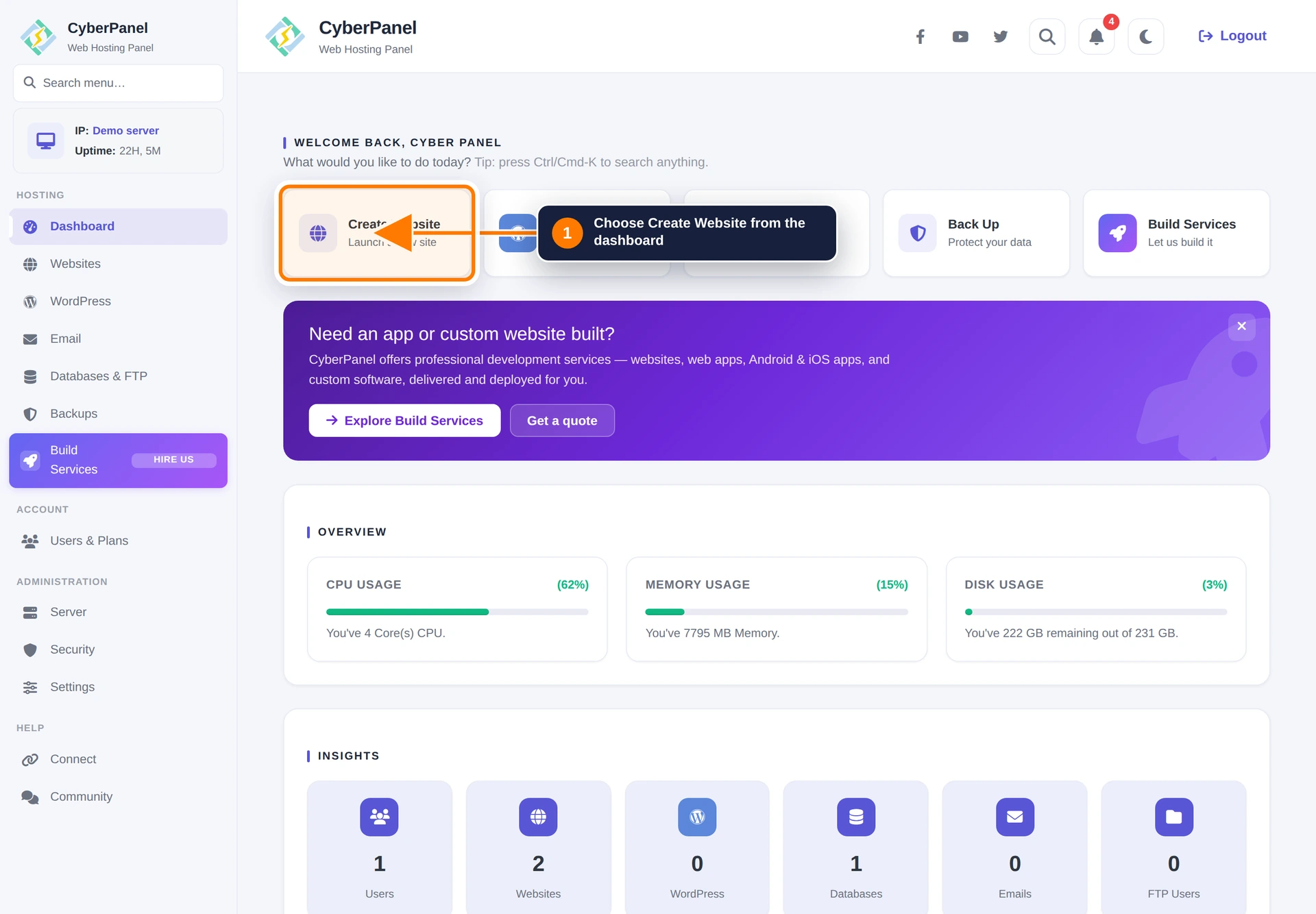
Step 2: Choose the package and owner
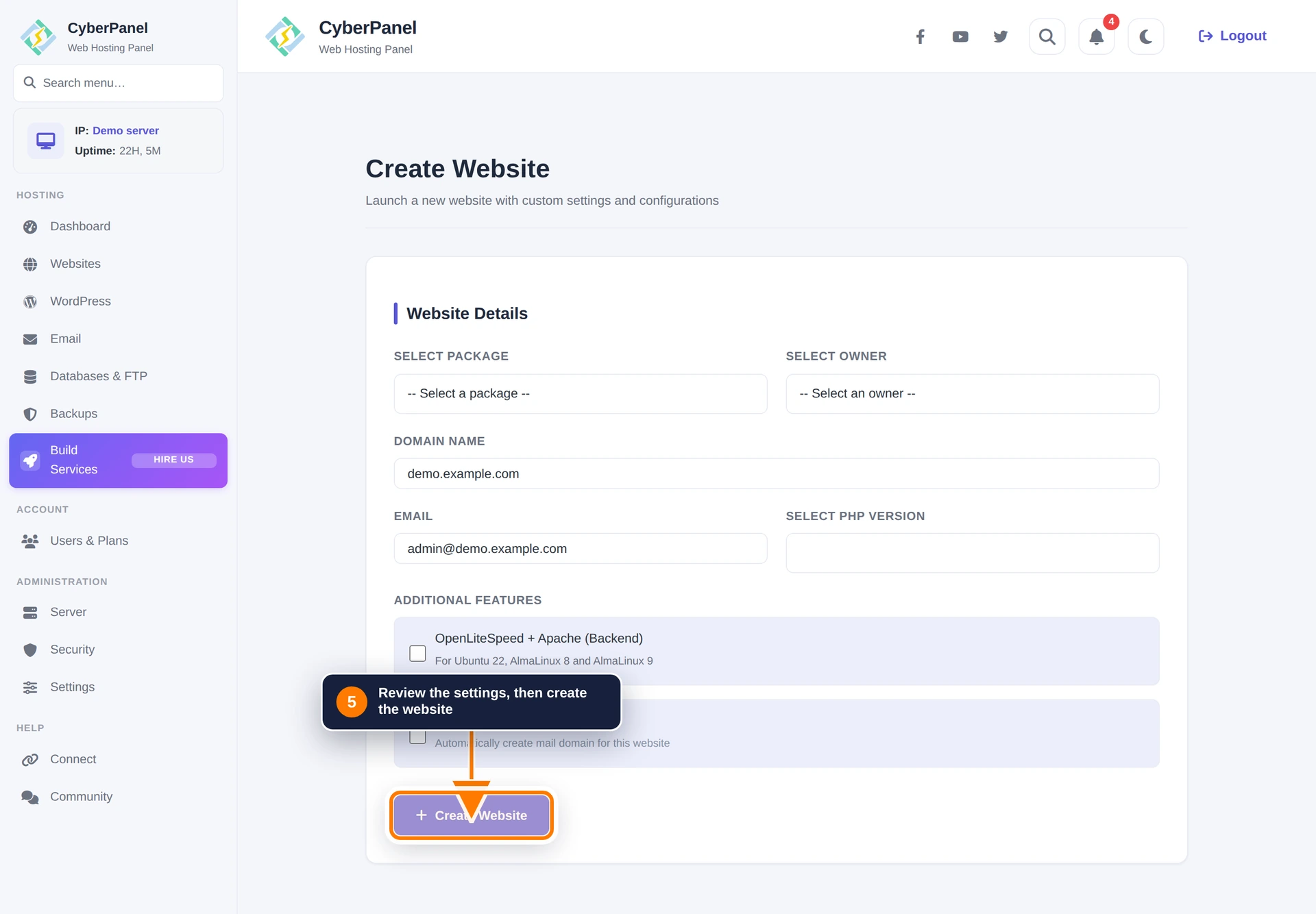
Select the hosting Package that controls the site’s resource limits. Then choose the Owner. A non-admin owner can manage the website from that user’s account.
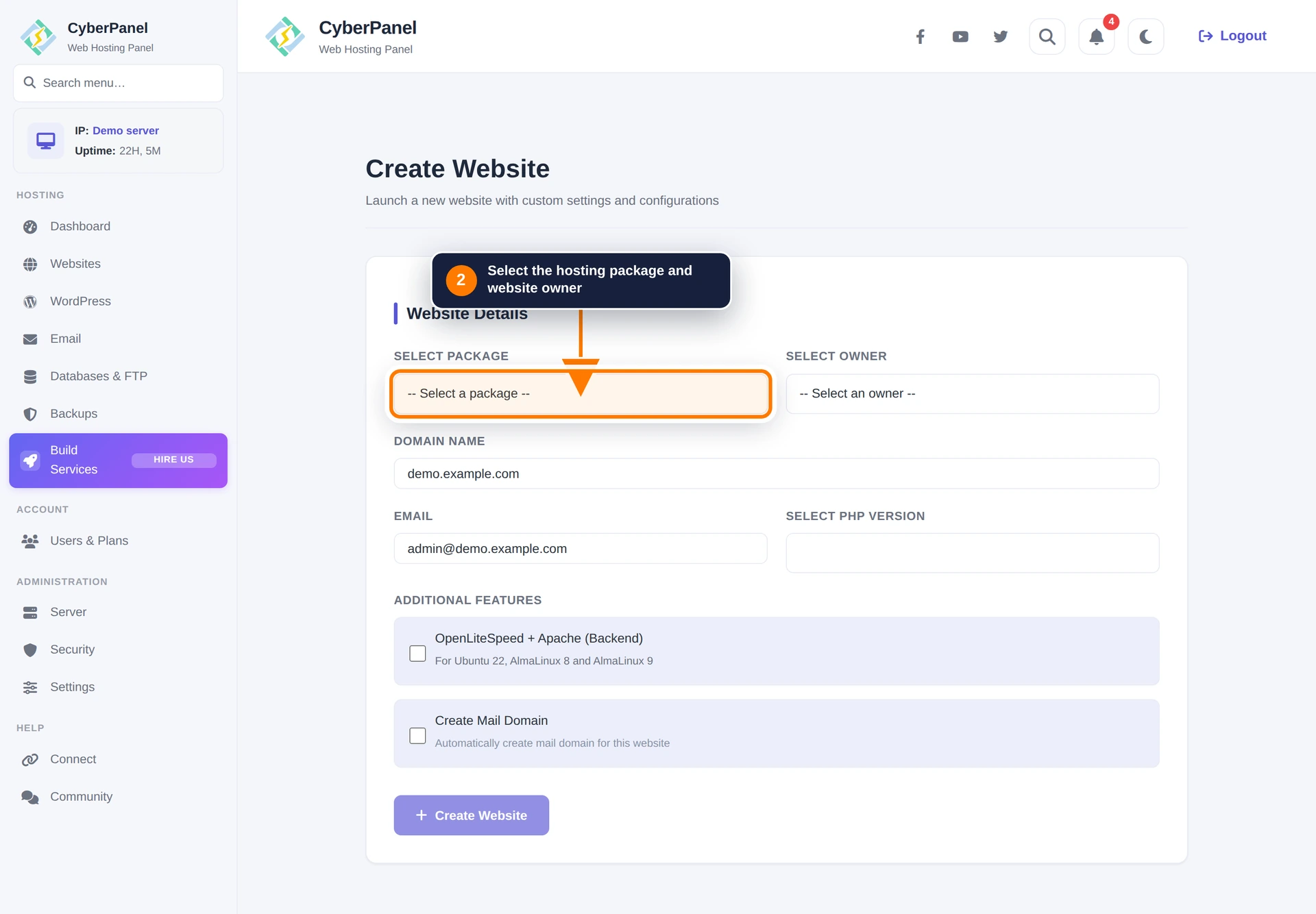
Step 3: Enter the domain details
Enter the domain, an administrative email address, and the PHP version required by the application. You can change the PHP version later from the website management screen.
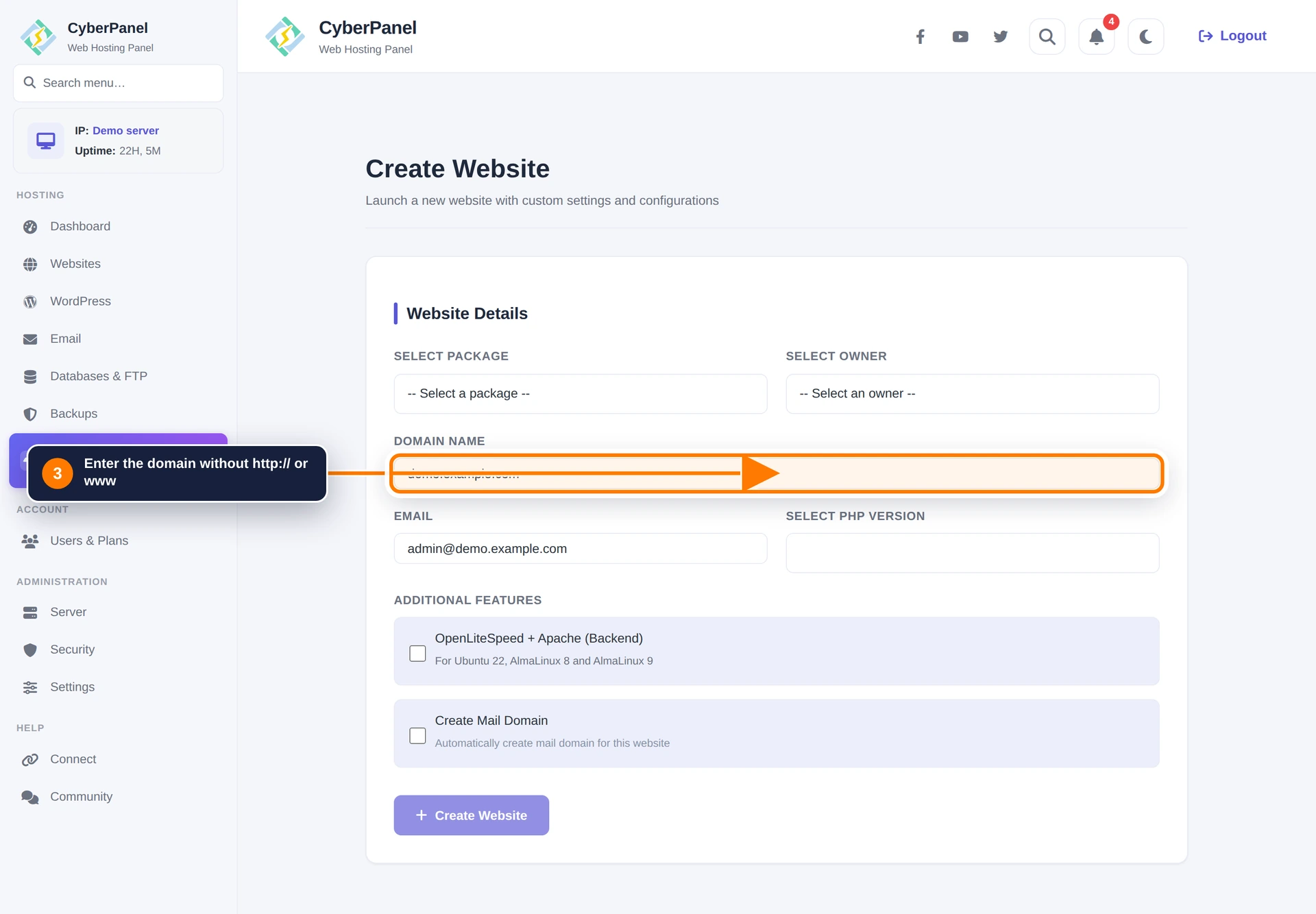
Step 4: Decide whether to create a mail domain
Enable Create Mail Domain if this server will host email for the domain. Leave it disabled when mail is hosted by another provider. The Apache backend option is optional and should only be enabled when the application needs it and the server supports that mode.
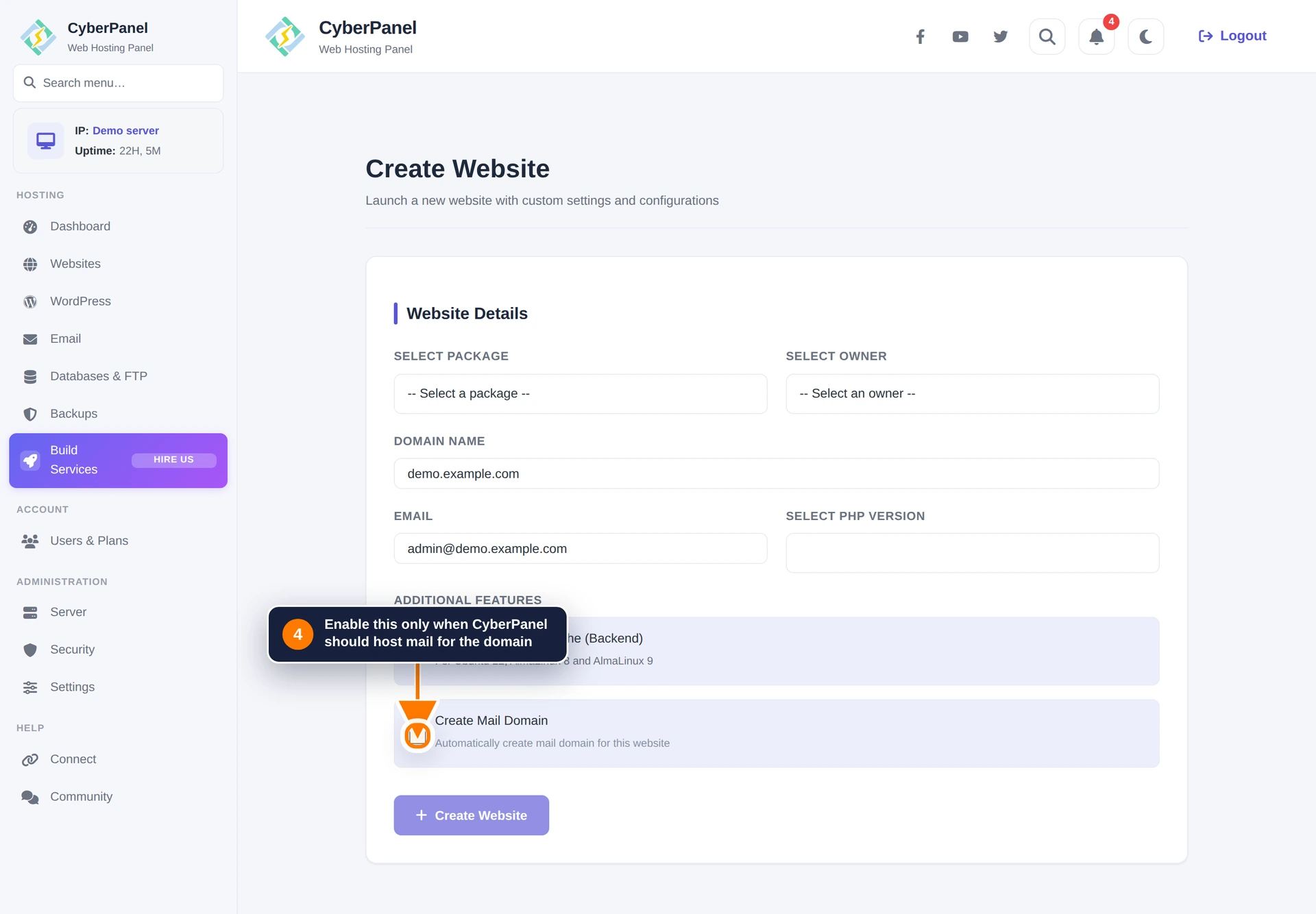
Step 5: Create the website
Review the values, then select Create Website. Keep the page open until CyberPanel reports that the operation has completed.
After creation
Open Websites and confirm that the new domain appears. If the site does not open publicly, verify the domain’s DNS records, firewall access to ports 80 and 443, and the selected PHP version. You can issue a trusted certificate from Security → Manage SSL after DNS resolves to this server.
Continue with How to Use Website Home in CyberPanel to manage files, domains, DNS, email, databases, backups, staging, and advanced site controls.