
On this page
Automated processes aren’t just for Linux anymore; many organizations have mixed infrastructures that include both Linux and Windows servers running side by side. Manually managing these systems can take an excessive amount of time and increase the likelihood of making configuration errors.
This is where Ansible WinRM comes in handy.
Ansible uses Windows Remote Management (WinRM) to automate Windows systems; administrators can run commands, install packages, and manage configurations from an Ansible control node on a Windows machine using WinRM.
The good news is that setting up Ansible with WinRM is relatively easy when you follow the appropriate steps. Once you’ve enabled WinRM for your Windows hosts, you will be able to manage them just like your Linux servers.
This guide will cover everything from how WinRM works with Ansible to how to install the required dependencies for Ansible to connect to Windows hosts via WinRM, and finally, how to establish a secure connection between Ansible and your Windows hosts.
What is WinRM in Ansible?
Ansible has protocols that connect to remote systems. When connecting to Linux-based machines, SSH is used. When connecting to Windows-based machines, WinRM is used.
WinRM stands for Windows Remote Management and is a Microsoft-based protocol that provides remote command execution and management of systems.
Once Ansible’s WinRM functionality is configured, system administrators can do the following with automation on Windows-based machines:
- execute automation tasks
- install applications remotely
- manage Windows services
- adjust system settings
- automate infrastructure tasks
By doing these tasks, administrators can automate their hybrid environments
How Does Ansible Connect to Windows using WinRM?
Using Ansible to connect to Windows servers through WinRM consists of the following steps:
- Ansible sends a command from Ansible’s control node to the destination Windows host via WinRM.
- The WinRM service on the Windows host listens for requests and authenticates (verifies) the user credentials.
- Once the authentication process happens successfully, Ansible executes the request on the Windows host.
- Finally, after the automation task is executed, Ansible receives the results from the Windows host.
This way, you can utilize Ansible playbooks to control your Windows servers.
Requirements for Ansible WinRM
| Requirement | Description |
|---|---|
| Ansible control node | Usually a Linux server |
| Python packages | Required for WinRM communication |
| WinRM enabled | Windows host must allow WinRM |
| Network connectivity | Port 5985 or 5986 open |
Ansible Install WinRM Dependencies
To allow Ansible to communicate with Windows machines, you must install required Python libraries.
Example installation:
pip install pywinrmExpected output:
Collecting pywinrm
Installing collected packages
Successfully installed pywinrm
This package allows Ansible to communicate with Windows hosts using WinRM.
Ansible Enable WinRM
Before Ansible can connect, WinRM must be enabled on the Windows machine.
Open PowerShell as administrator and run:
Enable-PSRemoting -ForceExpected output:
WinRM has been updated for remote management
WinRM service started
Firewall exception enabled
This command prepares the Windows system for remote management.
WinRM has been updated for remote management
WinRM service started
Firewall exception enabled
Ansible Configure WinRM Settings
Next, configure authentication and connection settings.
Example command:
winrm quickconfigTypical response:
WinRM service is already running
WinRM is set up to receive requests
Example Ansible Inventory for WinRM
To connect to Windows systems, you must define them in the Ansible inventory.
Example configuration:
[windows]
192.168.1.50[windows:vars]
ansible_user=Administrator
ansible_password=StrongPassword
ansible_connection=winrm
ansible_winrm_transport=ntlm
ansible_winrm_server_cert_validation=ignore
This configuration allows Ansible WinRM to connect to the Windows host.
Example Ansible Playbook for Windows
Example playbook that runs a command on a Windows machine.
- name: Test Windows Connection
  hosts: windows  tasks:
    - name: Run Windows command
      win_command: ipconfig
Expected output example:
Ethernet adapter Local Area Connection:
IPv4 Address: 192.168.1.50
This demonstrates how Ansible can control Windows systems remotely.
Ansible WinRM Benefits
There are many benefits of using Ansible WinRM.
Unified Management of All Types of Infrastructure
You can manage both Linux and Windows servers through one platform.
More Efficient Use of Automation
You can automate routine administrative chores through automation.
Infrastructure is Scalable
You can manage 100s of Windows servers at the same time.
Elimination of Errors by Human Operators
Automation guarantees uniform configurations.
The advantages listed above demonstrate how Ansible uses Windows WinRM connections to be an effective option in the enterprise.
Common Issues encountered with using Ansible via WinRM
Ansible administrators run into many issues when they use Ansible via WinRM.
Authentication Errors
You can’t login due to wrong credentials.
Firewall Blocking WinRM
You must have either port 5985 or port 5986 open in your firewall.
Certificate Validation
You may encounter issues with self-signed certificates and need to disable validation.
Missing Dependencies
You must install the pywinrm library on the control machine.
Most of these problems will work themselves out if you configure them properly.
CyberPanel in Automated Environment
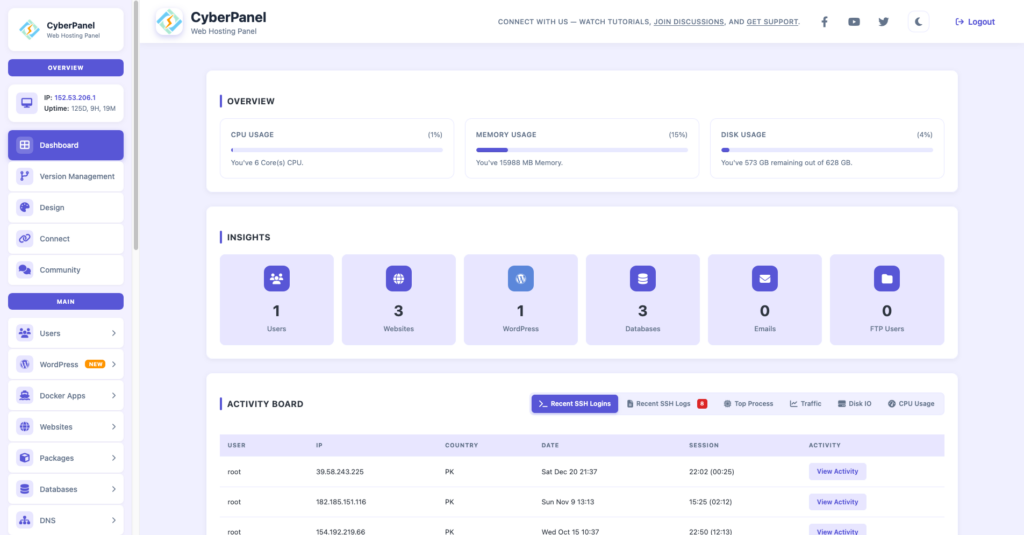
CyberPanel is a free and open-source web hosting control panel. It is a valuable addition to any automated infrastructure built using Ansible.
CyberPanel helps with:
- monitoring servers
- managing DNS
- setting up domains
- installing SSL certificates
- controlling web hosting
Similar to a new server being deployed with Ansible, administrators generally use CyberPanel to manage applications once they have installed a server in their automated environment.
Conclusion
Managing Windows servers through manual administration methods will be tremendously ineffective. By using the Ansible WinRM module to automate Windows server administration with the same high level of Ansible automation that is available to Linux servers, there is a tremendous opportunity for improvement when it comes to managing Windows servers.
If you want that Ansible connect to Windows WinRM, all that is required is enabling WinRM, installing the necessary dependencies, and correctly configuring your Ansible environment.
When using automation, it results in reduced manual labor, increased reliability, and provides significant benefits to organizations to manage their infrastructure more effectively.
Set up WinRM on your Windows servers today and use Ansible to automate your server management activities throughout your entire infrastructure.
People Also Ask
Can Ansible manage both Linux and Windows Systems?
Yes, Ansible can manage both Linux Operating Systems using the SSH Protocol and Windows Operating Systems using the WinRM Protocol.
Is WinRM secure for remote administration?
Yes, WinRM is secure for remote administration of Windows Systems as long as HTTPS is being utilized with valid credentials and security encryption.
Does Ansible require Python on Windows hosts?
No, Python is not a requirement for the Ansible management and administration of a Windows host when the management of that host is through the WinRM Protocol.