On this page
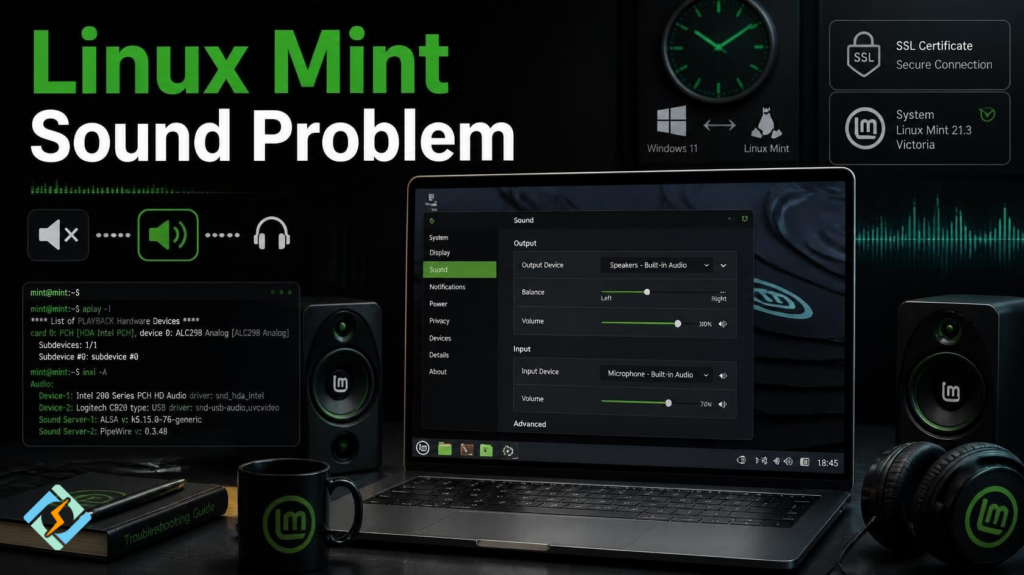
A Linux Mint sound problem can appear in several ways. You may have no audio at all, a missing output device, sound coming from the wrong port, headphones that are not detected, or audio that works in one application but not another. The good news is that most cases can be traced to a small number of causes: muted devices, the wrong output profile, an audio server issue, ALSA configuration, or a driver and hardware problem.
This guide starts with the simplest checks and then moves into deeper troubleshooting. It also covers related Linux problems, including the Linux SSL certificate problem unable to get local issuer certificate, Arch Linux SSL certificate problems, and the dual boot Linux Windows clock problem. These issues are unrelated to audio, but they are common Linux troubleshooting searches and can usually be fixed without reinstalling the operating system.
What Is the Linux Mint Sound Problem?
The Linux Mint sound problem usually means that Linux Mint is not producing audio through the expected output device. The cause can be as simple as a muted mixer or incorrect output selection, but it can also involve PipeWire, PulseAudio, ALSA, drivers, or the sound hardware itself.
Before changing configuration files, determine whether Linux can actually see your sound card.
Open Terminal and run:
lspci | grep -i audioFor USB audio devices, also check:
lsusb | grep -i audioIf your sound hardware appears, Linux can at least detect the device. The next step is to determine where the audio chain is failing.
How Do You Fix No Sound in Linux Mint?
Start with these checks before using advanced commands:
- Check the physical volume controls.
- Make sure the application is not muted.
- Open Linux Mint’s sound settings.
- Select the correct output device.
- Disconnect unused HDMI or USB audio devices temporarily.
- Test the built-in speakers and headphones separately.
- Check the mixer with alsamixer.
- Check the audio server.
- Restart the audio services if necessary.
- Test whether ALSA can see the playback device.
A useful troubleshooting sequence is:
Hardware
↓
Linux detects sound card?
↓
ALSA detects playback device?
↓
Audio server detects device?
↓
Correct output selected?
↓
Application sending audio correctly?
↓
Sound works
This prevents you from changing five different things at once and losing track of what actually fixed the problem.
1. Check Linux Mint’s Sound Settings
Start with the graphical settings.
Open:
Menu → Preferences → Sound
Look at the available output devices.
You may see options such as:
- Built-in Audio
- Speakers
- Headphones
- HDMI
- DisplayPort
- USB Audio
- Bluetooth headset
Select the device you actually want to use.
This matters because connecting a monitor through HDMI or DisplayPort can cause Linux to select the monitor as the default audio output. Your laptop speakers may then appear to be broken even though the audio is simply being sent somewhere else.
Test the output
Play a test sound and change the output device.
If HDMI is selected, switch to:
Built-in Audio
If headphones are connected, check whether the headphone output appears separately.
2. Check Whether the Volume Is Muted
It sounds obvious, but Linux’s audio stack has several independent volume controls.
Check:
- System volume
- Application volume
- Output device volume
- Hardware mixer
- Bluetooth volume
- HDMI/DisplayPort volume
Open the mixer:
alsamixerYou should see the available sound controls.
Use the arrow keys to move between controls.
If a control displays:
MMit is muted.
Press:
Mto unmute it.
Increase the volume with the appropriate arrow key.
You may also need to press:
F6to select a different sound card if multiple devices are installed.
For example, your system may have:
- Built-in Audio
- HDMI Audio
- USB Audio
Select the card you want to troubleshoot.
3. Check Whether Linux Detects the Sound Card
Run:
lspci | grep -i audioYou might see something similar to:
00:1f.3 Audio device: Intel Corporation ...For USB audio:
lsusbLook for your USB headset, DAC, microphone, or audio interface.
You can also ask ALSA to list playback devices:
aplay -lA working device might produce output similar to:
**** List of PLAYBACK Hardware Devices ****card 0: PCH [HDA Intel PCH], device 0: ...If aplay -l returns no playback hardware, the problem is deeper than a simple volume setting.
4. Test ALSA Directly
ALSA is the lower-level Linux sound system used by applications and higher-level audio servers.
Run:
aplay -lThen:
cat /proc/asound/cardsIf your sound card appears in these outputs, the kernel and ALSA layer can see it.
If neither command shows a sound card, investigate:
- Kernel modules
- Hardware detection
- BIOS/UEFI settings
- Driver support
- Kernel version
- Physical hardware
Do not immediately reinstall Linux.
5. Check PipeWire or PulseAudio
Modern Linux systems can use different audio-server architectures. Depending on your Linux Mint release and configuration, you may encounter PipeWire or PulseAudio.
Check whether PipeWire is running:
systemctl --user status pipewireAlso check:
systemctl --user status pipewire-pulseIf your system uses PulseAudio, try:
pactl infoLook for a line such as:
Server Name: PulseAudioor an indication that PulseAudio is provided through PipeWire.
The important thing is not to blindly install both audio systems. First, determine what your system is already using.
6. Restart the Audio Server
If audio worked previously but suddenly stopped, restarting the user audio services can be enough.
For PipeWire:
systemctl --user restart pipewiresystemctl --user restart pipewire-pulseThen check:
pactl infoTry playing audio again.
If your installation is using PulseAudio directly, you can restart it with:
pulseaudio -kIt may restart automatically when an application requests audio.
Do not run every audio-reset command you find online at the same time. First identify which audio server your system is actually using.
7. Install and Use pavucontrol
pavucontrol provides much more control than the basic sound settings panel.
Install it with:
sudo apt updatesudo apt install pavucontrolLaunch it:
pavucontrolPay particular attention to:
Output Devices
Check whether the correct device is available.
Playback
Start playing audio while this tab is open.
You should see the application appear.
If the application is sending sound to the wrong device, change its output.
Configuration
This section is especially useful when an HDMI device or multiple audio profiles exist.
You may see profiles such as:
Analog Stereo Output
Digital Stereo Output
HDMI / DisplayPort
Off
Selecting the wrong profile can make a perfectly functional sound card appear silent.
8. Why Does Linux Mint Have No Sound Through HDMI?
HDMI audio problems are common because a monitor or television can become the selected audio destination.
Check:
pactl list short sinksYou may see several output devices.
For example:
0 alsa_output.pci-....analog-stereo1 alsa_output.pci-....hdmi-stereoThe HDMI output may be active even though you want the laptop’s speakers.
Open:
pavucontrolThen select the appropriate output under Output Devices.
If you do not need HDMI audio, temporarily disconnect the HDMI cable and test the internal speakers.
9. Why Do Headphones Not Work in Linux Mint?
If speakers work but headphones do not, check whether Linux detects the headphone output.
Run:
pactl list short sinksThen:
pavucontrolLook for a headphone output or an analog profile.
Also open:
alsamixerPress:
F6and select the internal sound card.
Check controls related to:
Headphone
Speaker
Master
Auto-Mute
On some hardware, an Auto-Mute setting can affect the behavior of speakers and headphones.
10. What If Bluetooth Audio Does Not Work?
Bluetooth audio is a separate layer from the built-in sound card.
First check whether Linux sees your Bluetooth device.
bluetoothctlThen:
devicesIf the headset is connected but does not appear as an audio output, check:
pavucontrolLook under output devices and configuration profiles.
Also disconnect and reconnect the headset.
A Bluetooth device can be connected at the Bluetooth level without being selected as the active audio output.
11. Check Linux Audio After a Kernel Update
Sometimes sound problems appear immediately after a kernel update.
If your audio worked before an update and stopped afterward, check the running kernel:
uname -rThen review available kernels through Linux Mint’s update tools.
If an older installed kernel still works correctly, that is a strong clue that the problem may be kernel or driver related.
Do not remove the older working kernel until you have confirmed that the newer one works.
Linux Problems: A Practical Troubleshooting Table
Not every Linux problem requires reinstalling the operating system. Start by identifying which layer is actually failing.
| Problem | First thing to check | Useful command |
| Linux Mint no sound | Output device | pavucontrol |
| Sound card missing | Hardware detection | lspci | grep -i audio |
| ALSA cannot see device | ALSA hardware list | aplay -l |
| Application has no sound | Application routing | pavucontrol |
| HDMI has no audio | Output profile | pactl list short sinks |
| Headphones fail | Mixer and profile | alsamixer |
| Bluetooth headset silent | Audio profile | pavucontrol |
| SSL certificate error | CA trust store | update-ca-certificates |
| Linux/Windows clock differs | Time configuration | timedatectl |
How Do You Fix “Unable to Get Local Issuer Certificate” on Linux?
The Linux SSL certificate problem unable to get local issuer certificate usually means an application cannot build a trusted certificate chain from the server’s certificate to a trusted certificate authority.
OpenSSL describes this error as occurring when it cannot find a trusted CA for the certificate chain presented by the server. (Ubuntu Manpages)
A common cause is a missing or outdated CA trust store.
On Ubuntu-based distributions such as Linux Mint, first update the certificate package:
sudo apt updatesudo apt install --reinstall ca-certificatesThen rebuild the certificate store:
sudo update-ca-certificatesThe update-ca-certificates utility manages the system’s trusted CA collection and generates the consolidated certificate bundle used by OpenSSL-based applications. (Ubuntu Manpages)
Test the connection:
openssl s_client -connect example.com:443Look for:
Verification: OKIf you still get:
unable to get local issuer certificatethe problem may be on the server side. The server may not be providing the required intermediate certificate, or you may be connecting to a service using a private or internal CA.
How Do You Add a Custom CA Certificate on Linux?
If you are connecting to an internal company server that uses its own certificate authority, you may need to add the CA certificate to the system trust store.
For a PEM certificate with a .crt extension:
sudo cp company-ca.crt /usr/local/share/ca-certificates/Then:
sudo update-ca-certificatesUbuntu’s documentation specifically recommends placing local CA certificates in /usr/local/share/ca-certificates/ and running update-ca-certificates. (Ubuntu)
The certificate must be in the correct PEM format and use the .crt extension for this process. (Ubuntu)
Do not disable TLS verification just to make the error disappear.
For example, avoiding certificate verification with options such as:
curl -k https://example.commay hide the problem, but it removes an important security check.
Use it only for controlled troubleshooting, not as a permanent fix.
How Do You Fix an Arch Linux SSL Certificate Problem?
An Arch Linux SSL certificate problem can have several causes, including an incorrect system clock, a missing CA certificate, an outdated trust store, or a server presenting an incomplete certificate chain.
Start by checking the time:
timedatectlThen make sure the CA certificates package is installed and current:
sudo pacman -Syu ca-certificatesIf the problem is application-specific, check which certificate store that application uses. Not every application necessarily uses the exact same trust mechanism.
You can also test the remote certificate directly:
openssl s_client -connect example.com:443 -servername example.comLook for:
Verification: OKIf verification fails, inspect the certificate chain rather than immediately disabling verification.
How Do You Fix the Dual Boot Linux Windows Clock Problem?
The dual boot Linux Windows clock problem usually appears when Windows and Linux display different times after switching between the two operating systems.
The common reason is that Linux and Windows have traditionally handled the hardware clock differently.
A simple example:
Hardware clock
↓
Linux interprets it one way
↓
Windows interprets it another way
↓
Displayed time changes
This can be especially noticeable after booting Windows following a Linux session, or vice versa.
First check Linux’s time configuration:
timedatectlYou may see:
Local time:
Universal time:
RTC time:
Time zone:
System clock synchronized:
RTC in local TZ:
The important line is:
RTC in local TZ
A common solution is to configure both operating systems to agree about how the hardware clock is interpreted rather than letting each OS use a different convention.
Should Linux Use UTC or Local Time for Dual Boot?
For Linux systems, keeping the hardware clock in UTC is generally the cleaner approach.
You can inspect the current configuration with:
timedatectlIf you need to configure Linux to use UTC for the hardware clock:
sudo timedatectl set-local-rtc 0
Then check:
timedatectlHowever, if Windows is configured to treat the hardware clock as local time, simply changing Linux may cause Windows to show the wrong time.
The important lesson is:
Both operating systems need to agree.
Do not repeatedly change the displayed time manually. Fix the RTC interpretation instead.
Why Does the Linux Windows Clock Problem Keep Coming Back?
Manually correcting the clock does not fix the underlying configuration.
The cycle looks like this:
Linux sets/displays time
↓
Boot Windows
↓
Windows interprets RTC differently
↓
Clock changes
↓
Boot Linux
↓
Linux changes it again
If that happens every time you switch operating systems, check:
timedatectland determine whether Linux is treating the RTC as UTC or local time.
Also make sure automatic network time synchronization is enabled.
How Is the SSL Problem Related to the System Clock?
This is an important connection between two seemingly unrelated Linux problems.
A bad system clock can cause TLS certificates to appear invalid.
Certificates have validity periods:
Not Before
Not After
If your system date is badly wrong, a valid certificate may appear to be:
- Not yet valid
- Expired
- Outside its validity period
So if you are troubleshooting:
SSL certificate problem
also check:
dateand:
timedatectlThis is particularly important on dual-boot computers.
A clock problem can therefore create what looks like an SSL problem.
What About SSL Problems on a CyberPanel Server?

This is where CyberPanel becomes relevant.
CyberPanel is primarily a web hosting control panel, so SSL/TLS issues matter much more on a CyberPanel server than a Linux Mint desktop sound problem.
If a CyberPanel-hosted website has an SSL issue, check the certificate and certificate chain on the server rather than changing the trust settings on your desktop.
For example, you can inspect a website’s TLS connection with:
openssl s_client -connect example.com:443 -servername example.comLook for:
Certificate chain
and:
Verification
If the certificate chain is incomplete, the correct fix is normally to configure the server to provide the appropriate certificate chain.
That is very different from installing a CA certificate on your Linux Mint computer.
Client-side vs server-side SSL problem
| Situation | Likely place to investigate |
| Only your Linux PC rejects a trusted site | Local CA store, clock, application |
| Multiple computers reject your website | Server certificate/chain |
| Internal company website | Internal CA trust |
| curl fails but browser works | Application-specific certificate store |
| CyberPanel website has certificate warnings | Server SSL configuration |
| Error appears after dual boot | Check system time first |
Common Linux Troubleshooting Mistakes
Reinstalling Linux too early
A missing audio device does not automatically mean your installation is damaged.
Disabling SSL verification
This hides certificate problems rather than fixing them.
Installing random certificate files
Only install a CA certificate when you know who issued it and why your system should trust it.
Changing five audio settings at once
Make one change, test, and continue.
Blaming the driver immediately
First determine whether ALSA can see the hardware.
Manually changing the clock
Fix the RTC configuration instead.
Copying commands from old tutorials
Linux audio and certificate systems change over time. A command that was appropriate for one release may be wrong for another.
Quick Linux Troubleshooting Checklist
When a Linux problem appears, work through the layers.
For a Linux Mint sound problem
lspci | grep -i audioaplay -lalsamixerpavucontrolpactl infoFor SSL certificate errors
datetimedatectlsudo apt updatesudo apt install --reinstall ca-certificatessudo update-ca-certificatesThen:
openssl s_client -connect example.com:443 -servername example.comFor dual boot clock problems
timedatectlCheck:
RTC in local TZand make Linux and Windows use a consistent hardware-clock interpretation.
FAQs
Why does Linux show a sound device but still produce no audio?
Hardware detection only proves that Linux can see the device. The selected output, mixer state, audio profile, audio server, or application routing can still prevent sound from reaching the speakers.
Why does sound work in a browser but not in one Linux application?
The application may be sending audio to a different output or using a different audio backend. Open pavucontrol while the application is playing audio and check its playback destination.
Why does an SSL certificate work in Firefox but fail with curl?
Different applications can use different certificate stores or trust mechanisms. Ubuntu notes that applications relying on the host OpenSSL configuration use the system trust store, while some confined applications may not automatically use certificates added there. (Ubuntu)
Why does my website’s SSL certificate work on one computer but not another?
The computers may have different CA stores, system times, application configurations, or locally trusted certificates. Test the certificate chain independently with OpenSSL before changing the client configuration.
Why does the clock change every time I switch between Windows and Linux?
The two operating systems may be interpreting the motherboard’s hardware clock differently. Check timedatectl and make both systems follow the same RTC convention instead of correcting the displayed time manually.
Final Verdict
A Linux Mint sound problem is usually easier to solve when you treat it as a layered troubleshooting problem rather than immediately reinstalling drivers or the operating system.
Start with the output device and volume. Then check alsamixer, aplay -l, pavucontrol, and the audio server. If Linux cannot detect the hardware at all, move down to kernel and driver troubleshooting.
The same method works for other Linux problems. For an SSL error, investigate the CA trust chain and system time. For an Arch Linux certificate problem, check its CA package and application-specific trust configuration. For a Linux and Windows clock problem, fix the RTC configuration instead of repeatedly changing the clock.
And if your problem involves a CyberPanel server, keep desktop Linux troubleshooting separate from server-side SSL configuration. A Linux Mint audio issue has nothing to do with CyberPanel, while certificate-chain and TLS issues can directly affect websites and hosting services running through a CyberPanel-managed server.
The best next step is simple: identify which layer is actually failing, run one targeted diagnostic command, and fix that layer instead of applying unrelated fixes.