On this page
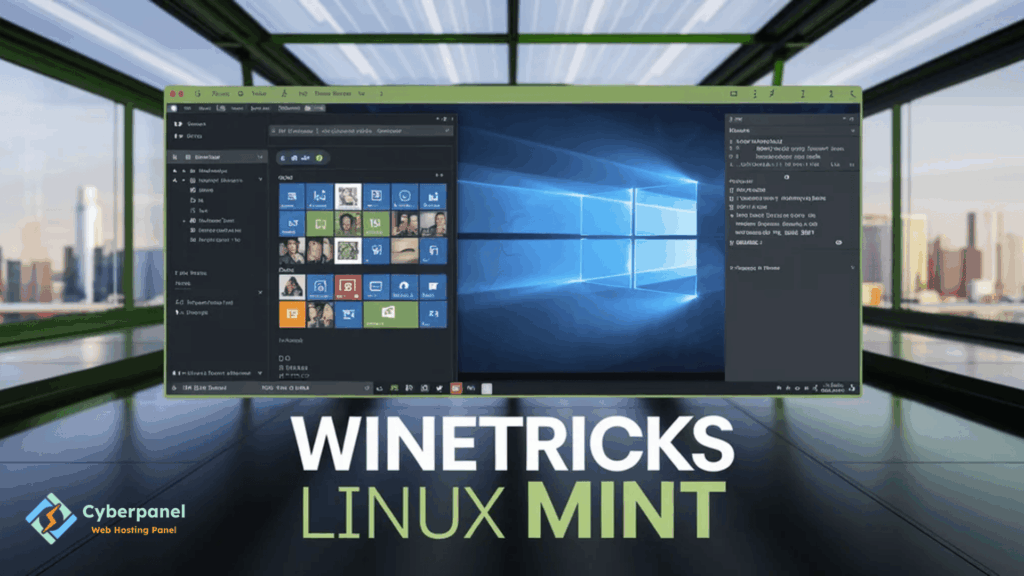
Running Windows applications has become much easier over time, and this is due to Wine. Wine allows running most Windows programs on Linux without a virtual machine. However, some applications require additional libraries, fonts, or runtimes to function correctly. This is where Winetricks Linux Mint comes in handy.
If you are a Linux Mint user and you need to install programs that require extra dependencies to run on Wine, Winetricks will make your life much easier. It allows you to configure Wine prefixes, install dependencies, and much more, without making any changes to the system. If you are a Linux Mint user and you are thinking of using Wine to run Windows apps, you must learn how to use Winetricks.
In this guide, you will learn what Winetricks is, how to install it on Linux Mint, and how to use it.
What Is Winetricks?
Winetricks is a script used to install various components for Wine. With Winetricks, you can easily install Microsoft Visual C++ redistributables, .NET frameworks, DirectX components, fonts, DLLs, or runtimes with just a few clicks of a mouse or by typing a few commands in the terminal.
By using Winetricks, you will be able to run almost any Windows application on Linux Mint. Think of Winetricks as a tool that fills the gap between Windows software and Wine.
Why Do Linux Mint Users Need Winetricks?
Wine is great for running Windows applications on Linux, but it does not come with everything you need to run some programs. For example, some applications require the .NET Framework, DirectX components, Microsoft Visual C++ packages, or other system dependencies to run on Wine. Some applications also require specific fonts to display text correctly.
This is where Winetricks comes in handy. It can install all of these components for you, instead of you having to search for them and install them manually.
Some Windows Applications Need Extra Components to Run on Wine
As mentioned above, some applications require extra components to run on Wine. This is why you need Winetricks, as it can install all of these components for you with the click of a mouse. The following is a list of components that Winetricks can install:
- Microsoft .NET Frameworks
- Microsoft Visual C++ Redistributable
- DirectX Components
- Fonts
- DLLs
- Runtimes
By installing these components, you can run almost any Windows application on Linux Mint.
Install Winetricks Linux Mint
Installing Winetricks on Linux Mint is straightforward because it is available in the official repositories.
First, update your package list:
sudo apt updateThen install Winetricks:
sudo apt install winetricksOnce the installation finishes, verify it:
winetricks --versionIf the version number appears, Winetricks is ready to use.
Launching Winetricks
You can start Winetricks directly from the terminal:
winetricksA graphical window opens with several options.
Common choices include:
- Select the default Wine prefix
- Create a new Wine prefix
- Install Windows DLLs
- Install fonts
- Configure Windows settings
- Install runtime libraries
The graphical interface makes it easier for beginners who are unfamiliar with terminal commands.
Common Winetricks Components
| Component | Purpose |
|---|---|
| corefonts | Installs Microsoft fonts |
| vcrun2019 | Microsoft Visual C++ Runtime |
| dotnet48 | .NET Framework support |
| dxvk | Improves DirectX performance |
| d3dx9 | DirectX 9 libraries |
| directplay | Supports older Windows games |
Creating Separate Wine Prefixes
One of Winetricks’ most useful features is managing Wine prefixes.
A Wine prefix works like an isolated Windows installation. Instead of placing every application in the same environment, each program can have its own configuration.
For example:
- One prefix for Microsoft Office
- Another for Steam games
- Another for legacy business software
This approach reduces conflicts between applications and makes troubleshooting much easier.
Installing Windows Fonts
Many Windows applications display broken text when required fonts are missing.
Installing Microsoft’s core fonts is one of the first recommendations for new Wine users.
Run:
winetricks corefontsAfter installation, many interface and rendering issues disappear automatically.
Installing Visual C++ Runtime
A large number of Windows programs depend on Microsoft’s Visual C++ libraries.
For newer applications, install:
winetricks vcrun2019Older software may require earlier versions such as:
- vcrun2015
- vcrun2013
- vcrun2010
Always check the application’s documentation before installing additional packages.
Winetricks vs Manual Configuration
| Feature | Winetricks | Manual Installation |
|---|---|---|
| Easy setup | ✔ | ✘ |
| Downloads dependencies automatically | ✔ | ✘ |
| Lower chance of mistakes | ✔ | ✘ |
| Beginner friendly | ✔ | Limited |
| Saves time | ✔ | ✘ |
For most Linux Mint users, Winetricks is the faster and more reliable option.
Common Problems and Solutions
Although using Winetricks greatly simplifies Wine configuration, there are still some possible problems that might arise.
Package Installation Failed
Before attempting to install a package, it is advisable to update the list of available packages
sudo apt updateWine Version Is Too Old
Make sure you have the latest stable version of Wine installed before using Winetricks.
No Internet Connection
Some components that come with Winetricks are installed directly from Microsoft servers. Therefore, a stable internet connection is required.
Incorrect Wine Prefix
Make sure you are installing all the components for the correct Wine instance (Wine Prefix). It is essential to have the appropriate Wine environment for each application.
Best Practices
To achieve the best results when using Linux Mint Winetricks, consider following these recommendations:
- Keeping Wine up to date
- Having separate Wine prefixes for different applications
- Only installing the required libraries
- Making sure to have a backup copy of your Wine prefix
- Deleting old and unused Wine prefixes from time to time to free up the disk space
These steps will help you avoid most of the common problems associated with the use of Wine.
Using Winetricks Alongside CyberPanel

If you use Linux Mint as your development machine, Winetricks can help you test Windows-based applications before deployment. CyberPanel is your web hosting control panel. Once your application is ready for production, CyberPanel makes it easy to manage your Linux server, deploy websites, configure SSL certificates, manage databases, and monitor server resources through a simple web interface. Together, they support different stages of the workflow, from local testing to server management.
Final Thoughts
Thanks to Wine, it has become possible to run thousands of different Windows applications and games on Linux Mint. However, some pieces of software are not compatible with Wine, thus requiring additional components to be installed for them to function correctly. Fortunately, there is Winetricks to simplify the task. It allows installing Windows fonts, runtime libraries, DirectX components, and many other compatibility-related components with just a few mouse clicks.
Therefore, if you are thinking of using Linux Mint for work, testing, or playing video games, this tool is a must-have as it complements Wine and facilitates running Windows applications. Now, go ahead and try using Winetricks to see how much it can help you in your daily tasks!
Are you using Winetricks on Linux Mint? If yes, what Windows application or game did you manage to run successfully with it?
FAQs
Is Winetricks included with Linux Mint?
No. It can be installed easily from the official Linux Mint repositories using the APT package manager.
Do all Windows applications require Winetricks?
No. Many applications work with Wine alone, while others need additional components installed through Winetricks.
Can Winetricks damage my Linux installation?
No. It only modifies Wine environments and does not change the core Linux Mint operating system.