On this page
Only a single faulty update. Only a defective driver. Only an erroneous command.
And that’s enough to bring down a Linux system that worked perfectly.
Actually, if you have ever installed a package and, after that, your system did not boot, you already know how bad it can be. Besides, reinstalling Linux, getting everything ready again, restoring files, and reconfiguring tools might take not only hours but even days. And this is the very place where Timeshift Linux comes to your rescue.
Timeshift for Linux is very much like the system restore feature. Besides, it keeps snapshots of your system, which you can use to roll back your system to the working state.
Think of it as an “undo button” for Linux. Whether you use Linux Mint Timeshift, Arch Linux Timeshift, or any other distro, it has got your back from system failures instantaneously.
So, you just restore from a snapshot, and your system is back to the situation it was before the disaster.
No worries. Nothing lost. No time wasted.
In this guide, you’ll learn:
- what linux timeshift really is
- how it works
- how to install it
- how to create snapshots
- how to restore
- Mint and Arch specific usage
- real commands
- and how CyberPanel fits into backup workflows
Let’s set it up properly.
What is Timeshift Linux?
Timeshift Linux is a system snapshot and restore utility that takes a snapshot of your whole system files and then lets you roll back your Linux system to a previously working state.
It mainly concentrates on:
- system files
- settings
- installed apps
- configurations
On the other hand, it doesn’t mainly focus on personal files (documents, videos, etc.).
Thus, it is an OS, level backup, not a home folder backup by default.
How Does Timeshift Linux Work?
Timeshift Linux achieves its functionality by creating incremental snapshots using rsync or BTRFS, where only changes are stored to save space, while still enabling fast restoration.
When a snapshot is made:
- only changed files are saved
- older files are reused
- space occupied stays at a minimum
- restoration is speedy
In other words, it is a clever and proficient way of doing backups instead of a heavyweight full backup.
What is Timeshift for Linux Used For?
Timeshift for Linux is mainly used to recover from system crashes, bad updates, or broken configurations without reinstalling Linux.
Common use cases:
- failed updates
- driver issues
- package conflicts
- malware damage
- experimental testing
- kernel problems
Instead of fixing manually, just restore and move on.
Linux Mint Timeshift- Built-in Support
Linux Mint Timeshift is a tool that allows a user to make a backup right from the start since it is preinstalled by default.
This is just one of the reasons why Linux Mint is loved by beginners.
Steps:
Open Timeshift
Menu → Administration → Timeshift
Choose type
RSYNC (most common)
or
BTRFS (faster if supported)
Set schedule
- daily
- weekly
- monthly
Click Create.
Done.
Your system now auto-protects itself.
How to Install Timeshift on Other Distros?
You can use the package manager to install Timeshift for Linux on Ubuntu, Debian, or Arch.
For Ubuntu or Debian
sudo apt update
sudo apt install timeshift
For Arch Linux Timeshift
sudo pacman -S timeshift
Output:
Timeshift installed successfully
Launch:
sudo timeshift-gtk
How to Create a Snapshot?
If you create a snapshot, it stores your current system state you can return to it later. Here is the CLI method:
sudo timeshift --create --comments "before update" --tags D
Output:
Snapshot created successfully
Congratulations! Now your system is protected.
How to Restore a Snapshot?
When you restore a snapshot, it brings your system back to the exact state when the snapshot was taken. It includes packages and settings. Here are the two methods using GUI and CLI:
Restoring using GUI
Open Timeshift → Select snapshot → Restore
Restore using CLI
sudo timeshift --restore
Reboot after restore.
System is back. Problem gone.
Simple.
Arch Linux Timeshift Tips
Arch Linux Timeshift users benefit greatly because Arch is a rolling release and updates can sometimes break packages.
Best practices:
- snapshot before every update
- keep at least 3 backups
- use weekly schedule
- store on external drive
Especially useful with:
sudo pacman -Syu
Take snapshot first. Always.
Rsync vs BTRFS Mode
| Feature | Rsync Mode | BTRFS Mode |
|---|---|---|
| Works on all filesystems | Yes | No |
| Snapshot speed | Medium | Very fast |
| Disk usage | Medium | Very low |
| Restore speed | Medium | Instant |
| Complexity | Simple | Advanced |
| Best for | Most users | Power users |
If unsure, choose rsync. It works everywhere.
Good Habits for Linux Timeshift
- Take snapshots before updating
- Take snapshots before updating device drivers
- Keep your backups away from your main system
- Make your backups daily and automatically
- Don’t clear recent snapshots
- Do restore testing once
- Unbacked backups are worthless.
CyberPanel & Backup Plan
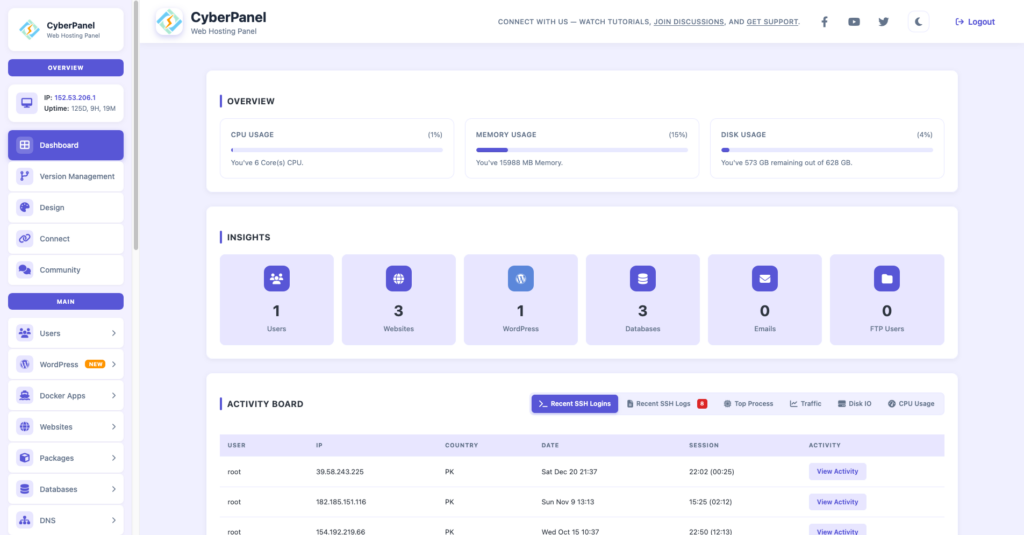
CyberPanel is your free and open-source web hosting control panel. Timeshift keeps your local system safe.
But what about:
- websites
- databases
- cloud application
- shosting servers
This is the point where CyberPanel supports.
You might put together:
Timeshift takes care of your OS
CyberPanel takes care of your servers and web data
Work process:
- snapshot Linux system
- backup websites from CyberPanel
- store offsite
Now both your machine and server are safe.
Perfect for:
- developers
- hosting admins
- freelancers
- agencies
You get complete protection.
Final Words: Should You Consider Timeshift Linux?
Timeshift for Linux is no longer a “nice to have”. It’s like a normal part of your system’s protection.
Setting it up takes just a few minutes, but it can save you hours from reinstalling the whole system.
Especially handy if you’re a:
- linux mint timeshift
- arch linux timeshift
user or trying out new software packages.
One snapshot is all you need to recover your whole system.
Just do the installation, and then you can live without stress for the rest of your life.
People Also Ask
Can Timeshift run automatically without opening GUI?
Yes. Scheduled snapshots run automatically in the background.
How much space do snapshots use?
Only changed files are saved, so storage usage stays low.
Is Timeshift better than full disk cloning?
For daily recovery yes, but cloning is better for complete hardware migration.