
How to Install and Use Docker Manager in CyberPanel
CyberPanel provides three related Docker tools: Docker Apps for guided application deployments, Containers for individual container lifecycle management, and Docker Images for Docker Hub search and local image management.
This guide explains where to find those tools and how to install Docker from the current CyberPanel interface. Continue with the linked guides when you are ready to pull an image, create a container, or deploy a Docker App.
Before you begin
- Sign in as a CyberPanel administrator.
- Confirm the server has enough free disk space and memory for Docker images, containers, and persistent data.
- Keep the operating system and CyberPanel current before exposing a container to the internet.
- Plan which host ports must be public. Do not publish database or administration ports unless access is restricted by a firewall.
Step 1: Open Server
Sign in to CyberPanel and select Server in the left sidebar.
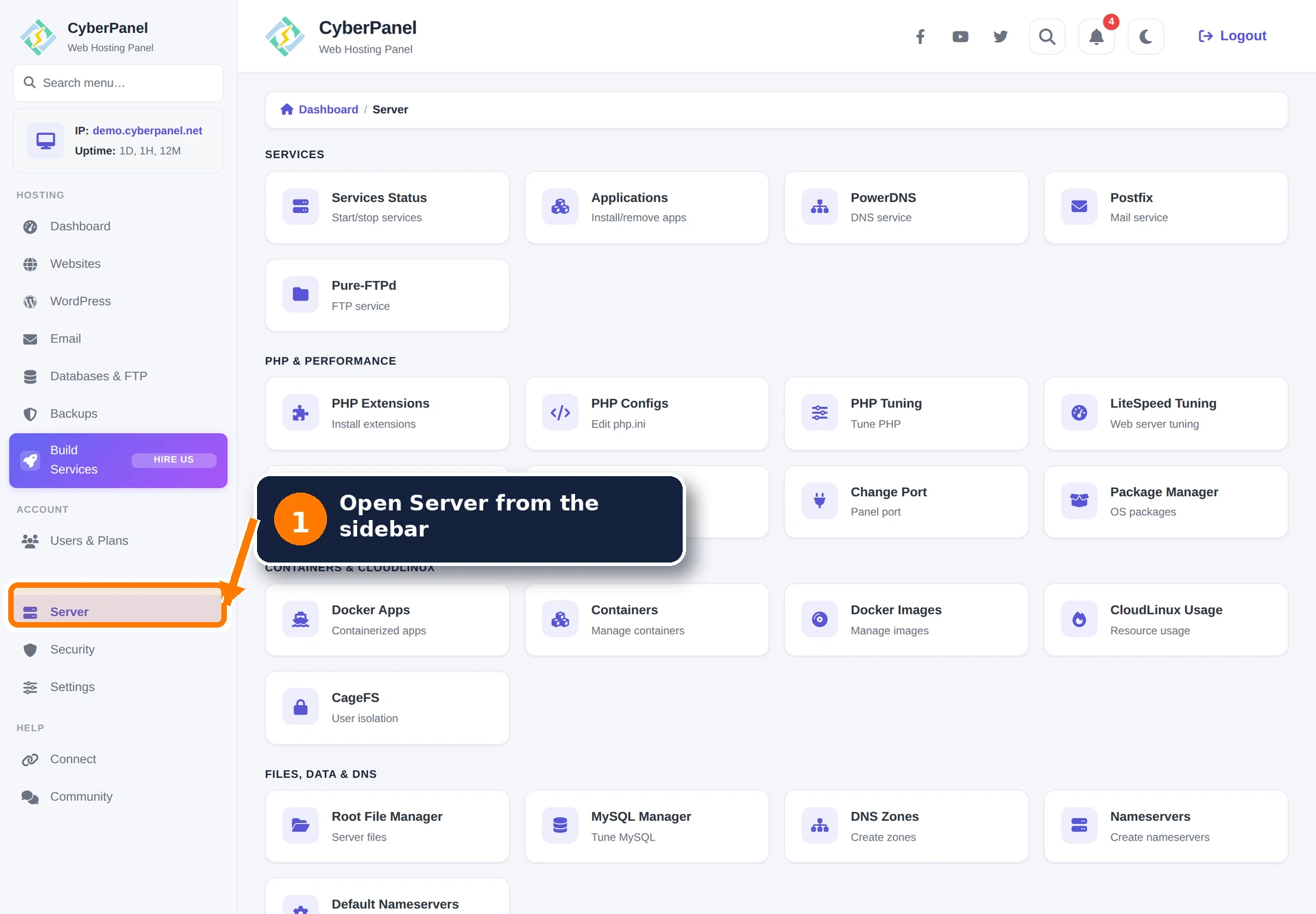
Step 2: Choose the Docker tool
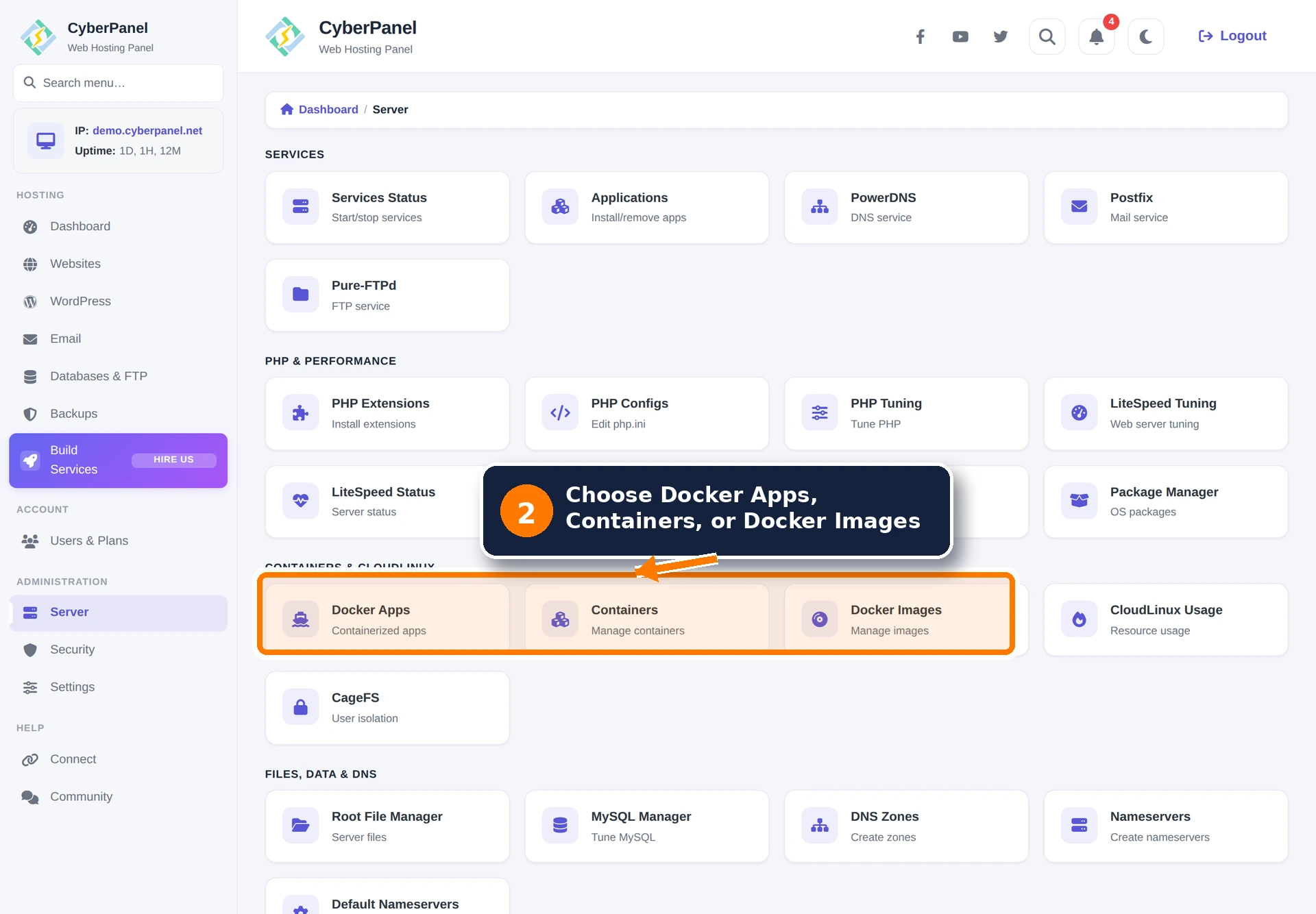
Scroll to Containers & CloudLinux. The three Docker entries have different purposes:
- Docker Apps: deploy a supported application with a domain, owner, resource limits, and application administrator account.
- Containers: create, start, stop, restart, inspect, configure, export, recreate, or remove individual containers.
- Docker Images: search Docker Hub, pull a tag, review local images, and remove images that are no longer required.
Step 3: Install Docker when prompted
If Docker is not installed, CyberPanel displays an installation page. Select Install Docker once and allow the installation to finish. Do not close the page, restart the server, or run a second package installation while it is working.
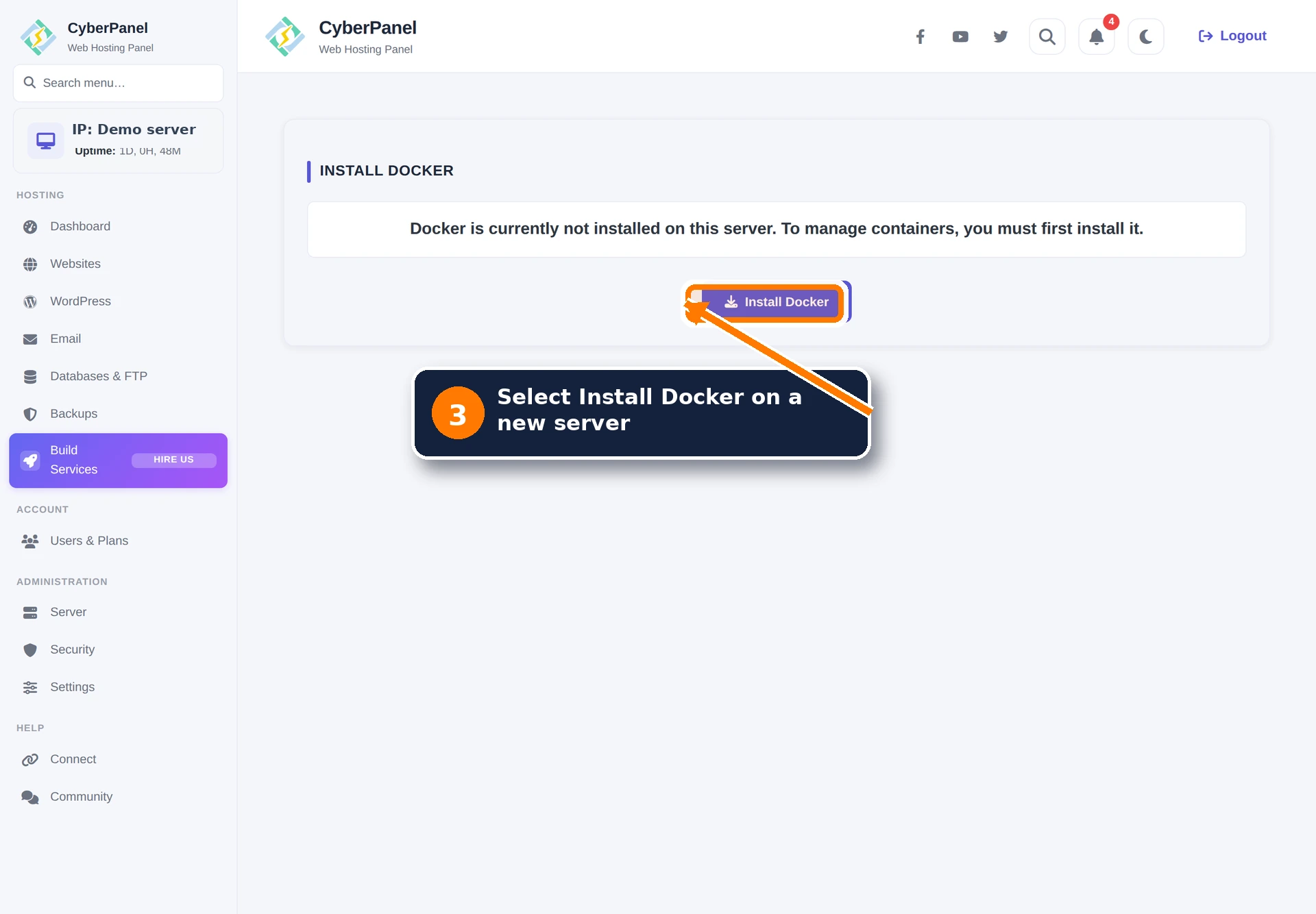
The installation workflow was validated through CyberPanel on Ubuntu 26.04. Docker Engine, Docker Compose, and the Docker service were installed successfully, and the service was enabled for startup.
Confirm Docker is ready
Return to Server and open Docker Images or Containers. If you also have terminal access, these read-only checks show the installed versions and service state:
docker --version
docker compose version
systemctl is-active docker
systemctl is-enabled docker
The expected service results are active and enabled.
Security and storage guidance
- Use official or otherwise trusted images and pin a specific tag for production workloads.
- Publish only required ports. A published Docker port can bypass assumptions made for a website-only firewall policy.
- Never place passwords, API keys, or private tokens in screenshots, container names, or public compose files.
- Store persistent application data in deliberate volumes or host paths and back it up separately. Removing a container is not a backup operation.
- Keep enough free disk space for image layers, logs, exports, and volume data.