
How to Search, Pull, and Manage Docker Images in CyberPanel
CyberPanel can search Docker Hub, pull a selected image tag, and manage images stored on the server. Pull the required image before creating a container.
If Docker is not installed yet, begin with How to Install and Use Docker Manager in CyberPanel.
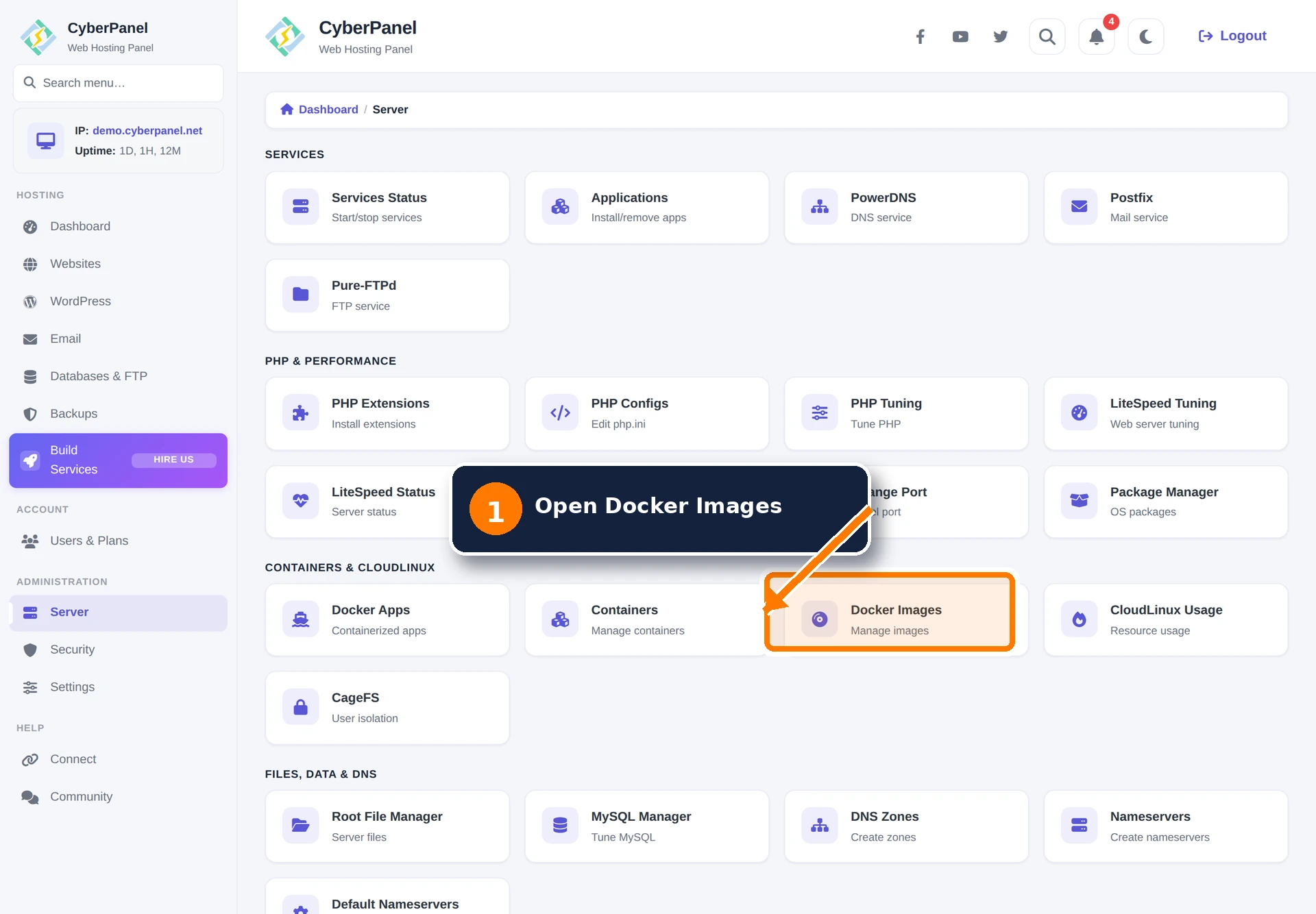
Step 1: Open Docker Images
Open Server, scroll to Containers & CloudLinux, and select Docker Images.
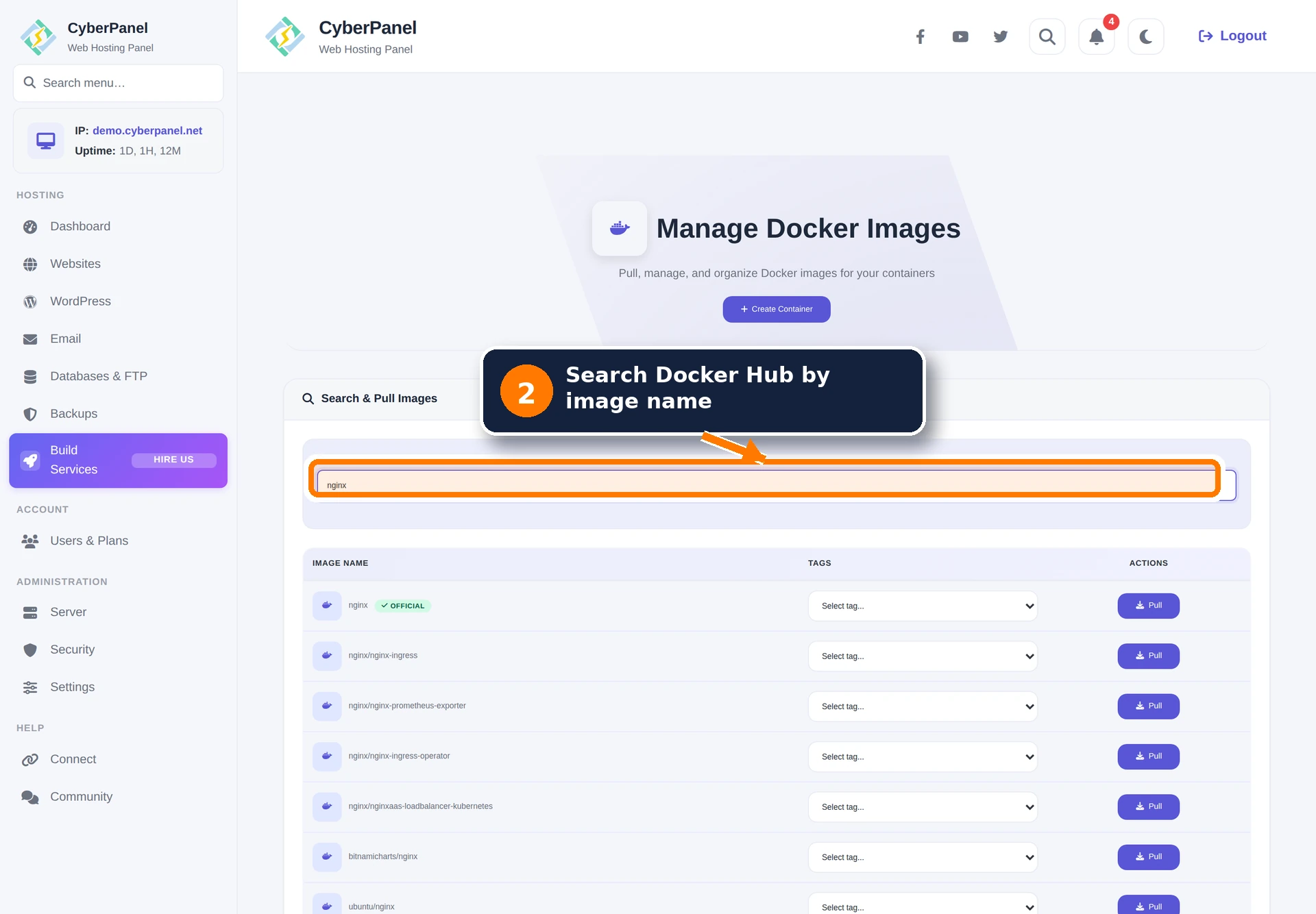
Step 2: Search Docker Hub
Enter an image name in Search Docker Hub. CyberPanel displays matching repositories while you type. Prefer the result marked Official when it is maintained for the software you need.
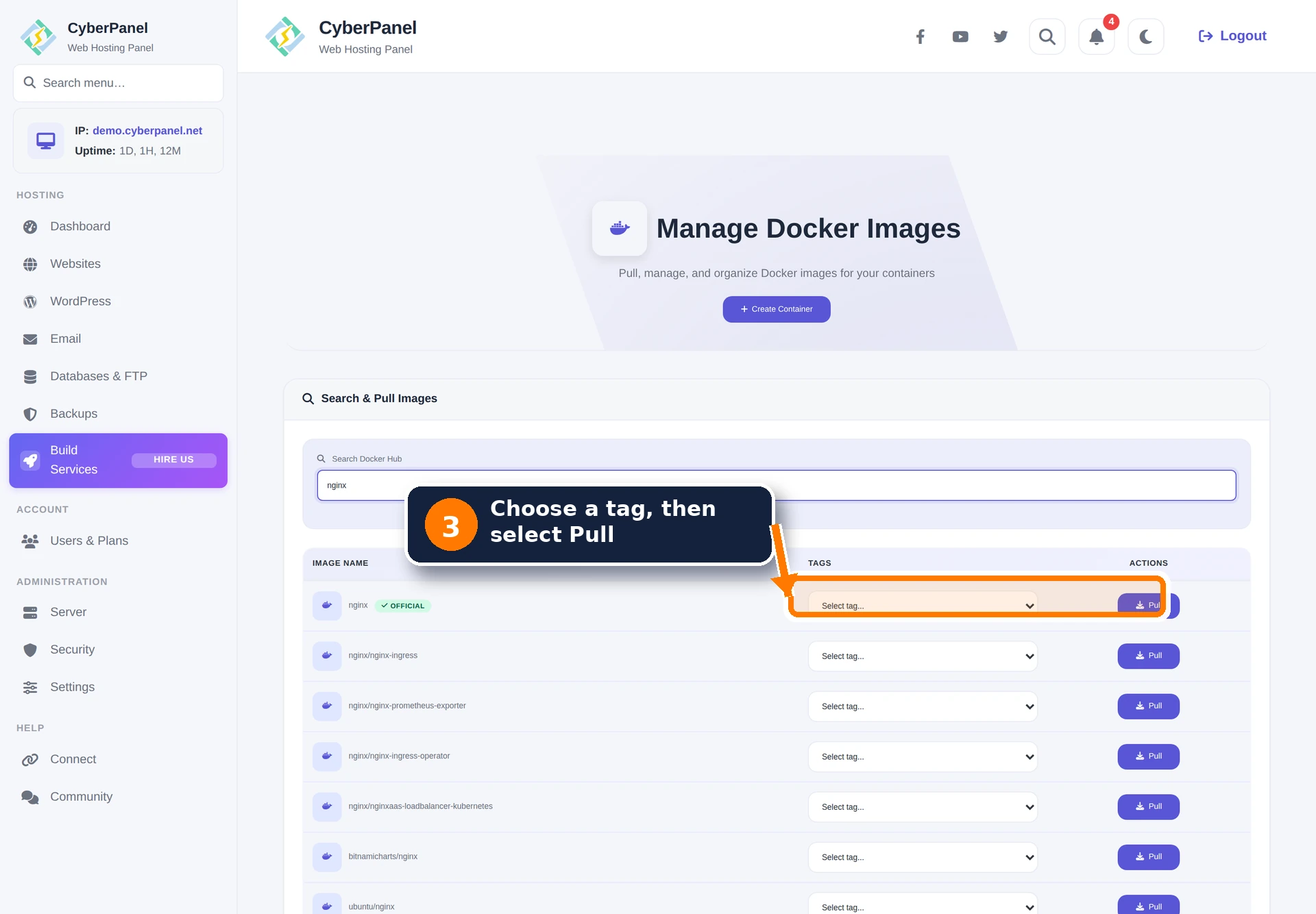
Step 3: Select a tag and pull the image
Open the tag list for the correct repository, choose the required version, and select Pull. Use an explicit production tag when possible so a future image update does not silently change the application version.
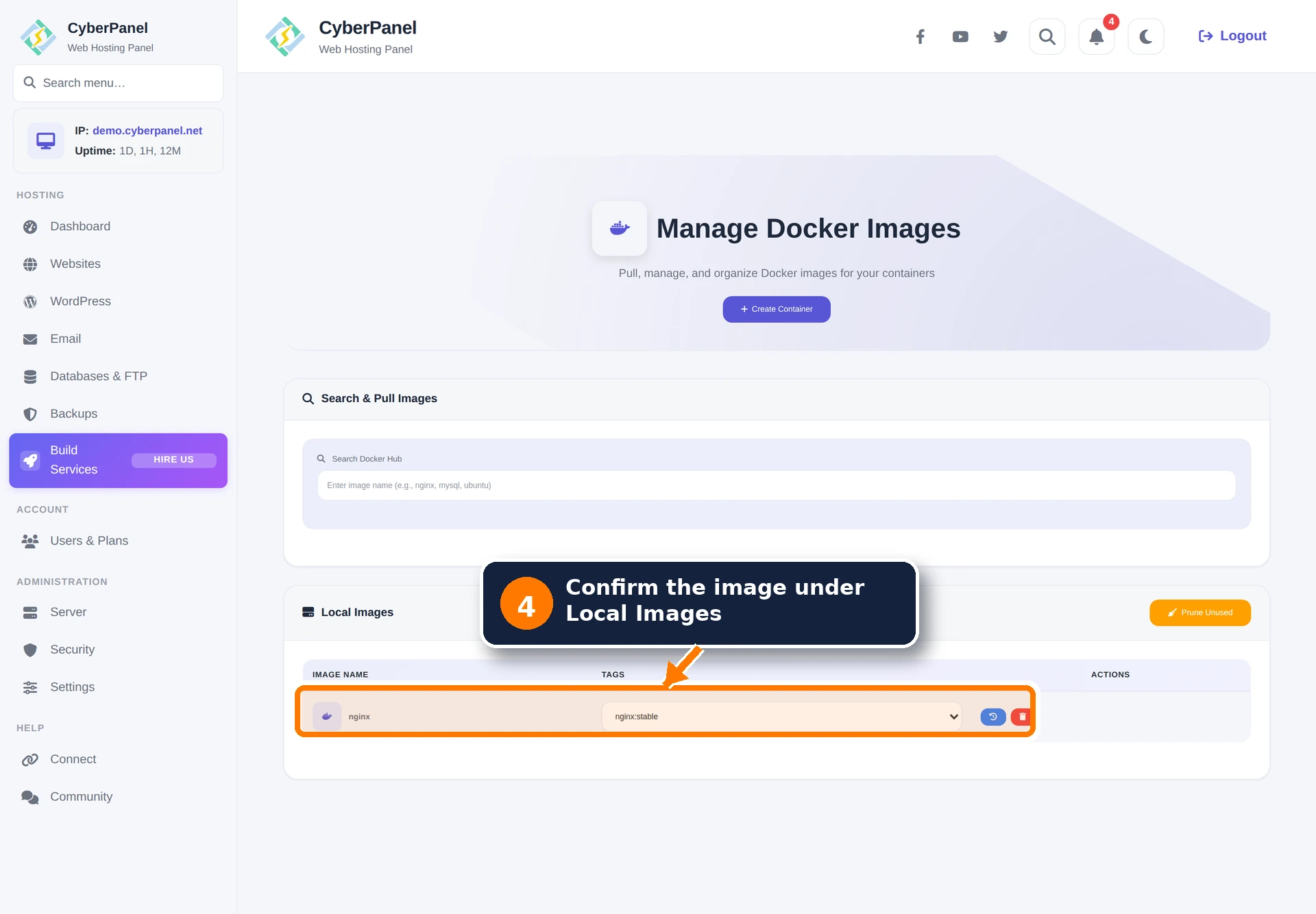
Step 4: Confirm the local image
After the pull completes, the repository and tag appear under Local Images. The blue history action shows image history, and the red action removes the selected local image.
Remove unused images safely
Delete a single tag only after checking which containers use it. Prune Unused removes images Docker considers unused, so review the server before running it. An image can still be important for a stopped workload or a planned rollback even when no running container uses it.
docker ps -a --format 'table {{.Names}}\t{{.Image}}\t{{.Status}}'
docker images
Troubleshooting image search and pulls
- No search results: confirm DNS and outbound HTTPS access from the server, then retry with the exact repository name.
- Tag list does not load: retry after a short delay and check whether Docker Hub is rate-limiting the server address.
- Pull stops or reports no space: check free space with
df -hand Docker use withdocker system df. Remove only data you have identified as unnecessary. - Docker is unavailable: check
systemctl status docker --no-pagerand the CyberPanel main log before restarting services. - Architecture error: choose a tag that provides an image for the server architecture.