On this page
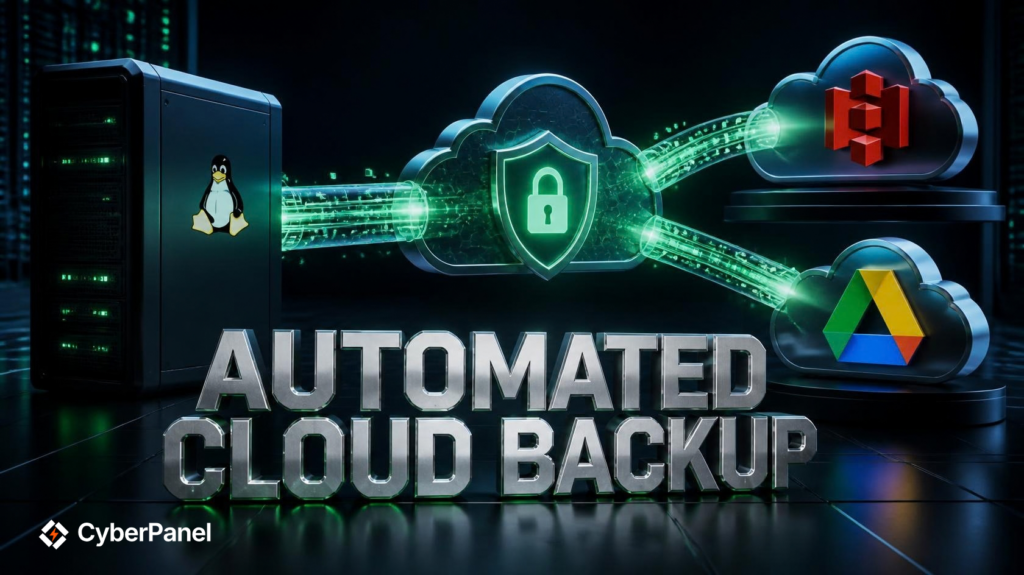
An automated cloud backup keeps a separate copy of your server data in remote cloud storage without requiring you to start every backup manually. With CyberPanel, you can schedule incremental backups and send them to remote storage such as Google Drive or an S3-compatible destination.
This approach protects website files, databases, and emails if the original server fails, data is deleted, or you need to restore an earlier version. CyberPanel Backup V2 uses Rustic and Rclone to handle incremental backup repositories and remote storage connections.
What Is an Automated Cloud Backup?
An automated cloud backup is a backup process that runs on a schedule and stores your data outside the original server.
Instead of manually copying your website files every few days, the backup system creates snapshots automatically. After the initial backup, incremental jobs can transfer only data that has changed.
A typical process looks like this:
Linux Server → Backup System → Encryption → Incremental Snapshot → Cloud Storage
The remote copy is important because a backup saved only on the same server does not protect you from server or disk failure.
Cloud backups can be used for:
- Website files
- Databases
- Email data
- Server configuration
- Application data
- Other important files
For CyberPanel users, Backup V2 provides incremental backups and supports remote repositories through its backup system. CyberPanel’s current documentation also provides separate workflows for Google Drive, remote destinations, and incremental backups.
Why Should You Automate Server Backups?
Manual backups are easy to forget. An automated schedule removes that dependency.
For example, an online store may receive new orders throughout the day. Waiting until the end of the week to create a backup creates a large gap between backup points.
An automated schedule can create backups every day or at another interval that matches your recovery needs.
The main benefits include:
| Benefit | Why It Matters |
|---|---|
| Automatic scheduling | Backups run without manual intervention |
| Remote storage | Protects against local server failure |
| Incremental backups | Reduces repeated data transfers |
| Encryption | Helps protect backup contents |
| Retention | Keeps multiple recovery points |
| Easier recovery | Older snapshots can be used when needed |
| Off-site protection | Keeps a copy away from the production server |
Automation is especially useful when you manage several websites or servers. It gives you a repeatable backup process instead of relying on memory.
What Do You Need for an Automated Cloud Backup?
Before configuring your backup, prepare the following:
- A Linux server running CyberPanel
- A website or other data that needs protection
- A supported remote storage destination
- Cloud storage credentials or authorization
- A backup schedule
- A retention period
- A secure way to protect backup credentials and encryption keys
You should also decide what needs to be backed up.
For a typical website, this can include:
- Website files
- Databases
- Application-specific data
CyberPanel Backup V2 allows these backup types to be selected separately, which can help you create a backup schedule based on what your website actually needs.
How Does an Automated Cloud Backup Work?
The process has several stages.
First, the backup system reads the selected data from the server. It then creates a backup snapshot and stores the data in the configured repository.
With incremental backups, the system can reuse existing backup data and add only new or changed information to later snapshots.
The result is less repeated data compared with creating a complete copy every time.
For example:
Day 1: Full initial backup
Day 2: Changes since Day 1
Day 3: Changes since the previous backup
Day 4: Changes since the previous backup
This is one reason incremental backups are useful for websites with large amounts of data. CyberPanel also provides a detailed guide to incremental backups and explains how they reduce storage and backup time.
How to Set Up an Automated Backup to Google Drive
Google Drive can be configured as a remote backup destination in CyberPanel.

CyberPanel’s Backup V2 uses Rustic for the backup repository and Rclone for remote storage connections. The CyberPanel interface provides Google Drive as one of the supported Backup V2 backends.
Step 1: Open Backup V2
Log in to your CyberPanel dashboard.
Open the Backup V2 section and select Configure Backends.
The exact interface can vary between CyberPanel versions, so use the current backup menu shown in your installation.
Step 2: Select the Website
Choose the website for which you want to configure the backup.
You can then select the type of backup repository you want to configure.
Step 3: Choose Google Drive
Select Google Drive as the backend.
Enter a name for the backup repository and save the configuration.
CyberPanel will take you through the authorization process so the backup system can access the selected Google Drive account.
Step 4: Authorize Google Drive
Sign in to the Google account you want to use for backups.
Review the requested permissions and authorize the connection.
Once authorization is complete, return to CyberPanel.
You should now be able to select the configured Google Drive repository when creating or scheduling Backup V2 jobs.
Step 5: Create a Test Backup
Before creating a recurring schedule, run a manual backup.
Open the Create/Restore Backup V2 section.
Select:
- Website
- Repository
- Backup content
You can select website data, databases, emails, or the available combination required for your recovery plan.
Start the backup and wait for it to finish.
A successful test confirms that the destination and repository are working before you depend on them for scheduled backups.
CyberPanel also provides a dedicated guide for backing up to Google Drive.
How to Schedule Automated Google Drive Backups
Once the repository works, create a schedule instead of running backups manually.
Open the Scheduled Backup section under Backup V2.
Choose:
- The website
- The backup repository
- Backup frequency
- Backup content
- Retention period
Then create the schedule.
The retention period determines how long older backup points are kept. This prevents the remote repository from growing indefinitely.
For example, a website could use:
| Setting | Example |
|---|---|
| Backup frequency | Daily |
| Destination | Google Drive |
| Content | Data + Database + Email |
| Retention | 14 to 30 days |
| First backup | Manual test |
The exact schedule should depend on how frequently your website changes and how much data you can afford to lose between backup points.
How to Back Up a Linux Server to S3
AWS S3 is designed for object storage and can be used as a remote destination for server backups.
CyberPanel has supported S3-based remote backups, and Backup V2 can also use Rclone-supported backends when configured through the command line.
To backup Linux server to S3, you generally need:
- An AWS account
- An S3 bucket
- An IAM user or role with appropriate permissions
- AWS credentials
- An S3 region
- A configured backup repository
CyberPanel’s documentation also describes configuring an S3 backend through Rclone.
Step 1: Create an S3 Bucket
Sign in to AWS and create a dedicated S3 bucket for your backups.
Choose the appropriate AWS region and configure the bucket according to your retention and security requirements.
Avoid using an unnecessarily broad bucket policy.
Step 2: Create Restricted AWS Credentials
Create an IAM identity specifically for the backup process.
Give it only the permissions required to access the backup bucket.
Do not use your AWS root account credentials for automated backups.
The principle is simple:
Backup credentials should be able to back up the backup location, not control your entire AWS account.
Step 3: Configure the S3 Backend
If your CyberPanel installation exposes S3 through its backup interface, configure the S3 destination there.
If you are using Backup V2 with an Rclone-supported backend, you can configure the backend through the server terminal using:
rclone configCreate a new remote and select the appropriate S3-compatible provider.
You will typically need to provide information such as:
Access Key ID
Secret Access Key
Region
BucketKeep these credentials protected. Do not publish them in articles, screenshots, scripts, or public repositories.
Step 4: Add the Repository to Backup V2
After configuring the Rclone backend, the repository can become available to the CyberPanel Backup V2 workflow.
Open:
Backup V2 → Create/Restore V2 Backup
Select the website and configured repository.
Run a manual backup first.
This test is important because a successful repository configuration does not automatically prove that the entire backup and restore process works correctly.
How to Configure Encrypted Cloud Backups
Cloud storage protects your backup from local hardware failure, but you should also consider the confidentiality of the data being stored.
This is where encrypted backups become important.
CyberPanel Backup V2 uses Rustic and Rclone. Rustic is designed for encrypted and deduplicated backups. Its repository requires a password or key to access the encrypted backup data.
The important part is protecting that encryption credential.
If you lose the repository password or encryption key, you may not be able to recover the backup.
Follow these practices:
- Use a strong, unique repository password
- Never place passwords directly in public scripts
- Restrict access to backup configuration files
- Store recovery credentials in a secure password manager
- Keep a secure recovery copy of the required key or password
- Do not store the only copy of your recovery credentials inside the server being backed up
Encryption is not useful if the key needed to decrypt the backup is lost.
How Do Incremental Remote Server Backups Work?
Incremental remote server backups save changes rather than repeatedly transferring the same data.
Suppose your website contains 20 GB of data.
A full backup may need to process a large amount of data during every backup cycle. An incremental system can identify data that has changed and use previous backup information to avoid storing duplicate content.
This can reduce:
- Storage consumption
- Network traffic
- Backup duration
- Backup workload
CyberPanel Backup V2 uses incremental backups and creates snapshots that can later be selected for restoration.
For example:
| Backup | Server Changes | Backup Result |
|---|---|---|
| Day 1 | Initial data | Initial snapshot |
| Day 2 | 500 MB changed | New snapshot using existing data |
| Day 3 | 200 MB changed | New snapshot |
| Day 4 | 1 GB changed | New snapshot |
The actual storage and transfer behavior depends on the backup tool, repository, and data being backed up.
Full vs Incremental Backups: What Is the Difference?
| Backup Type | Description | Storage Requirement | Typical Use |
|---|---|---|---|
| Full | Copies the selected dataset as a complete backup | Higher | Initial or periodic full backup |
| Incremental | Captures changes since the previous backup | Lower | Frequent backups |
| Differential | Captures changes since the last full backup | Medium | Faster recovery with more storage |
Incremental backups are useful when data changes frequently and bandwidth or storage is limited.
However, the backup strategy should always be designed around restoration. A backup that exists but cannot be restored is not a reliable recovery plan.
How to Restore an Automated Cloud Backup
Creating backups is only half of the process.
You should test restoration before an emergency happens.
For Backup V2, CyberPanel provides restore points that can be selected from the configured repository.
The general process is:
- Open Backup V2
- Select Restore V2 Backup
- Choose the website
- Select the repository
- Select the required snapshot
- Choose the data, database, or email content to restore
- Start the restoration
- Verify the restored website
After restoration, check:
- Website files
- Database connection
- WordPress login
- Images and media
- SSL
- DNS
- Application functionality
For a complete website recovery workflow, see CyberPanel’s backup and restore documentation.
How to Verify That Automated Cloud Backups Are Working
Do not assume that a scheduled backup is successful simply because a schedule exists.
Check the actual backup result.
A useful verification routine includes:
Check the Backup Logs
Review the backup logs for failed transfers, authentication errors, or repository problems.
Check the Remote Repository
Confirm that new snapshots or backup data are actually appearing at the remote destination.
Check Backup Timestamps
Make sure the latest backup was created at the expected time.
Test a Restore
Restore a small file or test website when possible.
Monitor Failed Jobs
A failed backup should trigger an investigation instead of being ignored.
This is especially important for automated cloud backup systems. Automation removes manual work, but it does not remove the need for monitoring.
How Long Should You Keep Cloud Backups?
There is no single retention period that works for every server.
A small personal website may need fewer recovery points than an online store, business application, or site with frequent database changes.
Consider this example:
| Backup Type | Example Retention |
|---|---|
| Daily backups | 14 days |
| Weekly backups | 4 to 8 weeks |
| Monthly backups | 3 to 12 months |
These are examples, not fixed requirements.
Your retention policy should consider:
- Data change frequency
- Storage cost
- Compliance requirements
- Recovery needs
- Available cloud storage
- How far back you may need to recover
CyberPanel Backup V2 allows a retention period to be configured for scheduled backups, with older backup data removed according to that setting.
AWS S3 vs Google Drive for Cloud Backups
Both can store remote backups, but they serve different types of users and workflows.
| Feature | AWS S3 | Google Drive |
|---|---|---|
| Primary purpose | Object storage | File storage |
| Server backup use | Well suited | Suitable for many website backups |
| Automation | Highly configurable | Easy through supported CyberPanel integration |
| Access control | AWS IAM | Google account permissions |
| Scalability | Designed for large-scale cloud storage | Depends on Google storage plan |
| CyberPanel workflow | S3/Rclone-based options | Backup V2 integration |
| Best fit | Server and infrastructure backups | Simpler website backup workflows |
For a small website, Google Drive may be convenient because the authorization process is familiar.
For infrastructure-focused environments, S3 provides more granular cloud storage controls and is designed specifically for object storage.
What Is the Best Server Backup Software?
The best server backup software depends on the server, data volume, storage destination, recovery requirements, and level of automation you need.
For a CyberPanel server, the most important features are:
- Automated scheduling
- Incremental backups
- Remote destinations
- Encryption
- Retention controls
- Snapshot-based recovery
- Restore testing
- Backup logs
- Multiple storage options
CyberPanel Backup V2 combines Rustic and Rclone to provide incremental backups and remote storage support. It can therefore fit workflows where website data, databases, and email need scheduled protection.
The important thing is not simply choosing a backup tool. It is building a complete process from backup to verification to restoration.
What Are the Best Practices for Automated Cloud Backups?
Follow these practices to make your backup system more reliable.
Keep Backups Outside the Server
Do not keep your only backup on the same machine as your production website.
A server failure could affect both the website and its backup.
Use Encryption
Encrypt sensitive backup data before treating cloud storage as a recovery destination.
Use Separate Cloud Credentials
Create credentials specifically for backup operations instead of using an account with unrestricted access.
Keep Multiple Recovery Points
A single recent backup may not help if the latest version contains corrupted or accidentally deleted data.
Set a Retention Policy
Automatically remove old backups according to a defined retention period.
Test Restoration
Run restore tests regularly.
This is one of the most important steps because backup creation and backup recovery are two different processes.
Protect Your Encryption Credentials
Store repository passwords and encryption keys somewhere secure and separate from the production server.
Monitor Backup Failures
A scheduled job that repeatedly fails can create a false sense of security.
Is an Automated Cloud Backup Enough for Disaster Recovery?
An automated cloud backup is an important part of disaster recovery, but it should not be the entire strategy.
A stronger setup can include:
Production Server + Local Recovery Option + Remote Encrypted Backup + Restore Testing
You may also want separate recovery copies for critical systems.
For example, if a website is compromised, you may need an older clean restore point instead of the newest backup.
This is why retention and multiple snapshots matter.
A cloud backup protects your data only when the backup is available, usable, and recoverable.
Frequently Asked Questions
Can I automatically back up a Linux server to the cloud?
Yes. You can configure a backup system to run on a schedule and send backup data to remote storage. CyberPanel provides automated backup workflows with remote destinations and Backup V2.
Can CyberPanel back up websites to Google Drive?
Yes. CyberPanel provides Google Drive integration for backups. Backup V2 also supports Google Drive as a backend and can schedule recurring backups.
Are incremental backups better than full backups?
They serve different purposes. Incremental backups usually require less storage and transfer less changed data, while full backups provide a complete copy of the selected data. Many backup strategies use a combination of approaches.
Final Takeaway
An automated cloud backup gives your Linux server a reliable off-site recovery layer without requiring you to create every backup manually.
CyberPanel can automate backup workflows using scheduled and incremental backups, while remote repositories can keep copies away from the production server. Google Drive provides a straightforward storage option, while S3 offers a cloud object storage workflow suitable for server infrastructure.
The most important part is to go beyond simply creating backups. Use encryption, restrict cloud credentials, set a sensible retention period, monitor backup jobs, and regularly test restoration.
A backup is only valuable when you can recover from it when you need it.