On this page
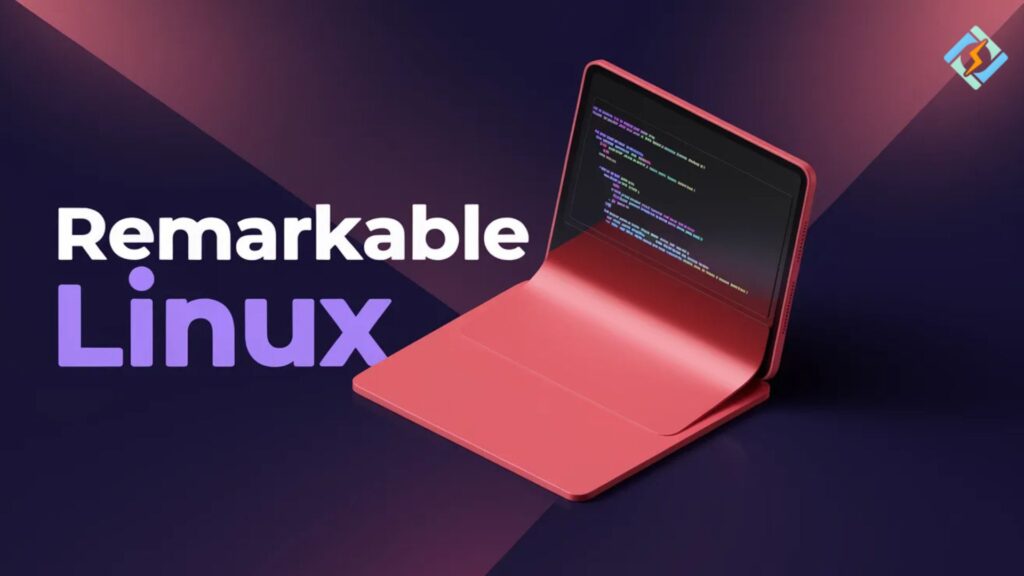
The amazing Linux feature is becoming more prevalent as more and more users switch to Linux but want to use the ReMarkable tablet ecosystem. The reMarkable tablets have become very popular for note-taking, drawing, and document annotation and revision work, particularly the reMarkable 2. But a lot of users have the same question: Does the ReMarkable desktop application work on Linux?
This is not an easy question to answer. There is no official native ReMarkable desktop application for Linux, but multiple viable alternatives are available for Linux users to synchronize notes, retrieve files, and organize documents.
In this guide, you will learn everything about Linux Remarkable, including compatibility, installation options, alternative apps, and how to access ReMarkable 2 features on Linux systems like Ubuntu, Kubuntu, and Linux Mint.
What is reMarkable Linux?
reMarkable is a premium e-ink tablet built specifically for writing, reading, and annotating. No social media. No distractions. Just paper-like precision with digital convenience.
The problem? reMarkable’s official software has historically ignored Linux users entirely. Windows and macOS users got polished desktop apps. Linux users got forums.
But here’s the thing: Linux users are exactly the kind of power users who would use a reMarkable. They care about focused workflows, open tools, and deep integration. Leaving them behind was a mistake, and one that the community has been
Does reMarkable Officially Support Linux?
This is a question that most people wonder about if they are interested in reMarkable, and our first try was to ask ‘Does the company support Linux officially?’ So, let us be clear: since 2025, the reMarkable company has not provided an official application for the Linux desktop.
Windows and macOS are the only platforms on which the official reMarkable desktop app Linux is released. Android and iOS versions of the app exist. The Linux platform? Officially still not supported.
| Platform | Official App | Community Solution |
|---|---|---|
| Windows | ✅ Yes | Not needed |
| macOS | ✅ Yes | Not needed |
| Android / iOS | ✅ Yes (mobile) | Not needed |
| Linux | ❌ No | ✅ Multiple options |
The web interface at my.remarkable.com works on any browser, including Linux. You can access your notebooks, export PDFs, and manage your documents there. It’s not perfect, but it’s your official fallback.
Alternatives to the Best reMarkable App Linux That Actually Work
The Linux communities have produced some great tools. These are the ones that will be relevant in 2025.
RCU (reMarkable Connection Utility)
The best choice for: Those users who are good at handling everything themselves
The RCU tool is the most feature-complete reMarkable desktop app for Linux there is today, probably. It’s a graphical user interface (GUI) program created to be exact for Linux (and other UNIX-like platforms) that offers you:
- Direct USB and Wi-Fi connection with your device
- Template management and uploading of your own templates
- Notebook backup and restoring
- PDF and ePub sideloading
- Screen sharing (getting a live view of your tablet)
RCU is donationware so you pay what you think it’s worth. Maintained by a single developer, it has a loyal audience and rightfully so.
Pro tip: initially, connect via USB. Wi-Fi connection is more prone to dropping on some types of routers. When you have made sure that RCU is detecting your device, changing to Wi-Fi will not be a hassle.
rmapi Command-Line Power Tool
Best for: programmers and people who want to automate processes
rmapi is your friend if you adore living in the console. It is a command-line interface to be used with the reMarkable cloud API, and on Linux it behaves very well.
Some of the things you can do with rmapi are:
- Files listing, downloading, and uploading
- Notebooks synchronization with your local system
- Backups automation with cron jobs
- Integration into shell scripts and CI pipelines
You can install it with Go or get the prebuilt GitHub binary. Being open-source and actively maintained, it is compatible with modern distros.
reMarkable-fs (FUSE Filesystem)
Best for: Those who want files to be accessible as easily as possible
The program mounts your reMarkable device as a filesystem via FUSE. After mounting, to navigate through and copy the files, you can use your file manager just as you usually do, no need for a mostly designed app.
This is a very smart idea that transforms your Linux experience into a remarkable integration that is comparable to a native experience.
Obsidian + reMarkable Cloud Sync
Best for: Knowledge workers and note-takers
If you use Obsidian (and millions of Linux users do), there are community plugins that pull your reMarkable notebooks into your Obsidian vault automatically. Combined with a PDF annotation workflow, this creates a genuinely powerful note-taking pipeline.
reMarkable 2 Linux: Device-Specific Tips
The reMarkable 2 Linux experience is slightly different from the original reMarkable because of hardware changes and updated firmware. Here’s what you need to know:
| Feature | reMarkable 1 | reMarkable 2 |
|---|---|---|
| USB Connectivity | Micro-USB | ✅ USB-C |
| SSH Access | ✅ Yes | ✅ Yes |
| Community Tool Support | ✅ Good | ✅ Excellent |
| Official Linux App | ❌ No | ❌ No |
| Cloud Sync Speed | Slower | Faster |
Enabling SSH on reMarkable 2
SSH is our preferred method to remotely access the reMarkable 2 device. This method lets you directly connect to the device and even use scp to transfer files.
Here’s how you enable SSH:
- On your reMarkable 2, navigate to Settings, Help, Copyright and Licenses
- There, you will be given the password for SSH
- Connect via USB (over USB, the device is assigned the IP address 10.11.99.1)
- From your terminal, execute ssh [email protected]
- Provide your password when asked
And that’s all. You’re logged in. From here, the reMarkable-Linux integration options are nearly endless.
Setting Up reMarkable on Linux: A Practical Workflow
Here is a tested workflow that works quite smoothly for Linux users in 2025:
Step 1: Access Online First
Begin at my.remarkable.com. Familiarize yourself with the cloud storage, download PDF files, and make sure the sync is working fine before incorporating other tools.
Step 2: Get RCU
Grab RCU, launch it, connect your device with a USB cable, and make sure the program recognizes your tablet. This will be your main desktop control.
Step 3: Use rmapi for Backup Automation
Get rmapi and configure a periodical cron job that exports all your notebooks to a folder on your computer. This will be your backup – outside of reMarkable’s cloud.
Step 4: Personalized Templates (Not Necessary, But Beneficial)
Through RCU, you can add your own templates. Community-made templates for GTD, bullet journaling, music notation, coding checklists, and others are available.
Step 5: PDF Sideloading
Is the PDF you want to mark up? Send it to your device using either RCU or rmapi. The cloud will be automatically synchronized with the annotation files.
Common Issues and Fixes
| Problem | Likely Cause | Fix |
|---|---|---|
| Device not detected over USB | Missing udev rules | Add reMarkable udev rule to /etc/udev/rules.d/ |
| SSH connection refused | USB networking not active | Toggle airplane mode off/on on device |
| RCU can’t connect via Wi-Fi | Firewall blocking port 22 | Allow port 22 outbound or switch to USB mode |
| Cloud sync failing in rmapi | Expired auth token | Run rmapi auth flow again to re-authenticate |
How CyberPanel Can Help You Set Up reMarkable with a Linux Server?

If you run a self-hosted Linux server- for example, to sync your notes, to host a personal wiki, or to do automatic reMarkable backups – then CyberPanel is really useful for you.
CyberPanel is a web hosting control panel driven by OpenLiteSpeed, which is lightweight and runs great on Linux servers. It is for you if you are:
- Hosting a private web interface for your reMarkable exports
- Operating a self-hosted document management tool (like Paperless-ngx), to which your reMarkable PDFs are automatically delivered
- Having a personal cloud that completely replaces reMarkable’s subscription cloud
- Moving out automation scripts that get activated when you do the file upload from your tablet
Introducing CyberPanel means that you have the server infrastructure to operate all those without even modifying a single configuration file by hand. In fact, it’s one of the quickest methods to get a complete LSMP stack setup on Ubuntu or AlmaLinux – the two most popular distros for this kind of home lab work.
Normally, a reMarkable + Linux server setup looks like this:
reMarkable device → rmapi sync script → Linux server with CyberPanel → Paperless-ngx → searchable, auto-tagged document archive
When it works, it hardly needs any human intervention at all. That is the kind of workflow that reMarkable’s advertising boasts about, and Linux fulfills the promise.
Conclusion: Is reMarkable Linux Experience Worth the Effort?
Yes, if you set the right expectations.
reMarkable Inc. doesn’t support Linux. In fact, that’s a big gap, and denying it doesn’t do anyone any good. Even so, the community has created really active, good tools that fill those gaps.
RCU is a real desktop app. rmapi is a real CLI tool. You can get SSH access. You can automate backups. You can run self-hosted pipelines.
The remarkable Linux experience in 2026 is far from ideal, but it is still productive. And for us Linux users, productive-with-some-configuration is what we’ve always relied on and come to terms with.
FAQs
Can I sync reMarkable notebooks directly to Nextcloud on Linux?
Yes. The most reliable method is using rmapi to export notebooks as PDFs into a local folder, then syncing that folder with the Nextcloud desktop client. It’s not real-time, but scheduled via cron it’s rock solid.
Can I use reMarkable on Linux without any workarounds?
Partially. The web interface at my.remarkable.com works in any Linux browser and gives you access to your notebooks and exports. But for full desktop functionality — file management, screen sharing, template uploads — you’ll need community tools like RCU or rmapi.
Does rmapi work without a paid reMarkable subscription?
rmapi uses the reMarkable cloud API, which requires an active account. A free account works, though cloud storage is limited. The API access itself is not locked behind the paid Connect subscription as of 2025.