On this page
Linux now has easy and stable remote connection capabilities. With AnyDesk Linux, you can connect quickly and securely to your Linux system from anywhere in the world. It allows for remote assistance when needed, transferring files between devices, and even being able to connect to your Linux computer without actually being at the computer itself. The performance is excellent, and you will only need to take a few easy steps to set up AnyDesk for Ubuntu.
This article describes what AnyDesk for Linux is and how to install this application on Ubuntu, and some of the factors that make AnyDesk reliable for use on remote jobs. This article will also provide some guidelines for safe usage of AnyDesk on a daily basis, as well as information about current users and how they utilize AnyDesk for Linux.
What Is AnyDesk For Linux?
AnyDesk for Linux is a remote desktop application for accessing the data and applications on your computer and performing operations and tasks on your Linux computer from other computers or mobile devices. AnyDesk works with Windows, Mac OS X, Android, and iOS, yet has the lowest latency for Linux compared to all other operating systems.
AnyDesk uses DeskRT compression technology that provides high-quality video and audio to preserve smooth screen sharing even over slow internet connections, making it ideal for server, developer, and personal operating systems.
Why Use AnyDesk for Linux?
AnyDesk has distinct advantages over competitors like TeamViewer, including speed, simplicity, and stability.
The main reason users select AnyDesk for their Linux operating systems is:
- Low Latency (Fast Connection).
- Quick and easy installation with most of the Linux operating system distributions.
- End-to-end encryption, along with device authorisation for security purposes.
- Works well on Ubuntu and Debian-based distributions.
- Unattended access and file transfers are possible with AnyDesk.
Unlike other web browser-based remote desktop applications (such as TeamViewer), AnyDesk operates natively on the host machine, providing a much higher level of reliability.
Supported Linux Distributions
Anydesk works on most modern Linux distributions, including:
- Ubuntu
- Debian
- Linux Mint
- Fedora
- CentOS
- Arch Linux
- OpenSUSE
Both graphical desktops and minimal systems are supported, though a desktop environment is required for full remote control.
Official AnyDesk Linux Downloading Systems:
Always use AnyDesk Linux download systems from the AnyDesk website to ensure the safety and security of your system.
You can get AnyDesk on Linux by using:
- A .deb file (Debian/Ubuntu) or a .rpm file (RedHat/Fedora) to install AnyDesk on your system through package management systems
- A Tarball to install AnyDesk on your system manually
- A Repository to update to new versions of AnyDesk in the future
Third-party downloads should be avoided, as these downloads may result in damaged downloads and/or potential security issues.
How To Install AnyDesk for Linux Ubuntu
Installing AnyDesk for Linux Ubuntu is straightforward.
Method 1: Install Using DEB Package
- Download the
.debpackage from the official AnyDesk site - Open Terminal
- Navigate to the download folder
- Run:
sudo dpkg -i anydesk_*.deb
sudo apt --fix-broken install
Method 2: Install Using Official Repository
This method ensures automatic updates.
curl -fsSL https://keys.anydesk.com/repos/DEB-GPG-KEY | sudo gpg --dearmor -o /etc/apt/keyrings/anydesk.gpg
echo "deb [signed-by=/etc/apt/keyrings/anydesk.gpg] http://deb.anydesk.com/ all main" | sudo tee /etc/apt/sources.list.d/anydesk.list
sudo apt update
sudo apt install anydesk
This is the recommended approach for long-term use.
AnyDesk Download Linux For Other Distros
- Fedora / RHEL: Use the RPM package or official repo
- Arch Linux: Available via AUR
- Generic Linux: Use the tarball version
Each version provides the same core functionality.
How to Use AnyDesk on Linux
After installation of AnyDesk, to start using AnyDesk on your computer, you need to do the following:
- Launch AnyDesk
- Copy your AnyDesk address
- Enter the remote device address
- Accept the connection or set permissions
You may also be able to set up unattended access for headless or server systems with password protection.
Security Features of AnyDesk Linux
AnyDesk Linux includes enterprise-grade security features, including TLS 1.2 encryption, RSA 2048 key exchange, Device Authorization, Control of permissions during sessions, Whitelist/Blacklist options. These capabilities make AnyDesk Linux suitable for use in both business and professional environments.
Performance and System Requirements
AnyDesk is designed to be lightweight and perform well on low-spec computers. The minimum software and hardware requirements for using AnyDesk are:
- A Linux operating system that supports X11 or Wayland (which are types of graphical user interfaces for Linux)
- 1 GB of RAM and a stable internet connection
- AnyDesk also operates well on VPS and Cloud servers with an installed GUI.
Common Use Cases
AnyDesk for Linux has a wide variety of common uses, including:
- Remote IT support
- Server Management
- Collaborating with developers
- Accessing home PCs from a distance for work or study
- Teaching and Training
AnyDesk’s ability to be used across multiple platforms allows for flexibility in mixed environments of different operating systems.
Limitations of AnyDesk Linux
There are a few limitations to using AnyDesk Linux, even though it is a powerful tool. Some limitations include that no native audio forwarding is available for some distributions, and Wayland Support depends on your particular distribution and your graphics hardware.
Role of CyberPanel
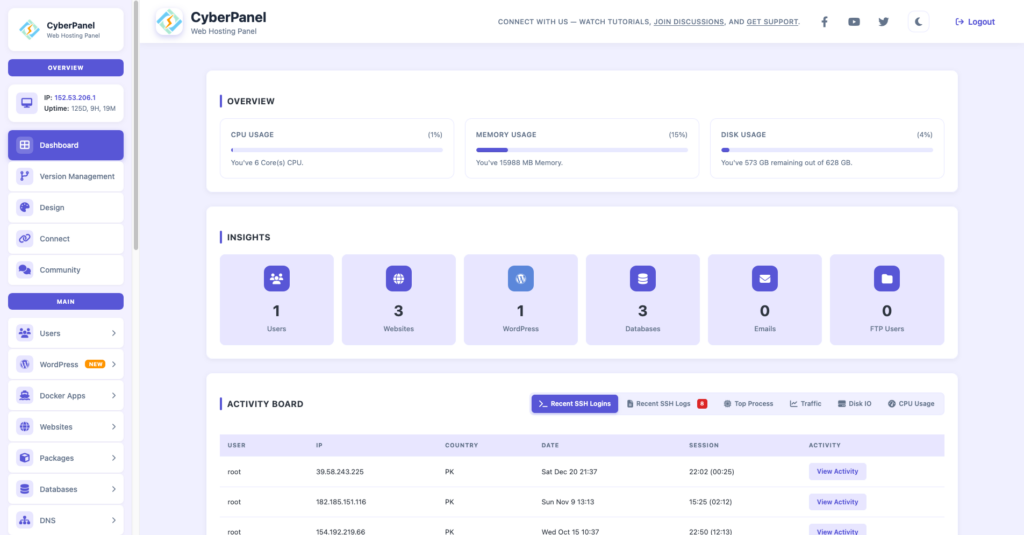
CyberPanel is a next-gen web hosting control panel. It allows you to manage a Linux server easily via a web-based interface. Combined with AnyDesk Linux, the operator can obtain graphical remote access to the server interface while managing it through the web browser. This combination provides a very efficient means for the operator to troubleshoot, configure, and monitor production servers.
Pros and Cons of AnyDesk Linux
Here are the pros and cons:
Pros
- Fast & responsive
- Easy Installation
- Security
- Cross-platform
- Small Footprint
Cons
- Some features are not available without purchasing
- Limited Wayland support
- No terminal-only mode available by default
Summary
AnyDesk for Linux is a trustworthy, secure, and effective method of accessing remote desktops on Linux. You can use AnyDesk on both Desktop versions of Ubuntu and through Server versions in real-time with very little setup or configuration involved. This is a good product if you want fast remote access without hassle.
If you regularly administer Linux-based systems, install AnyDesk for Linux and set up authenticated remote access as well as the use of professional management applications, to improve your workflow efficiency and allow for better control over your system administration activities.
People Also Ask
Does AnyDesk Linux support Wayland sessions?
Wayland support exists, but it depends on the desktop environment and permissions. X11 remains more stable.
Can AnyDesk Linux be automated at startup?
Yes, it can be enabled as a system service for automatic startup.
Can AnyDesk be used on Linux servers without monitors?
Yes, unattended access works on headless servers if a virtual display is configured.