On this page
Having been able to successfully run an AI model locally in years past used to be a tough task requiring extensive knowledge of complex environments, complicated configurations, and extensive programming knowledge; however, that is no longer the case with products like OpenWebUI.
Now, with OpenWebUI Docker, users can launch a full-featured web interface to work with their local AI models in just minutes, rather than spending time installing a complex application package from scratch.
Once you have the OpenWebUI and Docker running correctly together with the Ollama application installed, you are now able to run local Large Language Models (LLMs) on your PC, communicate with those models via an easy-to-use online interface, and maintain total privacy by using your server for both LLM processing and internet connectivity.
This article provides detailed, step-by-step instructions for installing OpenWebUI Docker, configuring its functions, and integrating data and functions with the Ollama Application to create and use a full Local AI Environment together.
All steps provided are clear and practical to help you set up an AI Interface in the shortest possible timeframe.
What is OpenWebUI?
OpenWebUI is a free web-based user interface that provides users with a clean browser user experience for interacting with large Language Models.
OpenWebUI works with local AI applications like:
- Ollama.
- OpenAI-Compatible APIs.
- Local LLM Servers.
OpenWebUI provides a ChatGPT-type user experience via your own infrastructure without requiring you to enter command-line commands.
For that reason, OpenWebUI Docker installations are growing in popularity among developers and people who are interested in AI.
Why use OpenWebUI with Docker?
There are many benefits to using OpenWebUI via Docker.
Fast Setup.
- The installation process is completed in just a few minutes.
Clean Environment.
- Docker creates an isolated application environment from the host operating system.
Easy Updates.
- To update, just pull down the latest version of the Container image.
Portable Deployment.
- OpenWebUI containers can be easily moved to another location.
Because of these advantages, many developers prefer to install the OpenWebUI using Docker rather than the manual installation of the OpenWebUI.
OpenWebUI Docker Compose Example
version: "3.8"

services:
  openwebui:
    image: ghcr.io/open-webui/open-webui:main
    container_name: openwebui
    restart: unless-stopped
    ports:
      - "3000:8080"
    volumes:
      - openwebui-data:/app/backend/data

volumes:
  openwebui-data:
Start the container with:
docker compose up -dOnce running, open your browser and visit:
http://your-server-ip:3000OpenWebUI Install Docker (Quick Method)
If you want a faster installation, you can run a direct Docker command.
docker run -d \
-p 3000:8080 \
-v openwebui-data:/app/backend/data \
--name openwebui \
ghcr.io/open-webui/open-webui:main
Ollama OpenWebUI Docker Compose
The combination of the two makes for an incredibly powerful system.
The Ollama platform lets users run large language models on their own computers.
Following is a working example of how to set up OpenWebUI & Ollama in a Docker Compose environment.
version: "3.8"

services:
  ollama:
    image: ollama/ollama
    container_name: ollama
    volumes:
      - ollama-data:/root/.ollama
    ports:
      - "11434:11434"

  openwebui:
    image: ghcr.io/open-webui/open-webui:main
    container_name: openwebui
    ports:
      - "3000:8080"
    volumes:
      - openwebui-data:/app/backend/data
    environment:
      - OLLAMA_BASE_URL=http://ollama:11434
    depends_on:
      - ollama

volumes:
  ollama-data:
  openwebui-data:
Then, start everything with:
docker compose up -dWorking of Architecture
| Component | Role |
|---|---|
| Ollama | Runs local AI models |
| OpenWebUI | Provides the web interface |
| Docker | Manages container environment |
| Docker Compose | Orchestrates services |
Best Practices for Running OpenWebUI
OpenWebUI implements best practices to ensure a successful deployment
- Persistent volume storage should be used to store any data used with OpenWebUI.
- OpenWebUI should be deployed behind https.
- Public exposure of the container port should be limited to keep data secure.
- Due to the fact that AI models require high amounts of RAM and CPU, resource monitoring is needed for systems that deploy AI models.
- For hosting integrations and external tool servers, utilizing dedicated MCP hosting on Manufact ensures scalable execution and managed infrastructure.
Performing these actions will provide a stable solution for your systems.
Hardware for Running AI Models Locally
When you run AI models locally, you need to have a good hardware profile for your system.
The recommended hardware for supporting the operation of an AI model is:
- Minimum of 16GB of RAM
- 20th Century CPU
- GPU Support for large AI models
- SSD for data storage
Smaller AI models can be run on weaker hardware, while larger AI models require a good-quality system. If your machine doesn’t meet these specs, GPU cloud platforms like Verda let you run larger models on the latest NVIDIA hardware by the hour, no long-term contract required.
CyberPanel’s Role in OpenWebUI Hosting
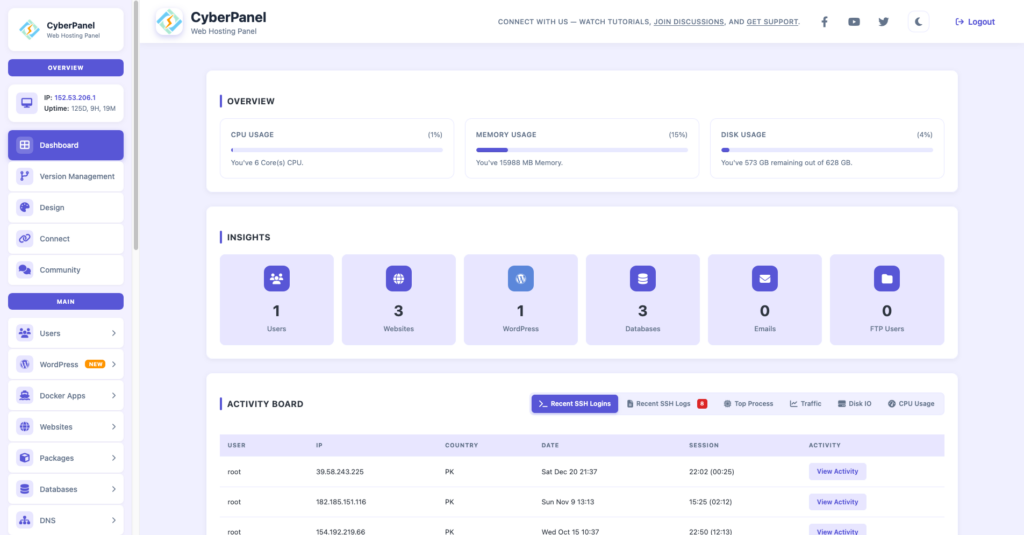
CyberPanel is a free and open-source web hosting control panel. CyberPanel provides functionality that can assist with setting up and maintaining an OpenWebUI Docker Compose installation on a VPS.
With the use of CyberPanel, your VPS installation will gain:
- Simplified Domain Administration
- Automatic Generation of SSL Certificates
- Set up of Reverse Proxy Routing
- Monitoring of VPS Hardware Resources
- Setting of Firewall Rules
Whereas OpenWebUI runs inside Docker, CyberPanel has provided functionality outside of Docker to support your VPS Hosting Solution.
The result of the above is a well-organised and manageable web hosting environment.
Deployment Common Errors
A lot of users experience deployment problems.
The following are examples of what to avoid doing.
1) Deploying a container without a stable volume.
2) Exposing your container directly to the internet.
3) Not using strong authentication.
4) Not considering the minimum hardware requirements to run the containers.
If you properly configure your environment, you can prevent many of these deployment problems.
Conclusion
One of the easiest ways to create a private AI interface is to run Docker OpenWebUI. With just a simple OpenWebUI Docker Compose, you can deploy your chat interface and then link it to your local models via Ollama OpenWebUI Docker Compose.
Instead of using an external provider for your AI, you can run powerful models on your own server.
You can deploy OpenWebUI with Docker today, connect it to Ollama, secure it with HTTPS, and begin operating your private AI interface on your own server.
FAQs
Can OpenWebUI be hosted on the same Docker system as other Docker containers?
Yes, running OpenWebUI will be able to co-exist with any other Docker container applications, such as a database, a reverse proxy, or another AI application using Docker Compose on your infrastructure.
How much disk storage space do I need for the OpenWebUI interface?
While the OpenWebUI interface does not require a lot of disk space, the AI models that are accessible through Ollama require several gigabytes of storage.
Is it possible to host a VPS that doesn’t include a Graphics Processing Unit (GPU)?
You can run OpenWebUI with only a Central Processing Unit (CPU), but will experience slower performance when using larger AI models.