On this page
Arch Linux Yay is an AUR helper that makes it easier to search for, install, update, and remove packages from the Arch User Repository. It works alongside pacman, so you can manage official Arch packages and AUR packages from the terminal without manually repeating the same build steps.
Installing Yay is not difficult, but there is one thing to understand first. Yay is not part of the official Arch Linux repositories. It is itself distributed through the AUR, which means you need to build it before you can use it. Arch Linux also does not officially support AUR helpers, so knowing how the manual AUR process works is still useful.
What Is Yay in Arch Linux?
Yay is a command-line AUR helper written in Go. Its name comes from “Yet Another Yogurt.” It provides an easier interface for working with the Arch User Repository while also handling normal pacman operations.
The main reason people install Yay is convenience.
The official Arch repositories contain a large collection of packages, but the AUR contains many more community-maintained build scripts. Installing an AUR package manually means finding its PKGBUILD, downloading it, checking what it does, building it with makepkg, and installing the resulting package.
Yay automates much of that process.
For example, instead of manually searching the AUR for a package and then building it, you can use:
yay package-nameYay searches for matching packages and presents the available choices.
That saves time, especially when you regularly install software that is only available through the AUR.
Why Do Arch Linux Users Install Yay?
The biggest advantage is convenience.
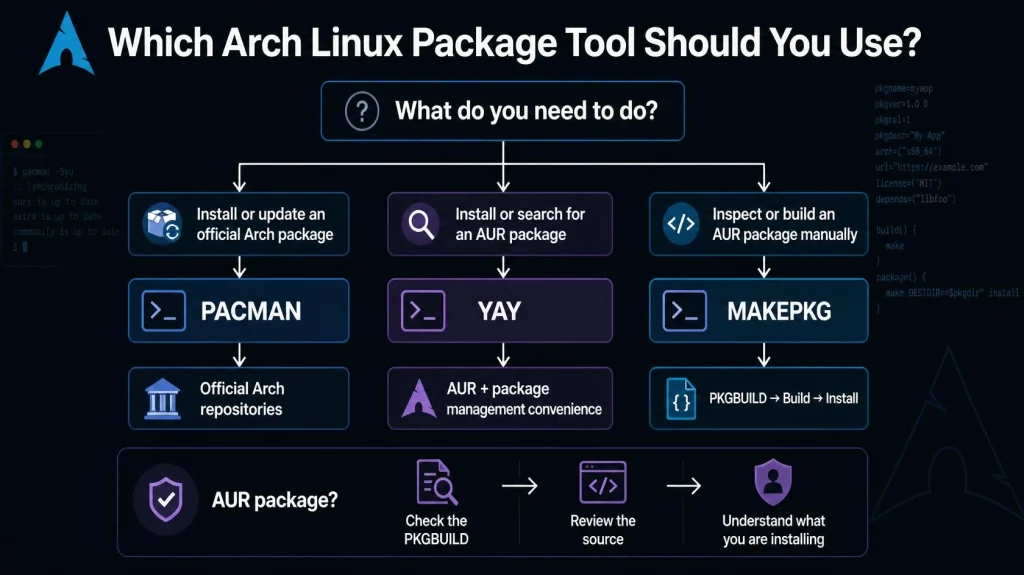
With pacman, you can manage packages from the official Arch repositories. Yay extends that workflow to AUR packages and provides features such as package searching, dependency resolution, PKGBUILD retrieval, building, and upgrades.
Here is the basic difference:
| Tool | Main purpose |
| pacman | Manage official Arch packages |
| makepkg | Build packages from PKGBUILDs |
| AUR | Community-maintained package build scripts |
| yay | Simplify repository and AUR package management |
Yay does not replace pacman. It uses Arch’s package management tools and adds an easier interface around them.
That distinction matters because you will still encounter pacman commands when maintaining an Arch Linux system.
What Do You Need Before Installing Yay?
You do not need an existing AUR helper to install Yay for the first time. In fact, the normal bootstrap process is to download Yay’s PKGBUILD from the AUR and build it yourself.
You need for “Arch Linux Install yay”:
- An updated Arch Linux installation
- A working internet connection
- git
- The base-devel package group
- A normal user account with sudo access
The current Yay documentation specifically uses git and base-devel before cloning and building the package.
It is also a good idea to update your system before starting:
sudo pacman -SyuIf updates include a kernel or other major system components, reboot when appropriate before continuing.
How to Install Yay on Arch Linux?
To install yay Arch Linux, the process has four basic steps: install the build tools, clone the Yay AUR repository, enter the directory, and build the package.
Step 1: Install Git and Base Development Tools
Run:
sudo pacman -S --needed git base-develThe –needed option avoids reinstalling packages that are already present.
The base-devel group provides the tools required for building many AUR packages. Git is needed to clone the Yay package repository. This is the installation method documented by the Yay project.
Step 2: Clone the Yay AUR Repository
Next, download the Yay PKGBUILD:
git clone https://aur.archlinux.org/yay.gitThis creates a new yay directory in your current location.
You can check it with:
lsYou should see the yay directory in the output.
Step 3: Enter the Yay Directory
Move into the directory:
cd yayThis is where the downloaded PKGBUILD and related files are located.
Step 4: Build and Install Yay
Now run:
makepkg -siThe makepkg utility builds the package from its PKGBUILD. The -s option installs missing dependencies, while -i installs the package after a successful build.
You may be asked to confirm different steps during the process.
Once the build finishes, Yay should be installed on your system.
How Do You Check Whether Yay Installed Correctly?
You can verify the installation with:
yay --versionIf Yay is installed correctly, the command will return its version information.
You can also check where the executable is located:
which yayA working installation should return a path such as:
/usr/bin/yayAt this point, your Arch Linux Yay install is complete.
Can You Install Yay Without Compiling It?
Yes.
The Yay project also provides instructions for installing yay-bin. Instead of building the regular Yay package from source, you clone the yay-bin AUR package and build that package instead. The project describes this as an option for users who do not want to compile Yay themselves.
The commands are:
sudo pacman -S --needed git base-develThen:
git clone https://aur.archlinux.org/yay-bin.gitEnter the directory:
cd yay-binThen build and install it:
makepkg -siBoth approaches give you Yay. The difference is mainly how the Yay package itself is obtained and built.
For a new Arch installation, the regular yay package is a straightforward choice. If you specifically prefer the binary package, yay-bin is available as an alternative.
How Do You Use Yay to Search for Packages?
Once Yay is installed, searching becomes simple.
For example:
yay firefoxYay searches for packages matching your search term and displays the available results.
You can also narrow a search by providing multiple terms:
yay linux headersThe Yay documentation notes that it can narrow search results based on multiple search terms.
This is useful when you remember only part of a package name.
How Do You Install a Package With Yay?
Once you know the package name, use:
yay -S package-nameFor example:
yay -S visual-studio-code-binReplace the package name with the software you actually want to install.
Yay will resolve dependencies, retrieve the package build files, and guide you through the installation process.
You may see prompts asking whether you want to review build files or continue with the installation.
Do not blindly approve every prompt.
AUR packages are community-maintained. Read what Yay presents before allowing a package to build or install.
Can Yay Install Official Arch Packages?
Yes.
Yay can also work with packages from the official repositories.
For example:
yay -S firefoxIf the package is available through an official repository, Yay can handle that installation as well.
This is one reason some Arch users prefer Yay as a single command-line interface for everyday package management.
Still, there is nothing wrong with continuing to use pacman for official packages:
sudo pacman -S firefoxYou do not need Yay for software that is already available in the official repositories.
How Do You Update Arch Linux With Yay?
One of the commands you will see frequently is:
yay -SyuThis performs a system upgrade and checks for updates in the repositories and AUR. Yay’s documentation also lists yay by itself as an alias for yay -Syu.
For that reason, you may see users simply run:
yayHowever, using the longer form can be clearer when you are learning Arch Linux.
Should You Use Yay Instead of Pacman for Every Update?
Not necessarily.
The important thing is to understand what is being updated.
Official Arch packages come from Arch’s repositories. AUR packages come from community-maintained build recipes. They have different maintenance paths.
Before performing a large update, especially one involving many AUR packages, review what Yay is proposing.
AUR helpers make package management easier, but they do not remove the need for user judgment. ArchWiki explicitly recommends that users become familiar with the manual AUR build process and warns that AUR helpers are not officially supported by Arch Linux.
How Do You Remove a Package With Yay?
You can remove an installed package with:
yay -R package-nameIf you also want to remove dependencies that are no longer required, you can use the appropriate pacman removal options through Yay.
For example:
yay -Rns package-nameThe -n option prevents saving package configuration files, while -s removes dependencies that are no longer required by other packages.
Be careful with recursive removal.
Always read the package list before confirming.
How Do You See Installed AUR Packages?
If you want to see packages installed from the AUR, Yay provides several query options.
A simple search can help identify a package:
yay -Qs package-nameYou can also use:
yay -Qto list installed packages.
For system maintenance, knowing what you installed from the AUR is useful. An AUR package may require rebuilding when one of its shared library dependencies changes, even if the AUR package itself has not received a new version. ArchWiki specifically notes this as one reason AUR maintenance differs from ordinary repository packages.
Is Yay Safe to Use?
Yay itself is a widely used AUR helper, but that does not mean every AUR package is automatically safe.
This is an important distinction.
Yay can automate the installation process, but it cannot make an untrusted PKGBUILD trustworthy.
AUR packages are community-maintained. Before installing one, inspect its AUR page, maintainer information, comments, source URLs, and PKGBUILD.
You can also download the build files without immediately installing the package:
yay -G package-nameThe Yay documentation lists yay -G as a way to download the PKGBUILD from the AUR.
This gives you a chance to inspect what the package is going to build.
ArchWiki recommends learning the manual AUR build process and warns users to vet package sources before installation.
Yay vs Pacman: Which Should You Use?
The answer depends on what you are installing.
| Task | Better choice |
| Install official Arch package | pacman |
| Update official packages | pacman |
| Search the AUR | Yay |
| Install an AUR package | Yay |
| Build a PKGBUILD manually | makepkg |
| Manage both repositories and AUR | Yay |
There is no need to treat Yay and Pacman as competing package managers.
A better way to think about them is that Pacman is the core package manager, while Yay adds an AUR-focused workflow on top of it.
If you are comfortable with Pacman and makepkg, Yay becomes a convenience rather than something you depend on blindly.
What Should You Check Before Installing an AUR Package?
Before running a Yay installation command, take a minute to inspect the package.
Check these points:
- Package name: Make sure you selected the software you actually wanted.
- Maintainer: Look at who maintains the package.
- Votes and popularity: These can provide context, but they are not proof of safety.
- PKGBUILD: Check what commands and sources it uses.
- Source URLs: Make sure the software is coming from an expected location.
- Comments: Look for recent reports about broken builds or unusual behavior.
- Dependencies: Review what additional software will be installed.
Popularity should never be your only safety check.
An AUR package can be popular and still require careful review.
What If Yay Stops Working?
Yay can fail for several reasons.
The AUR package may be outdated. A dependency may have changed. A source URL may have moved. A package may require a new build after a system library update.
Start by reading the actual error message.
Do not immediately delete your system configuration or start running random repair commands.
If an AUR package fails, check its AUR page for recent reports. If the problem is related to the package build itself, the Yay project recommends using makepkg when reporting a broken AUR package rather than reporting it through Yay.
For a package you built manually, you can also return to its directory and inspect the PKGBUILD again.
What Are the Most Useful Yay Commands?
Here is a quick reference you can keep nearby:
| Command | What it does |
| yay | Upgrade system packages |
| yay -S package | Install a package |
| yay package | Search for a package |
| yay -Syu | Update the system |
| yay -R package | Remove a package |
| yay -Rns package | Remove package and unused dependencies |
| yay -G package | Download an AUR PKGBUILD |
| yay -Ps | Display Yay system statistics |
| yay -Syu –devel | Update packages including development packages |
These operations are documented by the Yay project, although exact prompts can vary between versions.
Is Yay Worth Installing on Arch Linux?
For many Arch users, yes.
Yay becomes especially useful when you regularly install AUR software. Instead of manually searching for a PKGBUILD, cloning it, building it, checking dependencies, and repeating the process for updates, you can handle much of that work through one command-line tool.
But Yay should not replace your understanding of Arch Linux package management.
Learn pacman. Learn what a PKGBUILD does. Understand how makepkg works. Know where AUR packages come from.
Then use Yay to save time.
That balance is much safer than treating an AUR helper as a black box.
From Arch Linux to Web Hosting: Where CyberPanel Fits

Yay makes package management easier on Arch Linux, while CyberPanel handles a different side of Linux: web hosting. CyberPanel is an open-source web hosting control panel. It helps you manage websites, WordPress, SSL, DNS, databases, and other hosting tasks through a web interface, so you do not have to handle everything from the command line.
If you use Arch Linux as your development machine, you can use Yay to install the tools you need and manage your AUR packages. Your websites can then run on a separate server managed with CyberPanel.
Frequently Asked Questions
Can I install Yay without another AUR helper?
Yes. You can install Yay manually by installing git and base-devel, cloning the Yay AUR repository, and running makepkg -si. This is the installation method documented by the Yay project.
What is the difference between yay and yay-bin?
Both provide Yay. The yay package is built from its source package, while yay-bin uses the binary build route documented by the Yay project.
Is Yay better than Pacman?
Not exactly. They serve different purposes. Pacman is Arch Linux’s core package manager, while Yay adds convenient AUR support and can also handle normal package operations.
Make Arch Package Management Easier, Not Careless
Installing Arch Linux Yay takes only a few commands, but the real benefit comes after the installation. Yay gives you a convenient way to search for AUR software, build packages, resolve dependencies, and keep your system updated from the command line.
Just remember what it cannot do. It cannot decide whether an AUR package deserves your trust.
Use Yay for convenience, but keep the Arch habit of checking what you install. If you understand pacman, makepkg, PKGBUILDs, and the AUR, Yay becomes a useful tool rather than a dependency you do not understand.
For a server environment, keep the same principle in mind: choose tools based on the job they actually solve. A package helper is useful for managing software on Arch. A hosting control panel such as CyberPanel solves a completely different problem by providing a management layer for supported web hosting servers.
Ready to simplify Arch package management? Install Yay, explore the AUR, and take control of your software from the terminal.