On this page
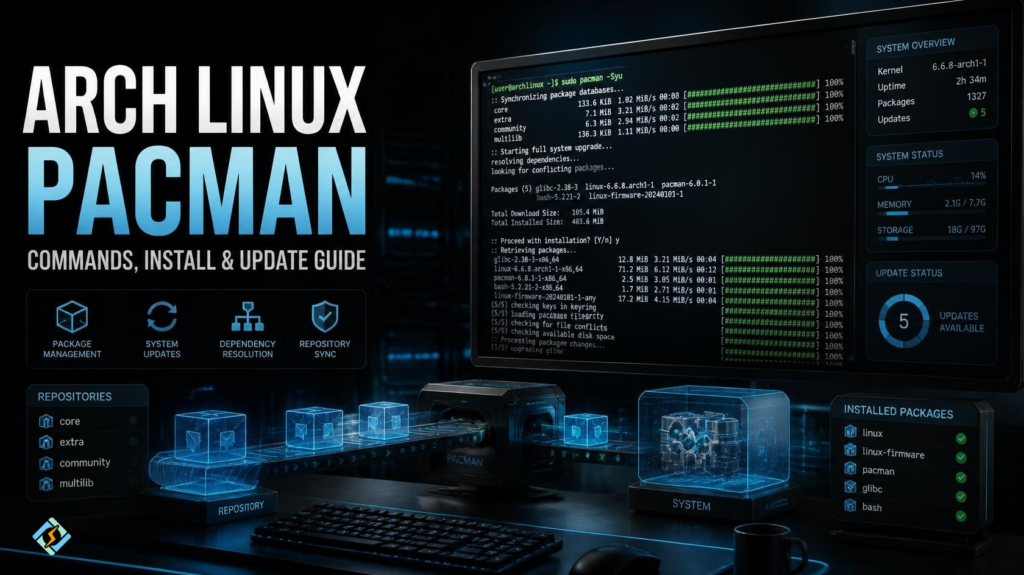
Arch Linux Pacman is the default package manager used by Arch Linux to install, update, remove, and manage software. The command-line tool is known simply as pacman, and it is one of the core parts of the Arch Linux experience.
Unlike package managers designed around graphical interfaces, Pacman gives Arch Linux users direct control from the terminal. Its commands are short, consistent, and powerful, which makes it an important tool to learn if you use Arch Linux.
Let’s get into Pacman Arch Linux!
What Is Pacman in Arch Linux?
Pacman is the package manager developed for Arch Linux. It manages packages from configured repositories and handles dependencies required by installed software.
The relationship is simple:
Arch Linux
↓
Pacman
↓
Repositories
↓
Packages + Dependencies
↓
Installed Software
Pacman can perform several essential tasks:
- Install software
- Remove packages
- Upgrade the system
- Search packages
- Find installed packages
- Display package information
- Manage package databases
- Resolve dependencies
- Reinstall packages
For Arch Linux users, learning Pacman is almost as important as learning basic shell commands.
Why Is Pacman Important?
Arch Linux follows a rolling-release model. Instead of waiting for a completely new operating system version every few years, users continuously receive updates.
Pacman is central to this process.
A typical Arch Linux update starts with:
sudo pacman -SyuThis synchronizes the package databases and upgrades installed packages.
Keeping the system updated is important because Arch Linux packages change frequently.
How Do You Install a Package With Pacman?
The basic installation command is:
sudo pacman -S package-nameFor example, to install Git:
sudo pacman -S gitPacman checks the configured repositories, finds the requested package, resolves its dependencies, and installs it.
You can install multiple packages in one command:
sudo pacman -S git vim curlThis is one of the reasons Pacman is convenient for command-line software management.
How Do You Update Arch Linux With Pacman?
The recommended full system upgrade command is:
sudo pacman -SyuThe options perform different jobs:
- -S synchronizes packages
- -y refreshes package databases
- -u upgrades outdated packages
You should normally perform a complete system upgrade rather than updating individual packages while leaving the rest of the system outdated.
This matters because Arch Linux is a rolling-release distribution.
How Do You Remove a Package?
To remove a package, use:
sudo pacman -R package-nameFor example:
sudo pacman -R vimPacman also provides options for removing unnecessary dependencies.
For example:
sudo pacman -Rs package-nameThe -s option can remove dependencies that are no longer required by other installed packages.
You have to be careful when removing packages. Always review the list Pacman displays before confirming.
How Do You Search for Packages?
You do not need to know the exact package name before searching.
Use:
pacman -Ss search-termFor example:
pacman -Ss browserThis searches the enabled repositories for matching packages.
You can then install the package you need with:
sudo pacman -S package-nameHow Do You Search Installed Packages?
To search packages that are already installed on your system, use:
pacman -Qs search-termFor example:
pacman -Qs firefoxThe distinction is useful:
| Command | Purpose |
| pacman -Ss term | Search repository packages |
| pacman -Qs term | Search installed packages |
| pacman -Si package | Show repository information |
| pacman -Qi package | Show installed package information |
| pacman -Q | List installed packages |
How Do You Find Information About a Package?
To view information about an installed package:
pacman -Qi package-nameFor repository information:
pacman -Si package-nameThese commands can show details such as:
- Version
- Architecture
- Description
- Dependencies
- Installation size
- Packager
- Build date
- Repository
This can help you understand exactly what is installed before making changes.
How Do You List All Installed Packages?
Use:
pacman -QThis displays packages currently installed on your Arch Linux system.
You can also count them:
pacman -Q | wc -lThis can be useful when auditing a system or preparing for migration.
How Do You Find Which Package Owns a File?
Pacman can help identify which installed package owns a particular file.
Use:
pacman -Qo /path/to/fileFor example:
pacman -Qo /usr/bin/bashThis is particularly useful when troubleshooting configuration files or system binaries.
Pacman vs APT
Users coming from Ubuntu or Debian often compare Pacman with APT.
Both are package management systems, but their commands differ.
| Task | Pacman | APT |
| Install | pacman -S package | apt install package |
| Update databases | pacman -Sy | apt update |
| Upgrade system | pacman -Syu | apt upgrade |
| Remove | pacman -R package | apt remove package |
| Search | pacman -Ss term | apt search term |
| Installed info | pacman -Qi package | apt show package |
If you switch from Ubuntu to Arch Linux, Pacman’s syntax may feel unfamiliar initially. After a few days, the command structure becomes much easier to remember.
Can Pacman Install Software From the AUR?
Not directly.
This is an important point for people searching for pacman Linux.
The Arch User Repository (AUR) is separate from the official Arch Linux repositories.
Pacman manages packages from configured repositories, while AUR packages generally require an AUR helper or manual build process.
Popular AUR helpers include tools such as yay and paru.
For example, an AUR helper may provide commands similar to:
yay -S package-nameHowever, AUR packages are user-maintained build recipes. You should inspect them before installing anything, particularly on important systems.
Can Pacman Be Used on Other Linux Distributions?
Pacman is primarily associated with Arch Linux and Arch-based distributions.
Some other distributions may use Pacman or provide compatible package-management workflows. Still, you should not assume that Pacman commands can safely replace the native package manager on Ubuntu, Debian, Fedora, or other distributions.
For example:
Arch Linux       → Pacman

Ubuntu/Debian    → APT

Fedora/RHEL      → DNF

openSUSE → ZypperUse the package manager designed for your distribution.
Can CyberPanel Use Pacman?

CyberPanel is a web hosting control panel. It is designed for supported server operating systems and their corresponding package ecosystems.
Pacman is therefore not a replacement for the package-management system used by a CyberPanel production server.
If you are managing a CyberPanel server, use the operating system and package manager supported by your server environment.
For example, the general relationship is:
Supported Linux OS
↓
Native Package Manager
↓
CyberPanel
↓
Web Hosting Services
Pacman is excellent within its Arch Linux environment, but that does not make Arch Linux automatically suitable for every server application or hosting control panel.
Common Pacman Commands
Keep these commands handy if you regularly use Arch Linux:
# Update the complete system

sudo pacman -Syu

# Install a package

sudo pacman -S package

# Remove a package

sudo pacman -R package

# Search repositories

pacman -Ss keyword

# Search installed packages

pacman -Qs keyword

# Show installed package information

pacman -Qi package

# List installed packages

pacman -Q

# Find which package owns a file

pacman -Qo /path/to/fileThese commands cover most basic package-management tasks.
Final Thoughts!
Arch Linux Pacman is one of the defining tools of the Arch Linux ecosystem. It gives users direct control over software installation, updates, dependencies, package searches, and system maintenance.
The most important command to remember is:
sudo pacman -SyuFor everyday use, also learn -S for installation, -R for removal, -Ss for repository searches, and -Q for installed-package queries.
If you are moving from Ubuntu or another Linux distribution, Pacman’s syntax may take some practice, but its compact command structure quickly becomes familiar.
For Arch Linux users, learning Pacman means learning one of the core tools that keeps the entire system maintained.
People Also Ask
Is Pacman difficult to learn?
No. The command structure is compact and consistent. Once you understand installation, removal, searching, and system upgrades, most everyday Pacman tasks become straightforward.
Can Pacman downgrade a package?
Pacman can install a specific package version when that version is available, but downgrading is not something you should do casually. Version compatibility and dependencies need to be considered.
Why does Pacman sometimes ask for confirmation?
Pacman shows you the packages it plans to install, upgrade, or remove before making changes. Review this list carefully, especially when removing software or performing a large system upgrade.