On this page
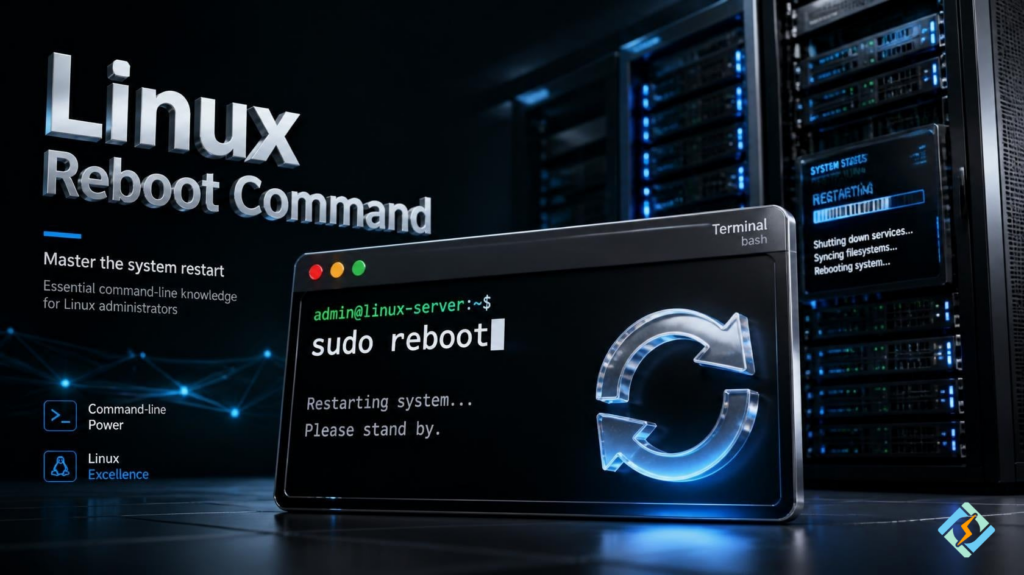
The Linux reboot command is used to restart a Linux computer or server from the terminal. In most cases, you can simply run sudo reboot and let Linux handle the shutdown and startup process.
That sounds simple, and it is. The situation changes when the machine is a remote server. A reboot will disconnect SSH, stop running services, and make websites or applications unavailable until the system comes back.
So, before restarting Linux, it helps to know which command to use and whether you actually need a full reboot.
If you need to restart a Linux machine from the terminal, the command is:
sudo rebootThat’s usually all there is to it.
The interesting part starts when the machine isn’t sitting in front of you. On a remote VPS, for example, running that command will kill your SSH session, stop the services on the server, and leave you waiting for the machine to come back. So the command itself is easy. Knowing when to use it, and what will happen afterward, is more useful.
'sudo reboot' Is Usually Enough
Open a terminal and run:
sudo rebootLinux will begin its normal shutdown process and then start again. You may be asked for your password first.
There is no special syntax you need to remember for Ubuntu, Debian, Linux Mint, or most other common distributions.
You may also see this:
sudo systemctl rebootOn a system using systemd, that sends the reboot request through systemd directly. For a normal restart, you can use either.
I would generally use sudo reboot when I just want the machine restarted and move on.
Sometimes You Don’t Want An Immediate Restart
Suppose you’re administering a server and someone else is still connected to it. An instant reboot is probably not what you want.
That’s where shutdown becomes handy.
sudo shutdown -r +10The -r tells Linux to restart instead of shutting down completely. +10 means ten minutes from now.
You can cancel it with:
sudo shutdown -cOr, if the server can be restarted right away:
sudo shutdown -r nowThere are several commands that can accomplish the same basic job. You don’t need to memorize all of them. reboot is the simple one. shutdown becomes useful when timing matters.
What Happens After You Type The Command?
Your terminal doesn’t just disappear because something went wrong.
Linux is shutting down.
Running services are stopped, the system finishes its shutdown work, and the machine starts its boot process again. On a physical computer, you’ll eventually see the normal login screen. On a server, you’ll usually notice something different first: your SSH connection drops.
For example:
After running:
rebootthe connection ends.
That’s expected. The computer you’re connected to no longer has an operating system accepting that SSH connection.
Give it some time and try again.
How long you have to wait depends on the machine. A small VPS may return quickly. A physical server doing hardware initialization can take longer.
Don’t Reboot Just Because Something Stopped Working
This is probably the more important habit to develop.
Let’s say a website has stopped responding. You could reboot the entire server, and there’s a decent chance the website will work again afterward.
But what actually went wrong?
If Nginx is the problem, restarting Nginx is a much smaller operation:
sudo systemctl restart nginxThe same principle applies to other services.
A reboot affects the whole machine. A service restart does not.
That matters when one server is hosting several websites, databases, containers, or background jobs. Restarting everything to fix one broken process creates unnecessary downtime and also makes troubleshooting harder.
Sometimes a reboot is exactly what you need. It shouldn’t automatically be the first thing you try.
A Quick Look Before Restarting
On a personal computer, you probably don’t care who is logged in or what the server is doing.
On a shared or production machine, you should.
This:
uptimegives you a quick view of how long the system has been running and its current load.
This:
whoshows users currently logged in.
If you’re trying to restart because of a particular service, check that service first:
sudo systemctl status nginxYou might find an obvious error without restarting anything.
That’s often more useful than rebooting and hoping the problem disappears.
The Kernel Is One Reason A Reboot May Actually Be Necessary
A Linux kernel update is a good example of a situation where restarting makes sense.
Check the kernel currently running:
uname -rIf you’ve installed a newer kernel, Linux doesn’t normally switch the running system to it immediately. The new kernel is used when the machine boots again.
So after the update, you may need:
sudo rebootOnce the machine is back:
uname -rRun it again and check the version.
This is different from restarting a web server. You’re not trying to recover a process. You’re trying to boot the machine with a different kernel.
What About Linux Mint?
The Linux command for reboot doesn’t change just because you’re using Linux Mint.
You can use:
sudo rebootor:
sudo systemctl rebootThe desktop environment doesn’t alter the basic command used to restart the operating system.
You can, of course, restart Mint from its graphical menu. But when you’re already working in a terminal, typing the command is quicker.
Difference Between Rebooting and Shutting Down
These two operations are easy to mix up.
For a restart:
sudo rebootFor a complete shutdown:
sudo poweroffYou can also use:
sudo shutdown nowThe first brings the machine back up. The other commands leave it powered off.
It sounds obvious, but the distinction becomes important when you’re working remotely. If you shut down a physical machine with no remote power management, you may not have any way to turn it back on.
What If Reboot Doesn’t Work?
First, make sure you’re actually running it with administrative privileges:
sudo rebootIf sudo reports that you’re not allowed to perform the operation, that’s a permissions issue rather than a reboot problem.
On a system using systemd, you can try:
sudo systemctl rebootIf Linux accepts the request but appears to hang during shutdown, don’t immediately keep throwing more reboot commands at it. A force reboot can be useful when a normal reboot fails, but it should be treated as a last resort.
Look at the logs instead.
For example:
journalctl -b -1This can show messages from the previous boot and may reveal a service or system component that caused trouble.
The useful question at that point isn’t “which reboot command should I try next?”
It’s “what stopped the machine from shutting down normally?”
Those are very different troubleshooting approaches.
A Reboot Does Not Fix The Underlying Problem
This is easy to overlook because rebooting often appears to work.
Imagine a server has been running out of memory. You restart it, memory usage drops, and everything looks fine.
A few days later, the same thing happens.
The reboot didn’t fix the memory problem. It simply gave the machine a clean start.
The same can happen with disk space, runaway processes, application crashes, broken services, and other recurring issues.
If you find yourself rebooting the same server every few days, investigate the reason rather than turning the reboot command into a maintenance routine.
Linux servers can run for long periods without being restarted. There is no general rule saying that a Linux machine needs a weekly or monthly reboot.
What Happens to Docker Containers?
A reboot also affects containers running on the machine.
Whether those containers return afterward depends on how Docker and the containers have been configured.
For a production system, don’t assume that “it was running before the reboot” means “it will automatically run after the reboot.”
Test it.
The same applies to databases, web servers, queues, monitoring agents, and other services.
A useful maintenance habit is to know what your machine should look like after a reboot before you actually need to reboot it during an emergency.
Managing a CyberPanel Server

CyberPanel is a free and open-source web hosting control panel. It may be the interface you use to manage your hosting environment, but the server underneath is still a Linux system.
So if the entire machine needs restarting, the Linux command remains:
sudo rebootThe more interesting question is whether the entire server needs restarting.
If one hosting service is having trouble, investigate that service first. Taking the whole server offline can affect every website and application running on it.
For routine server administration, knowing the difference between a system reboot and a service restart is much more valuable than knowing several variations of the same reboot command.
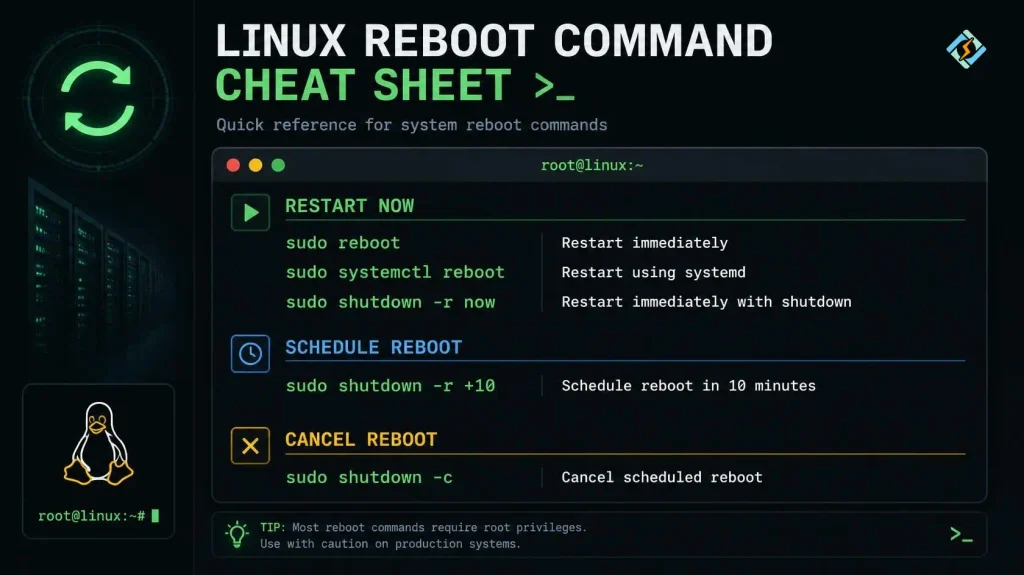
Which Reboot Command Linux Should You Use?
What Should You Check Before Rebooting Linux?
A reboot is usually safe, but it can interrupt active work and disconnect users from the server. Before restarting a production or remote machine, check whether important tasks are still running.
Check logged-in users with who, review the current system load with uptime, and make sure critical services are working as expected. If you are connected through SSH, remember that your session will close as soon as the reboot begins.
On a server hosting websites or applications, it is also worth checking for ongoing deployments, database operations, backups, or other tasks that should finish first. A few quick checks can prevent an unnecessary service interruption.
FAQs
Can I reboot Linux from an SSH session?
Yes. Run sudo reboot after connecting to the machine. Your SSH session will terminate because the server is shutting down. Once it has booted and networking is available again, you can reconnect.
Does rebooting Linux erase anything?
A normal reboot does not erase your files. It restarts the operating system. You should still save active work and avoid interrupting applications that are performing important write operations.
Can a Linux server reboot by itself?
It can, although an unexpected reboot needs investigation. Hardware problems, kernel crashes, hosting-provider actions, power failures, and configuration issues can all be involved.
Is rebooting Linux safe?
A normal reboot is a standard operating system operation, but it is not risk-free on a production machine. Unsaved work, active connections, running services, and poorly configured applications can be affected. Plan server reboots during an appropriate maintenance window.
Will a Linux reboot delete my files?
A normal reboot does not delete files. It shuts down the running operating system and starts it again. You should still save active work and avoid interrupting operations that are writing important data.
The Command is Simple. The Decision Isn’t Always.
If all you wanted was the reboot Linux command uses, remember this:
sudo rebootThat’s the command.
The useful part of Linux administration comes afterward: knowing what will stop, checking whether a full restart is really necessary, and finding out why a machine needs repeated reboots in the first place.
For a desktop, restarting is usually routine. For a production server, it should be a deliberate action.
If you’re using a Linux VPS to host websites, don’t make every routine task a command-line job. CyberPanel gives you a simple web interface for managing your hosting environment while keeping the power of Linux underneath.
Install CyberPanel on your Linux VPS today and start managing your hosting server with less command-line work.