
On this page
A tarball in Linux is the most popular method for packaging files and directories into a single, compact archive. You might come across tarballs when obtaining source code, making backups, transferring data between systems, or distributing applications.
Though they are quite old, tarballs are still very much a thing in 2026. Besides being super fast, the tar command is efficient, reliable, and works on every Linux distribution. Because the command looks complicated at first glance, many users end up searching for ways to create a tarball in Linux or even what a tarball is.
After you get familiar with the structure and purpose of a tarball, it is actually one of the most valuable Linux skills you can acquire. This tutorial uses simple language to explain what a tarball is, shows the creation and extraction process, and applies the concept to real-world scenarios without adding any unnecessary complexity.
What is a Tarball in Linux?
A tarball is a collection of files and directories bundled into a single file using the tar command. That makes it easier to manage.
Here are some important points:
- By default, a tarball is not compressed
- It keeps the same permissions and ownership of the files
- It saves the directory structure as it is
- It is widely used for backup and source code distributions
The most common extensions for tarballs are:
.tar.tar.gz.tar.bz2.tar.xz
Compression is optional and added separately.
Why Tarballs Are Still Used in Linux?
Tarballs stay on the list of popular choices just because they remain simple and powerful tools.
Some reasons why Linux users keep using tarballs:
- They are supported universally across all distros.
- Excellent choice for making backup copies and transferring them.
- Compatible with SSH and automation.
- Very good at preserving the original metadata.
- Simple to create and now extract.
Package managers can be changed, but tarballs will remain the same.
How the Tar Command Works
The tar command started as atape archive, but today it is used for files, not tapes.
Basic syntax:
tar [options] archive-name files-or-directories
Key flags you must know:
c→ create archivex→ extract archivev→ verbose outputf→ specify file namez→ gzip compressionj→ bzip2 compressionJ→ xz compression
Understanding these flags makes tar predictable.
Tarball vs Zip in Linux
| Feature | Tarball | Zip |
|---|---|---|
| Native to Linux | Yes | No |
| Preserves permissions | Yes | Limited |
| Compression options | Multiple | Limited |
| Automation friendly | Yes | Less |
| Common for source code | Yes | No |
How To Create A Tarball In Linux
Create A Simple Tarball
This creates an uncompressed tarball.
tar -cvf archive.tar foldername/
What this does:
- Combines the folder into one file
- Keeps original structure
- No compression applied
This is useful for fast archiving.
How To Create Tarball In Linux With Gzip
This is the most common format.
tar -czvf archive.tar.gz foldername/
Why gzip tarballs are popular:
- Smaller file size
- Fast compression
- Supported everywhere
This format is ideal for downloads and backups.
How To Make A Tarball In Linux With Bzip2
Bzip2 provides better compression but is slower.
tar -cjvf archive.tar.bz2 foldername/
Use this when:
- Storage space matters more than speed
- Archiving large static files
How To Make A Tarball In Linux With XZ
XZ offers maximum compression.
tar -cJvf archive.tar.xz foldername/
Best used for:
- Long-term storage
- Large source archives
- Distribution releases
How To Extract A Tarball In Linux
Extract A .tar File
tar -xvf archive.tar
Extract A .tar.gz File
tar -xzvf archive.tar.gz
Extract A .tar.bz2 File
tar -xjvf archive.tar.bz2
Extract A .tar.xz File
tar -xJvf archive.tar.xz
Tar automatically detects compression based on flags.
Extract Tarball To A Specific Directory
tar -xzvf archive.tar.gz -C /target/directory
This prevents cluttering the current folder.
How To List Contents Of A Tarball
You can view files without extracting.
tar -tvf archive.tar.gz
This is useful before installation or deployment.
Create Tarball From Multiple Files And Folders
tar -czvf archive.tar.gz file1 file2 folder1/
Tarballs can include any combination of paths.
Exclude Files While Creating Tarball
tar -czvf archive.tar.gz foldername/ --exclude=foldername/cache
Common exclusions:
- Logs
- Cache directories
- Temporary files
Real-World Uses Of Tarball In Linux
Tarballs in Linux are part and parcel of everyday life.
Examples of the most common use:
- Backing up data on servers
- Packaging source code
- File sharing through SSH
- Creating deployment artifacts
- Archiving logs
Tarballs are elementary yet highly potent.
Best Practices When Using Tarballs
Ensure your safety by following these tips:
- Always check the contents first with a listing
- Avoid extracting as root except when necessary
- Be very cautious when using absolute paths
- Don’t include unwanted files
- Give your archives a meaningful name
Little habits can save a lot of trouble.
Role Of CyberPanel In Linux File Management
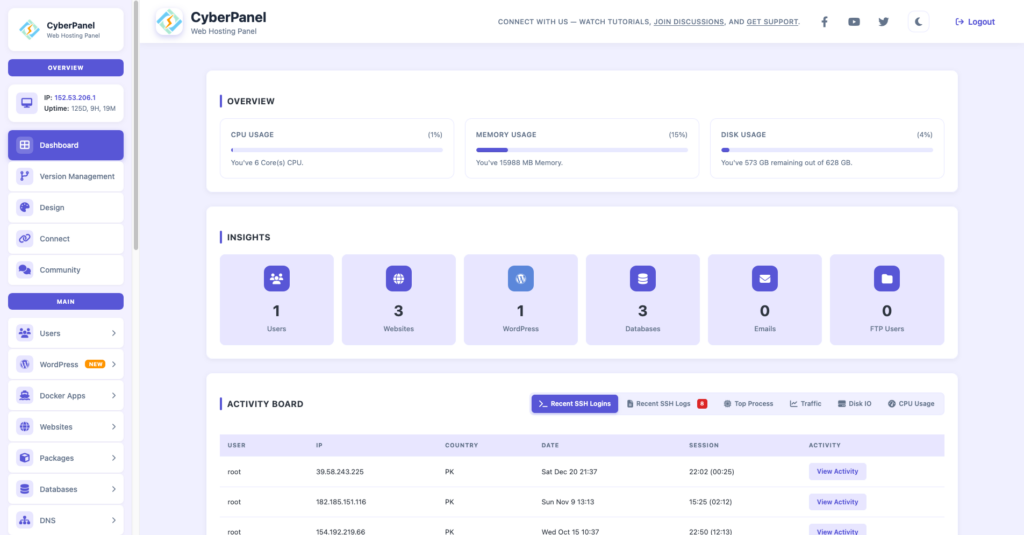
CyberPanel is a free web hosting control panel powered by OpenLiteSpeed. Though a tarball in Linux is great for backup and file transfer, CyberPanel takes the hassle out of application-level backup and restore. Tarballs and CyberPanel are a great combination when handling server, deployment, and recovery operations.
Conclusion
A tarball in Linux is one of those tools that are still simple, efficient, and necessary even in 2026. Once you get the hang of creating, extracting, and handling tarballs, you will have the whole file packaging and transfer operation under your command. This is a skill that every Linux user should master.
People Also Ask
Why do developers prefer tarballs?
They preserve structure and permissions accurately.
Is a tarball the same as a compressed file?
No. Compression is optional and added separately.
Can tarballs be password-protected?
Not directly. Encryption requires extra tools.