On this page
Those who care for speed, control, and minimalism among Linux users tend to look beyond the traditional desktop environments. Heavy interfaces can be resource-hungry, slow down workflows, and complicate things without a need. This is the reason why Sway Linux has become popular with power users, developers, and enthusiasts who want a clean and efficient experience.
Sway is a tiling window manager for Wayland, created as a contemporary replacement of the old X11-based configurations. Among other things, it provides a keyboard-only operation mode, enhanced security, more fluid graphics handling, and a very low resource usage. Rather than repositioning windows one by one by hand, Sway arranges them automatically to help users get the most out of their time. People who have to stay in terminals for a long time, do coding, or server management, will find this method quicker and more concentrated.
Many Linux Sway users want to know what is behind it, how it differs from traditional desktops, and whether it is compatible with distributions like Alpine Linux. Meanwhile, some of the people also want to personalize the appearance of their interface by, for example, using the sway bar Linux status panel to display real-time system information.
In this guide, you’ll learn what Sway Linux is, how it works, how to install it, how the sway bar functions, and why it’s becoming a popular choice for lightweight Linux setups. We’ll also cover how CyberPanel fits into workflows where efficiency and minimal systems matter.
What Is Sway Linux?
Sway Linux is a tiling window manager built on Wayland that organizes windows automatically, and navigation by keyboard is possible, allowing you to work faster.
Besides that, it is 100% compatible with the i3 window manager configuration style, which makes it very easy for existing users to migrate.
Key characteristics:
- tiling window layout
- Wayland-native rendering
- keyboard-focused workflow
- lightweight performance
- minimal resource usage
Instead of trying to be a whole desktop environment, Sway just gives you what you need and lets you figure out and change the rest.
How Does Linux Sway Work?
Linux Sway arranges app windows in tiles automatically, thus there are no overlaps and the screen is used to the max.
When you open app windows:
- split automatically
- layouts adjust instantly
- keyboard shortcuts control movement and resizing
This means that you are productive when you aren’t using the mouse all the time.
For programmers and people multitasking, it is a great tool to focus, as it removes context switching and thus helps to concentrate.
Why Choose Sway Linux Over Traditional Desktops?
Sway Linux is mainly picked for outstanding performance, no nonsense, and up-to-date Wayland support.
The main benefits:
- faster performance on low hardware
- smoother graphics pipeline
- enhanced security through Wayland
- less system overhead
- customizable workflow
Minimalists often feel more productive using Sway than regular desktops.
What Is the Sway Bar Linux Feature?
The Sway Bar Linux element is a user-configurable status bar that shows the operating system’s workspaces, battery, network, and CPU usage.
It is typically located at the top or bottom of the window and allows the user to quickly monitor the status of the system.
Most used modules include:
- workspace indicators
- clock and date
- network status
- audio volume
- CPU and memory usage
Employing the configuration files, you can effortlessly change colors, fonts, and modules.
How to Install Sway Linux
Installation depends on your distribution, but is usually straightforward.
Ubuntu / Debian
sudo apt update
sudo apt install sway
Arch Linux
sudo pacman -S sway
Fedora
sudo dnf install sway
After installation, log out and choose Sway from the session menu.
Alpine Linux Sway Setup
Alpine Linux Sway is popular for ultra-lightweight systems because Alpine itself is minimal and fast.
Install Sway on Alpine Linux using:
apk add sway
Because Alpine focuses on simplicity, Sway fits naturally into its philosophy.
Recommended additions:
- foot or alacritty terminal
- waybar for enhanced status bar
- wl-clipboard for clipboard support
This creates a lightweight but complete environment.
Sway Linux vs Traditional Desktops
| Feature | Sway Linux | Traditional Desktop |
|---|---|---|
| Resource Usage | Very low | Medium to high |
| Window Management | Automatic tiling | Manual |
| Mouse Dependency | Minimal | High |
| Performance | Fast | Moderate |
| Customization | High | Moderate |
| Learning Curve | Medium | Easy |
Basic Sway Linux Workflow Tips
If you are a Sway newbie:
- learn workspace shortcuts at first
- use terminal a lot
- customize config file bit by bit
- keep layouts simple initially
Usually, most users can get along just fine after even a few days of use.
Sway Bar Linux Customization Basics
The standard bar is decent enough, but personalization brings more functionality.
Some popular changes are:
- adding CPU and RAM meters
- displaying the network speed
- telling the battery status
- making workspace colors different
Config file location:
~/.config/sway/configEven simple changes can make the whole look very different.
The Role of CyberPanel in a Sway Linux Workflow
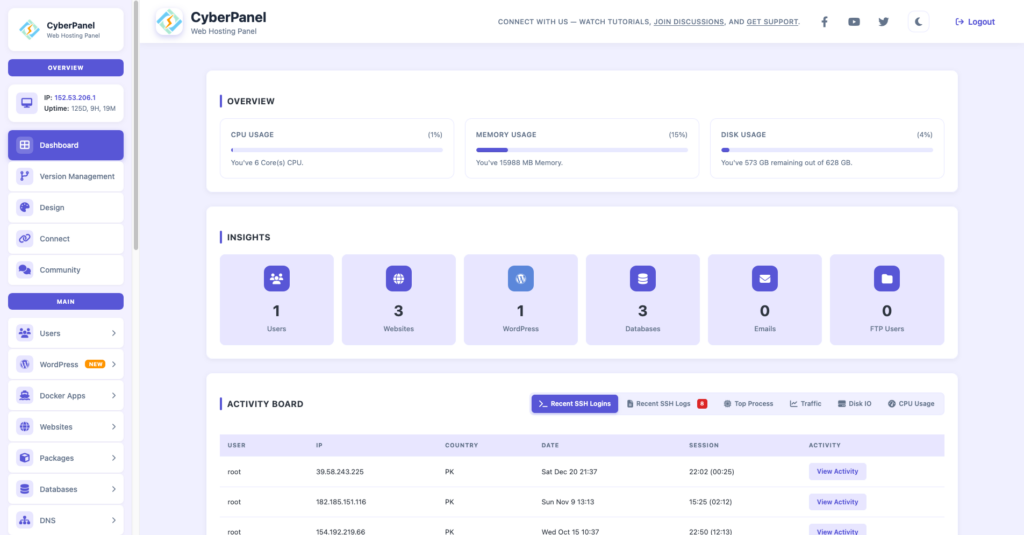
CyberPanel is your web hosting control panel powered by OpenLiteSpeed. Since Sway Linux is a favorite among developers and sysadmins, who want fast and minimal environments, CyberPanel complements it perfectly as it lets you:
- server management from a lightweight Linux setup
- deploy websites quickly
- monitor hosting without heavy dashboards
- keep workflows fast and keyboard-driven
For instance:
- Sway for daily productivity
- CyberPanel for server management
This pairing allows your system to run smoothly while you have complete control over the hosting tasks.
Common Mistakes Beginners Make
Here are the issues you should steer clear of:
- attempting to recreate a full desktop environment right away
- not using keyboard shortcuts
- piling up the configuration early
- disregarding Wayland compatibility checks
Take the first step to be simple.
Then grow your ways bit by bit.
Final Thoughts!
With a view to the fact that you want an operating system that is quicker, less cluttered, and more focused on Linux, Sway Linux goes a long way. It swaps the crowded UIs for the productive tiling layouts, and at the same time, it leverages the new aspects of the Wayland technology.
If you are a developer, a sysadmin, or simply a user who values productivity, Sway is capable of reinventing your Linux experience. It not only pairs perfectly with CyberPanel for server management but also lets you enjoy a fully efficient, high-performance workflow that’s totally oriented towards your convenience.
Put Sway Linux on your computer right now, grab the basic keyboard shortcuts, and see for yourself whether your Linux productivity can be increased to the maximum and done in no time.
People Also Ask
Why do people use Alpine Linux Sway together?
Both are lightweight and minimal, making them ideal for fast systems and low-resource devices.
Can I use a mouse in Sway?
Yes. Mouse support exists, but keyboard navigation is the main focus.
Does Sway Linux support gaming?
Yes, but compatibility depends on Wayland support for specific games and drivers.