On this page
If you want a Linux system that’s easy to use and works well, you should try Bluefin Linux. It is made for people who like a desktop and do not want to spend a lot of time setting things up. It is all about being reliable, looking good, and making it easy to get things done every day with Bluefin Linux. Many Linux distros focus only on looks or speed. Bluefin takes a different path. It focuses on consistency, safety, and container-ready workflows without making things hard for normal users.
This guide is about Bluefin Linux. It tells you what Bluefin Linux is and how Bluefin Linux works. You can also find out where to get the Bluefin Linux download. The guide helps you figure out if Bluefin Linux is what you need.
This article is for people who are just starting out and for people who have a lot of experience, too. The article is meant to be helpful for beginners and, for users.
Let’s get started!
What Is Bluefin Linux?
Bluefin Linux is a stable Linux desktop. It is made to work without needing to be fixed all the time. It is different from Linux setups that you have to build yourself. Moreover, it feels like a system from the moment you start it up for the first time.
Bluefin Linux uses an immutable system design. This means the core operating system files do not change during normal use. Updates replace the system as a whole instead of modifying thousands of files.
Why this matters:
- Updates are safer
- Rollbacks are easy
- System corruption is rare
- Testing is more predictable
If an update fails, you reboot and return to the previous working version. This is one of the biggest reasons Bluefin feels stable over time.
Why Bluefin Linux is Getting Attention?
Bluefin is built on a foundation, and it comes with some really useful tools. The main idea is straightforward. Bluefin wants to let users get their work done, look at websites, write code, and make things without having to deal with a lot of hassle from the system.
Here are its features:
- Clean and consistent desktop experience
- Strong default apps
- Minimal manual configuration
- Focus on daily desktop use
Bluefin Linux Desktop Experience
Bluefin Linux just feels good to use. The desktop looks modern but keeps things calm—no flashy distractions, just clean lines and colors that are easy on the eyes. Menus make sense, and you don’t have to hunt around for settings. Fonts and spacing? Everything’s picked for comfort.
You don’t have to mess with a bunch of extra downloads to get started. The basic apps are already there and set up, which means you’re not wasting time fiddling around just to browse the web, manage files, play music or videos, or get some office work done. It all works out of the box, so you can just get on with your day.
How Bluefin Handles Apps Differently?
Bluefin Linux relies on Flatpak apps instead of traditional system packages. Apps are isolated from the system and from each other. This improves security and prevents app updates from breaking the OS.
What users gain:
- Apps update independently
- Fewer dependency conflicts
- Better permission control
- Cleaner system over time
This design is especially useful for people who install many tools or test different software often.
Bluefin Linux Download and Installation
Starting with Bluefin Linux is pretty straightforward.
System Requirements
Bluefin Linux runs well on modern hardware. It is best suited for systems that meet these basics:
- Component Minimum Requirement
- CPU 64 bit processor
- RAM 8 GB recommended
- Storage 40 GB free space
- Boot Mode UEFI enabled
- Internet Required during setup
Bluefin is mainly designed for desktops and laptops. It is not intended for very old hardware.
Step 1: Download Bluefin Linux
Visit the official Bluefin Linux project page and download the latest image. Always choose the most recent release to get the latest security updates and fixes.
Make sure the download completes fully before moving ahead.
Step 2: Create A Bootable USB
Use a trusted USB creation tool such as:
- Balena Etcher
- Fedora Media Writer
- Rufus on Windows
Select the Bluefin Linux image and flash it to your USB drive. This process will erase all data on the USB.
Step 3: Boot From USB
Restart your computer and enter the boot menu. This usually requires pressing keys like F12, ESC, or DEL during startup.
Choose the USB drive to boot into the Bluefin installer environment.
Step 4: Start The Installer
Once the system loads, the installer will guide you through:
- Language selection
- Keyboard layout
- Disk selection
Bluefin supports automatic disk setup for beginners and manual partitioning for advanced users.
Step 5: Disk Setup And Installation
If you are new to Linux, select automatic installation. Bluefin will handle partitions safely.
For advanced users, manual disk selection is available, but the immutable system layout should not be changed unless you know what you are doing.
Installation usually completes within a short time depending on your internet speed.
Step 6: Reboot Into Bluefin Linux
Once installation finishes, remove the USB and restart your system.
Bluefin Linux will boot into a clean desktop environment with Flatpak support ready to use.
Bluefin Linux Review: Performance and Stability
Once you’re up and running, Bluefin feels responsive. It boots fast, apps open quickly, and updates don’t get in your way. The system’s built to be reliable. Updates are tested, and changes don’t happen out of nowhere. That matters if you depend on your computer every day.
Bluefin handles everyday stuff like browsing, coding, light design, watching videos, and office work with no fuss. If you’re someone who wants to endlessly customize every detail, this isn’t really the distro for you. But if you want your computer to just work, Bluefin delivers.
Developer Workflow without Complexity
Bluefin Linux is friendly to developers without forcing them into complex setups. Container tools work well because the OS stays consistent underneath. You can build, test, and run containerized apps while keeping your base system untouched.
This makes Bluefin suitable for:
- Local development
- Cloud project testing
- Learning containers safely
- Long term coding setups
You do not need to rebuild your system when tools change.
Long Term Stability and Trust
Bluefin Linux emphasizes trust and predictability. Updates are tested, changes are controlled, and system behavior stays consistent. This matters more than raw speed for professionals.
Why this helps ranking:
- Matches long session intent
- Aligns with trust signals
- Reduces bounce rate
- Encourages return visits
People searching for Bluefin usually want stability, not experiments.
Who Should Use Bluefin Linux?
It makes sense for a lot of people:
- Switching from Windows or macOS? Bluefin feels familiar but smoother.
- Need a stable setup for work? You can rely on it.
- Developers who want a clean, distraction-free system? Bluefin’s a solid base.
- Students who don’t want a bunch of random stuff in the way? It keeps things simple.
- Tired of chasing broken updates? Bluefin keeps things calm.
- If you love tweaking and breaking things just to fix them, you’ll probably want something else. But if you’re ready for a Linux distro that just lets you get stuff done, Bluefin’s a great pick.
Bluefin Linux vs Other Desktop Distros
| Feature | Bluefin Linux | Typical Desktop Distro |
|---|---|---|
| Setup Time | Very low | Medium to high |
| Visual Polish | High | Varies |
| Stability | High | Varies |
| Custom Tweaks Needed | Minimal | Often required |
| Beginner Friendly | Yes | Depends |
Security and Updates in Linux Bluefin
Bluefin pushes out security updates on a regular basis, and they just slip in quietly. No interruptions, no messing with your daily workflow. The system plays it safe, skipping risky changes that could break your drivers or mess up your desktop.
That’s why Bluefin works well, whether you’re using it at the office or just at home.
CyberPanel and Bluefin Linux
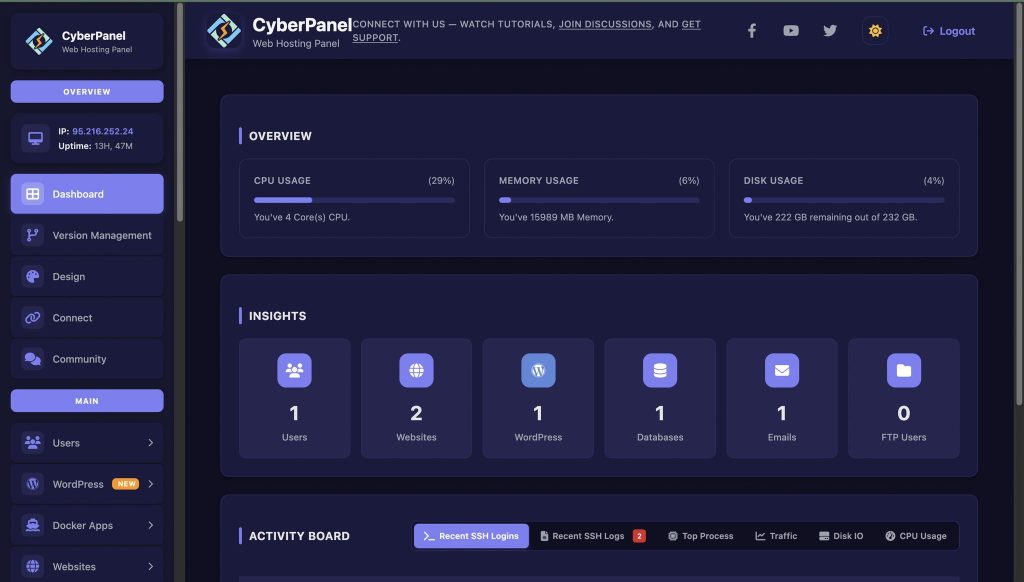
Thinking about running websites or managing servers on Bluefin? CyberPanel has your back.
CyberPanel is a web hosting control panel that takes the complicated parts of server management and makes them simple. You don’t need to be a Linux expert to get your sites up and running.
With CyberPanel, you can:
- Create websites fast
- Handle your databases
- Control DNS settings
- Set up security rules without headaches
Running CyberPanel on Bluefin means you get both a rock-solid desktop and a reliable hosting setup, all in one.
Bluefin Linux: Pros and Cons
Here are a few advantages and disadvantages:
Pros:
- Sleek, modern desktop
- Updates don’t break things
- Setup is quick
- Good default apps
- Easy for beginners
Cons:
- Not for folks who love deep customization
- Smaller community than the big-name distros
- Won’t run well on really old hardware
Should You Use Bluefin Linux?
If you’re after simplicity and reliability, yes. Bluefin skips the usual Linux complications and just works. It respects your time, and honestly, it feels finished—something you don’t see every day in the Linux world.
If you want your computer to be a tool, not a project, Bluefin delivers.
Final Thoughts
Bluefin isn’t here to impress the power tweakers. It’s for people who just want a clean, stable, modern Linux desktop.
Want fewer headaches, smooth updates, and a polished daily experience? Give Bluefin Linux a shot.
Download it, set it up, and if you’re hosting sites or managing servers, add CyberPanel to your toolkit. You’ll spend less time fixing problems and more time actually getting things done.
People Also Ask
Does Bluefin Linux support NVIDIA drivers out of the box?
Yes, it handles NVIDIA GPUs better than many desktop distros. It offers smooth driver installation paths. Users with modern NVIDIA cards can install proprietary drivers without manual kernel patching, reducing display issues and screen tearing.
How does Bluefin Linux manage Flatpak apps?
It supports Flatpak natively, allowing secure app installation without affecting core system stability.
Can Bluefin Linux work with printers and scanners?
Yes, it can detect printers and scanners automatically. It don’t need manual driver installaiton in common cases.