On this page
Making USB tools bootable in Linux is generally a bit tricky than they should be. You are only able to use one ISO at a time. You keep reformatting the drive. The boot menus keep getting corrupted. Ventoy Linux solves the whole problem with just one step. It is a complete different thing how Linux users make bootable USB drives after this.
With Ventoy for Linux you can have as many ISO files as you want on a single USB drive and then boot any of them directly. There is no need to extract files. There is no need to recreate the USB every time. What you do is just dropping the ISO and going. As a result, Ventoy Linux is phenomenal to be used by system administrators, penetration testers, distro hoppers, and any one of them that installs Linux frequently.
A lot of people end up searching for “how to install Ventoy on Linux” or “how to use Ventoy on Linux” because most guides either skip important steps or make things way more complicated than they need to be. This article is different. You’ll see exactly how Ventoy works, how to install it safely, how to use it the right way, and which mistakes to avoid.
If you spend serious time with Linux, Ventoy isn’t just a nice-to-have—it’s a must. It’ll save you hours.
What is Ventoy Linux?
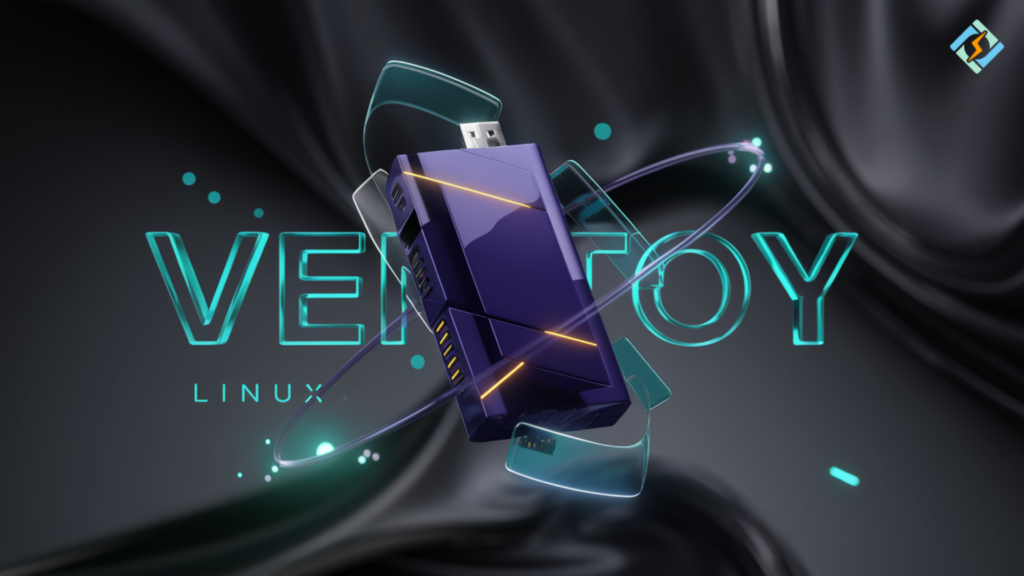
Ventoy Linux is an open-source bootloader tool that transforms your USB drive into a multi-ISO boot device. Instead of writing one OS image at a time, you install Ventoy to your USB once. From there, you just copy ISOs onto it.
Boot from the USB, and Ventoy gives you a menu with all your ISO files. Pick one, boot it. No file conversions. No extracting. Just straight to business.
Why does this matter?
- It saves you time.
- It cuts down on USB wear and tear.
- You can pack dozens of Linux distros on one stick.
- It works with both Windows and Linux ISOs.
- Both BIOS and UEFI systems are covered.
And here’s the big one: Ventoy never changes your ISO files. It boots them exactly as they are. That’s what sets it apart.
How Ventoy Works On Linux
Ventoy operates by an extremely simple bootloader that is installed the USB device. The USB is divided into two partitions:
- A very small system partition for Ventoy.
- A large data partition for ISO files
First, Ventoy is loaded. Then, it looks through the data partition. Afterwards, it shows all the supported ISO files. Finally, you decide which one to boot. Such a plan practically allows you to:
- Have the freedom to add or remove ISOs at any time
- Be able to keep the tools and the installers together
- Have the possibility of updating ISOs without the need of reinstalling Ventoy
This is the reason why it is so important to know how to properly use Ventoy on Linux.
How To Install Ventoy On Linux Step By Step
Installing Ventoy Linux is simple, but one mistake can wipe the wrong drive.
Step 1: Download Ventoy For Linux
Download the official Ventoy Linux archive from the Ventoy project page. You will receive a compressed file.
Extract it:
tar -xvf ventoy-*.tar.gz
cd ventoy-*
Step 2: Identify Your USB Device
Before installation, identify your USB device clearly.
Run:
lsblk
Look for your USB drive. It will usually appear as /dev/sdb or /dev/sdc.
Important:
Do not guess. Choosing the wrong device will erase your system drive.
Step 3: Install Ventoy On The USB
Run the installation command:
sudo ./Ventoy2Disk.sh -i /dev/sdX
Replace /dev/sdX with your actual USB device.
Confirm when prompted.
Ventoy will format the USB and install its bootloader.
Step 4: Verify Installation
Once finished, unplug and replug the USB.
You should see a large empty partition ready for ISO files.
That’s it. Ventoy Linux is installed.
How to Use Ventoy Linux Properly?
Now, lets learn to use Ventoy Linux properly. This is where Ventoy becomes powerful.
Adding ISO Files
You have to simply copy ISO files to the USB:
cp ubuntu.iso /media/ventoy/
cp archlinux.iso /media/ventoy/
cp kali.iso /media/ventoy/
No extraction. No tools.
Booting with Ventoy on Linux
Following is the entire workflow for how to use Ventoy Linux:
- You have to plug the USB into your system.
- Then, boot from USB.
- Ventoy menu will appear.
- Afterwards, select the ISO.
- Finally, boot.
| Feature | Ventoy Linux | Traditional Tools |
|---|---|---|
| Multiple ISOs | Yes | No |
| Reformat Required | No | Yes |
| ISO Copy Method | Drag and drop | Image write |
| Update Ease | Very easy | Time consuming |
| Learning Curve | Low | Medium |
Use Cases of Ventoy Linux
You can use Ventoy for:
- Multi-distro testing
- System recovery kits
- IT support USBs
- Penetration testing labs
- Offline Linux installation packs
Believe me, once you use it, you will never feel like to go back.
Ventoy Linux Compatibility & Supported Systems
Ventoy for Linux has support for the
Most major Linux distributions
- Live ISOs and installers
- UEFI and Legacy BIOS
- Secure Boot (optional)
- Persistent Storage (Advanced)
Tested and commonly used with:
- Ubuntu
- Debian
- Arch Linux
- Kali Linux
- Fedora
- Linux Mint
Some ISOs might have unique boot parameters, but for most, everything will work fine right out of the box.
Ventoy Linux Persistence Described
Persistence enables modifications to be saved directly on a live system.
Ventoy allows the following methods for persistence
- Persistence image files
- Distro-specific configs
This is helpful in:
- Kali Linux
- Live Recovery Systems
- Portable Linux environments
Persistence configuration differs based on the distribution and should be used appropriately.
Common Issues of Ventoy Linux and its Solutions
Here are a few common problems you might face with Ventoy Linux and respective solutions:
USB Does Not Boot
- Check Boot Mode in BIOS (UEFI vs. Legacy)
- Disable Secure Boot Temporarily
- Reinstallation of Ventoy with the latest version
ISO Not Showing
- Ensure ISO is supported
- Check file extension
- Avoid nested folders if testing
Black Screen After Boot
- Try Alternative Boot Mode in Ventoy Menu
- Upgrade drivers for graphics card later during installation
- Use basic graphics options if available
Ventoy Linux is quite stable, but there are quirks in firmware.
Is Ventoy Linux Safe to Use?
Yes. Ventoy is open-source and heavily auditable. It does not make changes to ISO contents. It only deals with the ISO boot process.
Best practices:
- You should use official ISO sources
- You should verify Checksums
- Do keep Ventoy up to date
Role Of CyberPanel In Linux-Based Deployment Workflows
Ventoy Linux is a tool that makes system installation and recovery easier. CyberPanel is the one that is used after the OS is reinstalled. CyberPanel is an extremely light and easy to use web hosting control panel, which is based on OpenLiteSpeed, perfect for a quick and secure server deployment.
In case of users who are installing multiple Linux systems via Ventoy, CyberPanel serves as a harmonizing tool for the post-install scenarios. It provides the service of a fast web stack, SSL, DNS, containers, and application environments set up without any manual configuration which is very convenient for developers and sysadmins who are frequently reinstalling or testing various Linux distributions.
In short, Ventoy handles how Linux gets installed, and CyberPanel handles how Linux gets used in production.
Final Verdict: Should You Use Ventoy On Linux?
Ventoy Linux is a tool that you should own if your Linux installations exceed once a year. System administrators can’t do without it. USB rebuilding haters will breathe a sigh of relief with it.
Ventoy for Linux is a zero, friction tool. It honors your time. It is in line with how tools should function.
If you are still doing USB rewrites one ISO at a time, which you should not be doing, then just stop. Install Ventoy Linux without delay. Create one USB. Keep it updated. Save time repeatedly every year.
People Also Ask
Does Ventoy Linux work on ARM systems?
Basically, Ventoy is a tool for x86_64 systems. The support for ARM is minimal and only certain devices will work.
Is Ventoy Linux suitable for production servers?
Ventoy is a tool of installation and recovery roles, hence, not suitable for production systems directly.
How often should Ventoy be updated?
You should update Ventoy if there is a change in compatibility with major ISOs or if there is a fix for Secure Boot.